Install the vault, choose a secret that differs from your iPhone passcode, and import one harmless test photo first. Confirm it opens after locking the app, export it back out, then import your real photos, delete the originals from Apple Photos, empty Recently Deleted, and store the recovery phrase somewhere outside the phone.
Before you install: three settings worth knowing
Open Settings → [your name] → iCloud → Photos and note whether iCloud Photos is on. If it is, deleting an original from your iPhone also deletes it from your other Apple devices and iCloud.com once Recently Deleted is emptied — which is what you want for private photos, but only after the vault copy is verified.
Check free space in Settings → General → iPhone Storage. A local vault keeps an encrypted copy on the device, so you briefly need room for both the original and the vault copy during import.
If iCloud Photos uses Optimize iPhone Storage, full-size originals may need to download before a vault can import them. Stay on Wi-Fi for a large first import.
Step-by-step setup with a test photo
These steps use Octoshield, but the same order works for any photo vault app on iPhone: prove the lock and the exit path with something unimportant before moving anything you care about.
- Download the vault app from the App Store and open it.
- Choose a lock: a 6+ digit PIN, a passphrase, or a pattern you will not reuse anywhere else.
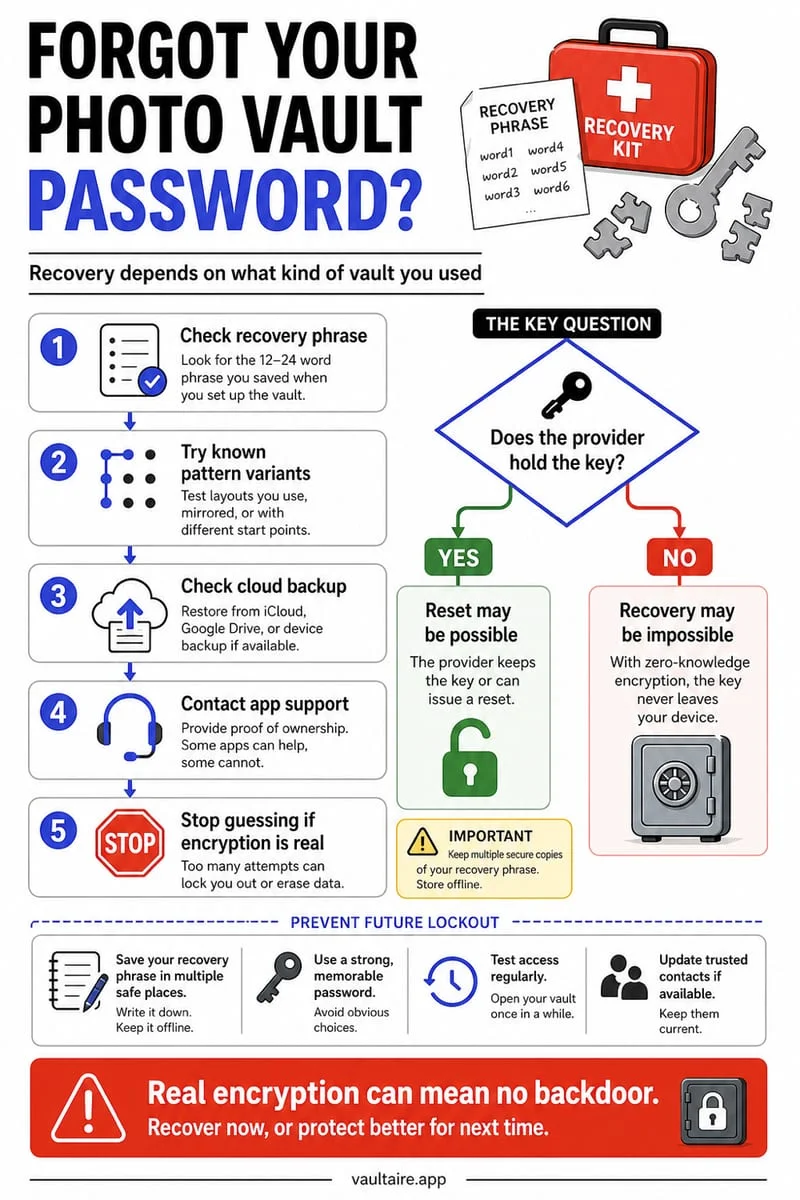
- Write down the recovery phrase on paper or in a password manager — not in a screenshot in the same camera roll.
- Import one harmless test photo and one short video.
- Close the app from the app switcher, reopen it, and unlock with your secret.
- Export the test photo back to Photos and confirm quality and playback.
- Import your real private photos and videos.
- Delete the originals from Apple Photos when prompted, then open Recently Deleted and delete them there too.
Picking a lock you will remember but others will not guess
A four-digit PIN that matches your phone passcode, birthday or door code defeats the point of a separate secret. A passphrase of three or four unrelated words is easier to remember than random digits and much harder to guess.
Octoshield also offers visual locks such as a 3×3 Pattern Grid and a safe-style Combination Dial. Whatever you pick, avoid a pattern that leaves an obvious smudge trail on the screen.
| Lock type | Strength | Watch out for |
|---|---|---|
| 4-digit PIN | Low | Reusing the phone passcode or a birthday |
| 6+ digit PIN | Medium | Shoulder surfing in public |
| Passphrase | High | Forgetting it — store the recovery phrase |
| Pattern / dial | Medium | Visible smudge trails, simple shapes |
After setup: habits that keep the vault private
Turn on app-switcher privacy so the last vault screen is blurred in multitasking. Avoid sharing vault photos through Messages or social apps, because the shared copy lives outside the vault and outside your control.
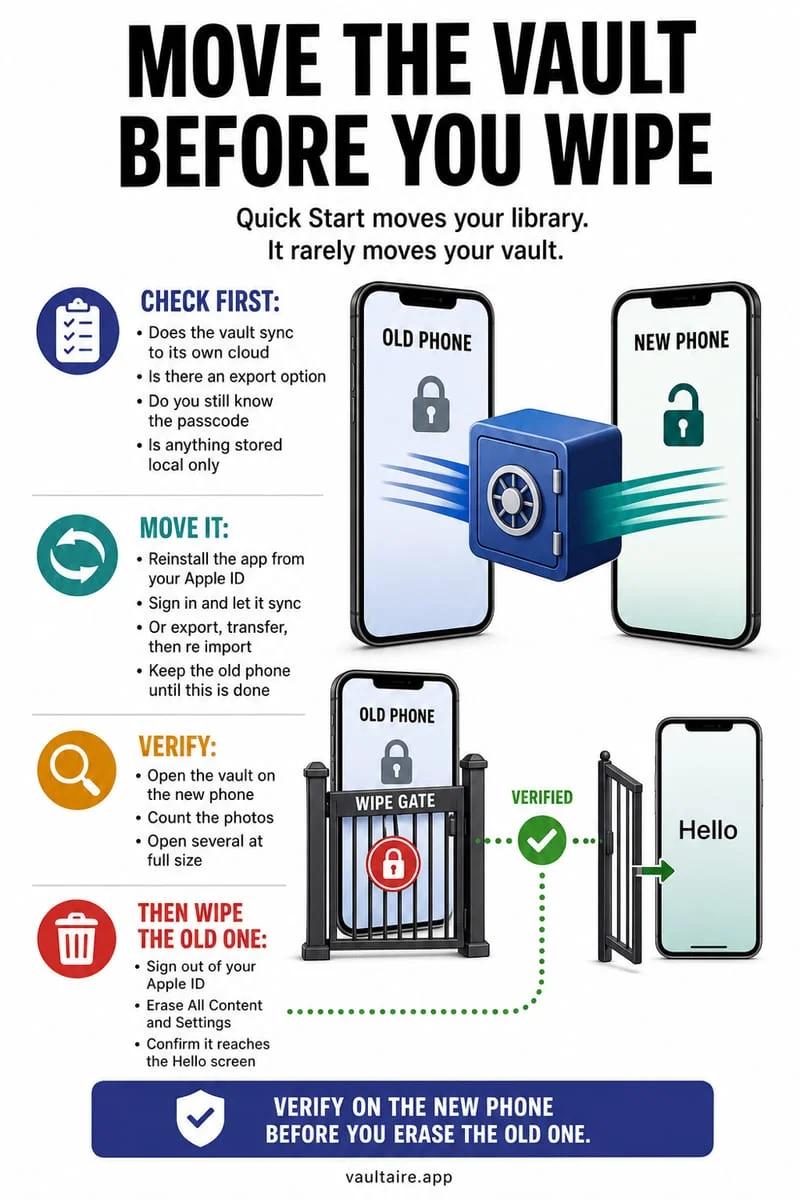
Before changing iPhones, enable encrypted backup or export your vault, and test the restore with your recovery phrase. Local vault files are excluded from device backups, so a phone-to-phone transfer alone may not move them.
Do a quick monthly check: open the vault, confirm a recent photo plays, and make sure no copies reappeared in Recently Added or Shared Albums.

A little privacy for your photos.
Download for freeFrequently asked questions
01What is the best photo vault app for iPhone?+
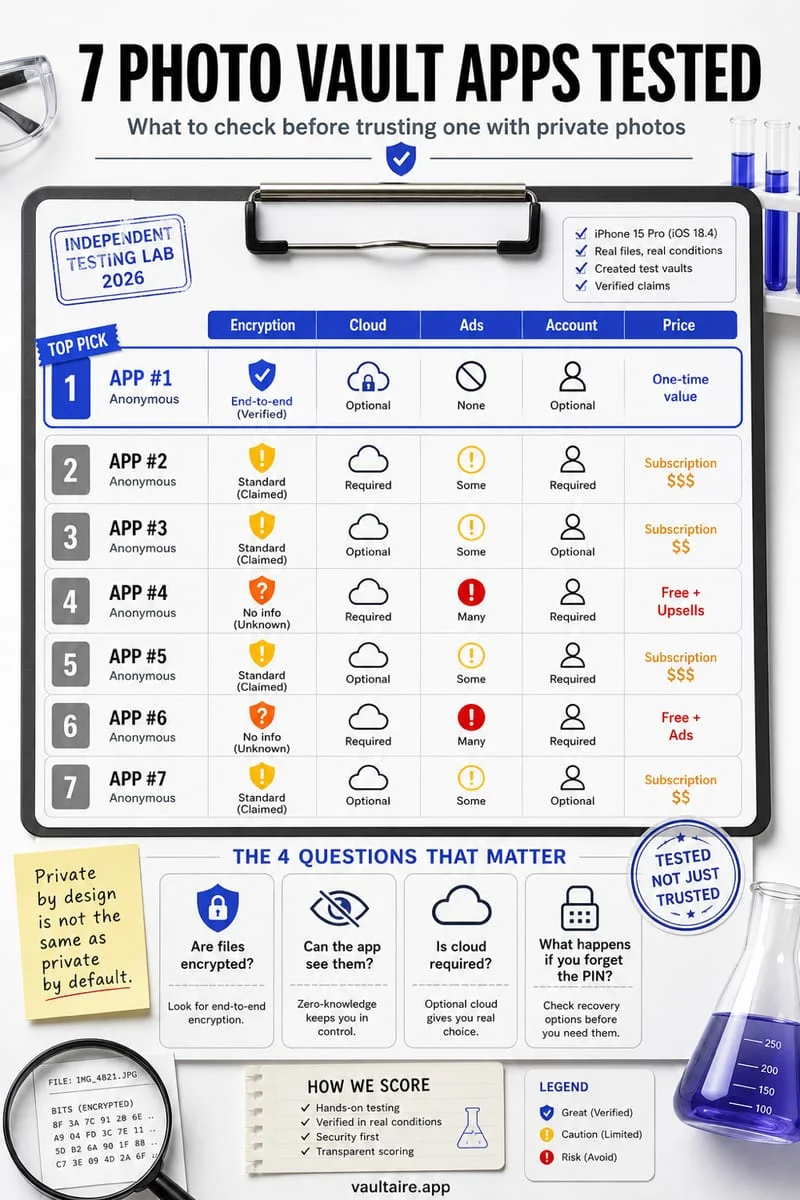
There is no single winner for everyone. Compare whether the app uses a separate secret, encrypts files locally, needs an account, uploads to a cloud, and how recovery works. The best-of guide breaks these trade-offs down.
02Can a photo vault app see my whole photo library?+
Only if you grant full Photos access. iOS lets you allow limited access to selected photos instead, which is enough for importing specific pictures.
03Will deleting the vault app delete my photos?+
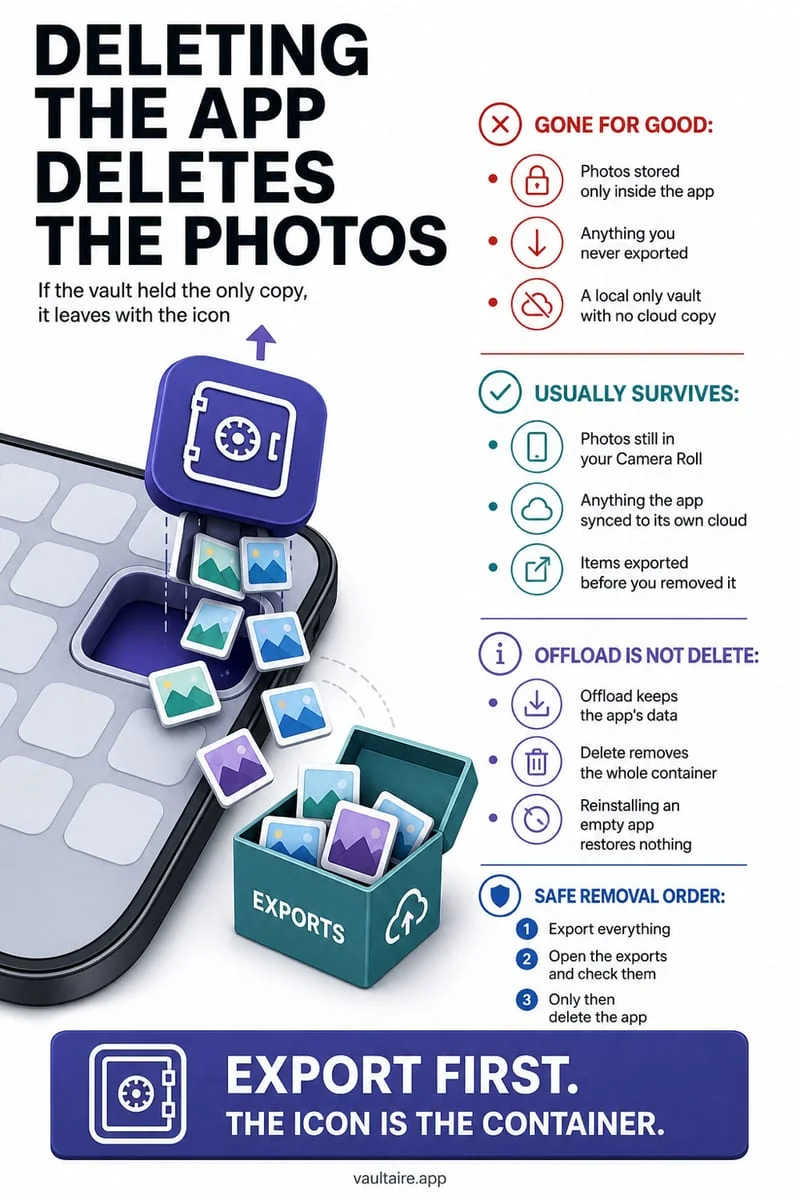
For local vaults, yes — deleting the app removes the encrypted files on the device. Export or back up first.
04Do I need to delete photos from the camera roll after importing?+
Yes, if the goal is privacy. The original stays visible in Apple Photos until you delete it and empty Recently Deleted.
Try our local browser privacy tools
Official sources & further reading
iOS menus can vary slightly by iOS version. Octoshield instructions describe the current local app implementation engineered by TengrX. Check the App Store listing for the version available to download.