Load a photo or screenshot, add one or more redaction regions, and position them over faces, names, account numbers, or license plates. Choose Pixelate, Gaussian Blur, or Solid Blackout so the underlying pixels are permanently overwritten in the exported image.
Why permanent redaction matters
Drawing translucent highlighter strokes over text in a screenshot editor can often be reversed by adjusting contrast curves. Exporting a flattened image with coarse pixelation or solid black fill replaces the original pixel values in that region and strips source metadata.
| Redaction Mode | How It Processes Pixels | Best Used For |
|---|---|---|
| Coarse Pixelation | Downsamples the selected region into large mosaic blocks before rendering | Faces, bystanders, and badges |
| Heavy Blur | Applies multi-pass smoothing across the selected bounding box | Backgrounds, house numbers, and license plates |
| Solid Blackout Bar | Overwrites every pixel in the box with opaque #000000 fill | Names, emails, phone numbers, and financial text |
How to blur faces and redact screenshots safely
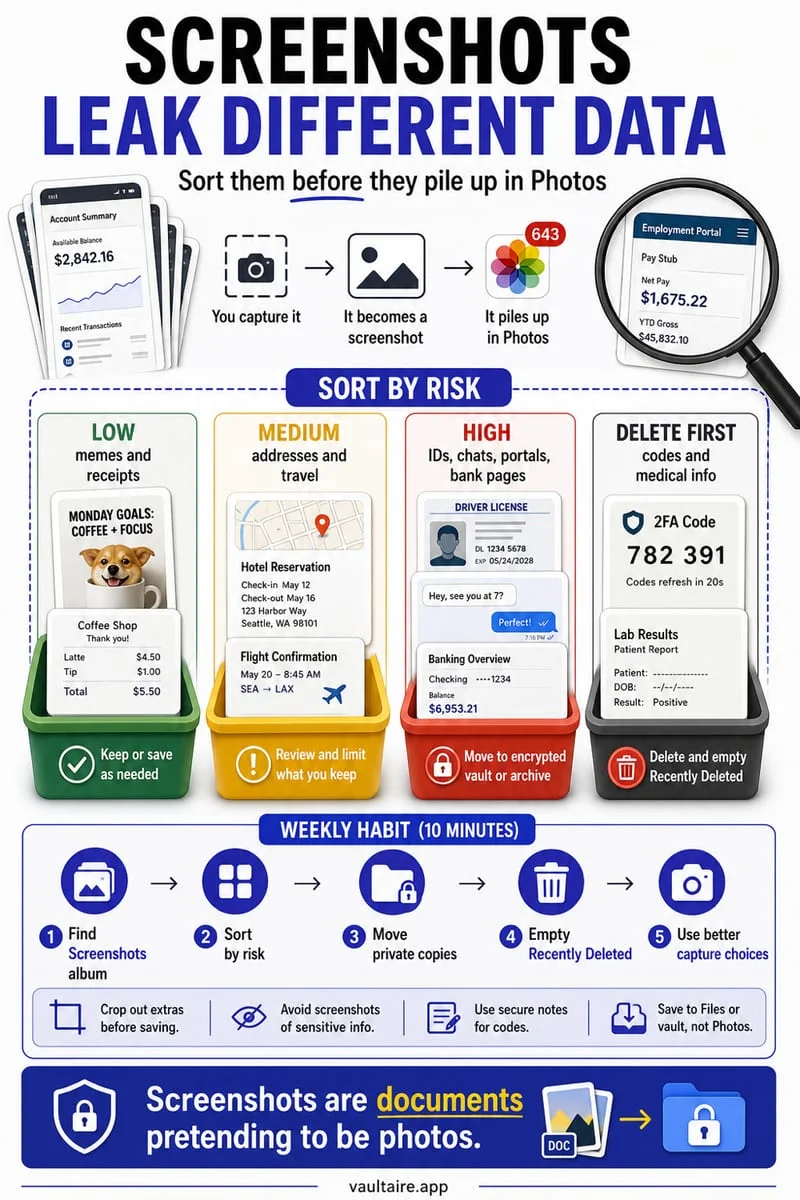
Before posting a street photo, a group picture with children, or a customer support screenshot, you often need to hide identifiable faces or personal details. Uploading unredacted sensitive screenshots to a third-party cloud editor defeats the purpose of redacting them.
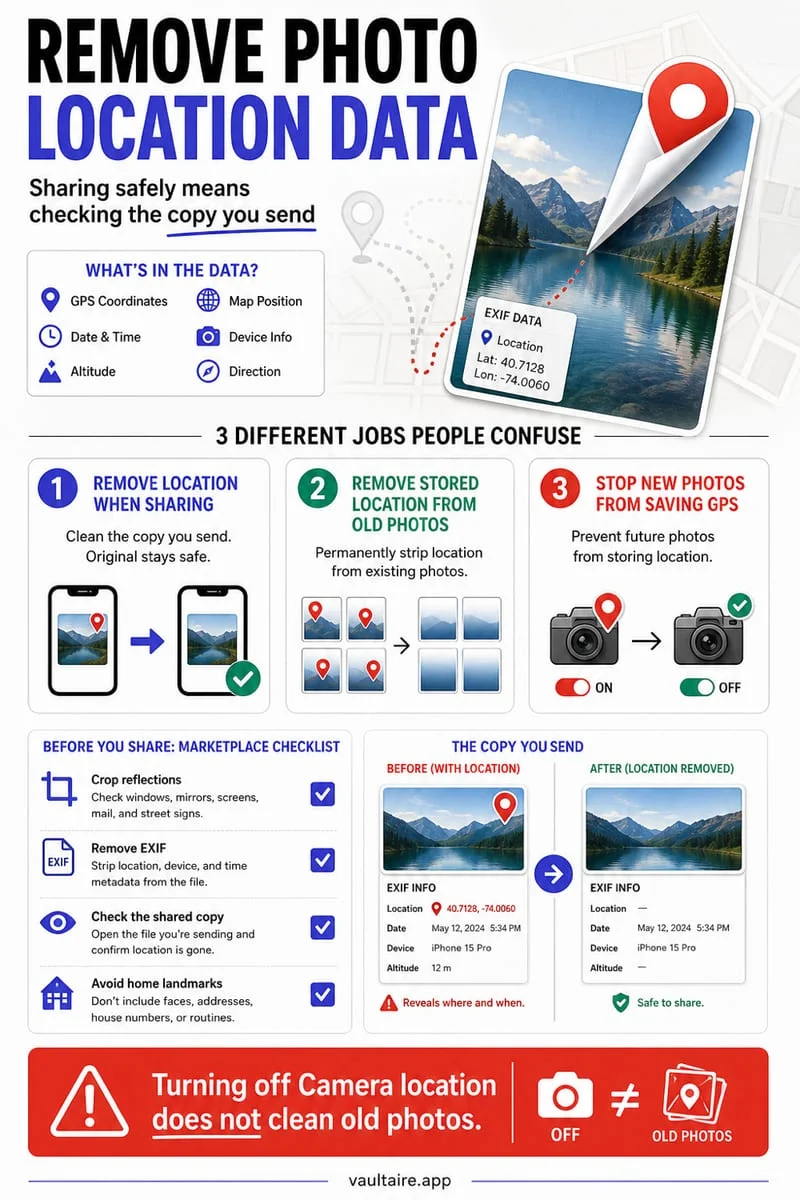
With Octoshield's browser redactor, the image stays in local memory. You can add multiple redaction boxes, adjust their X/Y position and width/height, choose your redaction style and intensity, and download a flattened copy with EXIF metadata removed.
- Choose a photo or screenshot from your device.
- Use the Add Region button and position the box over the face or text you want to cover.
- Select Pixelate, Blur, or Solid Blackout and adjust the strength slider.
- Download the flattened, metadata-free PNG or JPEG.
Why solid blackout is safest for text screenshots
A common privacy mistake on iPhone is using the Markup highlighter tool in black and swiping over text two or three times. Because the highlighter brush has partial alpha transparency, anyone who downloads the screenshot can raise exposure and shadows to read the text underneath.
Similarly, light blur or fine pixelation over printed text can sometimes be reconstructed. Whenever you are redacting text—such as bank digits, addresses, or private messages—use the Solid Blackout mode so the original character pixels are completely replaced.
Frequently asked questions
01Can someone unblur or reverse a redacted image downloaded from this tool?+
The downloaded image is a single flattened bitmap layer—the original pixels underneath the redaction box are not stored in the file. For sensitive text or numbers, always choose Solid Blackout so zero luminance information remains.
02Are my unredacted screenshots uploaded anywhere?+
Never. All canvas drawing and export operations run locally in your web browser.
03Does the exported photo keep the original GPS metadata?+
No. Exporting from the canvas creates a fresh bitmap file without the source photo's EXIF or GPS tags.