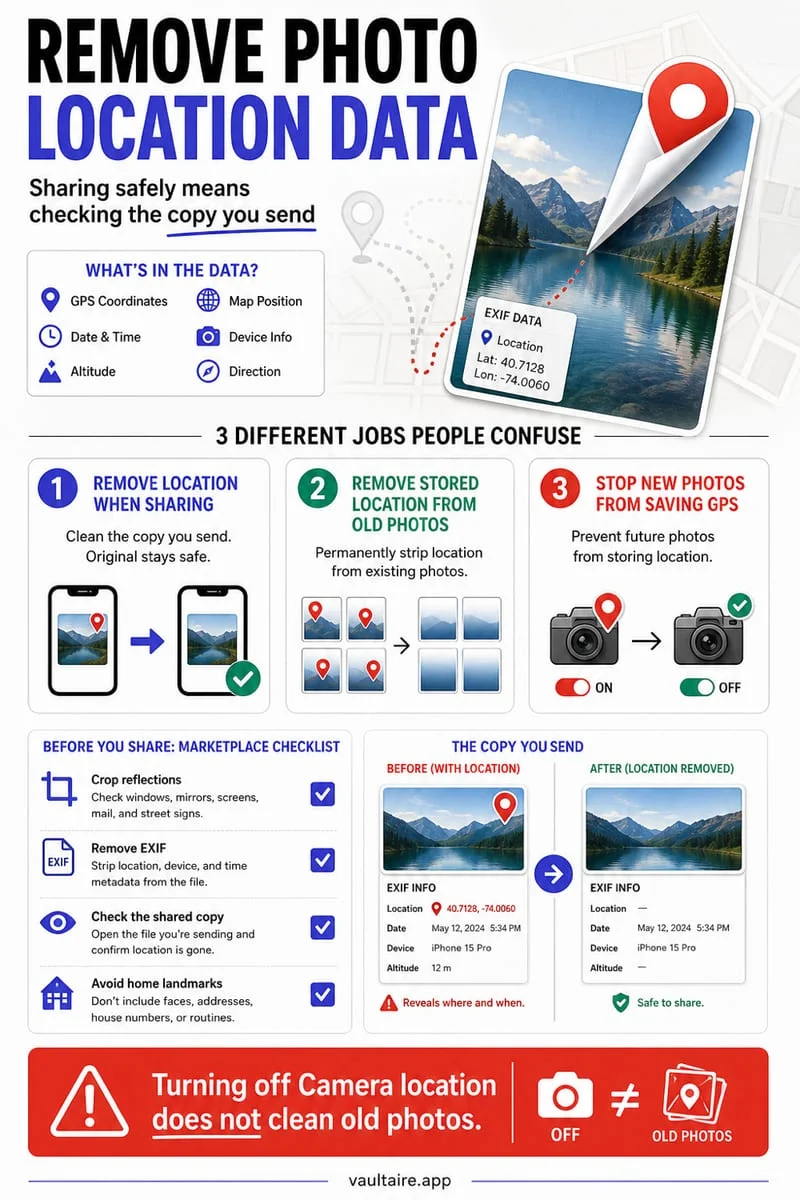
To remove GPS location from an existing photo, swipe up on the picture in the iPhone Photos app, tap Adjust below the map, and select No Location. To strip location only when sending a photo to someone, tap Options at the top of the iOS Share Sheet and turn off Location before sharing.
Remove GPS coordinates from photos already in your library
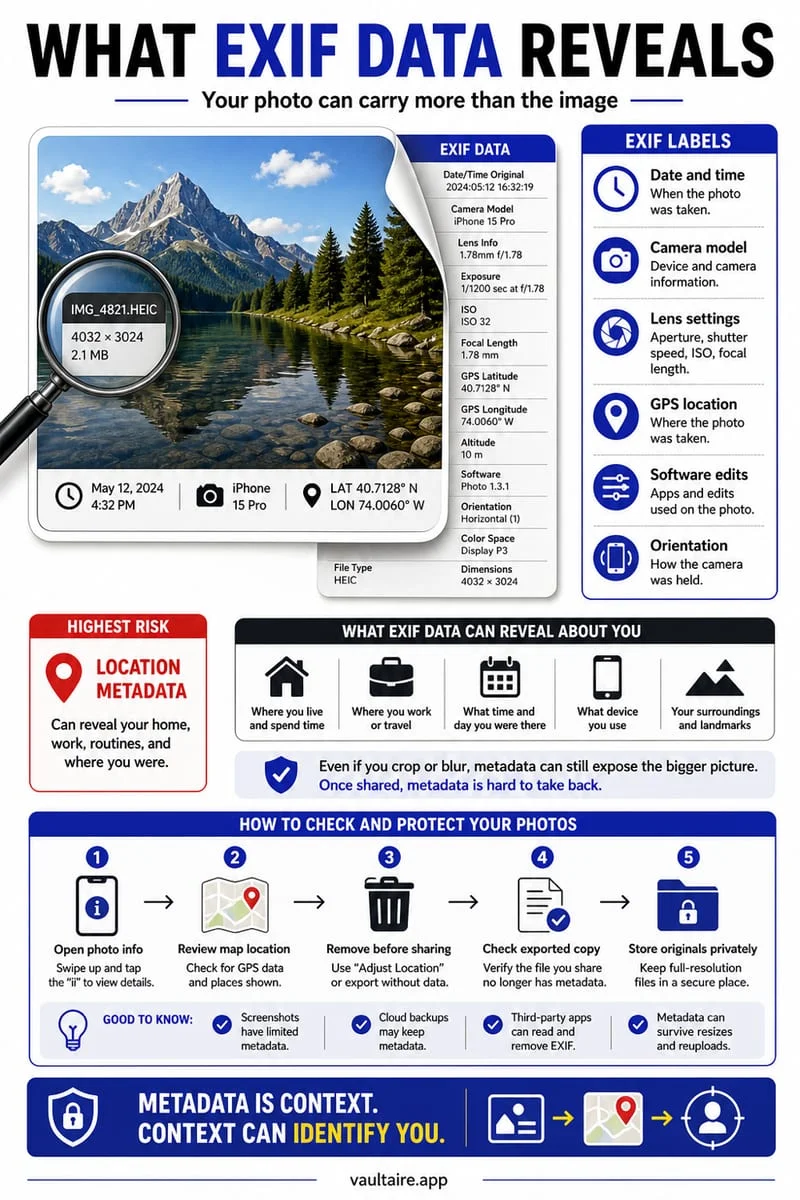
Every photo and video you shoot with default iPhone Camera settings embeds high-precision GPS latitude, longitude, altitude, and compass heading inside the file's EXIF/QuickTime metadata header. Assisted GPS and Wi-Fi triangulation on modern iPhones routinely narrow those coordinates down to within 3 to 10 meters—enough to pinpoint a specific house, apartment building entrance, child's school, or hotel room.
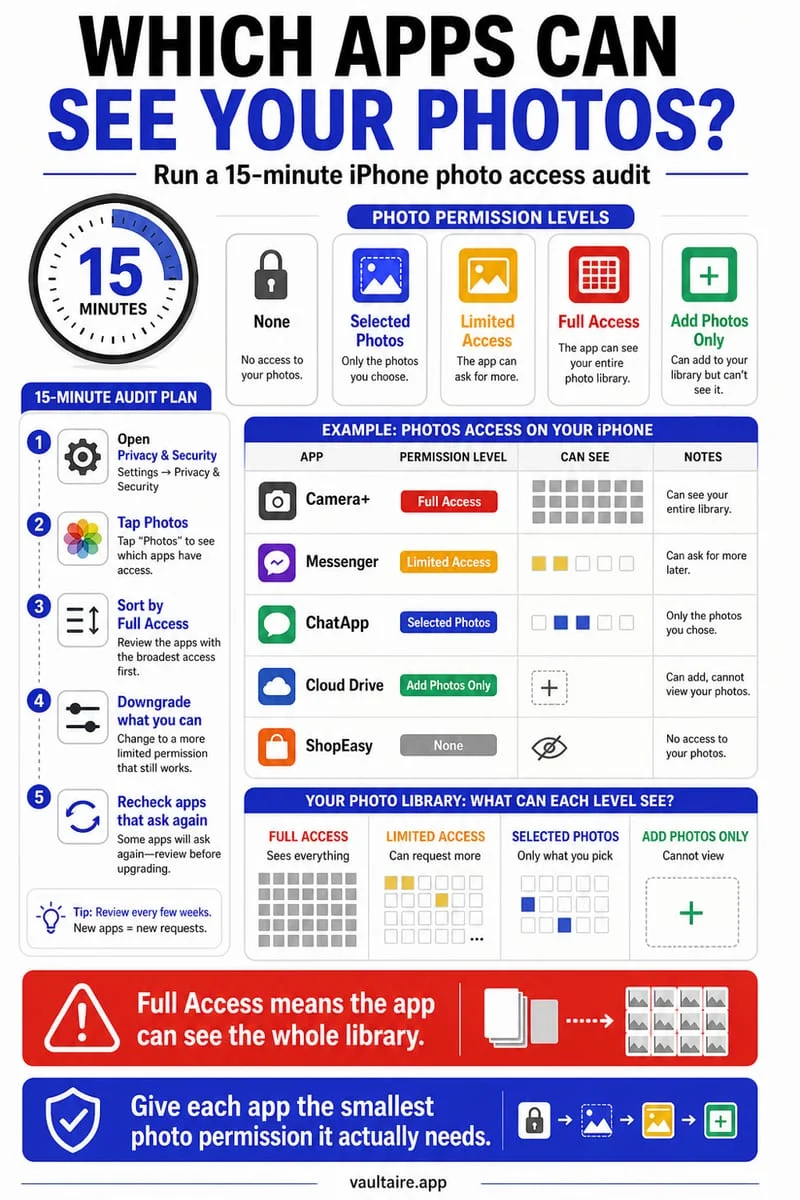
If you hand your phone to someone, upload an original image file to a forum, marketplace listing, or cloud folder, or grant a third-party app Full Photo Library access, those embedded coordinates travel with the image. Fortunately, you can permanently strip the location tag from a single photo or hundreds of selected photos directly inside the iOS Photos app without installing a separate metadata utility.
When you select 'No Location' inside the Apple Photos app, iOS removes the GPS coordinate dictionary from the image's metadata record across your library and, if iCloud Photos is enabled, syncs that removal across your connected Apple devices.
- Open the Photos app and tap a single photo—or tap Select in the top-right corner, choose multiple photos, and tap the More (…) button in the bottom corner.
- For a single photo, swipe up on the image (or tap the 'i' Info button) to reveal the EXIF metadata card and interactive map.
- Tap Adjust in the bottom-right corner of the map preview (or select Adjust Location from the multi-select More menu).
- Tap No Location to permanently erase the GPS coordinates from the selected photo or batch.
Keep location for yourself but strip it when sharing
Many iPhone owners like having GPS tags in their personal library so they can browse vacation pictures on the Collections → Places map, but they never want recipients to receive GPS coordinates via AirDrop, iMessage, Email, iCloud Link, or WhatsApp document attachments. iOS includes a per-share metadata scrubber right inside the Share Sheet that strips location data exclusively from the outgoing copy while leaving your master photo untouched.
If you prefer that your iPhone never record GPS coordinates on new photos in the first place, you can revoke Location Services permission for the Camera app in Settings. You can also adjust Location Services for third-party camera apps (such as Halide, ProCamera, or social apps) in the same menu.
- Select the photos or videos you want to send in the Photos app and tap the Share button in the bottom-left corner.
- Look at the very top of the Share Sheet—directly underneath the 'X Photos Selected' header—and tap Options.
- Under the Include section, toggle off Location (and make sure All Photos Data is also toggled off), then tap Done.
- Proceed with sharing via AirDrop, Messages, Mail, or any other app; the exported file will be delivered with zero GPS metadata.
- To stop recording GPS on all future shots permanently, open Settings → Privacy & Security → Location Services → Camera and select Never.
Store location-sensitive photos outside the main library
Even if you remember to toggle off Location when sharing externally, photos left in your main Camera Roll still appear pinned on the iOS Places map, surface in Memories widgets, and expose their GPS coordinates to every third-party app that has been granted Full Photo Library access. For sensitive photos where both the visual content and the location context must remain strictly private, move them out of the Apple Photos database altogether.
Octoshield (built by TengrX) lets you import photos and videos into an on-device vault encrypted with AES-256-GCM in 512 KB chunks, using HKDF-SHA256 per-item keys derived from a random 256-bit master key and protected by PBKDF2-SHA256 plus a device-bound Keychain key. In Octoshield's Cleaner, you can simply swipe up on any photo to encrypt it into your vault and queue the Camera Roll original for deletion. Once deleted from Apple Photos and cleared from Recently Deleted, those images vanish from the iOS Places map and third-party app pickers.
Frequently asked questions
01Do Instagram, X, or WhatsApp strip photo location automatically?+
Most major social networks strip public EXIF GPS tags from compressed feed posts so followers cannot see them, though the platform's own servers can still read the coordinates during upload. Furthermore, sending a photo via AirDrop, iMessage, Email, iCloud Link, or as an uncompressed 'Document' in WhatsApp or Telegram preserves the exact GPS coordinates unless you strip them first.
02If I choose 'No Location' in Photos, can I get the original GPS back?+
No, tapping No Location permanently deletes the stored coordinates from that image in your library (unless you restore from an earlier backup). If you want to keep the GPS data for your personal map while hiding it from a recipient, use the Share Sheet → Options → Location toggle instead.
03Do screenshots on iPhone include GPS location metadata?+
No. iPhone screenshots do not embed GPS latitude or longitude in their EXIF metadata header, though a screenshot of a map, rideshare app, delivery tracker, or local business can visually reveal your location inside the image pixels.
04Does turning off Location in the Share Sheet stay off for future shares?+
No. The Location toggle inside the iOS Share Sheet Options menu resets to On for the next sharing session. You must either check Options each time you share via AirDrop/Messages, strip the location from the photo permanently with Adjust → No Location, or turn off Location Services for Camera.
05Do iPhone videos also store GPS location metadata?+
Yes. Every video recorded with the iPhone Camera embeds GPS coordinates inside its QuickTime `.mov` container metadata, and the exact same Adjust → No Location button and Share Sheet → Options → Location toggle work for videos just as they do for still photos.
Official sources & further reading
Lock your private photos behind real AES-256-GCM encryption.
Stop relying on a Hidden album that shares your iPhone lock-screen passcode. Import private photos and videos into Octoshield’s device-bound local vault with your own PIN, passphrase, 3×3 pattern, or safe combination dial.
- AES-256-GCM authenticated encryption in 512 KB chunks
- Encrypted thumbnails & filename catalog index at rest
- 4 lock styles: PIN, Passphrase, 3×3 Pattern, or Safe Dial + Face ID
- 100% on-device storage — zero cloud servers, zero ad SDKs
 AES-256-GCM + Cleaner
LOCAL IPHONE SANDBOX · KEYCHAIN BOUND
iOS menus can vary slightly by iOS version. Octoshield instructions describe the current local app implementation engineered by TengrX. Check the App Store listing for the version available to download.