EXIF (Exchangeable Image File Format) data is hidden technical metadata embedded inside iPhone photos, including exact date and time, iPhone model, lens settings, and GPS coordinates. You can view it by swiping up on any photo in the iOS Photos app, and remove date or location tags using the Adjust buttons or Share Sheet options.
What hidden metadata is inside an iPhone photo?
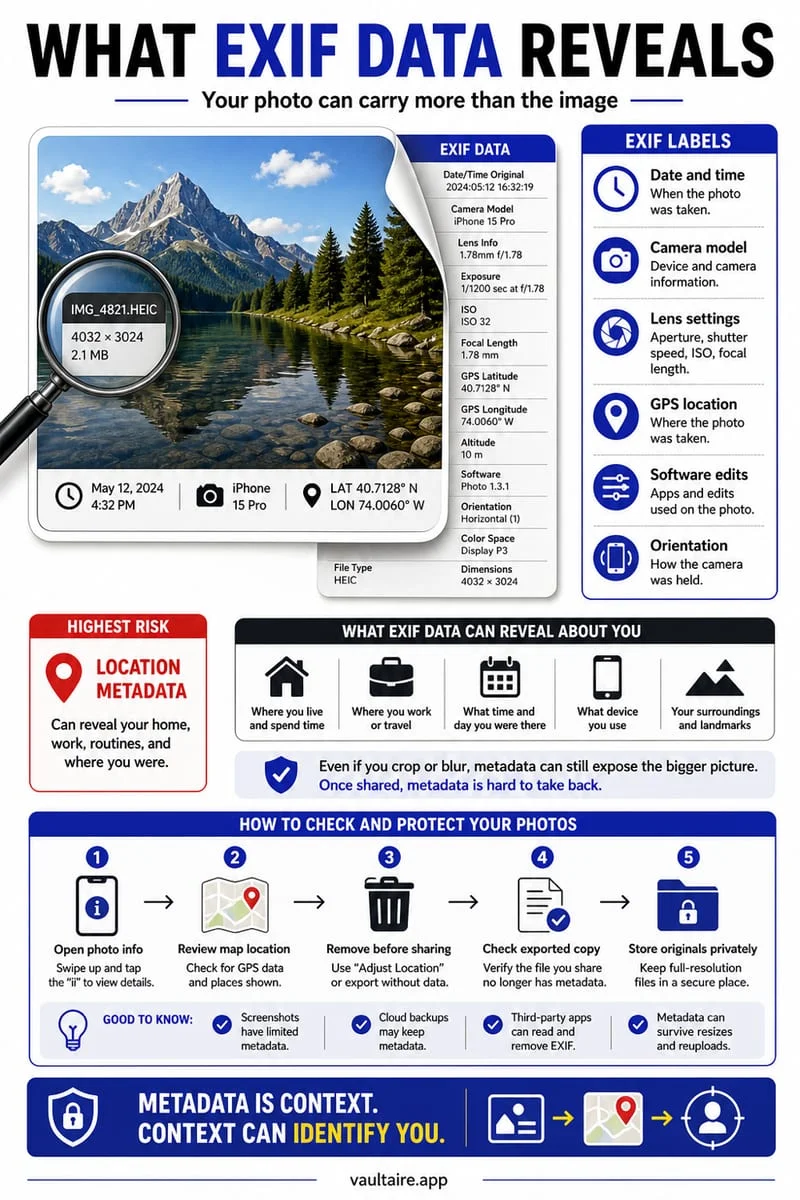
Whenever you press the shutter button on an iPhone, iOS writes dozens of structured technical attributes directly into the HEIC, JPEG, or Apple ProRAW file header. Known collectively as EXIF (Exchangeable Image File Format), TIFF, and Apple MakerNote metadata, these invisible fields help the Photos app sort your library chronologically, plot trips on a map, and render HDR highlights properly.
While helpful for personal catalog management, EXIF and MakerNote dictionaries can silently expose sensitive personal context when you upload original image files to websites, send them via AirDrop or email, or grant third-party apps access to your photo library. Beyond standard camera settings, Apple's container format can also bundle secondary media streams—such as Live Photo video/audio clips and portrait depth maps—inside what looks like a single picture.
| Metadata Category | Specific Fields Stored | Privacy Impact |
|---|---|---|
| GPS & Location | Latitude, longitude, altitude, compass direction, horizontal accuracy, speed | High — pinpoints exact home, hotel, school, or office address within meters |
| Timestamps | DateTimeOriginal, DateTimeDigitized, timezone offset, sub-second timing | Medium — reveals your exact daily schedule and when you were at a location |
| Device & Apple MakerNote | iPhone hardware model, exact iOS build version, lens focal length, ISO, shutter speed, Smart HDR flags | Low to Medium — fingerprints your specific iPhone model and exact iOS patch level |
| Live Photo & Auxiliary Streams | Embedded 3-second MOV video + audio track, portrait depth map, non-destructive edit history | High — Live Photo audio and extra frames can capture background voices, faces, or screens |
How to view and scrub EXIF data in the iOS Photos app
Current 2026 iOS versions include a detailed native EXIF inspector right inside the Apple Photos app. Swiping up on any photo or video reveals the capture timestamp, user caption, camera model, lens aperture, ISO, pixel dimensions, file size, iCloud sync status, and an interactive map pin.
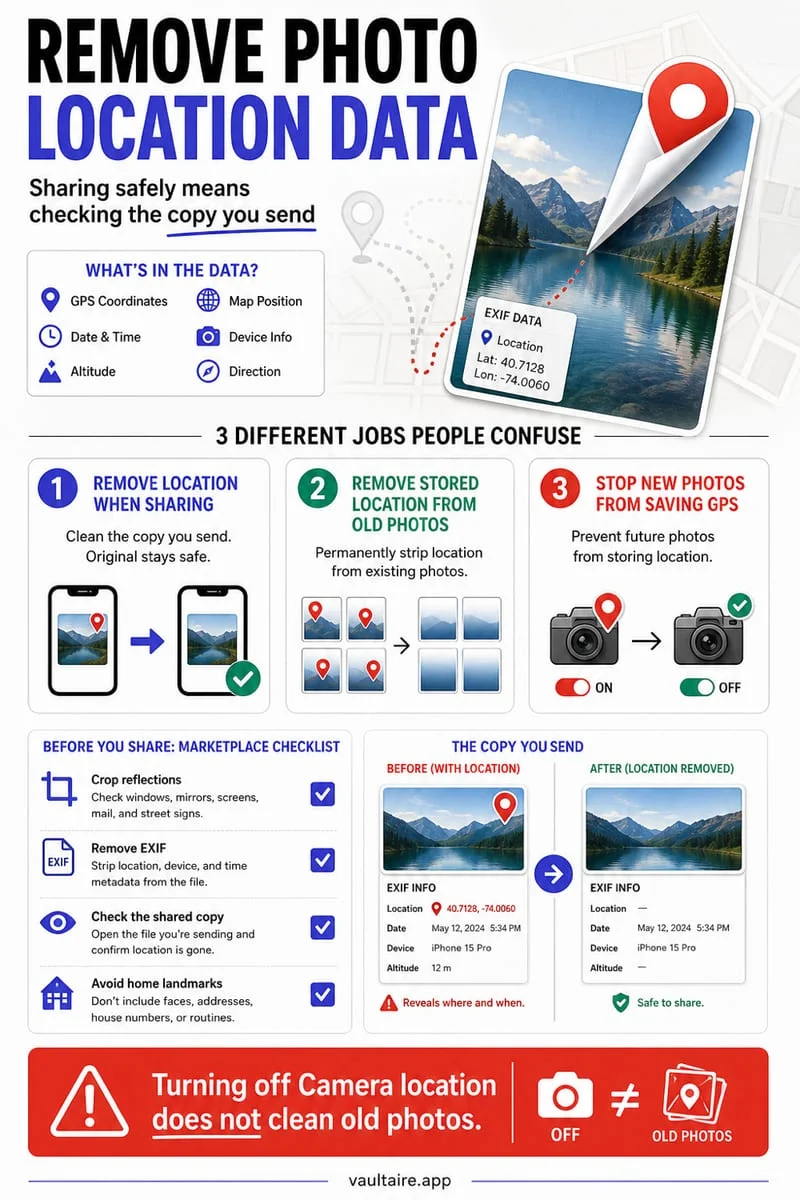
If you want to modify the metadata stored inside your library permanently, you can tap the Adjust buttons next to the timestamp or location map. However, if you want to keep your personal library organized while sending a clean, metadata-scrubbed copy to someone else, use the iOS Share Sheet Options menu before exporting.
- Open any photo in the iPhone Photos app and swipe up (or tap the 'i' Info button at the bottom) to open its EXIF metadata panel.
- To alter your library copy permanently, tap Adjust next to the date/time or tap Adjust on the map and select No Location.
- To strip metadata only for an outgoing copy, tap the Share button and then tap Options at the very top of the Share Sheet.
- Toggle off Location and toggle off All Photos Data, then tap the Live Photo icon in the top-left corner of the share preview if you also want to strip the 3-second video/audio clip.
Keep private photos and their metadata out of app pickers
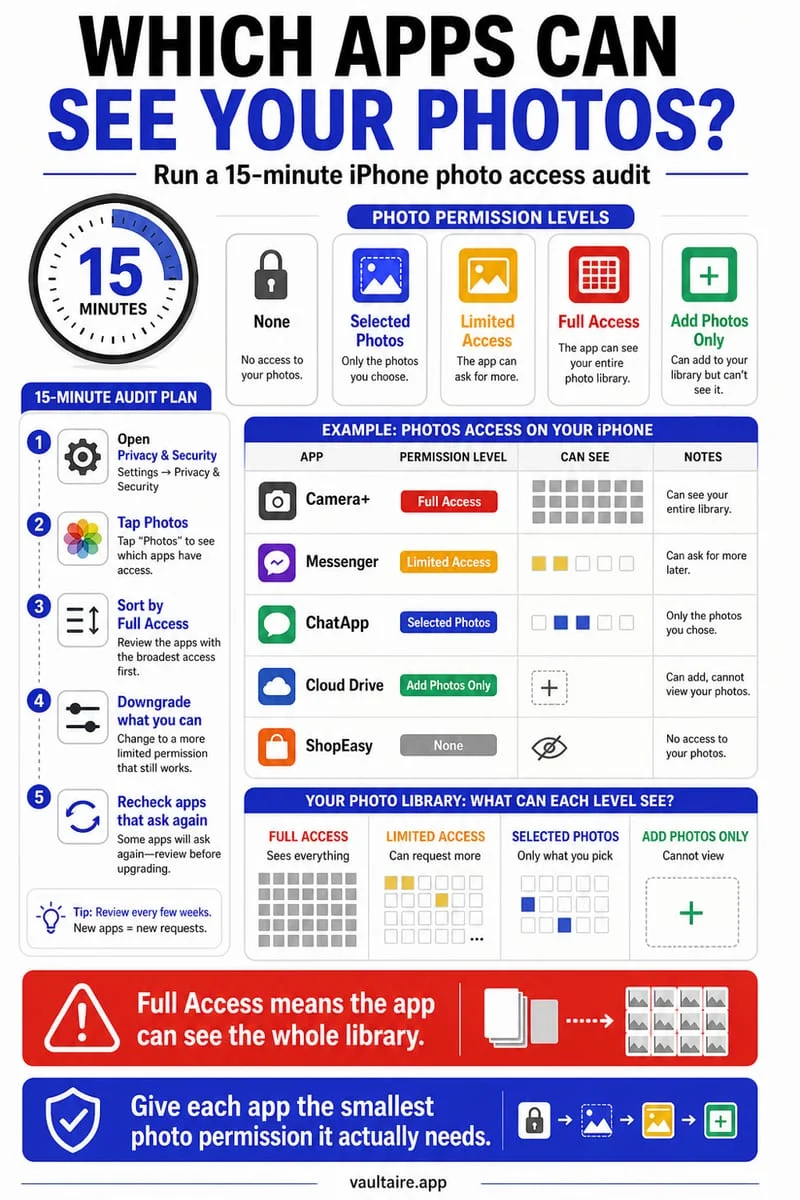
Scrubbing EXIF tags when you share a picture externally does not stop apps already installed on your iPhone from reading your library's metadata. Any third-party app that has been granted Full Access in Settings → Privacy & Security → Photos can programmatically query the PHAsset metadata of thousands of photos in your Camera Roll, reading exact timestamps and GPS coordinates in the background.
To isolate sensitive personal photos so neither their visual pixels nor their EXIF headers are exposed in the system library, move them into Octoshield (built by TengrX). Octoshield encrypts each file in 512 KB chunks using AES-256-GCM, deriving separate keys via HKDF-SHA256 for the file, its thumbnail, and its encrypted catalog index from a random 256-bit master key unlocked via PBKDF2-SHA256 and your iPhone's hardware-backed Keychain. Once imported into Octoshield and deleted from Apple Photos (including Recently Deleted), neither the images nor their metadata exist in the iOS photo database.
Frequently asked questions
01Does taking a screenshot of a photo remove its EXIF data?+
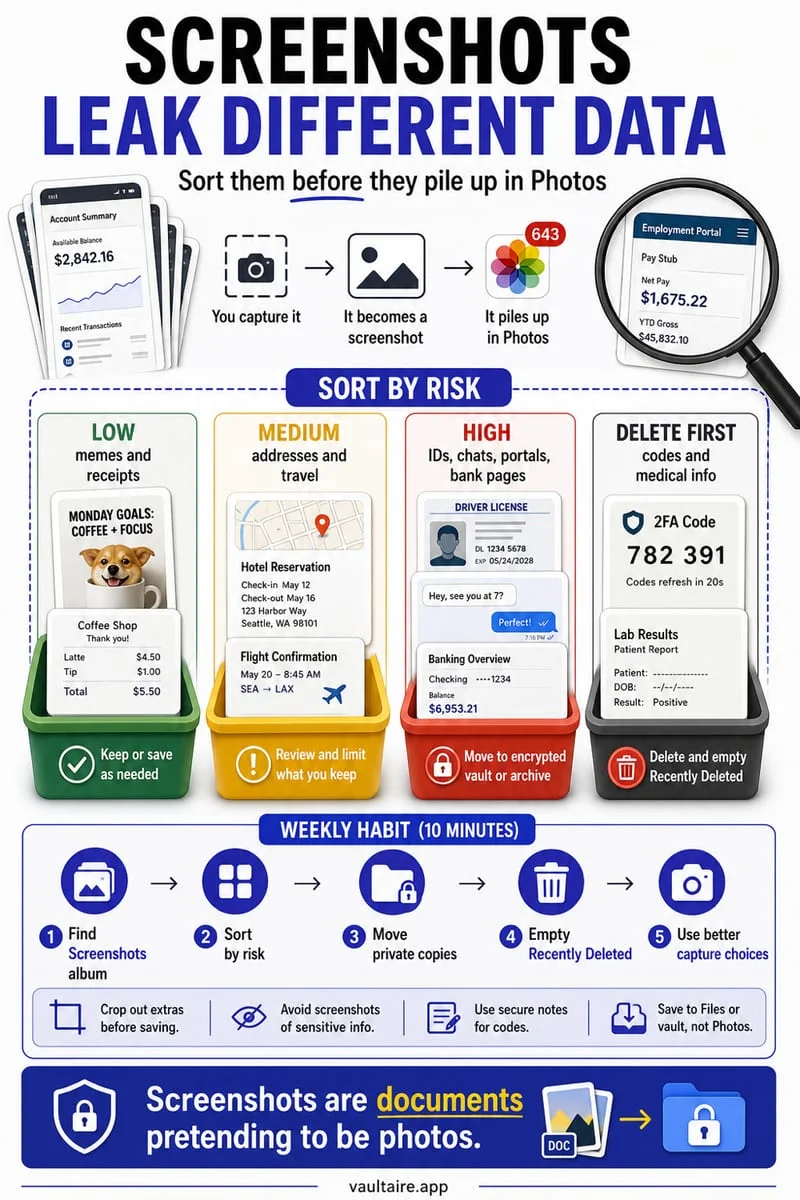
Yes, taking a screenshot creates a brand-new image file that does not carry over the original photo's capture date, camera model, Live Photo audio, or GPS coordinates. However, it embeds the exact timestamp when the screenshot was taken and reduces image resolution to your screen dimensions.
02Can Live Photos leak background audio when shared?+
Yes. A Live Photo records roughly 1.5 seconds of video and microphone audio before and after you tap the shutter. When sent via AirDrop or iMessage, the recipient can press and hold the photo to hear the audio unless you tap the LIVE badge in the Share preview (or Edit → Live) to convert it to a still frame.
03What does 'All Photos Data' in the iPhone Share Sheet include?+
Turning on 'All Photos Data' bundles the original uncropped/unedited master image, full EXIF and GPS metadata, captions, keywords, and Live Photo video streams when sharing via AirDrop or iCloud Links. Always leave 'All Photos Data' turned off unless you are transferring files between your own devices.
04Can I remove the iPhone model and camera lens info using the built-in Photos app?+
The built-in Photos app lets you remove GPS location and change the capture date/time, but it does not erase hardware EXIF tags like `iPhone 16 Pro` or lens focal length. To strip every hardware tag from a single image without a third-party EXIF editor, either save a clean screenshot of the image or use an iOS Shortcut with the 'Convert Image' action and toggle off 'Preserve Metadata'.
05Does Octoshield alter my photos when I import them into the encrypted vault?+
No. Octoshield encrypts your exact photo or video binary in 512 KB chunks using AES-256-GCM without re-compressing or degrading image quality, and keeps both the file and its metadata completely isolated inside your local encrypted vault.
Official sources & further reading
Lock your private photos behind real AES-256-GCM encryption.
Stop relying on a Hidden album that shares your iPhone lock-screen passcode. Import private photos and videos into Octoshield’s device-bound local vault with your own PIN, passphrase, 3×3 pattern, or safe combination dial.
- AES-256-GCM authenticated encryption in 512 KB chunks
- Encrypted thumbnails & filename catalog index at rest
- 4 lock styles: PIN, Passphrase, 3×3 Pattern, or Safe Dial + Face ID
- 100% on-device storage — zero cloud servers, zero ad SDKs
 AES-256-GCM + Cleaner
LOCAL IPHONE SANDBOX · KEYCHAIN BOUND
iOS menus can vary slightly by iOS version. Octoshield instructions describe the current local app implementation engineered by TengrX. Check the App Store listing for the version available to download.