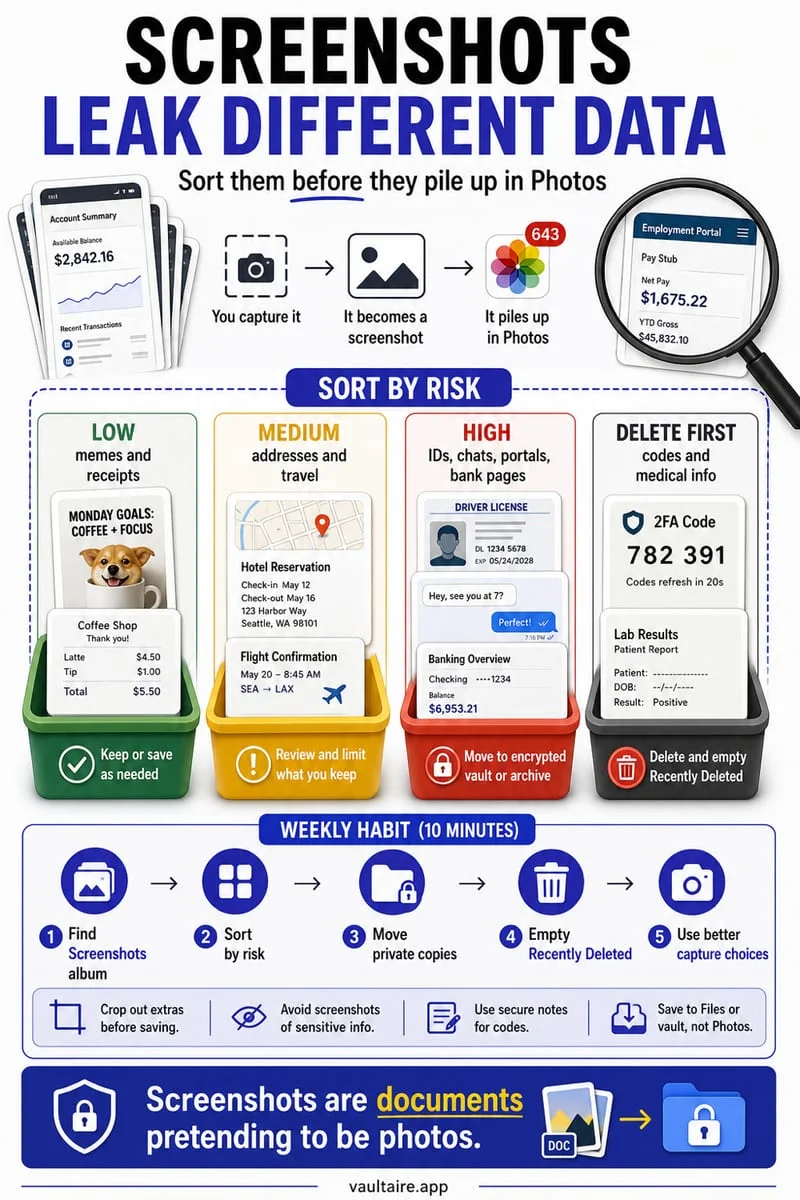
To take a screenshot without saving it to your Camera Roll, tap the screenshot preview thumbnail, tap Done, and select Copy and Delete (or Save to Files). For existing sensitive screenshots already in your library, swipe up on them in Octoshield's Cleaner to move them into an AES-256-GCM encrypted vault and remove them from Apple Photos.
Why your Screenshots album is a goldmine of sensitive data
Pause for a moment and think about what people actually screenshot on an iPhone: bank wire confirmations, crypto seed phrases or 2FA recovery codes, medical test results, router Wi-Fi passwords, flight QR boarding passes, private chat threads, and order receipts showing home addresses. By default, iOS dumps every single one of those captures straight into the bottom of your main Camera Roll.
Leaving sensitive screenshots inside the Apple Photos app creates three immediate privacy exposures. First, iOS automatically runs Live Text OCR on every screenshot in your library—meaning anyone who picks up your unlocked phone can type 'password', 'bank', 'code', 'account', or 'SSN' into the Photos search bar and pull up every matching screenshot in one second. Second, every third-party app you have granted Full Photo Library Access can silently read your entire Screenshots album. Third, if iCloud Photos or iCloud Shared Photo Library is active, those screenshots sync across your other screens.
| Screenshot Workflow | Saved to Camera Roll & iCloud Photos? | Searchable by iOS Live Text OCR? | Best Use Case |
|---|---|---|---|
| Let preview swipe away (Default) | Yes — lands in Camera Roll & Screenshots album | Yes — every word and number is indexed | Harmless recipes, memes, or public articles |
| Tap preview → Done → Copy and Delete | No — copied to clipboard only, file discarded | No — never enters the Photos database | One-time sharing in iMessage, Slack, or email |
| Tap preview → Done → Save to Files | No — saved to Files app as PNG or PDF | Indexed by Spotlight (unless moved to a vault) | Staging a capture to import into a file vault |
| Swipe Up in Octoshield Cleaner (or Vault Import) | No (once original is deleted from Photos) | No — encrypted with AES-256-GCM in 512 KB chunks | Sensitive confirmations, IDs, codes & private chats |
Use 'Copy and Delete' or 'Save to Files' at the moment of capture
More than half of the screenshots people take on an iPhone are strictly single-use: you capture a funny post or a flight itinerary just to paste it into a chat thread ten seconds later. You do not need those temporary captures sitting in your Camera Roll forever.
Whenever you take a screenshot, tap the floating thumbnail in the bottom-left corner instead of ignoring it. The built-in iOS markup overlay lets you copy the image to your system clipboard and immediately destroy the underlying file so it never touches your Camera Roll or iCloud Photos.
- Press the Side button and Volume Up button simultaneously to take a screenshot.
- Tap the floating thumbnail preview in the bottom-left corner before it slides off-screen.
- Tap Done in the top-left corner (or the trash can icon).
- Select Copy and Delete to place the image on your clipboard for a one-time paste without saving a file, or select Save to Files (On My iPhone) if you want to import it directly into Octoshield without touching Photos.
Swipe through existing screenshots: Delete junk and vault sensitive ones
Changing how you take future screenshots is great, but most iPhone users already have 1,000 to 5,000 old screenshots sitting in `Photos → Collections → Media Types → Screenshots`. Going through years of accumulated captures to separate disposable shipping trackers from critical confirmation records is much faster with a card-swiping workflow.
With Octoshield's Cleaner (built by TengrX), you can review your Camera Roll at full-screen readability: **swipe left** to queue outdated screenshots for deletion, **swipe right** to keep harmless ones in Photos, and **swipe up** on any sensitive screenshot (banking details, recovery codes, medical notes, or private conversations) to encrypt it inside Octoshield's local vault and queue the Camera Roll original for removal.
Inside Octoshield, every vaulted screenshot, its preview thumbnail, and its catalog index entry are encrypted using AES-256-GCM in 512 KB chunks with unique per-item keys derived via HKDF-SHA256 from a random 256-bit master key—unlocked by your independent PIN, passphrase, 3×3 pattern, or safe-style combination dial.
- Open Octoshield and use the Cleaner tab (or Photo Importer) to review your screenshots full-screen.
- Swipe up on any sensitive screenshot to encrypt it inside your vault and queue the Camera Roll original for deletion.
- Swipe left on expired boarding passes, temporary codes, and clutter you no longer need.
- Review your queue, approve the iOS system deletion prompt, and empty Photos → Collections → Utilities → Recently Deleted so Live Text OCR can no longer search those screenshots.
Warning: Never use the black Highlighter tool to redact screenshots
If you ever take a screenshot of a bank statement, order confirmation, or message and want to black out your account number or name before sending it to someone, **never** use the translucent Highlighter or Marker brush in the iOS Markup toolbar. Even if you color over text ten times until it looks pitch black to the naked eye, the underlying contrast remains in the pixel values—anyone who opens your image and drags the Exposure, Brilliance, and Shadows sliders to 100% can read the 'blacked-out' text clearly.
To redact a screenshot safely in iOS Markup before sharing, tap the `+` button in the bottom-right corner of the Markup toolbar, select **Add Shape**, choose the solid opaque Square, change its fill color to solid black, and place that solid box over the sensitive text—or simply crop the sensitive region off with All Photos Data turned off.
Frequently asked questions
01Can iOS search for text and numbers inside my screenshots?+
Yes. Apple's Live Text feature automatically performs Optical Character Recognition (OCR) on every screenshot stored in the Photos app. Anyone with access to your unlocked phone can search for words like 'password', 'routing', 'code', or 'prescription' to find matching screenshots—unless you move them into Octoshield and delete the originals from Photos.
02Do screenshots show up in iPhone Home Screen photo widgets?+
While Apple's Featured Photos algorithm tries to avoid placing obvious UI screenshots into Memories slideshows, screenshots in your main library still appear at the bottom of your recent photo grid, in Share Sheet suggestions, and inside every third-party app's photo picker.
03Are screenshots stored in Octoshield backed up to iCloud?+
No. Octoshield encrypts all vaulted images locally on your iPhone using AES-256-GCM and explicitly excludes them from iCloud and computer backups. Always write down or export critical account recovery codes to a safe backup before switching phones.
04Can I stop iPhone screenshots from saving to the Camera Roll automatically?+
iOS does not have a global toggle to redirect all screenshots away from Photos automatically, but tapping the bottom-left screenshot thumbnail immediately after capture and choosing Done → Copy and Delete (or Save to Files) prevents that screenshot from ever being written to the Camera Roll.
05Why can people still read text I blacked out on an iPhone screenshot?+
The chisel-tip Marker/Highlighter tool in iOS Markup uses alpha transparency (around 80–90% opacity per stroke), leaving subtle brightness differences underneath. Always use the `+` → Add Shape → solid filled Rectangle tool in Markup when redacting sensitive text on a screenshot.
Official sources & further reading
Lock your private photos behind real AES-256-GCM encryption.
Stop relying on a Hidden album that shares your iPhone lock-screen passcode. Import private photos and videos into Octoshield’s device-bound local vault with your own PIN, passphrase, 3×3 pattern, or safe combination dial.
- AES-256-GCM authenticated encryption in 512 KB chunks
- Encrypted thumbnails & filename catalog index at rest
- 4 lock styles: PIN, Passphrase, 3×3 Pattern, or Safe Dial + Face ID
- 100% on-device storage — zero cloud servers, zero ad SDKs
 AES-256-GCM + Cleaner
LOCAL IPHONE SANDBOX · KEYCHAIN BOUND
iOS menus can vary slightly by iOS version. Octoshield instructions describe the current local app implementation engineered by TengrX. Check the App Store listing for the version available to download.