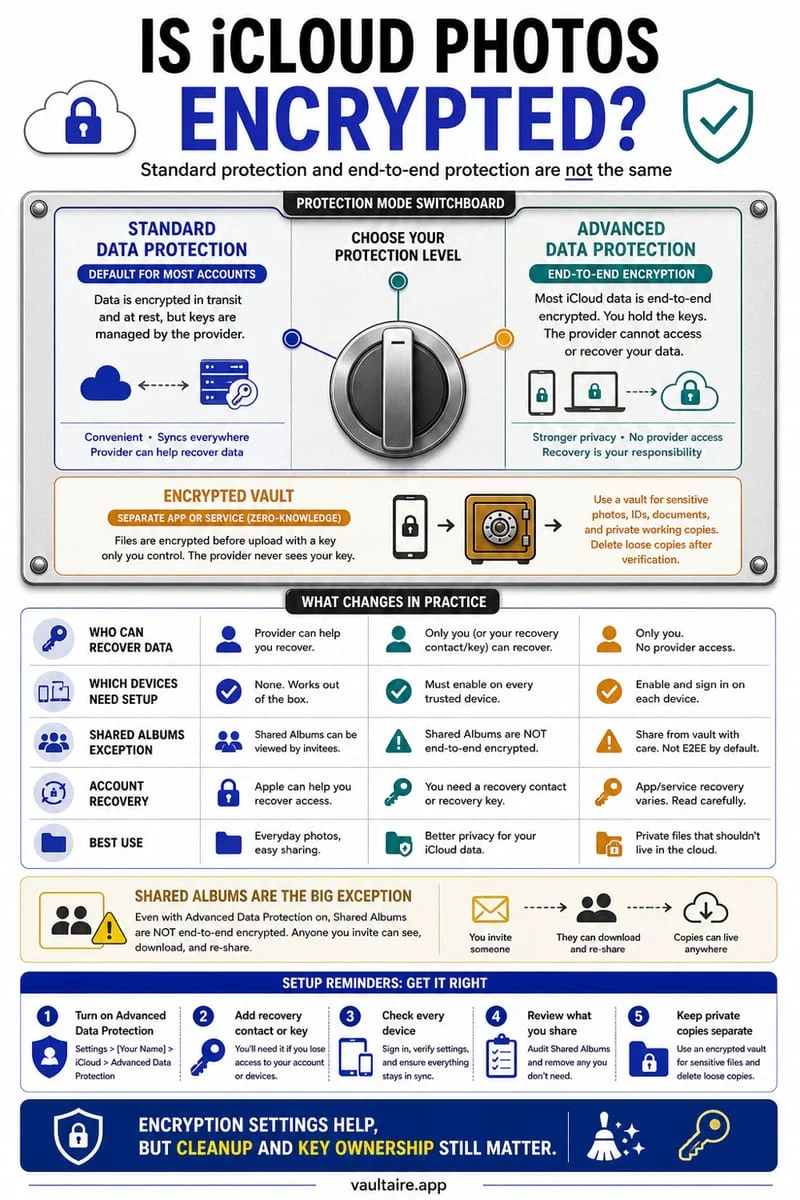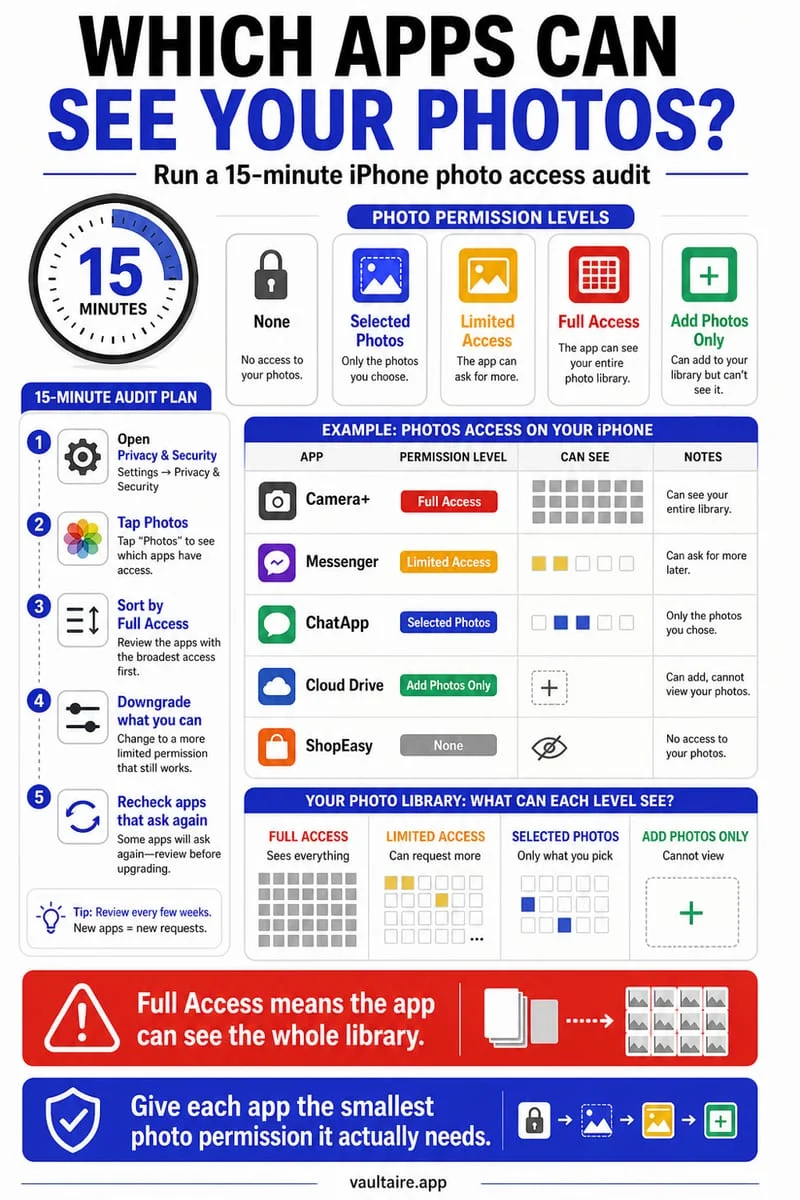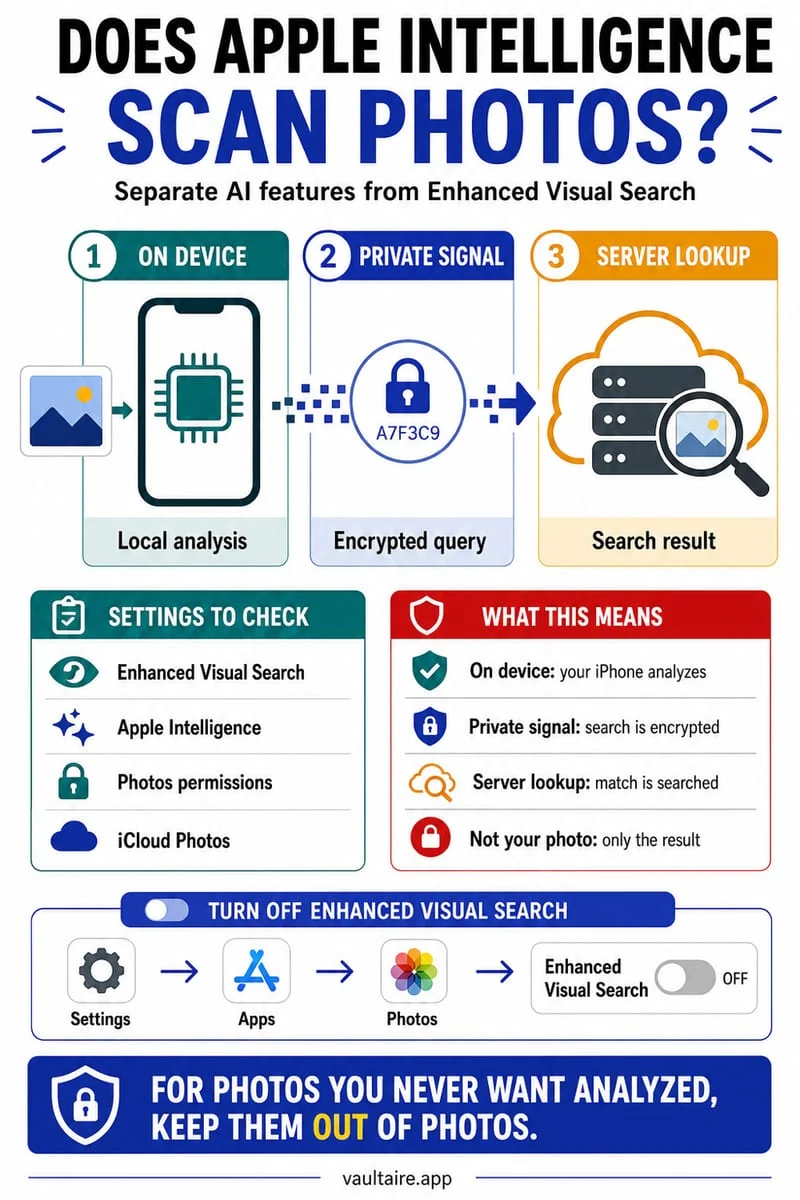
Yes, iOS continuously analyzes photos inside the Apple Photos app on-device to detect faces, text (Live Text), pets, scenes, and natural-language queries for Apple Intelligence. While most indexing happens locally on your iPhone's Neural Engine, Enhanced Visual Search also uses encrypted landmark matching with Apple servers unless you turn it off or move private photos into an external encrypted vault.
What iOS and Apple Intelligence scan inside the Photos app
Whenever photos or videos reside inside the standard iPhone Photos library, background iOS media-analysis daemons (`mediaanalysisd` and `photoanalysisd`) continuously inspect them—especially overnight when your iPhone is locked and connected to power. This background computer-vision pipeline generates semantic embeddings, facial clustering graphs, Live Text OCR transcripts, scene classifications, and object segmentation masks.
Those local indexes power features like natural-language search ('driver's license on wooden table' or 'receipts from May'), custom Apple Intelligence Memory movies, Clean Up object removal, People & Pets albums, and Spotlight results. While Apple engineers core Apple Intelligence photo indexing to execute locally on your iPhone's Neural Engine without uploading raw personal photos to train foundation models, the practical reality on your device is that every text string, face, and object in your Camera Roll is cataloged and searchable.
| Analysis Feature | Where Processing Runs | What It Indexes in Apple Photos | Scans Inside Octoshield Vault? |
|---|---|---|---|
| Live Text (OCR) | On-device Neural Engine | Every word, number, password, or ID string visible in photos & screenshots | No — encrypted with AES-256-GCM |
| Semantic & Apple Intelligence Search | On-device Neural Engine | Objects, clothing, activities, documents, and natural-language descriptions | No — isolated from system photo database |
| People, Pets & Trips | On-device + synced via iCloud Photos | Facial geometry clusters, pet recognition, and GPS timeline groupings | No — thumbnails and index are encrypted |
| Enhanced Visual Search | On-device vector + Apple server index (via OHTTP & homomorphic encryption) | Landmarks and points of interest detected in your photos | No — zero network or external index calls |
How to turn off Enhanced Visual Search and Siri Photo indexing
One specific setting inside the iOS Photos menu drew intense attention from privacy researchers: Enhanced Visual Search, which is enabled by default on modern iOS releases. When Enhanced Visual Search is on, your iPhone extracts vector embeddings of potential landmarks in your photos and queries a global index hosted on Apple servers (using homomorphic encryption and an Oblivious HTTP relay) so you can search for photos by landmark name.
Even with cryptographic privacy relays in place, many privacy-conscious users prefer that their iPhone never query external servers about the contents of their photo library—and prefer that Siri and Spotlight never surface private photos in system-wide search suggestions or lock-screen widgets. You can disable all of these toggles in under sixty seconds.
- Open Settings → Apps → Photos on your iPhone.
- Scroll to the very bottom of the Photos settings page and toggle off Enhanced Visual Search.
- Scroll up in the same Photos menu and tap Apple Intelligence & Siri (or Search), then toggle off Learn from this App, Show in App, and Show Content in Search.
- Toggle off Show Featured Content and Show Holiday Events in the Photos settings menu so iOS stops surfacing algorithmic photo carousels on your Home Screen and Utilities views.
Keep sensitive photos completely out of system photo indexing
Toggling off Enhanced Visual Search stops external landmark matching, but it does not stop the local iOS Photos app from running Live Text OCR, facial recognition, and semantic search across your Camera Roll. As long as an image remains inside the Apple Photos database, typing a single word like 'passport', 'tax', 'bank', or 'medical' into the Photos search bar will pull up every matching image on your phone.
To place sensitive personal photos, ID scans, medical records, or private screenshots completely beyond the reach of `mediaanalysisd`, Spotlight, and Apple Intelligence, move them across a hard cryptographic boundary into Octoshield (built by TengrX). Octoshield encrypts every imported file in 512 KB chunks using AES-256-GCM, and uses HKDF-SHA256 to derive separate encryption keys for the file, its thumbnail, and its catalog index from a random 256-bit master key.
- Open Octoshield, unlock your vault with your PIN, passphrase, 3×3 pattern, or safe-style combination dial, and import the photos you want to isolate (or swipe up on them in Octoshield's Cleaner).
- Approve the iOS system prompt to delete the original copies from the Apple Photos library.
- Open Apple Photos → Collections → Utilities → Recently Deleted and permanently delete those items so iOS purges their Live Text OCR and semantic embeddings from its local database.
How to verify your Apple Intelligence Privacy Report on iPhone
If you use Apple Intelligence features elsewhere on your iPhone and want to verify whether any request ever left your device for Private Cloud Compute, iOS includes a built-in transparency log inside Privacy & Security settings. Checking this report periodically is a good habit alongside keeping your sensitive files locked inside a local vault.
- Open Settings → Privacy & Security → Apple Intelligence Report.
- Turn on Record Apple Intelligence Activity (choose a 15-minute or 7-day window) to inspect any requests sent to Private Cloud Compute.
- Keep confidential documents and private photos inside Octoshield so they are never exposed to system-wide AI prompts or visual lookup tools.
Frequently asked questions
01Does Apple use my private iPhone photos to train Apple Intelligence models?+
According to Apple's published privacy documentation, Apple does not use your personal photos, videos, or iCloud content to train its foundation AI models. However, iOS still scans and indexes your Photos library locally on your device to make images searchable.
02Does turning off Apple Intelligence stop all photo scanning on iPhone?+
No. Even if you turn off Apple Intelligence completely in Settings, the iOS Photos app still runs its built-in computer-vision pipeline for Live Text (OCR), People & Pets facial recognition, duplicate detection, and category search.
03Can Apple Intelligence or Spotlight search inside Octoshield?+
No. Every file, preview thumbnail, and index record inside Octoshield is encrypted at rest with AES-256-GCM inside local app storage and is never exposed to Spotlight, Siri, Live Text, or Apple Intelligence.
04What is Enhanced Visual Search in iPhone Photos settings?+
Enhanced Visual Search is a setting under Settings → Apps → Photos that matches landmarks and points of interest in your photos against an Apple-maintained global index using encrypted vector queries. You can toggle it off at any time without breaking normal photo storage.
05Does the iPhone Hidden album stop iOS from indexing a photo?+
Hiding a photo suppresses it from appearing in Memories widgets and general Spotlight suggestions, but the image remains inside the Apple Photos database and syncs to iCloud Photos. Moving the photo into Octoshield removes it from the Apple Photos database entirely.
Official sources & further reading
Lock your private photos behind real AES-256-GCM encryption.
Stop relying on a Hidden album that shares your iPhone lock-screen passcode. Import private photos and videos into Octoshield’s device-bound local vault with your own PIN, passphrase, 3×3 pattern, or safe combination dial.
- AES-256-GCM authenticated encryption in 512 KB chunks
- Encrypted thumbnails & filename catalog index at rest
- 4 lock styles: PIN, Passphrase, 3×3 Pattern, or Safe Dial + Face ID
- 100% on-device storage — zero cloud servers, zero ad SDKs
 AES-256-GCM + Cleaner
LOCAL IPHONE SANDBOX · KEYCHAIN BOUND
iOS menus can vary slightly by iOS version. Octoshield instructions describe the current local app implementation engineered by TengrX. Check the App Store listing for the version available to download.