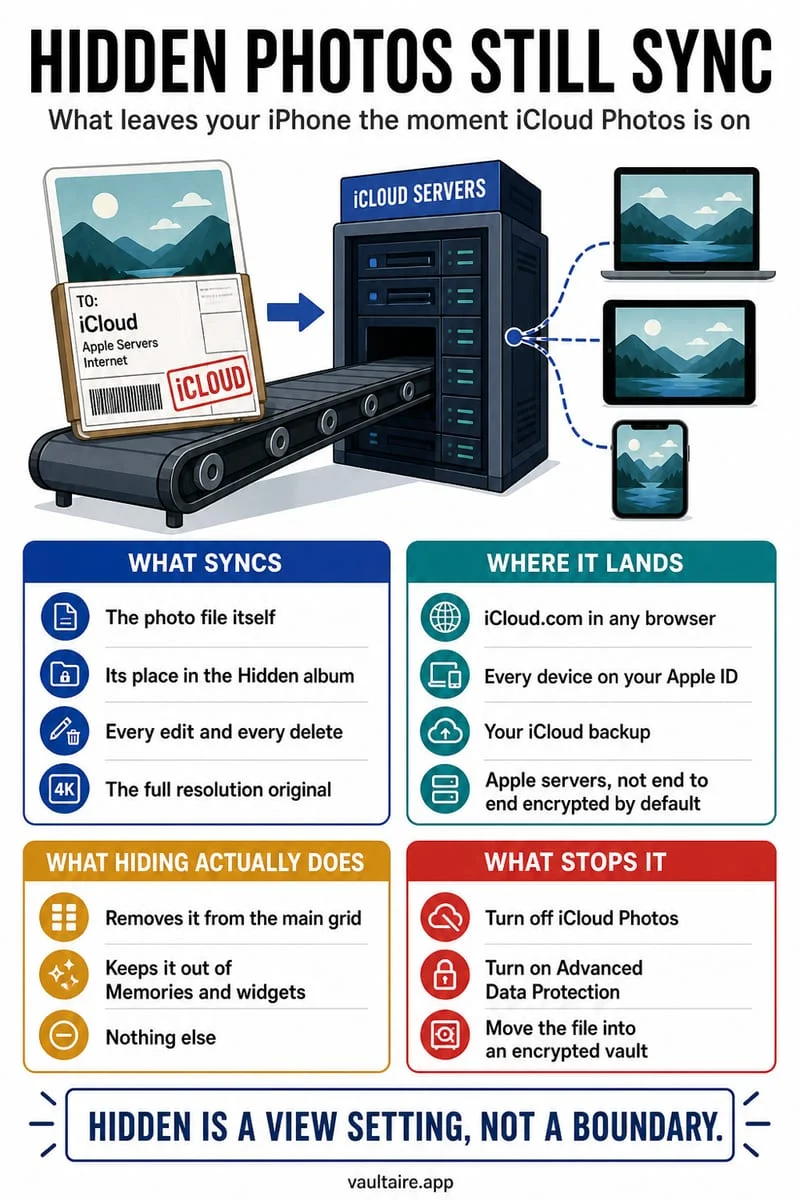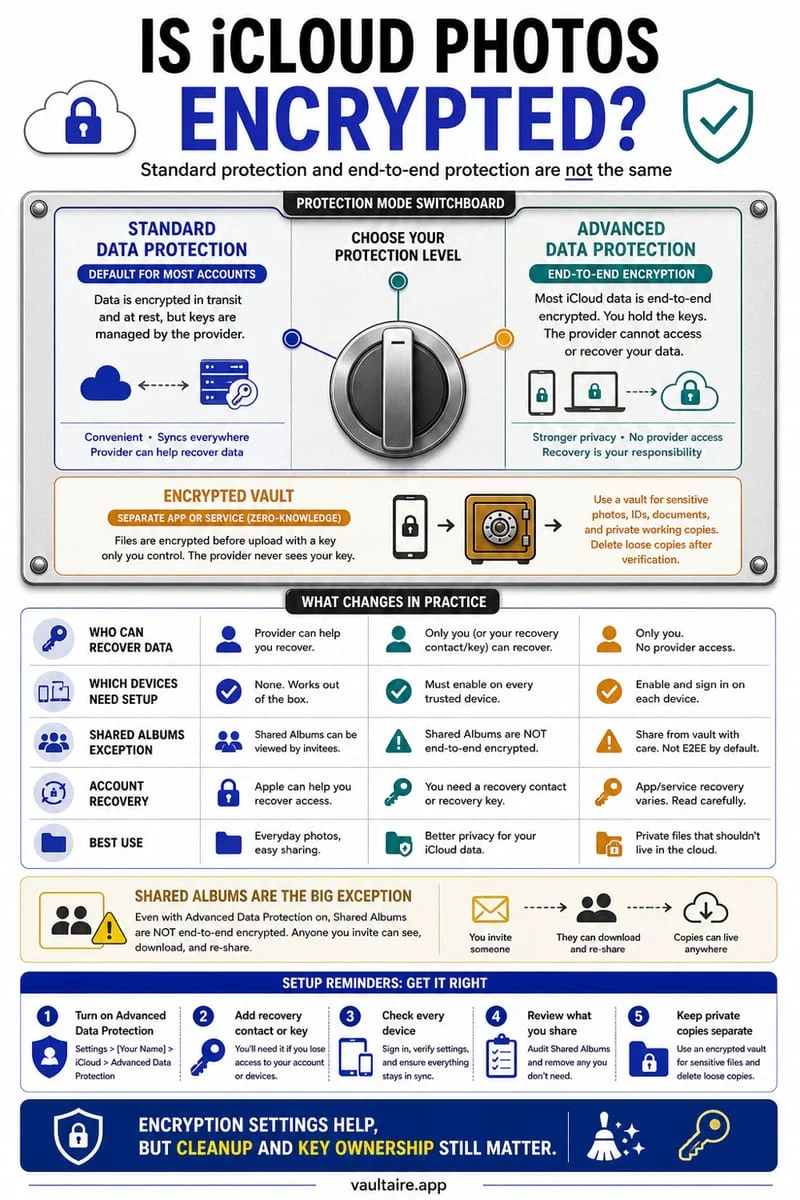
By default (Standard data protection), iCloud Photos are encrypted in transit and on Apple's servers, but Apple holds the encryption keys and can decrypt them for account recovery or valid legal requests. To make iCloud Photos end-to-end encrypted, you must manually enable Advanced Data Protection (ADP) in Settings—or store private photos strictly on-device in an encrypted vault like Octoshield.
Standard iCloud vs. Advanced Data Protection vs. Local Vault
A widespread misconception among iPhone users is that all iCloud data is end-to-end encrypted by default. In reality, Apple divides iCloud security into two distinct models: Standard data protection (the default for all new Apple Accounts) and Advanced Data Protection (an opt-in setting that expands end-to-end encryption to iCloud Photos, iCloud Backup, Notes, and iCloud Drive).
Under Standard data protection, your photos are encrypted in transit and stored encrypted in cloud data centers, but the cryptographic keys required to decrypt your photo library are held by Apple so Apple can assist with account recovery—and consequently, Apple can also access those photos in response to valid legal requests or if your web account is compromised.
Even when you enable Advanced Data Protection so that only your trusted devices hold the keys, your photos still upload to remote cloud servers and automatically replicate across every Mac, iPad, or Apple Vision Pro signed in to your Apple Account. A local-only encrypted vault like Octoshield takes a fundamentally different architectural approach: your private photos and files never leave your iPhone in the first place.
| Security Attribute | Standard iCloud Photos (Default) | iCloud with Advanced Data Protection | Octoshield Local Vault |
|---|---|---|---|
| Who holds the encryption keys? | Apple holds keys in its data centers | Your trusted Apple devices only (end-to-end encrypted) | Strictly local on this iPhone (PBKDF2 secret + hardware Keychain + random 256-bit master key) |
| Cloud server storage | Yes (synced to iCloud servers) | Yes (encrypted ciphertext synced to iCloud servers) | None (100% offline; explicitly excluded from iCloud & computer backups) |
| Visible on other signed-in Apple devices? | Yes (Mac, iPad, Vision Pro, iCloud.com) | Yes (Mac, iPad, Vision Pro; optional on iCloud.com) | No (isolated strictly to this single iPhone) |
| Unlock credential | Apple Account / device passcode | Apple Account / device passcode | Independent PIN, Passphrase, 3×3 Pattern, or Combination Dial (+ optional Face ID) |
| Account recovery if secret is lost | Apple can reset your password and restore photos | Requires your Recovery Contact or 28-character Recovery Key | No recovery or reset; export essential files before changing devices |
How to turn on Advanced Data Protection for iCloud Photos
If you want the convenience of iCloud Photos syncing your everyday travel and family pictures across your iPhone and Mac while ensuring Apple servers no longer hold the keys to decrypt your library, turning on Advanced Data Protection is well worth five minutes of setup. Note that every single iPhone, iPad, Mac, Apple Watch, and HomePod signed in to your Apple Account must be running modern OS versions—if an old iPad in a drawer is still signed in on an outdated iOS version, iOS will prompt you to update or remove that device first.
Before iOS flips the switch to Advanced Data Protection, it requires you to configure at least one Account Recovery Contact (a trusted friend or family member with an Apple device) or generate and verify a 28-character Recovery Key. Take this step seriously: once ADP is active, Apple Support cannot recover your iCloud Photos if you forget your password and lose your trusted devices.
- Open Settings on your iPhone and tap your name (Apple Account banner) at the very top.
- Tap iCloud, then scroll down to the bottom and tap Advanced Data Protection.
- Tap Account Recovery to set up a Recovery Contact and/or write down your 28-character Recovery Key in a safe physical location.
- Return to Advanced Data Protection, tap Turn On Advanced Data Protection, verify your recovery method, and also toggle off Access iCloud Data on the Web if you want to block browser logins at iCloud.com.
What stays unencrypted or exposed even after enabling Advanced Data Protection
Even with Advanced Data Protection enabled, several photo-sharing features inside the Apple Photos app intentionally bypass strict end-to-end encryption to support collaboration or legacy web links. Specifically, traditional Shared Albums and public iCloud Photo Links are not protected by Advanced Data Protection's end-to-end encryption model.
Furthermore, Advanced Data Protection is designed to protect data in the cloud—it does nothing to protect photos on your unlocked iPhone from someone who knows your device passcode, or from a family member using your signed-in Mac or iPad at home.
Combine Advanced Data Protection with Octoshield for truly private files
The smartest privacy setup on an iPhone in 2026 is not an 'all-or-nothing' choice between iCloud and local storage—it is combining both layers for what each does best. Enable Advanced Data Protection so your 20,000 everyday family and travel photos sync safely across your Apple devices with end-to-end encryption, and move your high-sensitivity photos, ID scans, and confidential documents into Octoshield (built by TengrX) so they never touch any cloud server or synced screen.
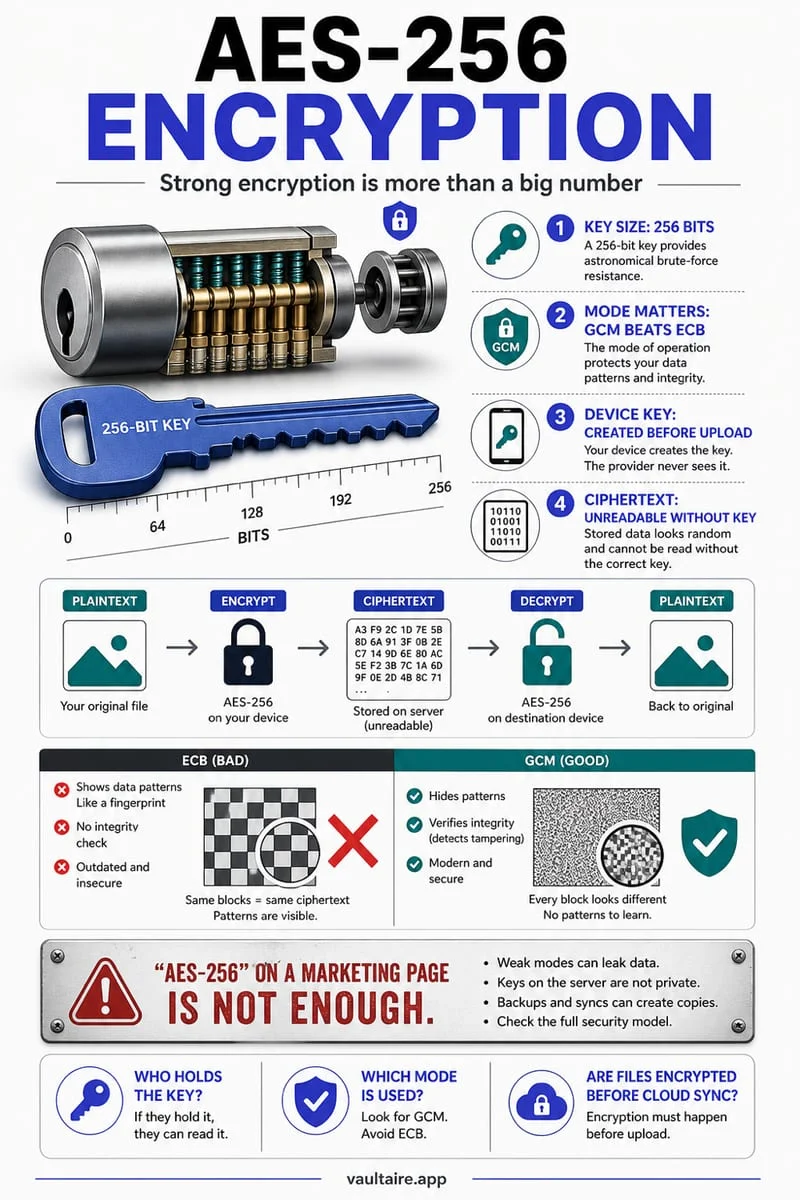
Octoshield encrypts each file in 512 KB chunks with AES-256-GCM, using HKDF-SHA256 to derive separate keys for every file, thumbnail, and catalog index record from a random 256-bit master key. Once you import private items into Octoshield (or swipe up on them in Octoshield's Cleaner), delete the originals from Apple Photos, and empty Recently Deleted, those files exist exclusively inside your encrypted local vault.
- Enable Advanced Data Protection in Settings → [Your Name] → iCloud for your everyday synced photo library.
- Open Octoshield and import sensitive photos or documents that you never want uploaded to iCloud or replicated to your Mac/iPad.
- Delete the original copies from the Apple Photos app and empty Photos → Collections → Utilities → Recently Deleted so iCloud purges the cloud copies immediately.
Frequently asked questions
01If I turn on Advanced Data Protection later, are my old iCloud Photos protected?+
Yes, turning on Advanced Data Protection rolls over your existing iCloud Photos library to end-to-end encryption Keys controlled by your trusted devices, though keep in mind that any photos previously uploaded under Standard protection existed on servers with Apple-accessible keys prior to the upgrade.
02Are Shared Albums end-to-end encrypted under Advanced Data Protection?+
No. Apple's security documentation explicitly states that traditional Shared Albums and public iCloud links are not end-to-end encrypted under Advanced Data Protection. Never place sensitive personal photos or ID scans in a Shared Album.
03Does Octoshield back up my vault to iCloud if I have Advanced Data Protection on?+
No. Octoshield marks all encrypted vault files as excluded from iOS backups (both iCloud Backup and computer backups) regardless of whether you use Standard or Advanced Data Protection. Always manually export essential files before switching phones.
04Why won't my iPhone let me turn on Advanced Data Protection?+
The most common blocker is an older Apple device (such as an old Mac, iPad, Apple Watch, or Apple TV) signed in to your Apple Account that has not been updated to a software version supporting ADP. Scroll to the bottom of Settings → [Your Name] and update or remove outdated devices, then try again.
05Is Advanced Data Protection available in every country?+
Advanced Data Protection is available in most regions worldwide, though regulatory mandates in certain jurisdictions (such as the UK for new opt-ins at various points) have impacted availability of cloud end-to-end encryption—which is another reason local on-device encryption in an app like Octoshield remains indispensable.
Official sources & further reading
Lock your private photos behind real AES-256-GCM encryption.
Stop relying on a Hidden album that shares your iPhone lock-screen passcode. Import private photos and videos into Octoshield’s device-bound local vault with your own PIN, passphrase, 3×3 pattern, or safe combination dial.
- AES-256-GCM authenticated encryption in 512 KB chunks
- Encrypted thumbnails & filename catalog index at rest
- 4 lock styles: PIN, Passphrase, 3×3 Pattern, or Safe Dial + Face ID
- 100% on-device storage — zero cloud servers, zero ad SDKs
 AES-256-GCM + Cleaner
LOCAL IPHONE SANDBOX · KEYCHAIN BOUND
iOS menus can vary slightly by iOS version. Octoshield instructions describe the current local app implementation engineered by TengrX. Check the App Store listing for the version available to download.