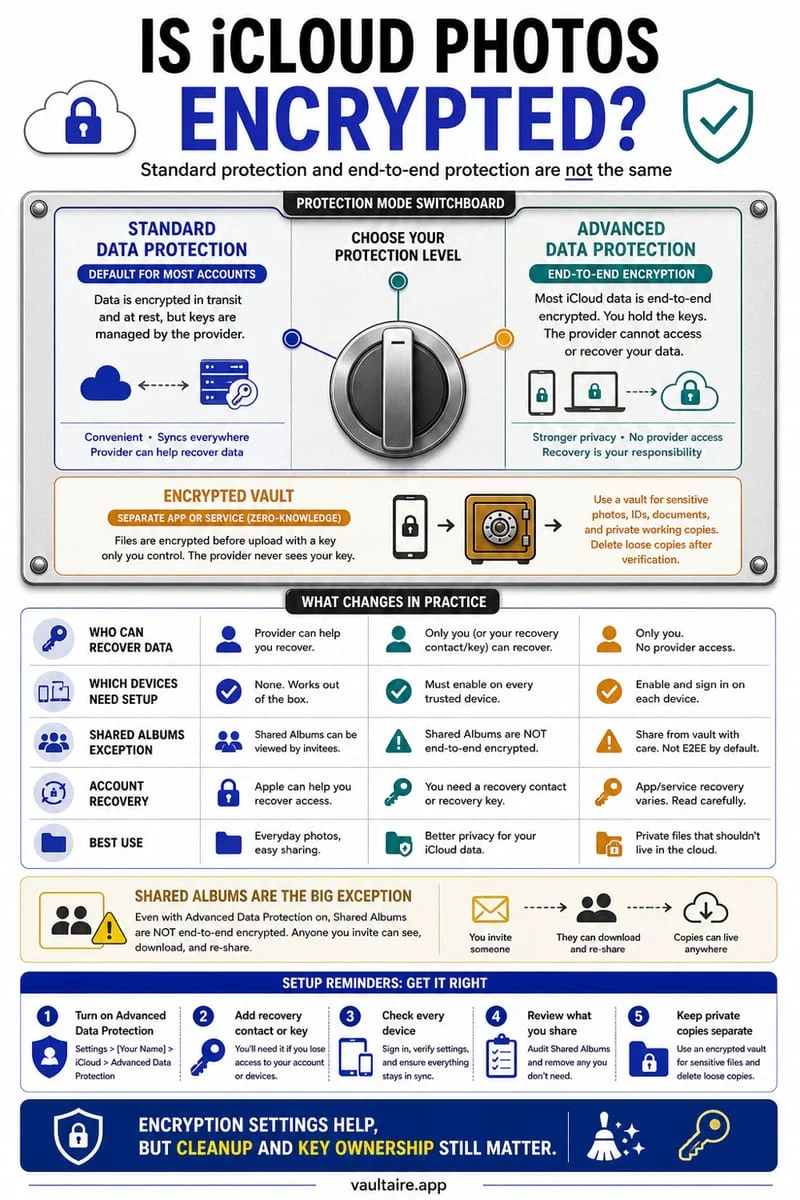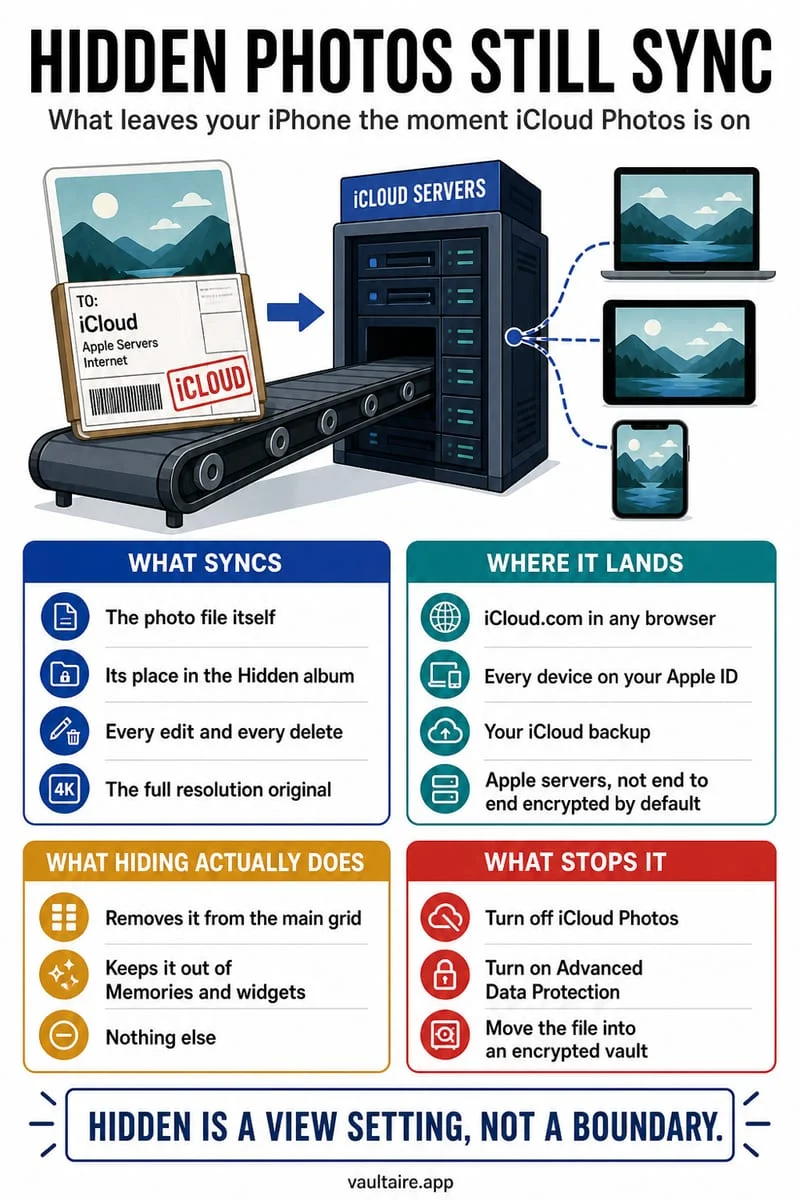
Yes. Photos in your iPhone's built-in Hidden album remain part of your main Photos library: if iCloud Photos is turned on, they automatically sync to iCloud and to every Mac or iPad signed in to your Apple Account. If iCloud Photos is turned off, they are included in your standard iCloud device backup unless you turn off Photos in backup settings.
Check whether your Hidden album is in iCloud Photos or iCloud Backup
Even if you turned off iCloud Photos years ago because you did not want your pictures syncing to the cloud, your Hidden album is likely still being uploaded to Apple's servers through a second mechanism: nightly iCloud Device Backups. When iCloud Photos is off, iOS bundles your entire local Photo Library (including the Hidden album) inside your device backup image by default.
Use the steps and table below to audit exactly how your iPhone is currently handling your Hidden album in the cloud.
- Open Settings on your iPhone, tap your name at the top, and tap iCloud.
- Tap Photos and check whether Sync this iPhone is toggled ON. If it is on, your Hidden album is continuously synced to iCloud Photos and all your signed-in Apple devices.
- If Sync this iPhone is OFF, tap Back to return to the iCloud menu, tap iCloud Backup, tap your current iPhone under All Device Backups, and check whether Photo Library is toggled ON inside the backup payload.
| Your iPhone Setting | Uploaded to iCloud Servers? | Synced to Your Mac & iPad? | Protected from Someone Who Knows Your Passcode? |
|---|---|---|---|
| iCloud Photos ON (Default) | Yes — live sync to iCloud Photos | Yes — appears in Hidden album on all devices | No (unless Stolen Device Protection blocks fallback) |
| iCloud Photos OFF + iCloud Backup ON | Yes — bundled inside nightly iCloud Backup | Restores to any device restored from backup | No — unlocks with iPhone passcode |
| Both OFF (Apple Photos local only) | No — stays on iPhone (unless backed up to Mac/PC) | No | No — still shares iPhone authentication |
| Octoshield Encrypted Vault | Never — strictly local & excluded from all backups | Never — isolated to this single iPhone | Yes — uses independent PIN, Passphrase, Pattern, or Dial |
How to verify a photo is truly gone from iCloud.com and synced Macs
After you move a photo out of the Apple Hidden album into Octoshield and clear Recently Deleted on your iPhone, iOS broadcasts a deletion tombstoning event to iCloud Photos. As long as your iPhone has an active Wi-Fi or cellular connection, that photo disappears from iCloud.com and any connected Mac or iPad within seconds.
However, keep one edge case in mind: if you have an old iPad or Mac laptop sitting in a bag with its Wi-Fi turned off (or in Airplane Mode), that offline device will still display the cached thumbnail in its Hidden album until the moment it reconnects to Wi-Fi and syncs the deletion from iCloud.
Frequently asked questions
01If I delete a photo from the Hidden album on my iPhone, is it deleted from iCloud?+
Yes, when iCloud Photos is turned on, deleting a photo from the Hidden album (and emptying Recently Deleted) deletes it from iCloud and all of your other synced Apple devices. That is why you must first import the photo into an independent local vault like Octoshield before deleting the iCloud copy.
02Can someone on my Mac see the photos I hid on my iPhone?+
Yes. If your Mac is signed in to the same Apple Account with iCloud Photos enabled, every photo in your iPhone's Hidden album syncs to the Mac's Photos app under View → Show Hidden Photo Album, where anyone who knows the Mac's login password can view them.
03Are photos inside Octoshield ever backed up to iCloud?+
No. Octoshield is 100% local and explicitly excludes its encrypted vault storage and device-bound Keychain keys from iCloud Backup and Finder/iTunes computer backups. Always export important files before upgrading to a new iPhone.
04Does turning off 'Show Hidden Album' in Settings stop hidden photos from syncing to iCloud?+
No. Toggling off Show Hidden Album under Settings → Apps → Photos only hides the 'Hidden' row inside the Utilities menu of the Photos app UI—it does not change iCloud syncing or remove the photos from your iCloud Backup.
05Can I view my Hidden album on iCloud.com from a web browser?+
Yes, if web access to iCloud is enabled on your account, signing in to iCloud.com/photos allows viewing the Hidden album in the sidebar. Moving sensitive photos into Octoshield ensures they can never be accessed from any web browser.
Official sources & further reading
Lock your private photos behind real AES-256-GCM encryption.
Stop relying on a Hidden album that shares your iPhone lock-screen passcode. Import private photos and videos into Octoshield’s device-bound local vault with your own PIN, passphrase, 3×3 pattern, or safe combination dial.
- AES-256-GCM authenticated encryption in 512 KB chunks
- Encrypted thumbnails & filename catalog index at rest
- 4 lock styles: PIN, Passphrase, 3×3 Pattern, or Safe Dial + Face ID
- 100% on-device storage — zero cloud servers, zero ad SDKs
 AES-256-GCM + Cleaner
LOCAL IPHONE SANDBOX · KEYCHAIN BOUND
iOS menus can vary slightly by iOS version. Octoshield instructions describe the current local app implementation engineered by TengrX. Check the App Store listing for the version available to download.