Open Settings → Privacy & Security → Photos on your iPhone to see every app that can read your photo library and switch apps from Full Access to Limited Access or None. Any app with Full Access can silently read all photos, videos, screenshots, and EXIF GPS metadata in your main library unless you revoke access or move private items into an external encrypted vault.
How to check which apps have Full Access to your Camera Roll right now
Over a year or two of installing apps on an iPhone, it is remarkably easy to tap 'Allow Full Access' when a shopping app, airline app, social network, food delivery service, or AI filter asks to upload a single picture. What many people do not realize is that **Full Access** is not a one-time permission for the photo you tapped—it grants that app continuous, programmatic read access to your entire Apple Photos library whenever the app is open.
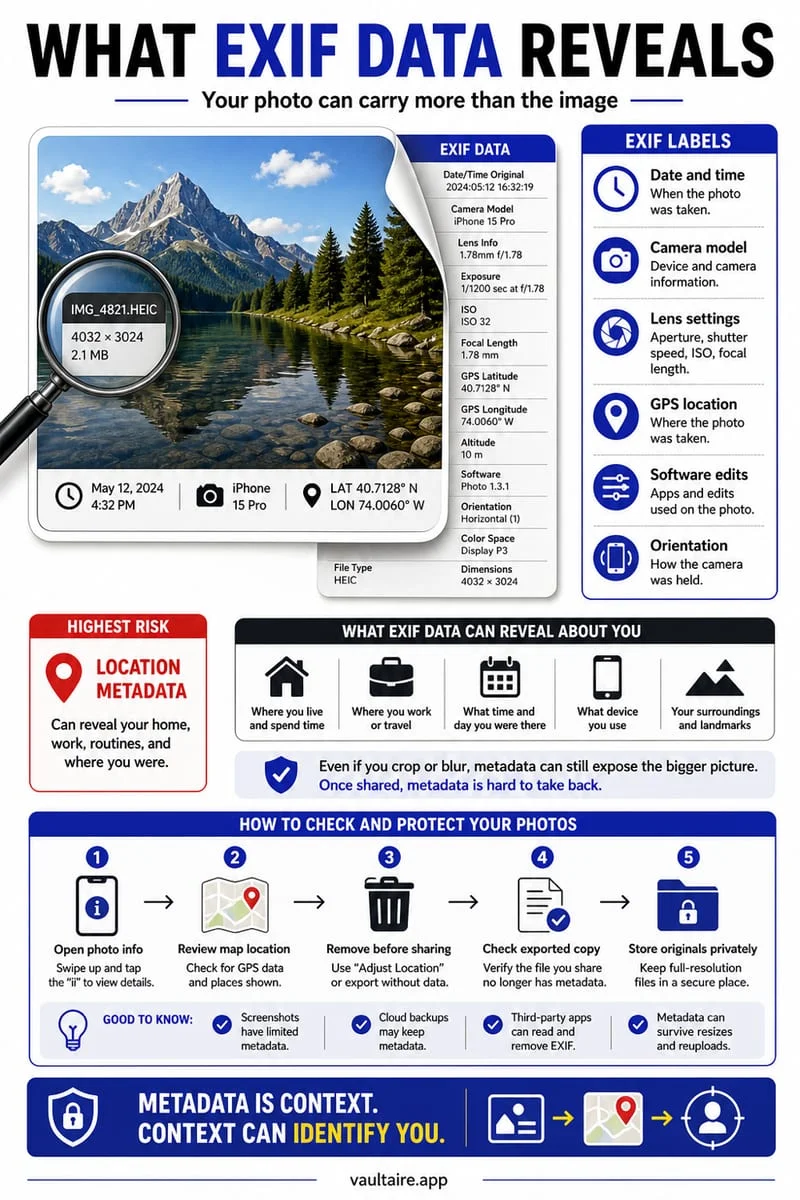
With Full Access, a third-party app can query Apple's PhotoKit APIs in the background without showing any camera or picker indicator: it can read all of your photos, videos, screenshots of bank statements or passwords, face/location albums, and the embedded EXIF GPS coordinates and timestamps of every image in your Camera Roll.
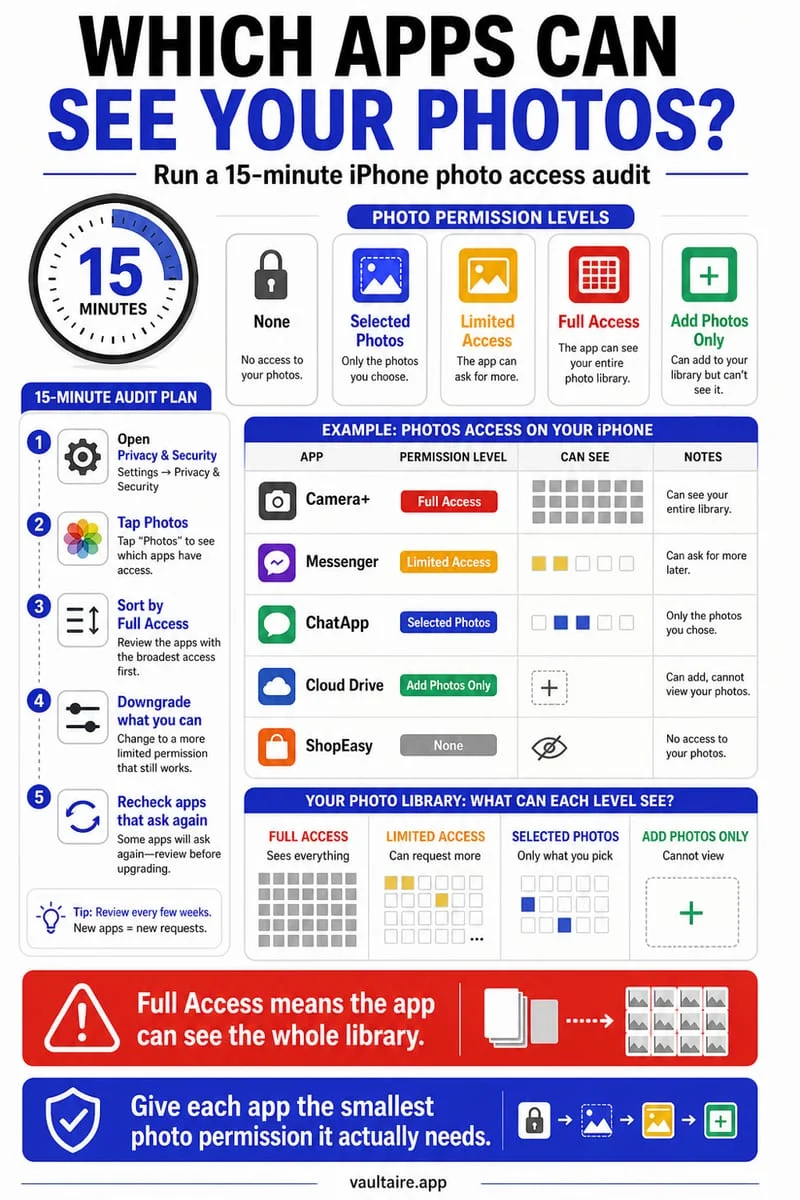
- Open Settings on your iPhone and tap Privacy & Security.
- Tap Photos to open the centralized permission audit list, grouped into Full Access, Limited Access, Add Photos Only, and Private Access.
- Tap every app currently listed under Full Access and ask whether it truly needs unrestricted access to your entire Camera Roll.
- Switch any shopping, social, utility, or messaging app that only needs occasional image uploads from Full Access down to Limited Access or None.
Private Access vs. Limited Access vs. Full Access explained
On current 2026 iOS versions, Apple provides four distinct photo permission tiers. Understanding how **Private Access** differs from **Limited Access** helps you lock down third-party apps without breaking your ability to share pictures.
When an app is listed under **Private Access**, it uses Apple's out-of-process system photo picker (`PHPickerViewController`). Even though the picker window pops up inside the app and lets you browse or search your library, that picker window is actually rendered by a separate, isolated iOS system process—the third-party app itself is completely blind to your library and only receives the single image file you explicitly tap.
| Permission Level | What the App Can Read | Can the App Read Background EXIF & GPS? | Recommended For |
|---|---|---|---|
| Private Access (System Picker) | Only the exact photo you tap at the moment of selection | Only on the single exported photo (unless stripped in Options) | Modern apps where you occasionally upload a profile picture or attachment |
| Add Photos Only | Zero read access — can only save new images into Photos | No — cannot read any existing photo | Wallpaper apps, QR generators, or simple camera tools |
| Limited Access | Only the specific whitelist of photos you manually selected | Yes — for the specific photos in your approved selection | Social or editing apps that haven't adopted the Private Access picker |
| Full Access | Every photo, video, and screenshot in your main Photos library | Yes — can silently read EXIF & GPS across your entire library | Only trusted local tools (like Octoshield Cleaner) or your primary photo backup app |
How to manage Limited Access selections and periodic iOS reminders
When you set an app (such as Instagram, WhatsApp, or Discord) to **Limited Access**, iOS remembers the exact photos you checked. If you want to share a brand-new photo inside that app tomorrow, you don't have to switch the app back to Full Access—you can simply add the new photo to the app's approved list.
In addition, iOS periodically displays a background permission reminder banner showing how many photos an app with Full Access has accessed recently, giving you a one-tap option to downgrade it to Limited Access.
- To add or remove photos for a Limited Access app, open Settings → Privacy & Security → Photos → tap the app → tap Edit Selected Photos.
- If an app's built-in picker only shows a few old pictures, look for the 'Manage' or 'Select More Photos…' button inside the app's photo tray rather than switching to Full Access.
Why you should still move sensitive photos into Octoshield
Even after auditing your permissions, most people still keep at least two or three everyday apps set to Full Access for convenience—and even inside Apple's safe Private Access picker, tapping 'Attach Photo' while sitting next to a coworker, friend, or family member flashes a grid of your most recent Camera Roll thumbnails right on screen.
By moving your private photos, sensitive screenshots, and ID scans into Octoshield (built by TengrX) and deleting the originals from Apple Photos, you guarantee that **no app with Full Photo Library Access can ever see or scan them**. Octoshield encrypts every file in 512 KB chunks with AES-256-GCM, deriving separate keys via HKDF-SHA256 for the file, its thumbnail, and its catalog index from a random 256-bit master key protected by PBKDF2-SHA256 and your iPhone's hardware-backed Keychain.
- Open Octoshield and use the Cleaner tab (swipe up) or Vault Importer to encrypt your private photos, ID scans, and sensitive screenshots into your local vault.
- Approve the iOS system prompt to delete the original copies from the Apple Photos library.
- Open Apple Photos → Collections → Utilities → Recently Deleted and tap Delete All so no third-party app with Full Access can ever read those files.
Frequently asked questions
01Can apps with Full Access see photos inside my iPhone Hidden album?+
On modern iOS versions, the system hides the Hidden album inside standard third-party photo pickers unless you authenticate with Face ID. However, any photo sitting in your main Camera Roll, Favorites, Recents, or Screenshots album is immediately readable by every app with Full Access.
02Why does an app say 'Private Access' even though I never gave it permission?+
Private Access means the app uses Apple's secure out-of-process system photo picker. The app has zero direct access to your photo library until the exact moment you explicitly tap and confirm a specific photo inside the picker sheet.
03Why does Octoshield need photo access if it's a privacy app?+
Octoshield requests photo access so its on-device Cleaner can display your Camera Roll for swipe-to-clean sorting and so you can import photos into the encrypted vault and trigger the iOS prompt to delete the originals. Because Octoshield has no cloud server, no user account, and zero network uploading, your photos never leave your iPhone.
04Can a website in Safari see my iPhone photo library?+
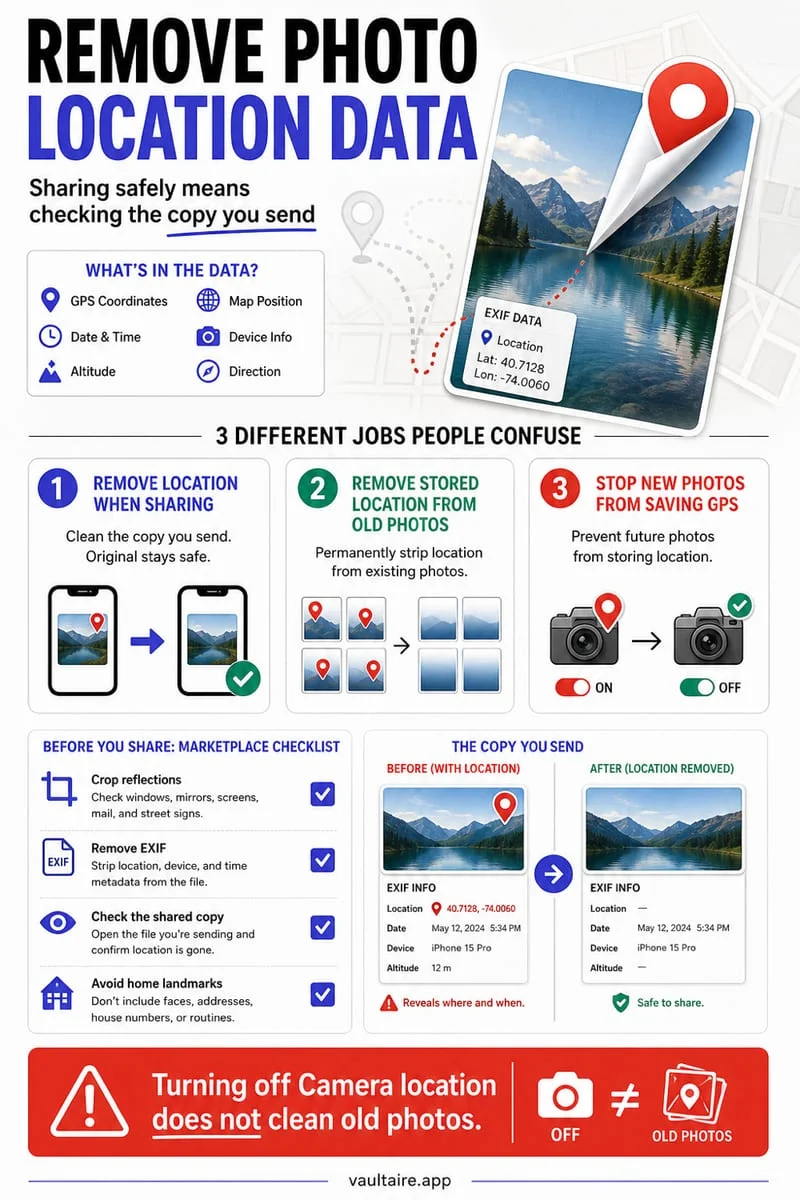
No. When you tap an 'Upload File' or 'Choose Photo' button on a website in Safari, iOS always uses the out-of-process Private Access system picker. The website only receives the specific file you select—though that file will still include EXIF GPS coordinates unless you tap Options at the bottom of the picker and turn off Location.
05If I switch an app from Full Access to None, does it delete photos I already sent in that app?+
No. Revoking photo access in Settings → Privacy & Security → Photos only prevents the app from reading your Camera Roll going forward; any images you previously uploaded or sent inside that app's chat threads remain in the app.
Official sources & further reading
Lock your private photos behind real AES-256-GCM encryption.
Stop relying on a Hidden album that shares your iPhone lock-screen passcode. Import private photos and videos into Octoshield’s device-bound local vault with your own PIN, passphrase, 3×3 pattern, or safe combination dial.
- AES-256-GCM authenticated encryption in 512 KB chunks
- Encrypted thumbnails & filename catalog index at rest
- 4 lock styles: PIN, Passphrase, 3×3 Pattern, or Safe Dial + Face ID
- 100% on-device storage — zero cloud servers, zero ad SDKs
 AES-256-GCM + Cleaner
LOCAL IPHONE SANDBOX · KEYCHAIN BOUND
iOS menus can vary slightly by iOS version. Octoshield instructions describe the current local app implementation engineered by TengrX. Check the App Store listing for the version available to download.