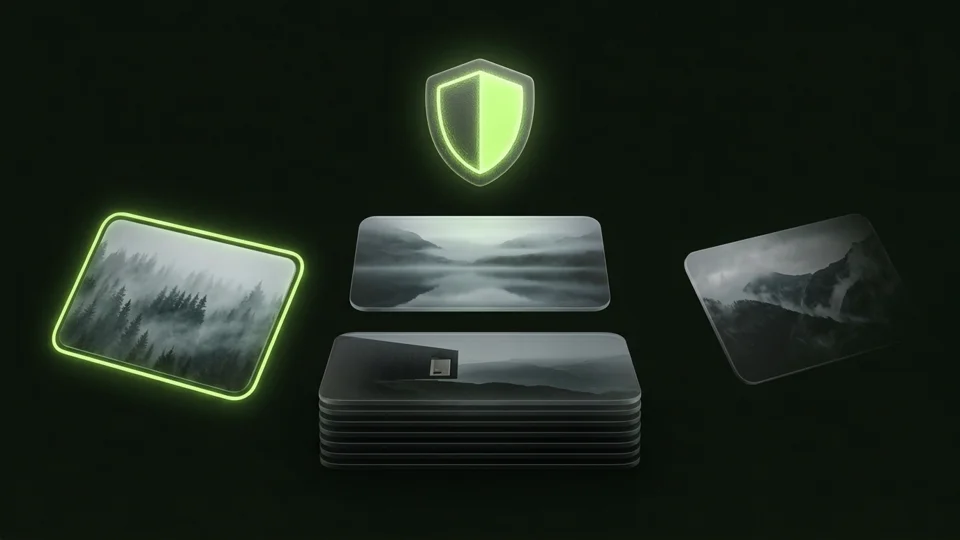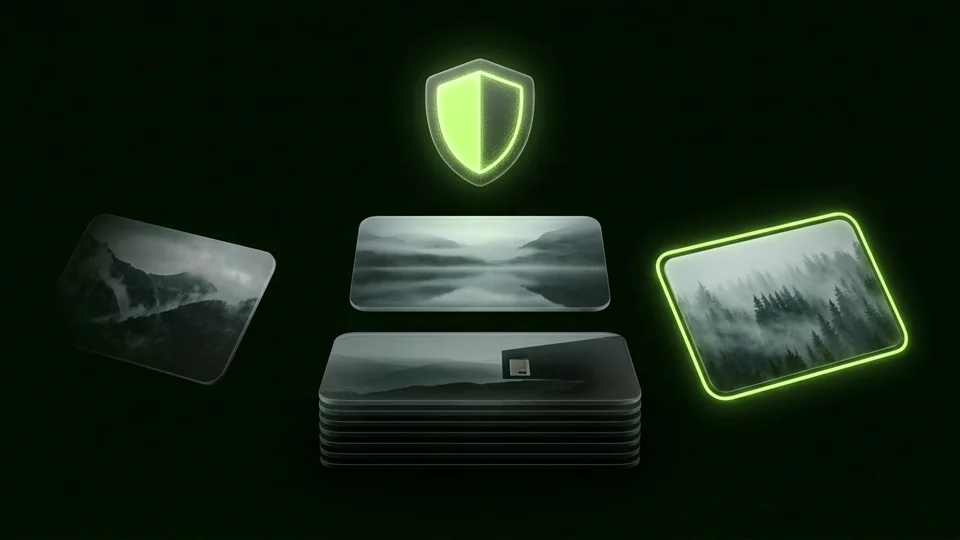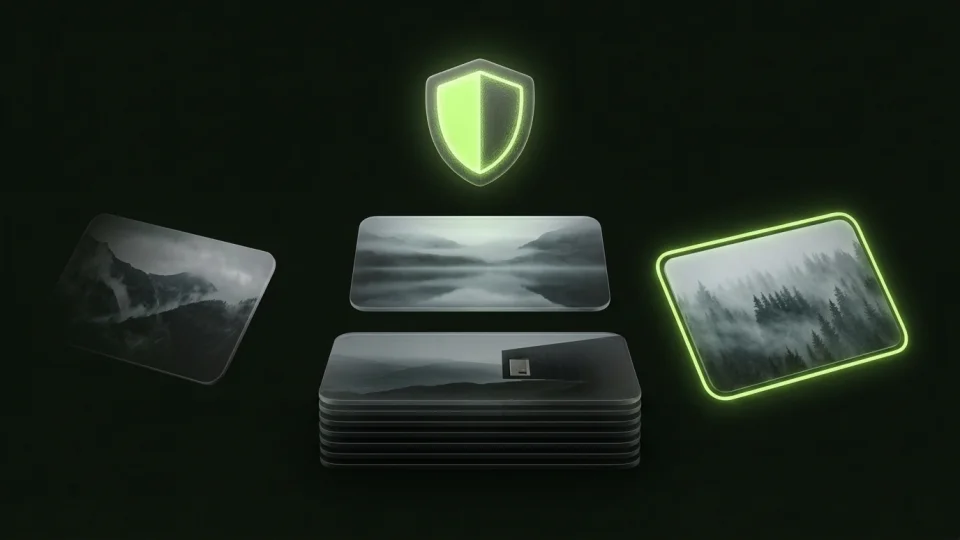
Apple’s native Photos app requires selecting thumbnails in a grid and tapping the trash icon, which quickly causes decision fatigue across thousands of images. With Octoshield’s Cleaner, you review photos one full-screen card at a time: swipe left to queue for deletion, swipe right to keep in Photos, or swipe up to encrypt into your private vault. Nothing leaves Apple Photos until you review the queue and confirm the iOS system prompt.
Why full-screen card swiping beats grid scrolling
When your iPhone camera roll passes 10,000 or 30,000 items, cleaning it inside Apple’s default thumbnail grid becomes mentally exhausting. Tiny square previews make it impossible to tell which of six nearly identical portrait shots actually has sharp eyes, or whether a screenshot from eight months ago contains a reference number you still need.
Octoshield’s Cleaner replaces the overwhelming grid with a calm, focused stack of full-screen cards dealt in manageable batches. Instead of hunting through menus for every single photo, your thumb makes one of three tactile decisions on each card: left to delete, right to keep, or up to vault.
Unlike cloud-based 'AI cleaner' apps that try to guess which of your memories are disposable—or demand expensive weekly subscriptions just to delete your own photos—Octoshield’s Cleaner is a deliberate, 100% local manual review workflow where you stay in complete control.
- Open Octoshield on your iPhone, switch to the Cleaner tab, and grant photo library access.
- Swipe LEFT on any blurry shot, old receipt, or unwanted screenshot to add it to the pending deletion queue.
- Swipe RIGHT on any photo you want to keep untouched in your Apple Photos library.
- Swipe UP on any personal or sensitive photo to import an AES-256-GCM encrypted copy into your Octoshield vault and queue the camera-roll original for removal.
- When you finish a batch, open the Review Queue, uncheck any mistakes, and approve the official iOS deletion prompt.
Why the upward 'Swipe to Vault' gesture is a game-changer
Traditional swipe photo cleaners only give you a binary choice: Keep or Delete. That works for blurry floor shots, but what happens when you are sorting through your camera roll and stumble across a photo of your driver’s license, a tax form, or an intimate personal moment? You do not want to delete it, and you do not want to leave it sitting in your main camera roll either.
Octoshield bridges that gap by building the encrypted vault directly into the upward swipe gesture. When you swipe a card up, Octoshield immediately encrypts a copy into your local AES-256-GCM vault and adds the unencrypted Apple Photos original to your pending removal queue.
In a single 5-minute session on the train or couch, you simultaneously declutter unwanted junk AND move private photos out of your exposed camera roll.
| Swipe Direction | What Happens in Octoshield | What Happens in Apple Photos |
|---|---|---|
| Swipe Left (Delete) | Added to the temporary review queue | Moved to Recently Deleted only after you confirm the batch |
| Swipe Right (Keep) | Marked as reviewed so it isn't dealt again | Stays untouched in your Apple Photos library |
| Swipe Up (Vault) | Encrypted with AES-256-GCM inside your local vault | Original is queued for removal once vault import succeeds |
| Tap Undo | Reverts your last card decision immediately | No change made to Apple Photos |
Two-stage safety: why nothing is deleted immediately on a left swipe
When you get into a fast swiping rhythm, it is natural to accidentally flick a good photo to the left. If a left swipe erased the photo immediately, swipe cleaning would feel stressful rather than relaxing.
Octoshield uses a two-stage safety barrier. First, every left swipe (and the original removal from an upward vault swipe) goes into an in-app holding queue, and an instant Undo button lets you pull back your most recent card. Second, when you tap to commit your cleanup batch, Octoshield calls Apple’s official PhotoKit deletion API, which presents the native iOS system sheet showing the exact count and thumbnails of the photos about to be removed.
Even if you accidentally swipe up on a photo and then undo the deletion queue entry, Octoshield errs on the side of preserving data: if an import into the vault fails for any reason, the app automatically removes that photo from the deletion queue so you never lose the original before the encrypted copy is verified.
How to reclaim actual gigabytes after confirming your batch
Once you tap 'Delete [X] Photos' on the iOS system prompt, Apple moves those files out of your main library and into Photos → Collections → Utilities → Recently Deleted. By design, iOS holds deleted photos in Recently Deleted for 30 days in case you change your mind.
While those photos sit in Recently Deleted, they still consume 100% of their original disk space on your iPhone. If you are swiping to free up storage before a trip or an iOS update, open the Apple Photos app, go to Utilities → Recently Deleted, authenticate with Face ID, and tap Delete All to reclaim the gigabytes immediately.
Also remember that if iCloud Photos is enabled on your iPhone, confirming deletion removes those clutter photos from iCloud and your other synced Apple devices at the same time—cleaning your entire ecosystem in one pass.

Make room for what matters.
Download for freeFrequently asked questions
01Does swiping left immediately delete a photo from my iPhone?+
No. Swiping left only places the photo into Octoshield’s pending review queue. No photo is removed from Apple Photos until you review the queue and tap Delete on the native iOS confirmation prompt.
02Does swiping right encrypt or move a photo?+
No. Swiping right simply marks the photo as 'Keep' in Apple Photos and records that you have already reviewed it so Cleaner does not keep showing you the same card.
03What happens if I swipe up to vault a photo that is stored in iCloud?+
If your iPhone is using Optimize Storage, iOS downloads the full-resolution original from iCloud so Octoshield can encrypt the full-quality file into your local vault before queuing the Photos copy for removal.
04Can I recover a photo if I accidentally confirmed deletion?+
Yes, for up to 30 days. Open the Apple Photos app, go to Collections → Utilities → Recently Deleted, unlock it with Face ID, select the photo, and tap Recover.
05Does Octoshield upload my camera roll to a cloud server to sort my photos?+
Never. All card dealing, review history, and vault encryption happen 100% locally on your iPhone with zero cloud servers.
Official sources & further reading
iOS menus can vary slightly by iOS version. Octoshield instructions describe the current local app implementation engineered by TengrX. Check the App Store listing for the version available to download.