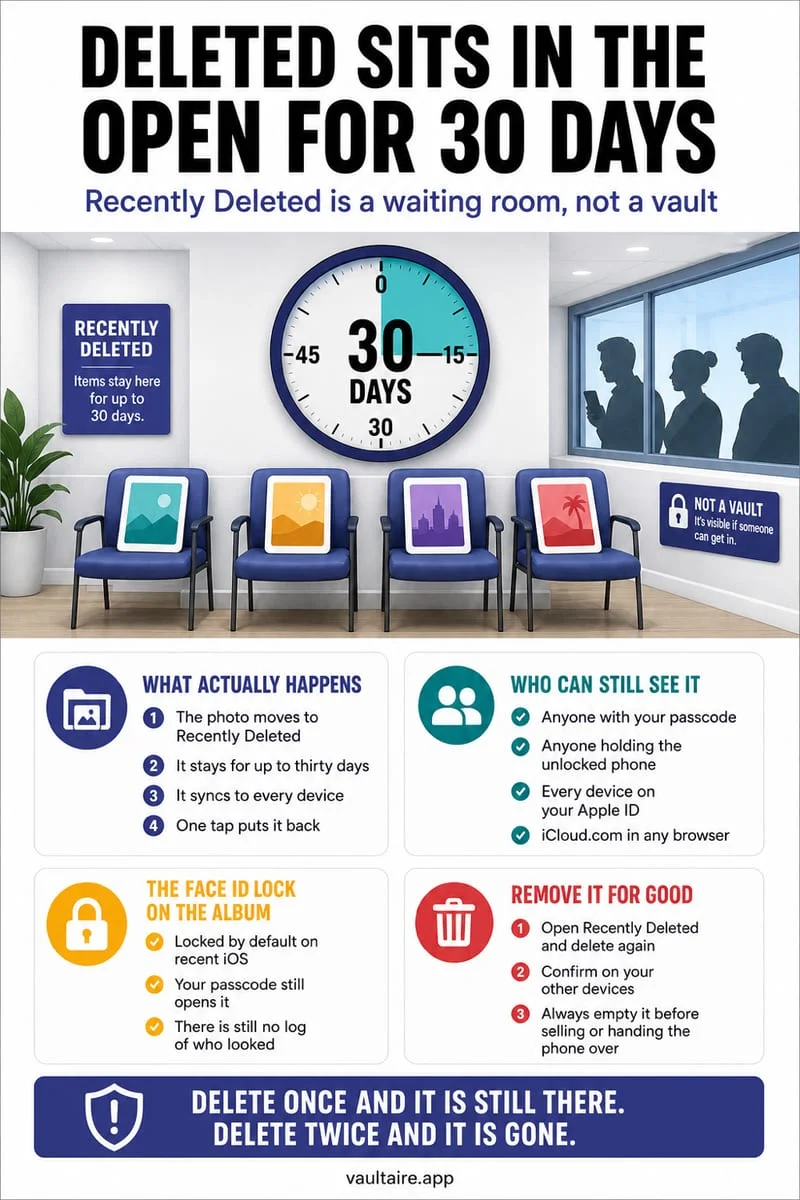
To recover deleted photos on iPhone, open Photos → Collections → Utilities → Recently Deleted, unlock it with Face ID or your passcode, select the images, and tap Recover. Apple keeps deleted photos there for up to 30 days—including originals removed after confirming an Octoshield Cleaner batch. Once a photo is permanently erased from Recently Deleted (or deleted from inside Octoshield’s local vault), it cannot be restored without an earlier independent backup.
Step 1: Restore from Apple Photos’ 30-day Recently Deleted album
Whenever you delete a photo or video from the Apple Photos app—or confirm the iOS deletion prompt after a swipe session in Octoshield’s Cleaner—iOS does not immediately wipe the file from flash storage. Instead, it moves the item into a protected holding folder called Recently Deleted, where a 30-day countdown begins (up to 40 days in some iCloud web recovery states).
On modern iOS layouts (iOS 18, iOS 26, and iOS 27), Recently Deleted sits inside Collections → Utilities alongside the Hidden album and requires Face ID, Touch ID, or your device passcode to open. Every thumbnail displays the exact number of days remaining before permanent erasure.
Recovering a photo from Recently Deleted puts it right back into its original chronological spot in your library, restores it to any personal albums it belonged to, and syncs the restoration across iCloud Photos if iCloud sync is enabled.
- Open the Apple Photos app on your iPhone and scroll down to the Collections → Utilities section.
- Tap Recently Deleted and authenticate using Face ID, Touch ID, or your iPhone passcode.
- Tap Select in the top-right corner and tap the photos or videos you want to bring back.
- Tap the More (•••) button or Recover button at the bottom and confirm Recover [X] Photos.
Step 2: What to check if the photo is NOT in Recently Deleted
If you open Recently Deleted and the photo you are looking for is not there, do not panic before checking four common places where 'deleted' photos are actually just hidden or filtered out.
First, check Collections → Utilities → Hidden (and make sure Settings → Apps → Photos → Show Hidden Album is toggled on) in case you tapped Hide instead of Delete. Second, if you use iCloud Shared Photo Library, tap the three-dot filter menu in the top-right corner of your library grid and switch from 'Personal Library' or 'Shared Library' to 'Both Libraries'.
Third, if you were using Octoshield’s Cleaner and swiped UP on the photo (or imported it into your vault), the photo was not lost—open Octoshield, unlock your vault, and check the Photos tab. Fourth, check whether you previously sent the photo in an iMessage, WhatsApp, or email thread, where a full-resolution copy may still be saved in the conversation’s Media info view.
| How the Photo Was Removed | Can It Be Recovered? | Exact Recovery Method |
|---|---|---|
| Swiped left in Octoshield Cleaner (batch NOT confirmed yet) | Yes — 100% intact | Tap Undo in Cleaner or uncheck the photo in the Cleaner Review Queue |
| Deleted in Apple Photos or confirmed in Cleaner (< 30 days ago) | Yes — in Recently Deleted | Photos → Collections → Utilities → Recently Deleted → Recover |
| Swiped up in Cleaner & original removed from Apple Photos | Yes — inside Octoshield Vault | Unlock Octoshield → open the photo → Export/Share back to Photos |
| Emptied from Recently Deleted (with an older non-iCloud-Photos backup) | Only if included in a prior device backup | Restore from an earlier Mac/PC backup or check iMessage/WhatsApp chats |
| Deleted from inside Octoshield’s encrypted vault | No — permanent cryptographic erasure | Must be restored from an independent backup you saved outside the vault |
Step 3: Why deletion inside an encrypted vault is permanent
It is critical to understand the difference between deleting an original photo in Apple Photos and deleting an encrypted copy inside Octoshield’s vault. When you import a photo into Octoshield, the vault copy and the Apple Photos original are two separate files.
If you delete the Apple Photos original (even permanently from Recently Deleted), your encrypted copy inside Octoshield remains completely safe. You can open Octoshield anytime, view the photo, or export a fresh copy back to your camera roll.
However, if you delete an item from INSIDE Octoshield’s vault, that deletion is immediate and permanent. Octoshield does not keep a 30-day unencrypted trash can inside the vault, does not upload backups to a server, and cannot resurrect deleted cryptographic keys. The same rule applies if you uninstall the Octoshield app or forget your vault secret.
Step 4: Why third-party 'iPhone Data Recovery' desktop apps rarely work
When someone permanently empties Recently Deleted and realizes a photo is gone, their next Google search usually lands on dozens of paid Mac and Windows programs promising 'Deep iPhone Flash Memory Recovery Without Backup.'
On modern iPhones, those claims are technically impossible against the internal drive. Under Apple’s hardware Data Protection architecture, every file on the iPhone’s NAND flash has its own per-file encryption key stored in file metadata. The instant a file is permanently purged from Recently Deleted, the iPhone’s storage controller destroys that per-file key cleanly. No desktop USB scanner can brute-force AES hardware encryption on erased blocks.
Those desktop tools can only extract photos if an older backup already exists on your computer or in iCloud. Save your money and protect your privacy: never give an unknown desktop 'recovery' program your Apple Account password, two-factor code, or device passcode.

Make room for what matters.
Download for freeFrequently asked questions
01Can Octoshield recover photos that I permanently deleted from Apple’s Recently Deleted album?+
No. Octoshield is an encrypted vault and swipe photo cleaner, not a forensic recovery tool. Once iOS permanently deletes a photo from Recently Deleted, no app can reconstruct it from the iPhone’s encrypted flash storage unless you already imported a copy into Octoshield beforehand.
02Can I undo an accidental left swipe in Octoshield’s Cleaner?+
Yes. Before you confirm a batch, you can tap the Undo button immediately or open the Cleaner Review Queue and remove any photo from the pending deletion list. Even after confirming the iOS deletion prompt, the photo sits in Apple Photos’ Recently Deleted album for 30 days.
03If I delete a photo from Recently Deleted on my iPhone, is it still on iCloud.com?+
No. When iCloud Photos is enabled, permanently deleting a photo from Recently Deleted on your iPhone immediately and permanently deletes it from iCloud.com and all other synced devices.
04Can Apple Support recover photos after Recently Deleted is emptied?+
In rare cases within a very short window after accidental cloud deletion, Apple Support can check if server-side iCloud Photos metadata is still restorable—so if the photo was in iCloud Photos, contact Apple Support immediately rather(than installing third-party software).
05How do I export a photo from Octoshield back to my iPhone camera roll?+
Open Octoshield, unlock your vault, tap the photo you want to restore to your camera roll, and use the Share / Export action to save a decrypted copy back into Apple Photos.
Official sources & further reading
iOS menus can vary slightly by iOS version. Octoshield instructions describe the current local app implementation engineered by TengrX. Check the App Store listing for the version available to download.