Select an image, pick an aspect ratio preset (1:1 Square, 16:9 Landscape, 4:5 Portrait, 4:3, or Freeform), adjust the crop area and zoom/offset sliders, and download your cropped image with zero server uploads.
Trimming unwanted edges privately
Cropping in the browser copies only the pixels inside your selected rectangle to a new canvas. Anything outside the crop box—such as browser tabs, desktop icons, or bystanders at the edge of a frame—is permanently excluded from the downloaded file.
| Aspect Ratio | Dimensions Ratio | Common Use |
|---|---|---|
| 1:1 Square | Equal width and height | Avatars, profile pictures, product thumbnails |
| 16:9 Widescreen | Horizontal cinematic frame | Blog headers, YouTube thumbnails, slides |
| 4:5 Portrait | Vertical social feed ratio | Instagram & mobile portrait posts |
| Freeform Pixel Box | Custom X, Y, Width, and Height in pixels | Trimming screenshots and documents |
Why cropping screenshots and photos locally protects privacy
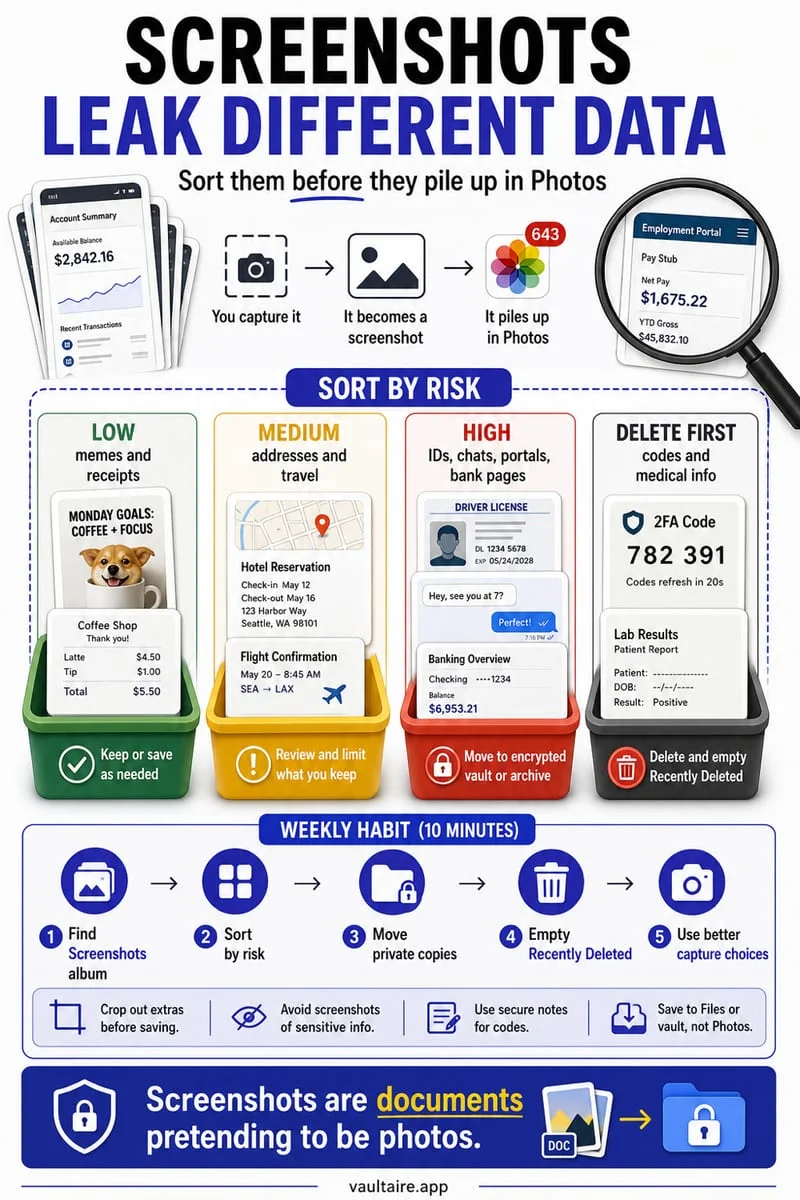
Cropping is one of the most common ways people remove sensitive context from a photo—such as a street sign in the background, a bookmark bar in a screenshot, or a second person in a portrait.
Some document formats and editing apps save non-destructive crop bounds, meaning the cropped-out edges still exist hidden inside the file structure. Exporting a cropped bitmap from our browser tool writes only the visible cropped pixels into a brand-new file.
- Load your JPEG, PNG, or WebP file into the cropper.
- Choose an Aspect Ratio preset (1:1, 16:9, 4:3, 4:5) or Freeform.
- Adjust the position and scale sliders to frame your subject.
- Download the freshly encoded cropped image.
Frequently asked questions
01Can someone recover the cropped-out edges of my image?+
No. Unlike non-destructive document crops, our tool draws only the selected pixel region onto a new canvas and encodes a fresh image file.
02Does cropping remove EXIF metadata too?+
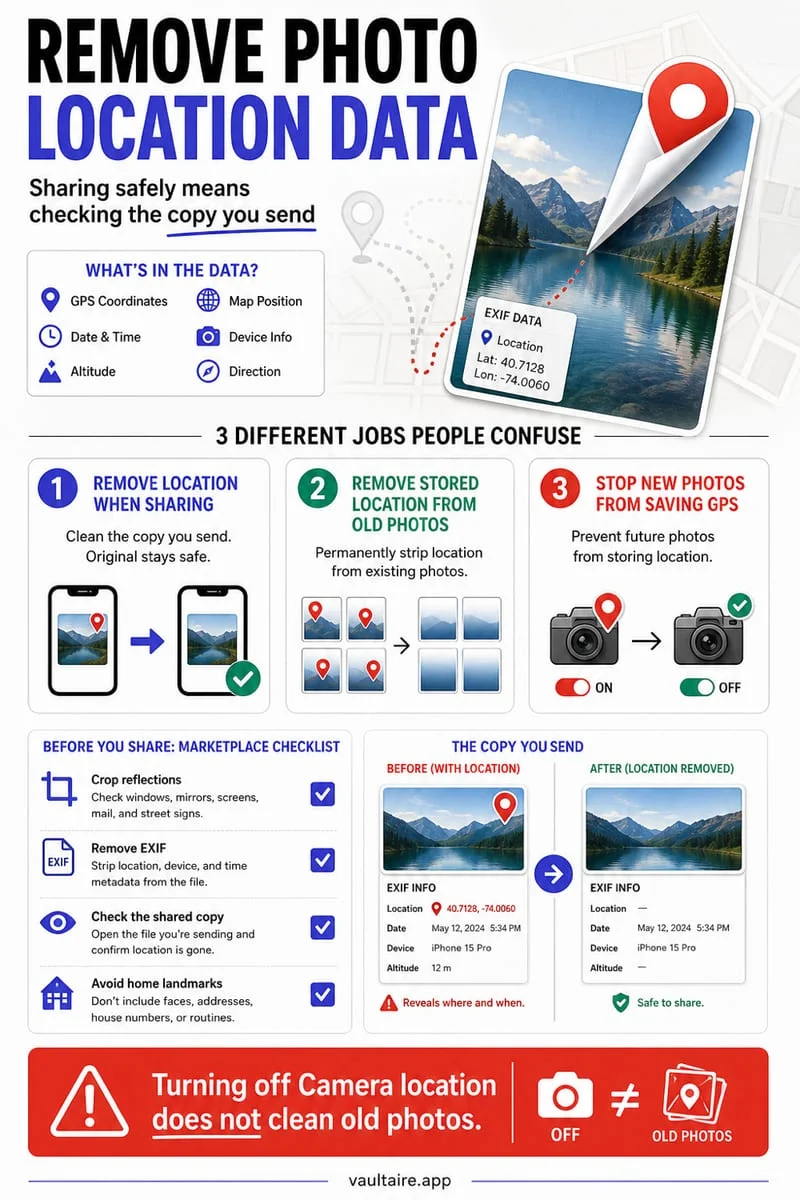
Yes. The exported crop is a clean bitmap without the original photo's EXIF or GPS metadata.