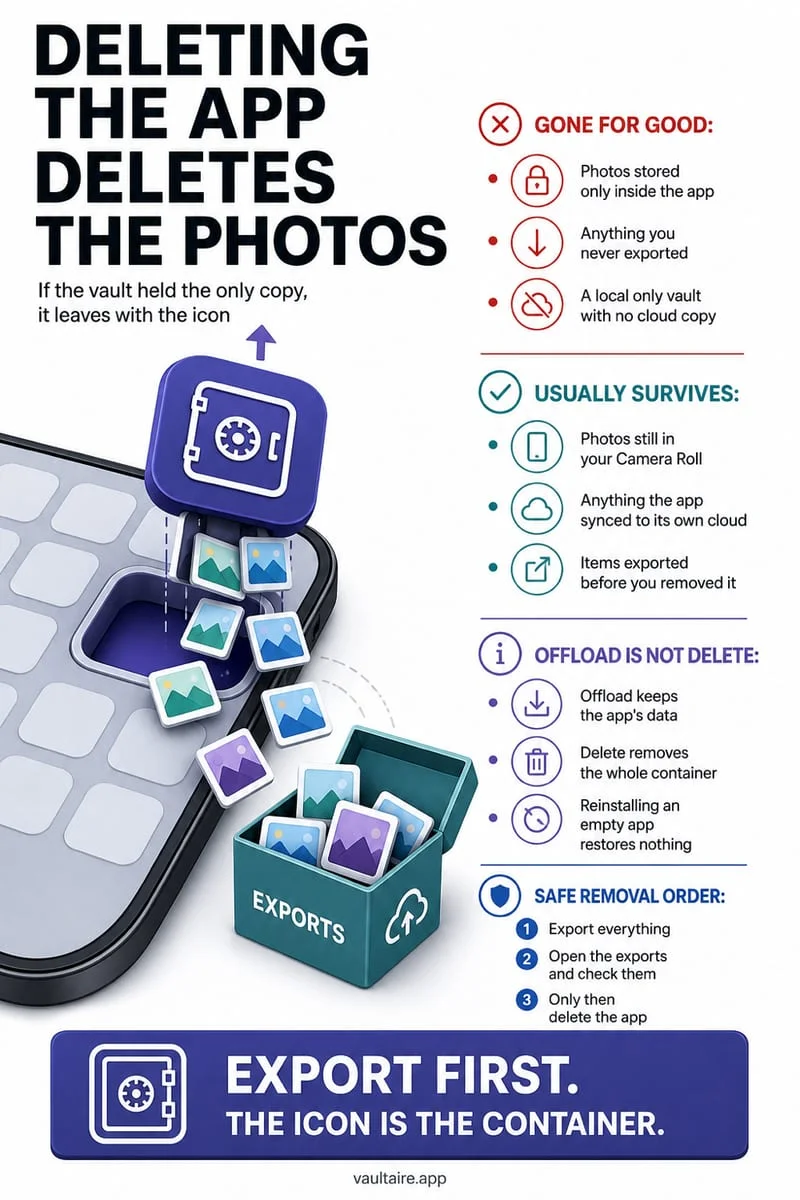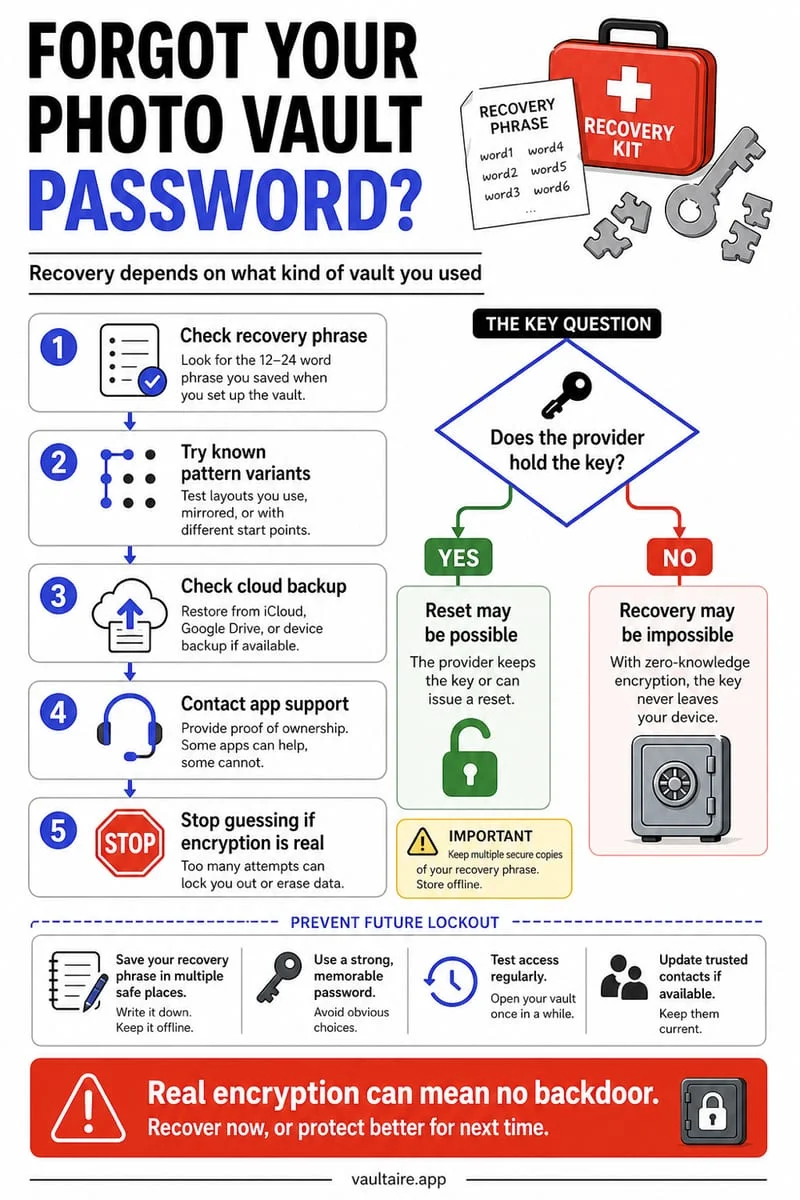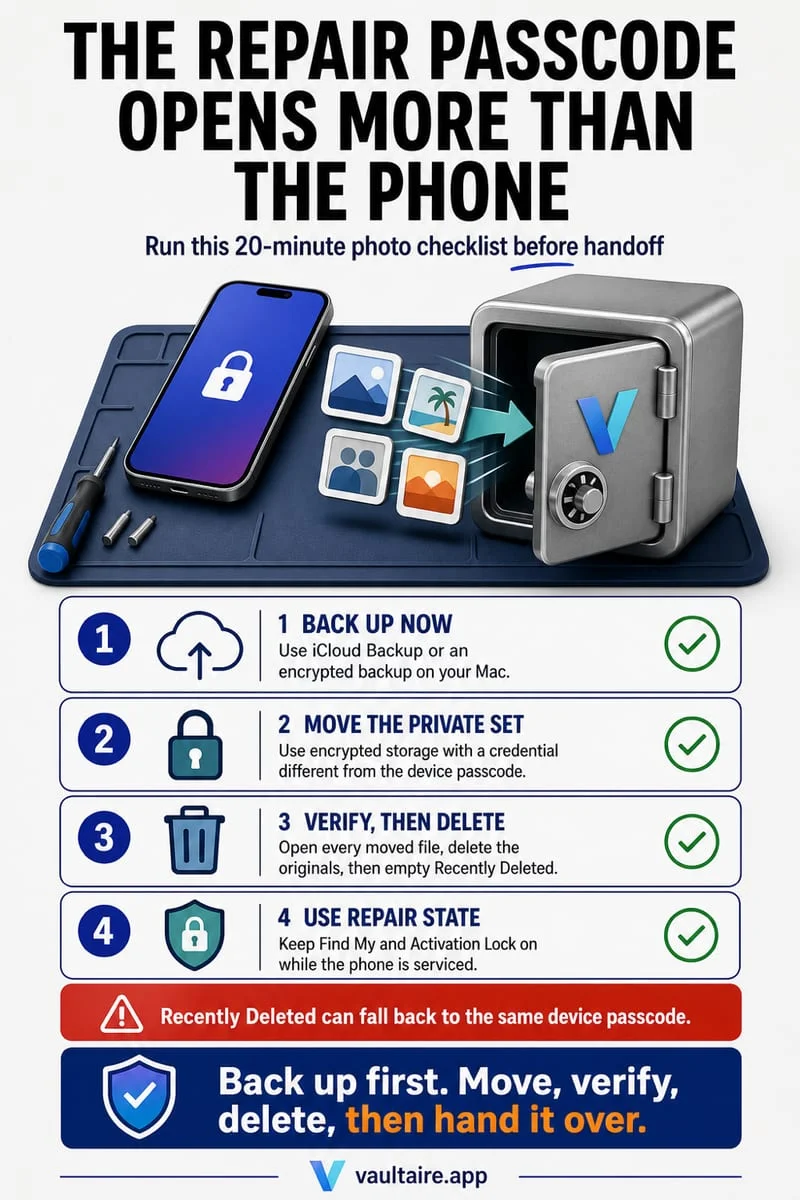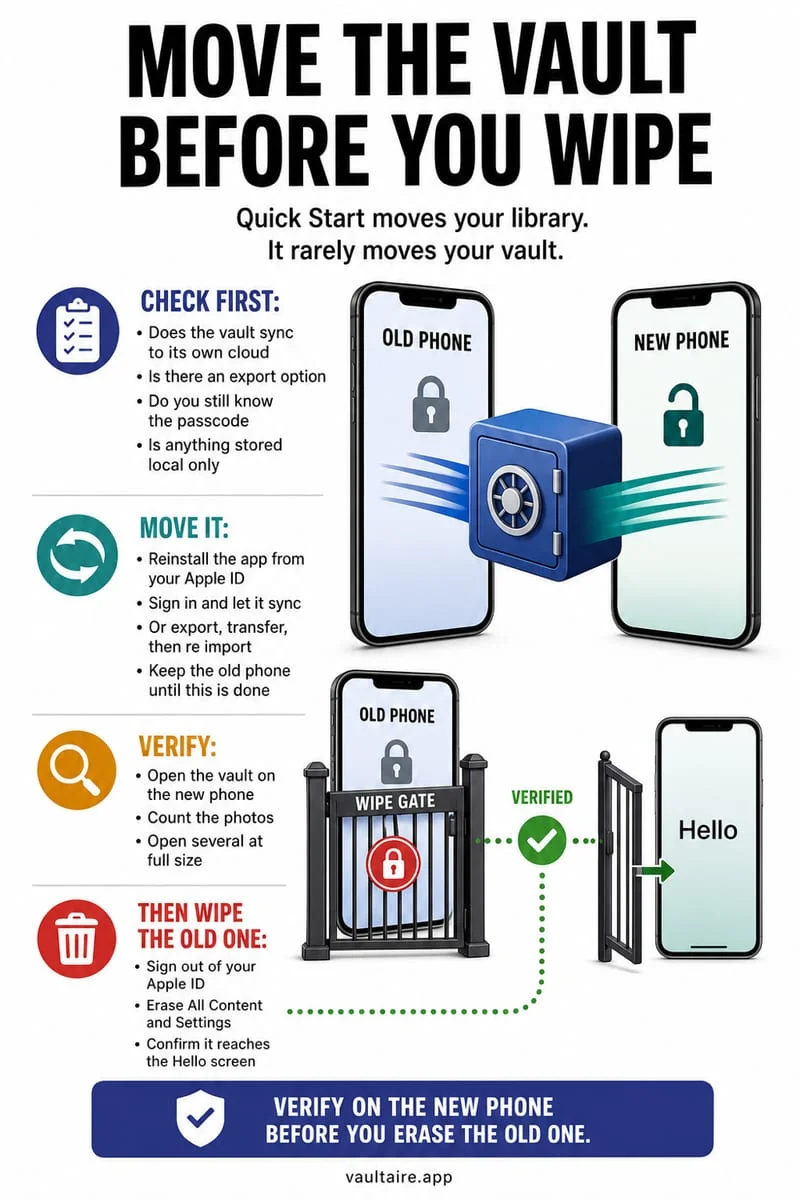
Because strictly local encrypted vaults like Octoshield bind encryption keys to your specific iPhone's hardware Keychain and exclude vault data from iCloud and computer backups, your vault will NOT transfer automatically via Apple Quick Start or iCloud Restore. Before trading in or erasing your old iPhone, you must unlock your vault, export your essential photos and files, transfer them to your new iPhone, and re-import them.
Why device-bound encrypted vaults don't move with iCloud Backup or Quick Start
When you unbox a new iPhone and use Apple Quick Start, iCloud Backup restore, or a Mac Finder backup, standard apps copy their sandbox folders to the cloud or across devices automatically. However, for a high-security privacy vault, allowing silent background replication would break the fundamental guarantee that your confidential files never leave your physical device.
Built by TengrX, Octoshield is architected to be strictly local and hardware-bound: it explicitly marks its encrypted vault container as excluded from iCloud and computer backups (`NSURLIsExcludedFromBackupKey`), and its encryption hierarchy combines your PBKDF2-SHA256 stretched secret with a random device-bound key stored in your specific iPhone's hardware-backed Keychain.
Because non-migratory hardware Keychain items and backup-excluded containers never travel to a second device, setting up a new iPhone from an iCloud backup will install a fresh copy of Octoshield without your old vault's files or hardware keys. That hardware binding protects your vault from off-device forensic extraction—and means you must manually export your files before parting with your old iPhone.
Step-by-step: How to move your vault to a new iPhone safely
The Golden Rule of upgrading your iPhone when you use a local vault is simple: never factory-reset, mail in, or trade in your old iPhone at the store counter until you have unlocked and opened every single important file inside Octoshield on your new iPhone. Always perform the transfer with both phones in your hands.
To keep your files completely off iCloud during the migration, export them from Octoshield on your old iPhone and transfer them directly to your new iPhone over a local peer-to-peer link—such as AirDrop (with both phones next to each other) or an external USB-C flash drive—then immediately import and re-encrypt them inside Octoshield on the new iPhone.
- On your old iPhone, open Octoshield and unlock your Photo Vault and File Vault using your PIN, Passphrase, 3×3 Pattern, Safe Dial, or Face ID.
- Select your photos, videos, and documents inside Octoshield and export them.
- Transfer the exported files directly to your new iPhone using AirDrop or a USB-C storage drive (if iCloud Photos is active and you want to avoid cloud upload during transfer, save the exported batch to the local 'On My iPhone' section of the Files app first).
- On your new iPhone, open Octoshield, set up your vault secret, and import all transferred photos, videos, and files so they are freshly encrypted in 512 KB AES-256-GCM chunks.
- Open the imported files on your new iPhone to verify they work, delete all temporary unencrypted transfer copies on both phones (and empty Recently Deleted in Photos and Files), and only then factory-reset your old iPhone.
Comparison: Best ways to move exported vault files between two iPhones
When moving exported files from your old iPhone to your new iPhone before re-encrypting them in Octoshield, choose the transfer channel that fits the size of your vault and your privacy preferences.
If you have gigabytes of 4K videos or want zero chance of temporary camera roll items syncing to iCloud Photos during the 10-minute migration window, routing your export through the local 'On My iPhone' directory in the Files app or a USB-C drive is the cleanest method.
| Transfer Method | Speed for Large 4K Videos | Touches iCloud Servers? | Best For |
|---|---|---|---|
| Direct AirDrop (Device-to-Device) | Fast (peer-to-peer Wi-Fi Direct) | No during transit (clean up camera roll afterward) | Quickly moving 10–500 photos & documents with both phones in hand |
| USB-C Flash Drive / SSD via Files App | Fastest (wired USB 3 speeds on Pro models) | Never (stays in 'On My iPhone' / external drive) | Multi-gigabyte video vaults or trading in old iPhone before new one arrives |
| Apple Photos Hidden Album + Quick Start | Medium | Yes (if iCloud Photos is turned on) | Casual non-sensitive items that don't require zero-cloud isolation |
Frequently asked questions
01Does Apple Quick Start device-to-device transfer move my Octoshield vault?+
No. Octoshield's vault is explicitly excluded from backups and uses device-bound iOS Keychain keys tied to the original iPhone hardware. You must export your files from Octoshield on the old iPhone before migrating.
02What if I already traded in and erased my old iPhone without exporting my Octoshield vault?+
Because Octoshield has no cloud server, no account sync, no recovery service, and excludes vault data from iCloud backups, files that were stored exclusively inside the erased old iPhone's vault cannot be remotely recovered.
03How do I clean up temporary copies after transferring to my new iPhone?+
After importing your files into Octoshield on the new iPhone, delete the temporary transfer copies from Apple Photos or Apple Files on both phones, then empty Recently Deleted in both apps.
04How can I prevent exported photos from uploading to iCloud Photos during the transfer?+
Either temporarily pause iCloud Photos syncing on your iPhone before exporting, or export your items to the local 'On My iPhone' folder inside the Apple Files app and AirDrop that folder directly to the new iPhone's Files app.
05Does each iPhone generate a completely new encryption key when I re-import my vault?+
Yes. When you set up Octoshield on your new iPhone, it generates a brand-new random 256-bit master key and a new random device-bound Keychain key on the new hardware, using HKDF-SHA256 to derive fresh AES-256-GCM keys for every imported file, thumbnail, and index entry.
Official sources & further reading
Lock your private photos behind real AES-256-GCM encryption.
Stop relying on a Hidden album that shares your iPhone lock-screen passcode. Import private photos and videos into Octoshield’s device-bound local vault with your own PIN, passphrase, 3×3 pattern, or safe combination dial.
- AES-256-GCM authenticated encryption in 512 KB chunks
- Encrypted thumbnails & filename catalog index at rest
- 4 lock styles: PIN, Passphrase, 3×3 Pattern, or Safe Dial + Face ID
- 100% on-device storage — zero cloud servers, zero ad SDKs
 AES-256-GCM + Cleaner
LOCAL IPHONE SANDBOX · KEYCHAIN BOUND
iOS menus can vary slightly by iOS version. Octoshield instructions describe the current local app implementation engineered by TengrX. Check the App Store listing for the version available to download.