To hide photos on iPhone in iOS 26, tap and hold any photo or video in Photos, choose Hide, and view it later under Collections > Utilities > Hidden. Because Apple's Hidden album still falls back to your iPhone passcode and syncs with iCloud Photos, sensitive files need a separate local encrypted vault for true privacy.
How to Hide Photos and Videos on iPhone in iOS 26
Learning how to hide photos on iPhone in iOS 26 takes three taps once you know where the menu sits. The same steps work whether you use an iPhone 17 or an older model running iOS 26.
To hide a single item, follow these steps:
If you want to hide a batch of screenshots or private clips at once, tap Select in the upper corner of your library. Tap each item you want to move, tap the More button (three dots), and choose Hide.
How to Unhide Photos Later
When you want an item back in your main camera roll, open Photos > Collections > Utilities > Hidden. Unlock the album, tap and hold the photo or video, and choose Unhide.
For multiple items, tap Select, mark the ones you want restored, tap More, and select Unhide. They return to their original dates in your main library.
- Open the Photos app and find the photo or video.
- Tap and hold the thumbnail until the quick menu pops up.
- Tap Hide, then confirm by tapping Hide Photo (or Hide Video).
Locking the Entire Photos App With Face ID
Hiding individual pictures helps when you hand your phone to a friend to show a vacation album. Still, it leaves the rest of your camera roll open if someone opens Photos directly.
You can lock the entire Photos app behind Face ID right from your Home Screen:
With app lock active, anyone opening Photos must authenticate first, and Photos content stays out of Spotlight search suggestions and notifications. Keep in mind that built-in system apps like Photos can be locked, though Apple does not allow hiding them inside the App Library's Hidden folder.
If you want more background on how app-level locks interact with hidden albums, check our guide on locking photos on iPhone or read whether locking the Photos app protects hidden photos.
- Touch and hold the Photos app icon on your Home Screen.
- Tap Require Face ID (or Require Touch ID on supported devices).
- Confirm by tapping Require Face ID again.
Using a Separate Local Encrypted Vault for True Separation
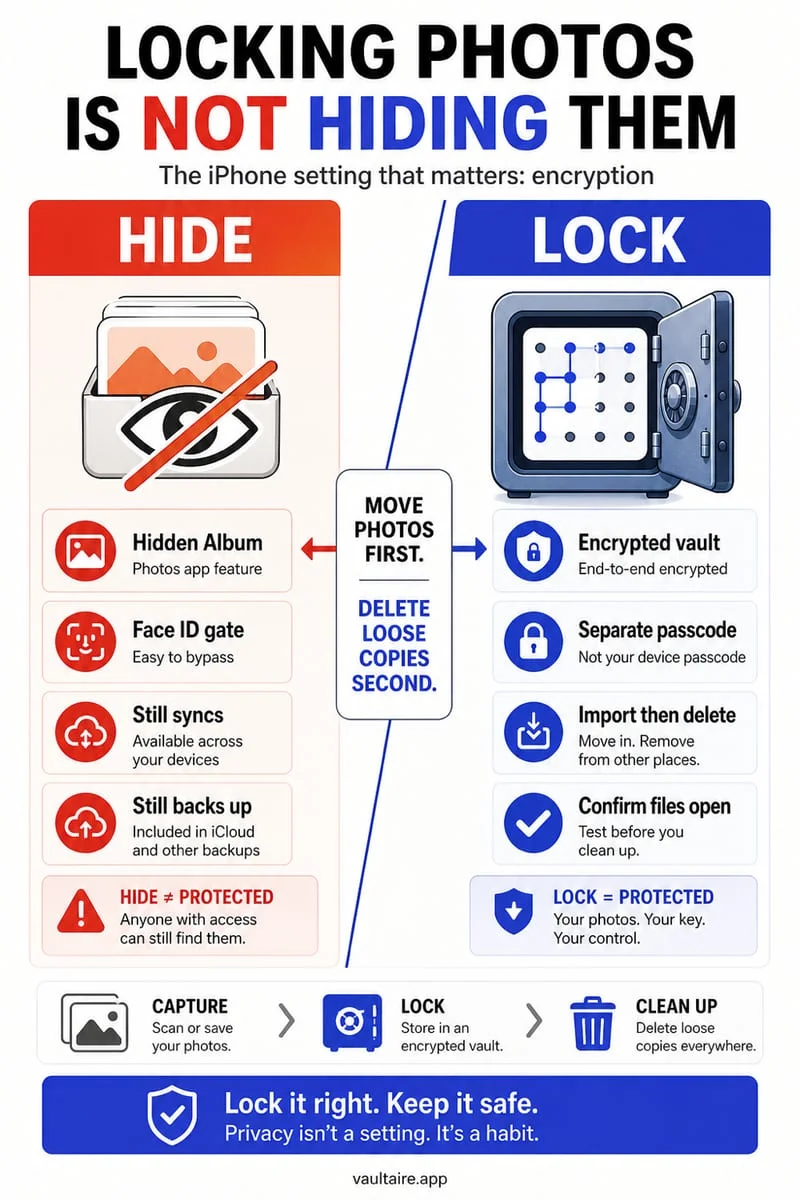
When hiding photos from casual scrolling is not enough, you need files stored outside Apple Photos behind a secret that has nothing to do with your iPhone passcode. That is the safest way to hide photos without the Hidden album.
A dedicated local vault like Octoshield creates an isolated container on your iPhone. Files, thumbnails, and the vault index are encrypted locally with AES-256-GCM, working offline by default with no account required.
Instead of relying on your iPhone lock-screen PIN, you choose an independent lock from seven options: Pattern Grid, Constellation, Cryptex, Sigil Ring, Combination Dial, PIN Code, or Passphrase—with optional Face ID for daily speed.
Better yet, Octoshield Pro supports multiple Secret Vaults behind a single lock screen. Drawing one pattern opens your real vault, while an optional decoy secret opens a harmless gallery with zero menus hinting that another vault exists.
For extra peace of mind, you can disguise the app icon as a Calculator or Weather utility and cover the screen during screen recordings. You can also shoot directly with Vault Camera so sensitive photos never touch your Camera Roll or iCloud Photos, or use the built-in swipe cleaner to sort clutter and move private shots straight into your vault.
One quick habit makes the setup airtight: importing a photo into Octoshield places an encrypted copy inside your vault. Always delete the original from Apple Photos and clear Recently Deleted afterward so no duplicate stays behind.
Keep Private Photos Separate From Your iPhone Passcode
If anyone else knows your device PIN—or you want sensitive photos off iCloud Photos—move them into Octoshield, a private photo and file vault with a swipe photo cleaner for iPhone. Lock your library locally with AES-256-GCM encryption, seven independent lock styles, and Secret Vaults—including an optional decoy vault—that keep other galleries completely out of sight.

A little privacy for your photos.
Download for freeFrequently asked questions
01How do I view hidden photos on iPhone in iOS 26?+
Open the Photos app, tap Collections, scroll down to Utilities, and tap Hidden. Tap View Album and unlock it with Face ID, Touch ID, or your device passcode. If you do not see Hidden under Utilities, go to Settings > Apps > Photos and turn on Show Hidden Album.
02How do I hide photos on iPhone 17?+
Open Photos on your iPhone 17, touch and hold the photo or video you want to hide, tap Hide, and confirm. To hide multiple items at once, tap Select, choose your photos, tap the More button (three dots), and tap Hide.
03Can someone see my hidden photos if they know my iPhone passcode?+
Yes. Unless Stolen Device Protection blocks passcode fallback for a locked app, failing Face ID lets someone enter your main iPhone passcode to open the Hidden album. To block passcode-based access, move sensitive photos into a separate encrypted vault with its own lock.
04Do hidden photos still upload to iCloud Photos?+
Yes. If Sync this device is enabled under iCloud Photos, hidden photos upload to iCloud and stay hidden across your Mac, iPad, and iCloud.com—meaning anyone with access to those signed-in devices can still view the Hidden album.
05How do I hide the Hidden album itself in iOS 26?+
Open Settings, tap Apps, tap Photos, and switch off Show Hidden Album. This hides the Hidden folder from the Utilities list in Photos without deleting or unhiding your pictures.
Try our local browser privacy tools
Official sources & further reading
iOS menus can vary slightly by iOS version. Octoshield instructions describe the current local app implementation engineered by TengrX. Check the App Store listing for the version available to download.