Use separate storage outside the Photos library, such as a dedicated encrypted vault, then verify the imported pictures before removing the Photos originals. A normal album or renamed folder does not provide a separate lock. Check backup and export behavior before moving your only copies.
Choose what you need beyond Hidden
You already know the Hidden album exists. The problem is that someone else knows your phone passcode, or you want selected pictures outside your synced Photos library. Start with that requirement rather than choosing an app simply because its icon looks discreet.
A different album inside Photos does not create a new authentication boundary. Removing an app from the Home Screen changes discoverability, not the storage model of files inside it. Ask where the actual pictures live and what secret is needed to read them.
Move carefully: import first, remove sources second
Set up the chosen storage destination and import a harmless test image. Open it, lock and reopen the destination, and test export. Then import the personal files you want to retain. For video and special photo formats, check the exact behavior rather than assuming every component survives.
Only after verifying the destination should you remove unwanted Photos originals. A Photos deletion requires its own approval and can sync through iCloud Photos. Recently Deleted and other apps can still contain copies until you manage them separately.
- Choose a storage destination with a separate lock and clear backup rules.
- Test import, lock, reopen, and export with harmless media.
- Import your selected files and verify them.
- Review Photos originals, Recently Deleted, and other independent copies.
Notes and ordinary folders have limits
A locked note can suit some supported content, but Notes cannot lock every attachment type. Video, audio, PDFs, and other files can prevent locking. A folder in Files also does not gain a password merely because you name it Secret.
Pick a method that protects the actual format you need and that you can leave later. Preserving a file and restricting access are both important; a forgotten secret in a device-only vault can be just as final as an accidental deletion.
Use Octoshield for a separate encrypted photo collection
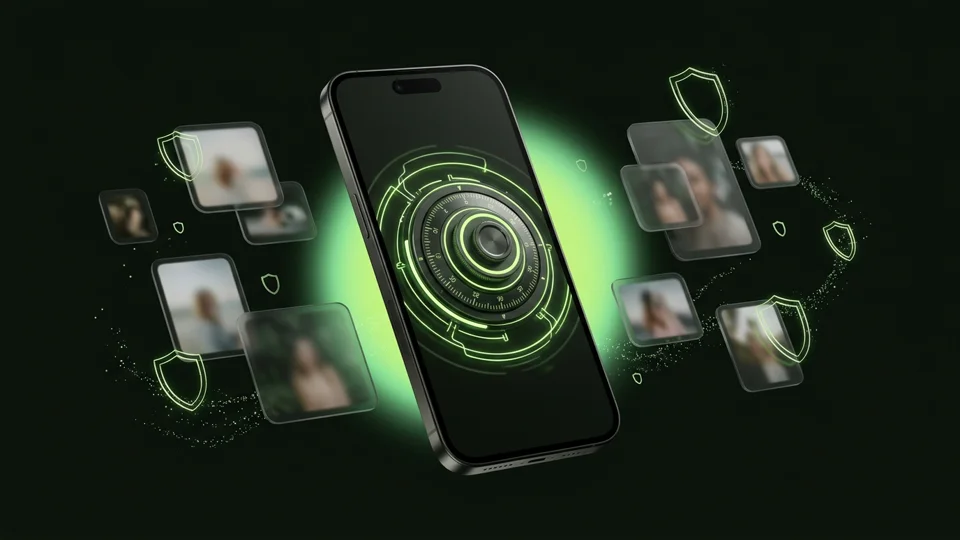
Octoshield stores imported photos and videos outside Apple Photos under its own PIN, passphrase, pattern, or safe dial. Optional Face ID or Touch ID can make access convenient while you retain your vault secret.
The vault is local and excluded from backups. It does not silently remove source files, retrieve forgotten secrets, or erase other people’s copies. Verify imports and export essential items before changing phones.
Frequently asked questions
01Can I just create a normal album and hide its name?+
A normal album is an organizational view inside Photos, not a separately encrypted collection with its own password.
02Does importing hide every existing copy?+
No. Check the Photos source, Recently Deleted, messages, cloud providers, and previous exports separately.
Official sources & further reading
Lock your private photos behind real AES-256-GCM encryption.
Stop relying on a Hidden album that shares your iPhone lock-screen passcode. Import private photos and videos into Octoshield’s device-bound local vault with your own PIN, passphrase, 3×3 pattern, or safe combination dial.
- AES-256-GCM authenticated encryption in 512 KB chunks
- Encrypted thumbnails & filename catalog index at rest
- 4 lock styles: PIN, Passphrase, 3×3 Pattern, or Safe Dial + Face ID
- 100% on-device storage — zero cloud servers, zero ad SDKs
 AES-256-GCM + Cleaner
LOCAL IPHONE SANDBOX · KEYCHAIN BOUND
iOS menus can vary slightly by iOS version. Octoshield instructions describe the current local app implementation engineered by TengrX. Check the App Store listing for the version available to download.