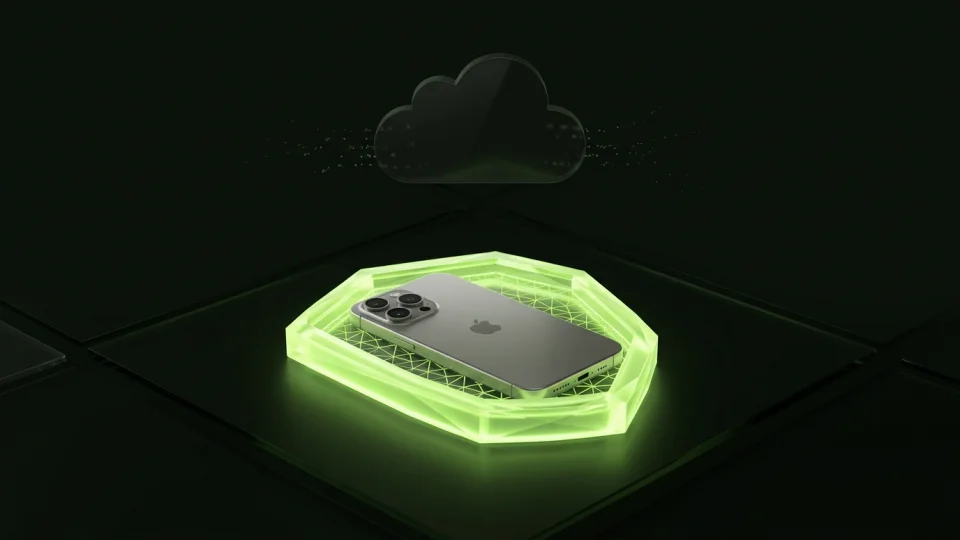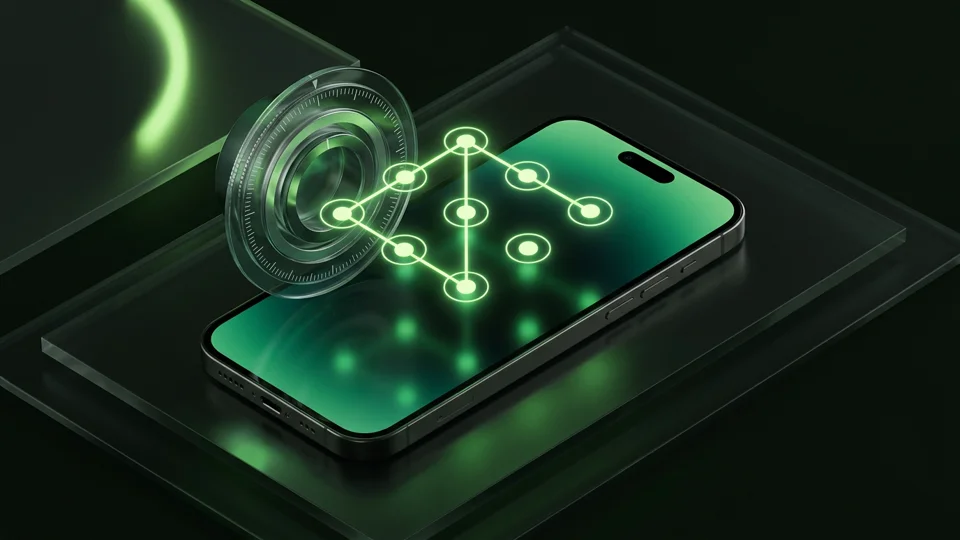
Apple’s built-in Hidden album cannot be assigned its own custom password; it always unlocks with your iPhone’s Face ID, Touch ID, or device passcode. To lock photos behind a different secret, import them into a dedicated encrypted vault like Octoshield, where you can set an independent PIN, alphanumeric passphrase, 3×3 pattern, or combination dial backed by on-device AES-256-GCM encryption.
How to set up a separate photo password in Octoshield
To create a real cryptographic separation between your everyday phone unlock and your private media, you need an app that derives its encryption keys from a secret that iOS itself does not use for the lock screen. Octoshield gives you four distinct unlock styles during setup: a numeric PIN, a full alphanumeric passphrase, a 3×3 drawn pattern, or a tactile safe-style rotary combination dial.
Under the hood, Octoshield stretches your chosen secret with PBKDF2-SHA256 and combines it with a random device-bound key stored in your iPhone’s hardware Keychain. That combined key unlocks a 256-bit master key, which in turn uses HKDF-SHA256 to derive unique per-item keys for every photo, video, thumbnail, and catalog entry—all encrypted with AES-256-GCM.
If someone knows your iPhone lock-screen passcode, keep Biometric Unlock (Face ID / Touch ID) turned off inside Octoshield’s settings or make sure your iPhone passcode cannot be used to add a new face without Stolen Device Protection enabled. With a separate passphrase or combination dial that differs from your phone passcode, unlocking the iPhone does not unlock the vault.
- Download and open Octoshield on your iPhone, then start the local vault setup.
- Choose a lock style—PIN, Passphrase, 3×3 Pattern, or Safe Combination Dial—and enter a secret that is completely different from your iPhone lock-screen passcode.
- Import the photos and videos you want protected, or use Cleaner’s upward swipe to send cards straight into the vault.
- Verify that your imported items open cleanly inside the vault, then approve removing the originals from Apple Photos and clear Recently Deleted.
When to enable (or disable) Face ID on a separate-password vault
Many users ask whether turning on Face ID inside a photo vault re-introduces the device passcode fallback problem. In Octoshield, optional Face ID or Touch ID uses a dedicated Keychain key slot protected by Apple’s biometric access control flag, which only releases when the enrolled face or fingerprint matches—and automatically invalidates if biometric enrollment changes.
However, think carefully about your personal threat model. If another person has their Face ID appearance or Touch ID fingerprint enrolled on your iPhone, or if you want zero possibility of biometric unlock while sleeping, leave biometric unlock disabled inside Octoshield and rely solely on your custom passphrase, pattern, or safe dial.
Octoshield also throttles failed unlock attempts after five wrong guesses and includes an optional erase-after-ten-failures defense for high-risk scenarios.
Clean up every unencrypted trail outside the vault
A separate password only protects the encrypted copy stored inside Octoshield. Importing a photo from your camera roll is always a copy operation first. Until you remove the original from Apple Photos, that picture remains visible in your main library or Hidden album under your regular iPhone passcode.
After confirming deletion of the original from Apple Photos, remember three additional places where copies can linger: the Recently Deleted album (which keeps deleted photos for 30 days), iMessage or WhatsApp chat attachments if you previously sent the image, and iCloud Shared Photo Libraries if automatic sharing was active when the photo was taken.
Finally, remember the core rule of true local encryption: because Octoshield has no cloud server, no account, and no password reset backdoor, forgetting your custom vault password means your encrypted files cannot be recovered. Choose a secret that is unique from your iPhone passcode, yet memorable enough that you will never lose it.
Frequently asked questions
01Can I set a different password for the Hidden album in iOS Settings?+
No. Apple ties the Hidden album and Recently Deleted album directly to your iPhone’s system authentication (Face ID, Touch ID, and your device passcode). You cannot assign a separate PIN to the Hidden album.
02Does locking the Photos app on the Home Screen give it a separate password?+
No. Choosing 'Require Face ID' on the Photos app icon uses the exact same device passcode fallback as the lock screen. Anyone who knows your iPhone passcode can open a locked app.
03Which Octoshield lock option is strongest for a separate secret?+
A multi-word or mixed alphanumeric Passphrase offers the highest mathematical entropy against guessing and shoulder-surfing, though a unique Safe Combination Dial, 3×3 Pattern, or long PIN also separates access from a standard 6-digit iPhone passcode.
04What happens if someone guesses my Octoshield password wrong repeatedly?+
Octoshield enforces progressive rate-limiting delays after five failed attempts to stop rapid guessing, and offers an optional setting to permanently wipe the vault after ten consecutive failed attempts.
05Can TengrX reset my Octoshield password if I forget my custom secret?+
No. Octoshield is a zero-knowledge, strictly local vault with no account system or recovery server. If you forget your secret and have no active biometric unlock slot, the AES-256-GCM encrypted files cannot be decrypted.
Official sources & further reading
Lock your private photos behind real AES-256-GCM encryption.
Stop relying on a Hidden album that shares your iPhone lock-screen passcode. Import private photos and videos into Octoshield’s device-bound local vault with your own PIN, passphrase, 3×3 pattern, or safe combination dial.
- AES-256-GCM authenticated encryption in 512 KB chunks
- Encrypted thumbnails & filename catalog index at rest
- 4 lock styles: PIN, Passphrase, 3×3 Pattern, or Safe Dial + Face ID
- 100% on-device storage — zero cloud servers, zero ad SDKs
 AES-256-GCM + Cleaner
LOCAL IPHONE SANDBOX · KEYCHAIN BOUND
iOS menus can vary slightly by iOS version. Octoshield instructions describe the current local app implementation engineered by TengrX. Check the App Store listing for the version available to download.