No iPhone photo vault can silently delete your original camera-roll photo during import without your permission; importing always creates a separate copy inside the vault first. When you import into Octoshield (or swipe up in Cleaner), the app encrypts the vault copy with AES-256-GCM and then triggers iOS’s official confirmation prompt to remove the original from Apple Photos—which moves that original into Recently Deleted for 30 days until you empty it.
Why iOS requires every vault import to start as a copy
If you have ever imported private photos into a vault app, locked the vault, and then felt a jolt of panic when you opened Apple Photos and saw the exact same pictures still sitting in your camera roll, you ran into an intentional iOS security rule.
On iPhone, Apple’s PhotoKit framework isolates third-party apps in their own storage sandboxes. When you pick photos to import into Octoshield, iOS hands the app a read stream of those image files. Octoshield reads the bytes, encrypts them in 512 KB chunks with AES-256-GCM, and writes the encrypted copy into its own local vault directory.
At that moment, two completely independent copies exist on your iPhone: the newly encrypted copy inside Octoshield, and the original unencrypted photo inside Apple Photos. No third-party app on the App Store is allowed to erase a photo from Apple’s system library without triggering Apple’s native system confirmation alert.
| Stage | Inside Octoshield Vault | Inside Apple Photos Main Grid | Inside Apple Recently Deleted |
|---|---|---|---|
| 1. Before import | Not present | Visible (syncs to iCloud if enabled) | Not present |
| 2. Immediately after import (before confirming removal) | Encrypted AES-256-GCM copy stored | Still visible in main grid | Not present |
| 3. After approving iOS 'Delete [X] Photos' prompt | Encrypted AES-256-GCM copy stored | Removed from main grid & albums | Still present for 30 days (locked with Face ID) |
| 4. After emptying Recently Deleted in Apple Photos | ONLY remaining copy on the iPhone | Permanently erased | Permanently erased (and synced deletion to iCloud) |
How Octoshield handles original removal in Vault vs. Cleaner
Octoshield gives you two ways to move photos into your vault, and both handle original removal transparently so you never lose a photo to an interrupted import or accidentally leave an original behind.
First, when you import directly from the Vault tab, Octoshield completes the AES-256-GCM encryption first and then prompts you whether to remove the original photos from your Apple Photos library. Second, when you are reviewing your camera roll in Octoshield’s Cleaner and swipe a card UP, the app immediately imports and encrypts the photo into your vault while adding the Apple Photos original to your pending deletion queue.
Importantly, Octoshield verifies that the encrypted vault copy was written and indexed successfully before allowing the original to remain queued for deletion. If an import ever fails (for example, if iCloud could not download a missing original while offline), Octoshield automatically removes that item from the deletion queue so your source photo is never put at risk.
- Import your photos via the Vault (+) button or by swiping UP on cards in Octoshield’s Cleaner.
- Open your unlocked Vault and visually confirm that your imported photos and videos open cleanly.
- Approve the iOS system prompt asking to allow Octoshield to delete the original photos from your library.
- Open Apple Photos → Collections → Utilities → Recently Deleted, authenticate with Face ID, and delete those originals permanently to finish the cleanup.
The 30-day Recently Deleted trap—and how iCloud Photos reacts
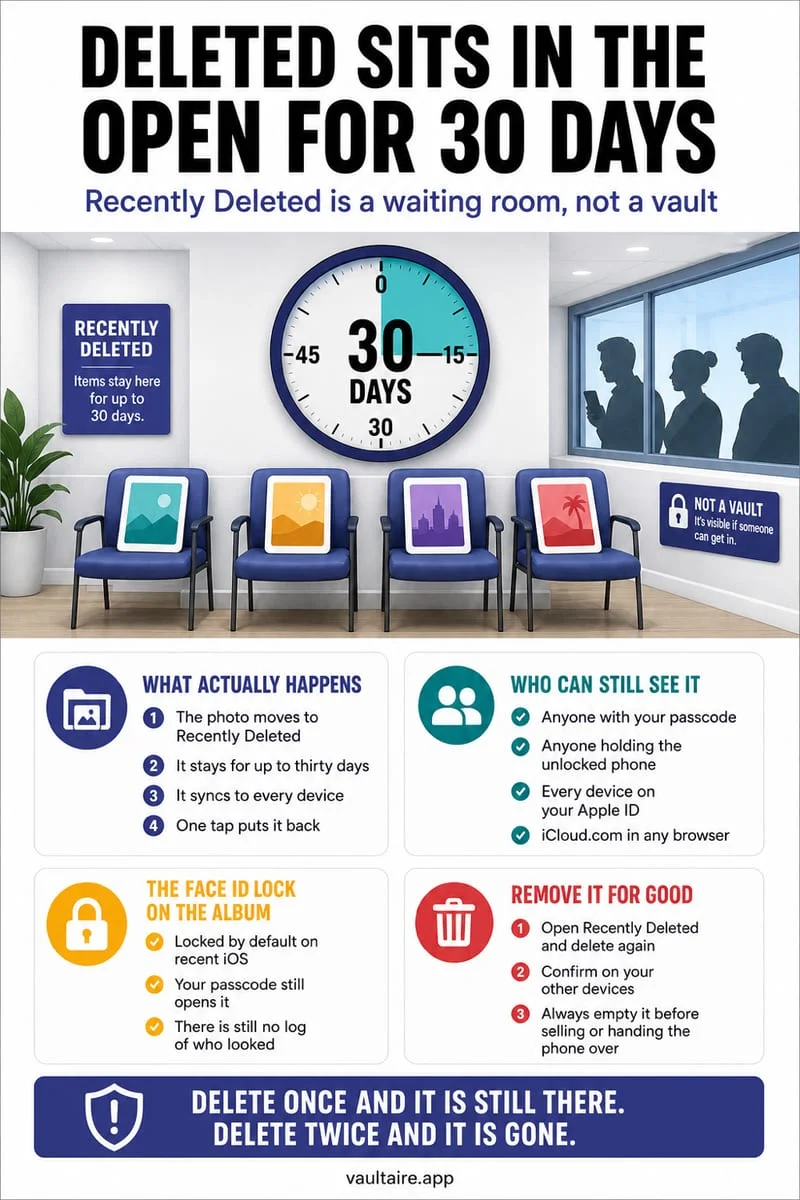
Approving the iOS deletion prompt inside Octoshield removes the original photo from your main camera roll, Favorites, and Memories, but it does NOT immediately wipe the file from Apple Photos. Instead, iOS moves it into the Recently Deleted album under Utilities, where it remains recoverable for up to 30 days.
Anyone who knows your iPhone lock-screen passcode can open Apple Photos, scroll down to Utilities → Recently Deleted, bypass Face ID with the device passcode, and see every 'deleted' original that you imported into your vault over the past month.
Therefore, whenever you vault sensitive photos, always make a habit of opening Apple’s Recently Deleted album right afterward and permanently deleting those items. If iCloud Photos is turned on, permanently deleting the original from Apple Photos also deletes that original from iCloud.com and your other synced Apple devices—leaving the local encrypted copy inside Octoshield as the sole surviving copy.
Four overlooked places where extra copies can still hide
Thinking in copies rather than 'moves' also helps you spot other places where an image might exist outside both Apple Photos and Octoshield. First, if you received or sent the photo in iMessage, WhatsApp, or Telegram, a separate copy lives inside that messaging app’s attachment cache until you delete the message bubble itself.
Second, if you previously added the photo to an iCloud Shared Album, Shared Albums store their own independent copies that are not deleted when you delete the photo from your personal library. Third, if you imported a document or image via the iOS Files picker instead of the Photos picker, iOS leaves the source file in the Files app until you delete it there.
Fourth, remember that once you delete every outside original and empty Recently Deleted, Octoshield’s encrypted vault holds your only copy. Because Octoshield is device-bound and excluded from backups, never forget your vault secret and always export essential files before replacing your iPhone.

A little privacy for your photos.
Download for freeFrequently asked questions
01Why is my photo still in Apple Photos after I imported it into Octoshield?+
Because importing creates an encrypted copy inside Octoshield first. To remove the original from Apple Photos, you must approve the iOS deletion prompt (or confirm your Cleaner queue) and then clear Recently Deleted if you want it gone immediately.
02If I delete the original photo in Apple Photos, will it delete the copy in Octoshield?+
No. Once a photo is imported into Octoshield, it is stored as a completely independent AES-256-GCM encrypted file inside Octoshield’s local sandbox. Deleting the original in Apple Photos has zero effect on your vault copy.
03Does deleting the original photo from my iPhone also delete it from iCloud?+
Yes, if iCloud Photos is turned on. Deleting the original from Apple Photos (and emptying Recently Deleted) removes it from iCloud Photos and all other devices synced to that iCloud library, while your encrypted copy stays locally in Octoshield.
04Why does iOS show a system popup asking 'Allow Octoshield to delete X photos'?+
That popup is a mandatory iOS security control enforced by Apple’s PhotoKit framework. It prevents any app from silently erasing photos from your camera roll without your explicit consent.
05Does importing files from the iOS Files app prompt to delete the original?+
No. Apple’s document picker for the Files app only grants read access during import. After importing a PDF or file from Files into Octoshield, open the Files app and delete the original document manually.
Official sources & further reading
iOS menus can vary slightly by iOS version. Octoshield instructions describe the current local app implementation engineered by TengrX. Check the App Store listing for the version available to download.