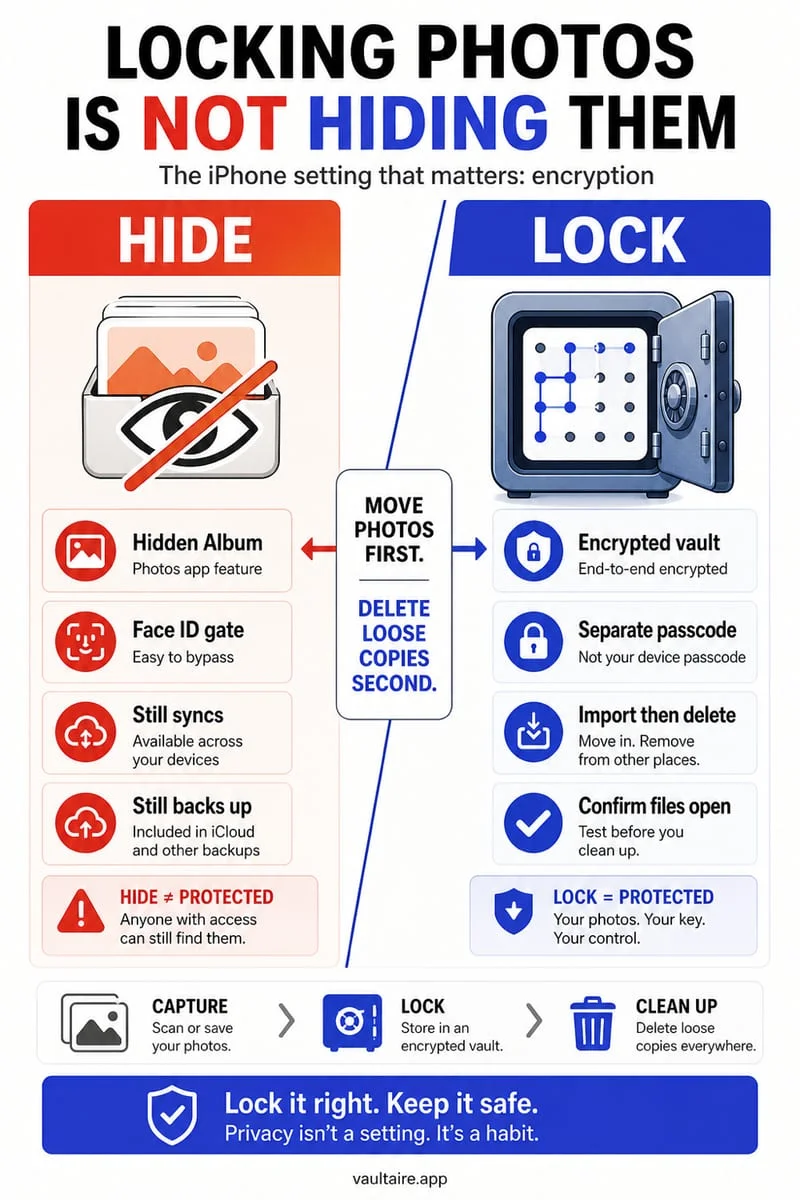
You can lock photos on an iPhone for free by moving them to the built-in Hidden album in Apple Photos (Collections → Utilities → Hidden), which locks automatically with Face ID or your iPhone passcode. However, anyone who knows your device passcode can still open the Hidden album, so if you need an independent lock and true file-level protection, import your photos into a local AES-256-GCM encrypted vault like Octoshield and delete the originals from Apple Photos.
Method 1: Lock photos using the built-in iPhone Hidden album
On iOS 18, iOS 26, and current 2026 releases, the fastest built-in way to lock individual photos or videos is the Hidden album inside Apple Photos. When you hide an item, iOS removes it from your main library grid, Memories, Featured Photos, and Home Screen widgets, placing it inside Collections → Utilities → Hidden behind Face ID, Touch ID, or your device passcode.
You can also lock the entire Apple Photos app by long-pressing its icon on the Home Screen and tapping Require Face ID. However, both built-in locks rely on your main iPhone unlock credential: whenever Face ID fails twice, iOS displays the 'Enter iPhone Passcode' keypad. Anyone who knows your 4- or 6-digit screen code can bypass Face ID and open both the Photos app and the Hidden album—and if iCloud Photos is enabled, your Hidden album also syncs to any signed-in iPad, Mac, or iCloud.com session.
- Open the Apple Photos app and select the photos or videos you want to lock.
- Tap the More button (three dots in the bottom-right corner) and choose Hide, then confirm Hide Photos.
- Open Settings → Apps → Photos and verify that Use Face ID is turned on so the Hidden and Recently Deleted albums require authentication.
- Optional: Toggle off Show Hidden Album in Settings → Apps → Photos to hide the Utilities row from casual view.
Hiding vs. Access Lock vs. File Encryption (AES-256-GCM)
Not all photo locks enforce the same security boundary. Moving a photo to a hidden folder simply flips a visibility flag inside `Photos.sqlite` so the UI stops showing it in the main grid, and an iOS Face ID app gate only blocks the launch screen while leaving the underlying HEIC and MOV files inside your standard photo library and iCloud sync pipeline.
True cryptographic file encryption transforms every photo, video, thumbnail preview, and metadata index entry into authenticated ciphertext on disk. Built by TengrX, Octoshield encrypts each file in 512 KB chunks using AES-256-GCM, using a random 256-bit master key and HKDF-SHA256 to derive separate keys for every file, thumbnail, and encrypted index entry. Your chosen secret is stretched with PBKDF2-SHA256 and combined with a random device-bound key stored in the iPhone's hardware-backed Keychain.
| Protection Layer | How It Works on iPhone | Separate Password from iPhone? | Synced to iCloud Photos? | Encrypted Separately at Rest? |
|---|---|---|---|---|
| UI Hiding (Hidden Album Toggle Off) | Hides the album label from the Photos Utilities list until re-enabled in Settings | No | Yes (if iCloud Photos is on) | No (standard library storage) |
| Access Lock (Face ID / App Lock) | Prompts for Face ID or the iPhone passcode before opening Hidden or the Photos app | No (falls back to iPhone passcode) | Yes (visible on synced Macs/iPads) | No (relies on iOS device unlock) |
| File Encryption (Octoshield AES-256-GCM) | Encrypts each file in 512 KB chunks plus thumbnails & index in local sandbox | Yes (PIN, Passphrase, Pattern, or Safe Dial) | No (strictly local, excluded from backups) | Yes (HKDF-SHA256 per-item keys) |
Method 2: Lock photos with a separate password in an encrypted vault
When you need a lock that never falls back to your iPhone screen passcode—and keeps sensitive images completely off iCloud—use a dedicated local vault. Octoshield lets you choose between four unlock styles: a numeric PIN, a full alphanumeric passphrase, a 3×3 pattern, or a safe-style combination dial, plus optional Face ID / Touch ID stored in a separate biometric-protected Keychain slot.
You can import items via the vault picker or use Octoshield's Cleaner (swipe left to queue deletion, right to keep, or up to encrypt into the vault and queue original removal). Because iOS sandboxes third-party apps, importing writes newly encrypted AES-256-GCM chunks inside the vault and prompts to remove the originals from Apple Photos—after which you should empty Recently Deleted.
- Open Octoshield and configure your dedicated vault secret (PIN, Passphrase, 3×3 Pattern, or Safe-style Combination Dial).
- Tap Import inside the Photo Vault—or swipe up on sensitive photos in the Cleaner tab—to encrypt them in 512 KB AES-256-GCM chunks.
- Verify that your imported items open cleanly inside the encrypted vault.
- Confirm removal of the original copies from Apple Photos, then open Collections → Utilities → Recently Deleted and tap Delete Permanently.
Step-by-step verification: Auditing residual photo copies across iOS
Locking a photo inside a vault only protects the copy you moved. On iOS, duplicate copies of sensitive images often linger inside message threads, shared photo streams, or file downloads created before you locked the photo.
Spend one minute after locking confidential media to check these residual locations so the AES-256-GCM ciphertext inside your local vault is the only surviving copy on your device.
- Check Apple Messages: open the chat where the image was shared, tap the contact header, scroll to the Photos grid, and delete any lingering attachment copy.
- Check iCloud Shared Photo Library: verify in Apple Photos that the image was not added to a shared family library before you locked it.
- Check the Apple Files app: clear any duplicate downloads in Browse → Downloads and Locations → Recently Deleted.
Frequently asked questions
01Can I lock the iPhone Hidden album with a different password than my iPhone passcode?+
No. Apple's Hidden album and the iOS Require Face ID app lock always use your main iPhone passcode as the fallback whenever Face ID fails. To use a separate password, pattern, or combination dial, you must store the photos in an independent encrypted vault app like Octoshield.
02Do locked photos in the iPhone Hidden album still appear on my iPad or Mac?+
Yes, if iCloud Photos is enabled on your Apple Account, anything inside your Hidden album syncs across all your signed-in Apple devices and can be unlocked using those devices' local passwords.
03What happens if I forget my Octoshield vault lock?+
Because Octoshield is strictly local with no account, no cloud server, and no recovery service, a forgotten vault secret cannot be reset if biometric unlock is unavailable. Always keep a separate secure backup of irreplaceable files before locking them exclusively in a local vault.
04Does Apple's Stolen Device Protection stop someone with my passcode from opening the Hidden album?+
No. Stolen Device Protection only requires strict biometric authentication for high-level Apple Account changes like resetting your Apple ID password or turning off Find My. It does not block passcode fallback when opening the Apple Photos app or the Hidden album.
05Does locking photos in Octoshield compress image quality or strip resolution?+
No. Octoshield encrypts the exact underlying file bytes in 512 KB AES-256-GCM chunks without re-encoding or compressing your images or videos, preserving full original resolution.
Official sources & further reading
Lock your private photos behind real AES-256-GCM encryption.
Stop relying on a Hidden album that shares your iPhone lock-screen passcode. Import private photos and videos into Octoshield’s device-bound local vault with your own PIN, passphrase, 3×3 pattern, or safe combination dial.
- AES-256-GCM authenticated encryption in 512 KB chunks
- Encrypted thumbnails & filename catalog index at rest
- 4 lock styles: PIN, Passphrase, 3×3 Pattern, or Safe Dial + Face ID
- 100% on-device storage — zero cloud servers, zero ad SDKs
 AES-256-GCM + Cleaner
LOCAL IPHONE SANDBOX · KEYCHAIN BOUND
iOS menus can vary slightly by iOS version. Octoshield instructions describe the current local app implementation engineered by TengrX. Check the App Store listing for the version available to download.