Before running Erase All Content and Settings, first export any files stored in local-only encrypted vaults like Octoshield, back up your device, unpair your Apple Watch, and never manually delete photos while iCloud Photos is turned on. Then go to Settings → General → Transfer or Reset iPhone → Erase All Content and Settings to securely destroy the hardware encryption keys.
Step 1: Export local-only encrypted vaults and 2FA apps before you wipe
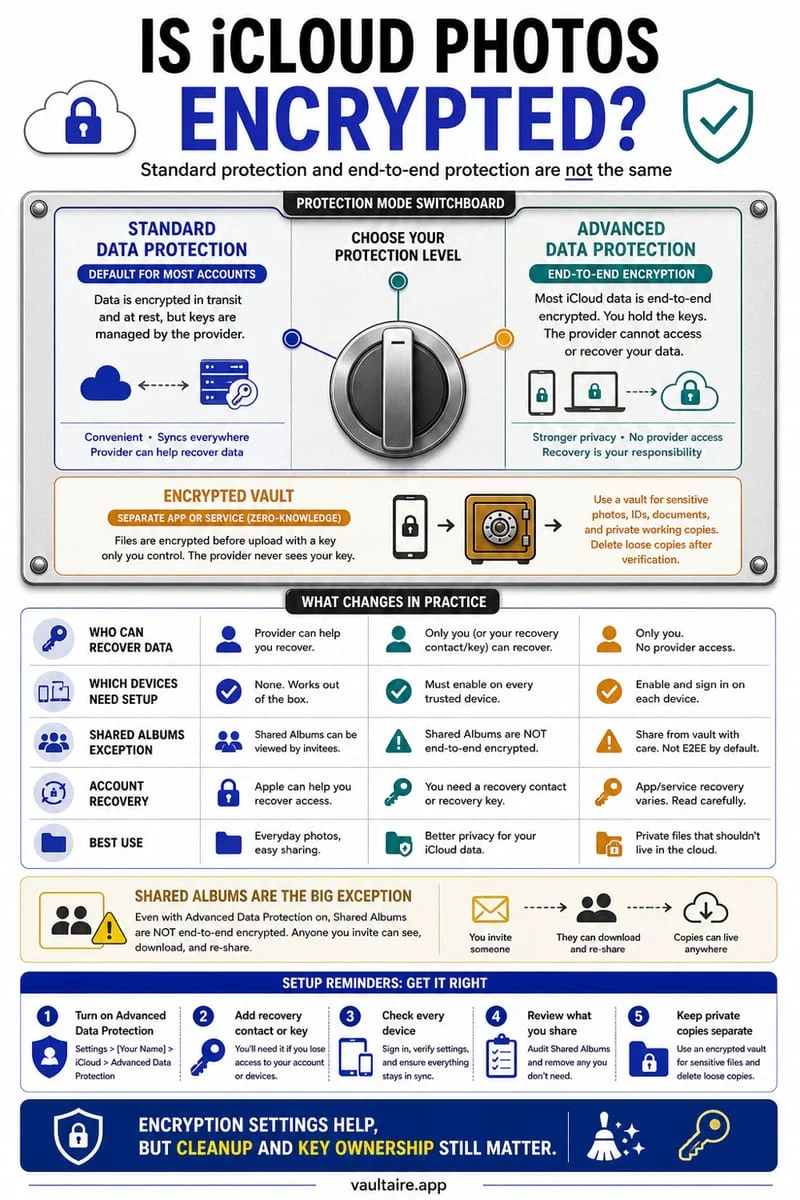
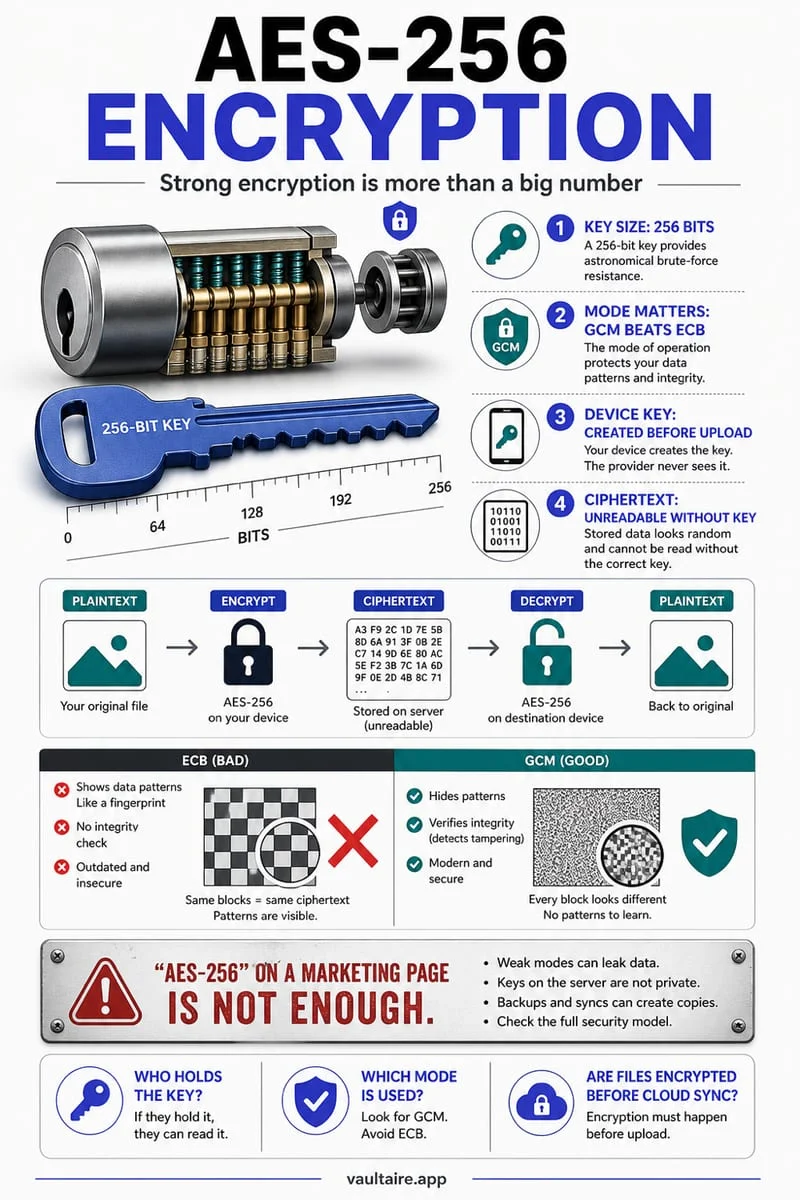
Standard iCloud Backups and Apple's Quick Start device-to-device migration copy most everyday app data, but they intentionally cannot copy cryptographic keys or files that are bound strictly to your old iPhone's hardware. For example, Octoshield (built by TengrX) is designed as a zero-cloud, local-only vault: it encrypts files in 512 KB chunks with AES-256-GCM, combines your secret (via PBKDF2-SHA256) with a random device-bound key stored in your iPhone's hardware-backed Keychain, and explicitly flags all vault storage as excluded from iCloud and computer backups.
Because that device-bound Keychain component never leaves the physical silicon of your old iPhone and Octoshield has no cloud server or recovery service, wiping your old iPhone without exporting your vault first will permanently destroy your vaulted photos and documents. The same caution applies to hardware-bound authenticator tokens or local crypto wallets.
- Open Octoshield on your old iPhone and unlock your vault using your PIN, passphrase, 3×3 pattern, or combination dial.
- Select all photos, videos, and PDF documents inside your vault and export them to a secure temporary folder or AirDrop them directly to your new iPhone.
- Install Octoshield on your new iPhone, import those files into your new vault, and open a few items on the new phone to verify they render properly before touching the reset button on your old phone.
Step 2: Do NOT manually delete your photos or contacts before erasing
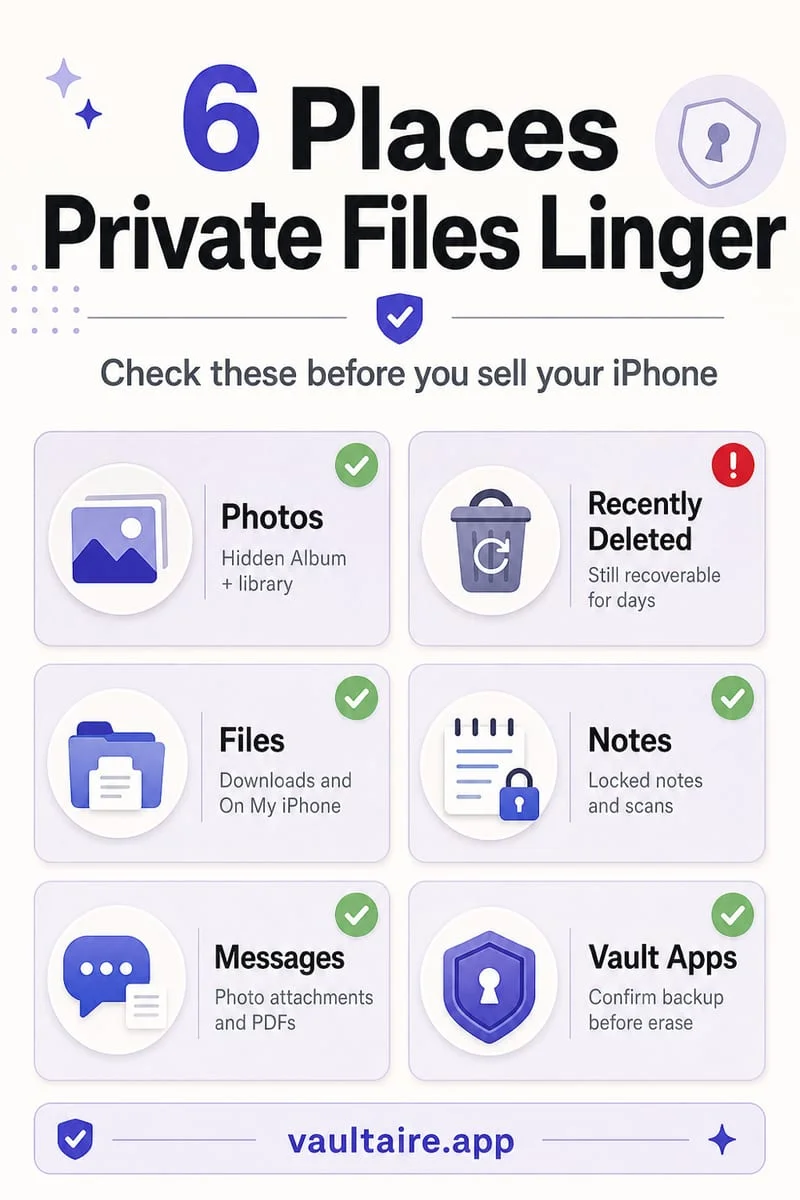
The single most destructive mistake iPhone owners make before handing a phone to a buyer or trade-in courier is opening the Photos app, selecting all their pictures, and tapping Delete so the next person won't see them. When iCloud Photos is turned on, the Photos app is a live window into your cloud library—manually deleting photos on your old iPhone immediately deletes them from iCloud and erases them from your brand-new iPhone as well.
The exact same rule applies to iCloud Contacts, Notes, Reminders, and iCloud Drive files. Never manually delete synced cloud items to 'clean' an old phone. Instead, let iOS's built-in `Erase All Content and Settings` workflow sever the iCloud link and wipe the local flash storage cleanly while leaving your iCloud account 100% intact.
Pre-wipe verification matrix: What transfers vs. what must be handled manually
Before you start the factory reset, run through this checklist to make sure nothing is stranded on the old device and no security locks block your trade-in credit.
| Data or Feature | Included in iCloud Backup / Quick Start? | Required Action Before Wiping Old iPhone |
|---|---|---|
| Octoshield Encrypted Vault | No — strictly local & excluded from all backups by design | Unlock vault → Export all photos & files → Import into Octoshield on new iPhone |
| iCloud Photos & Notes | Synced via iCloud (not manually deleted) | Leave untouched; do NOT manually delete before running Erase All Content |
| Apple Watch & Bluetooth accessories | Watch pairing requires unpairing ceremony | Open Watch app → tap Info (i) next to watch → Unpair Apple Watch |
| Find My iPhone & Activation Lock | Tied to hardware serial until disabled | Enter Apple Account password during Erase All Content to turn off Activation Lock |
Step 3: Run Erase All Content and Settings to destroy hardware keys
You do not need to overwrite an iPhone's storage multiple times with third-party 'shredder' software. Every modern iPhone encrypts its entire APFS user partition using hardware AES engines tied to keys inside the Secure Enclave. When you trigger `Erase All Content and Settings`, the Secure Enclave cryptographically obliterates the class keys in milliseconds, rendering every byte of previous user data permanently undecipherable—even to advanced forensic chip-off tools.
Wait note: If you have Stolen Device Protection enabled on your iPhone and you are at an Apple Store or carrier shop ('Away from Familiar Locations'), iOS may enforce a 1-hour security delay when turning off Find My iPhone. To avoid waiting an hour at the trade-in counter, either turn off Find My / Stolen Device Protection at home before leaving, or run the reset while still at your familiar home location.
- If you wear an Apple Watch, open the Watch app on your old iPhone and unpair it first so it backs up its latest health and watch-face state.
- Open Settings → General → Transfer or Reset iPhone.
- Tap Erase All Content and Settings, then review the summary showing your Apple Account, Find My status, Apple Wallet cards, and active eSIMs.
- Choose whether to erase your eSIM (only after confirming cellular service is active on your new phone), enter your iPhone passcode and Apple Account password, and wait for the multilingual 'Hello' screen to appear.
Frequently asked questions
01Can someone recover my deleted photos after I factory reset my iPhone?+
No. Because iPhones use mandatory hardware file-system encryption managed by the Secure Enclave, running Erase All Content and Settings permanently destroys the cryptographic keys. Without those keys, the raw NAND flash blocks are indistinguishable from random noise and cannot be recovered by any software.
02What happens to my Octoshield vault if I erase my iPhone without exporting?+
Your vault contents will be permanently lost. Octoshield has no cloud server, no account, and excludes vault files and device-bound Keychain keys from iCloud and computer backups. Always unlock and export your files before erasing or trading in your device.
03Should I remove my eSIM when wiping my iPhone for trade-in?+
Yes. Once you have transferred your cellular plan to your new iPhone and verified it can make calls, select the option to Erase Data and eSIMs during the Erase All Content and Settings flow (and remove any physical nano-SIM card if your model has a SIM tray).
04Why is my iPhone making me wait 1 hour to erase it at the Apple Store?+
If Stolen Device Protection is turned on, iOS requires a 1-hour biometric security delay before disabling Find My iPhone when you are away from familiar locations like home. Turn off Find My or Stolen Device Protection at home before heading to the store to skip the delay.
05What if I already mailed in my trade-in iPhone and forgot to wipe it?+
Immediately sign in to iCloud.com/find or open the Find My app on your new iPhone, select your old iPhone from the Devices list, and tap Erase This Device. Once the remote erase completes, click Remove This Device from Account so the trade-in center can inspect it.
Official sources & further reading
Lock your private photos behind real AES-256-GCM encryption.
Stop relying on a Hidden album that shares your iPhone lock-screen passcode. Import private photos and videos into Octoshield’s device-bound local vault with your own PIN, passphrase, 3×3 pattern, or safe combination dial.
- AES-256-GCM authenticated encryption in 512 KB chunks
- Encrypted thumbnails & filename catalog index at rest
- 4 lock styles: PIN, Passphrase, 3×3 Pattern, or Safe Dial + Face ID
- 100% on-device storage — zero cloud servers, zero ad SDKs
 AES-256-GCM + Cleaner
LOCAL IPHONE SANDBOX · KEYCHAIN BOUND
iOS menus can vary slightly by iOS version. Octoshield instructions describe the current local app implementation engineered by TengrX. Check the App Store listing for the version available to download.