To switch from Keepsafe to a local encrypted photo vault like Octoshield on iPhone, first open Keepsafe, select your albums, and tap Export (Unhide) to save your photos back to your iPhone. Then import those photos into Octoshield's offline AES-256-GCM vault, verify they open properly, delete the temporary copies from Apple Photos (and Recently Deleted), and delete your Keepsafe cloud data.
Why iPhone users are switching from Keepsafe to local vaults in 2026
Keepsafe was one of the earliest photo locker apps on the App Store, but over the years it transformed from a simple phone utility into an account-based cloud subscription platform. Users are now required to register an email address, navigate frequent premium upgrade prompts, and deal with 'Private Cloud' synchronization that uploads personal photographs and videos to remote company servers.
Worse still, many longtime users discover that when a premium subscription expires—or when Keepsafe's cloud space fills up—features like full-resolution cloud downloads, album locks, or break-in alerts are locked behind recurring paywalls. Privacy-focused iPhone owners increasingly prefer a vault that never asks for their email address, never uploads photos to a third-party server, and keeps cryptographic keys strictly on their own hardware.
Built by TengrX, Octoshield runs 100% locally on your iPhone with zero accounts and zero cloud servers. It encrypts every file in 512 KB chunks using authenticated AES-256-GCM, deriving separate keys via HKDF-SHA256 from a random 256-bit master key for every file, every thumbnail preview, and the encrypted index.
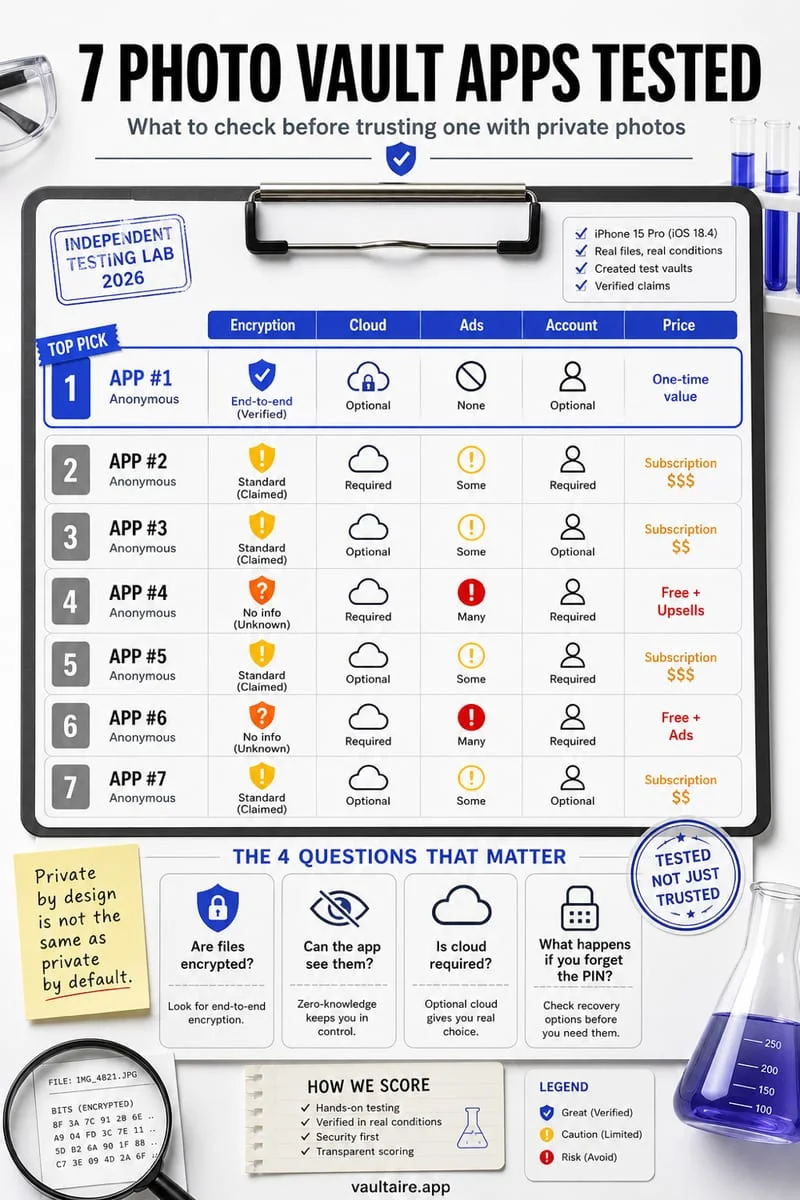
| Feature | Keepsafe Photo Vault | Octoshield Photo & File Vault |
|---|---|---|
| Account & Email Registration | Required during setup | None (zero accounts, zero personal data collected) |
| Cloud Uploads | Pushes 'Private Cloud' server sync | Strictly local (zero servers, excluded from backups) |
| Encryption & Key Derivation | Account-tied storage (tier-dependent) | AES-256-GCM (512 KB chunks) + HKDF-SHA256 + Keychain |
| Unlock Secret Options | PIN / Biometrics | PIN, Passphrase, 3×3 Pattern, or Safe Combination Dial |
| Built-in Camera Roll Cleaner | No | Yes (swipe left delete, right keep, up encrypt to vault) |
Step-by-step: Export your photos from Keepsafe to Octoshield
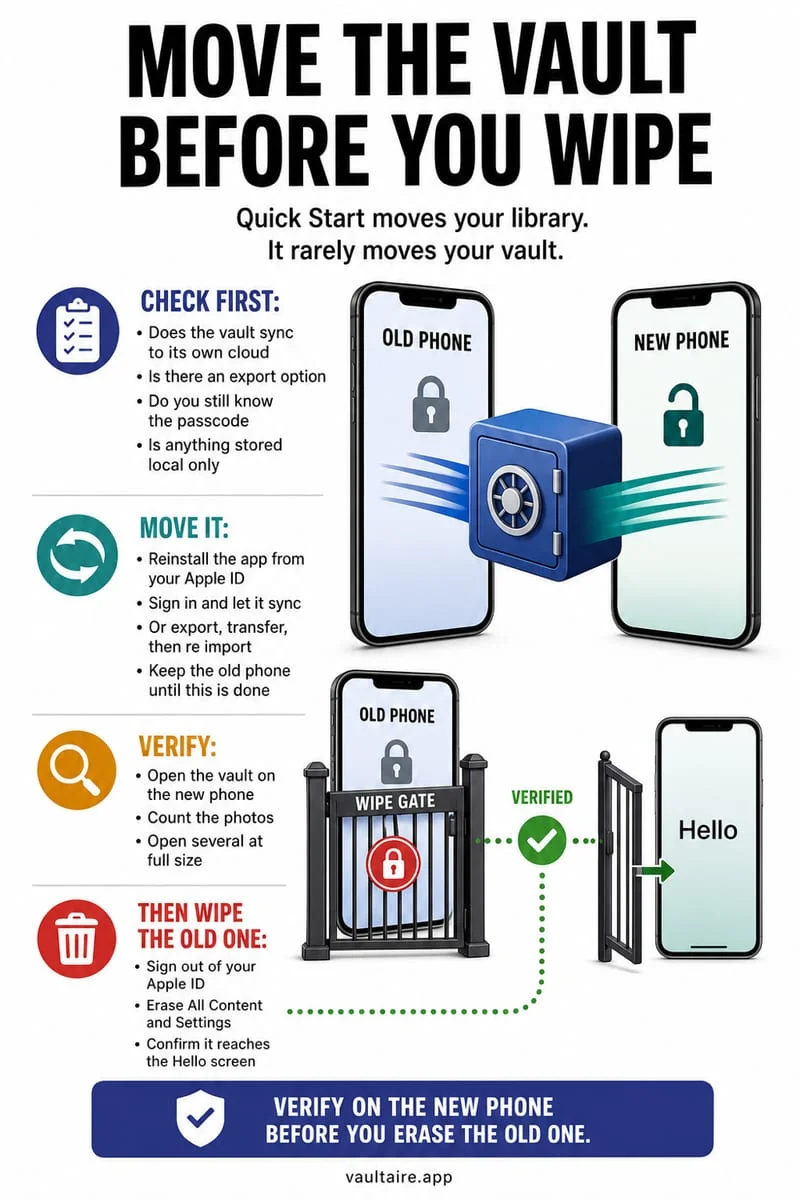
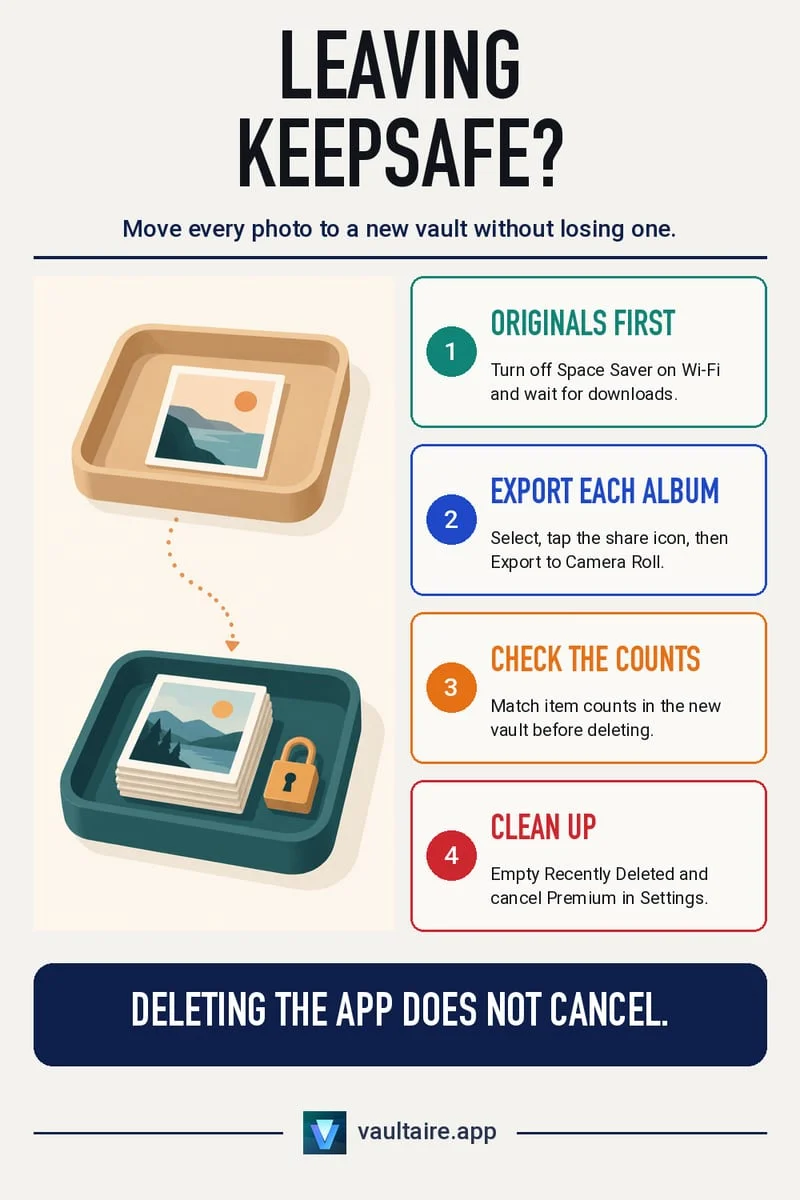
If you had Private Cloud enabled inside Keepsafe, some of your older photos and videos may only exist on your iPhone as compressed thumbnail placeholders until you open or download them. Before canceling a subscription or deleting the Keepsafe app, connect to fast Wi-Fi and open each album so full-resolution originals download to your device.
If you have several gigabytes of videos and only limited free space on your iPhone, migrate one album at a time: export an album from Keepsafe to Apple Photos, import that batch into Octoshield (or use Octoshield's Cleaner tab to swipe up on items to encrypt them directly into your vault and queue original removal), delete the temporary copies from Apple Photos, empty Recently Deleted, and then move on to the next album.
- Open Keepsafe on Wi-Fi, open an album, tap Select, choose all photos and videos, and tap the Export / Unhide icon to save them back to Apple Photos.
- Open Octoshield, configure your independent vault secret (PIN, Passphrase, 3×3 Pattern, or Safe-style Combination Dial), and import the exported batch into the Photo Vault.
- Open your imported photos and videos inside Octoshield to confirm they render at full original resolution.
- Confirm the prompt to remove the temporary unencrypted copies from Apple Photos, then open Collections → Utilities → Recently Deleted and tap Delete Permanently.
- To remove your media from Keepsafe's remote servers, delete the items inside Keepsafe and empty Keepsafe's internal Trash while connected to the internet before deleting your Keepsafe account.
How to cancel Keepsafe billing and wipe your remote cloud copies
Many users make the mistake of simply deleting the Keepsafe app icon from their iPhone Home Screen once their photos are exported. Deleting an iOS app neither cancels an active App Store subscription nor erases photos and videos stored on Keepsafe's remote Private Cloud servers.
First, while still signed into Keepsafe with internet access enabled, delete your cloud-synced albums inside the app and empty Keepsafe's Trash folder so the deletion syncs to their servers. If you no longer want your email address registered with Keepsafe, submit an account deletion request inside Keepsafe's account settings before uninstalling the app from your iPhone. Next, open iOS Settings → [Your Name] → Subscriptions, tap Keepsafe, and tap Cancel Subscription so you aren't billed for another monthly or annual renewal cycle.
Important difference: Cloud sync vs. device-bound security
When you leave Keepsafe for Octoshield, you are trading third-party cloud storage for true zero-cloud cryptographic isolation. In Octoshield, your chosen secret—whether a numeric PIN, alphanumeric passphrase, 3×3 pattern, or safe-style combination dial—is stretched with PBKDF2-SHA256 and combined with a random device-bound key stored in your iPhone's hardware-backed Keychain (with optional Face ID / Touch ID using a separate biometric-protected Keychain slot).
Because Octoshield has no servers, no user accounts, no recovery service, and excludes vault files from iCloud and computer backups, nobody outside your physical iPhone can ever access your vault—and you are solely responsible for remembering your secret and exporting your files before switching, repairing, or trading in your iPhone for a new device.
Frequently asked questions
01Does deleting the Keepsafe app automatically delete my photos from Keepsafe's Private Cloud?+
No. Simply uninstalling the Keepsafe app from your iPhone leaves any synced photos sitting on Keepsafe's cloud servers until you explicitly delete your cloud items and empty Keepsafe's Trash or request account deletion.
02Why did Keepsafe export lower-quality photos when my subscription expired?+
Some cloud vaults store full-resolution originals on their cloud servers and keep only compressed previews locally when 'free up space' is enabled, restricting full-resolution downloads if a paid subscription lapses. Always export your full-resolution originals while you have active access.
03Does Octoshield require an email address or account to encrypt my photos?+
No. Octoshield never asks for an email address, phone number, or account login, and never connects your vault to a cloud server.
04How do I cancel my Keepsafe subscription on iPhone after migrating to Octoshield?+
Uninstalling an app does not stop App Store billing. Open iOS Settings → tap your Apple Account name at the top → tap Subscriptions → select Keepsafe → tap Cancel Subscription.
05Can I also clean up duplicates and screenshots while moving my photos into Octoshield?+
Yes. Octoshield includes a built-in Cleaner tab where you can swipe left to queue unwanted photos for deletion, swipe right to keep them in your camera roll, or swipe up to encrypt them directly into your vault and queue original removal.
Official sources & further reading
Lock your private photos behind real AES-256-GCM encryption.
Stop relying on a Hidden album that shares your iPhone lock-screen passcode. Import private photos and videos into Octoshield’s device-bound local vault with your own PIN, passphrase, 3×3 pattern, or safe combination dial.
- AES-256-GCM authenticated encryption in 512 KB chunks
- Encrypted thumbnails & filename catalog index at rest
- 4 lock styles: PIN, Passphrase, 3×3 Pattern, or Safe Dial + Face ID
- 100% on-device storage — zero cloud servers, zero ad SDKs
 AES-256-GCM + Cleaner
LOCAL IPHONE SANDBOX · KEYCHAIN BOUND
iOS menus can vary slightly by iOS version. Octoshield instructions describe the current local app implementation engineered by TengrX. Check the App Store listing for the version available to download.