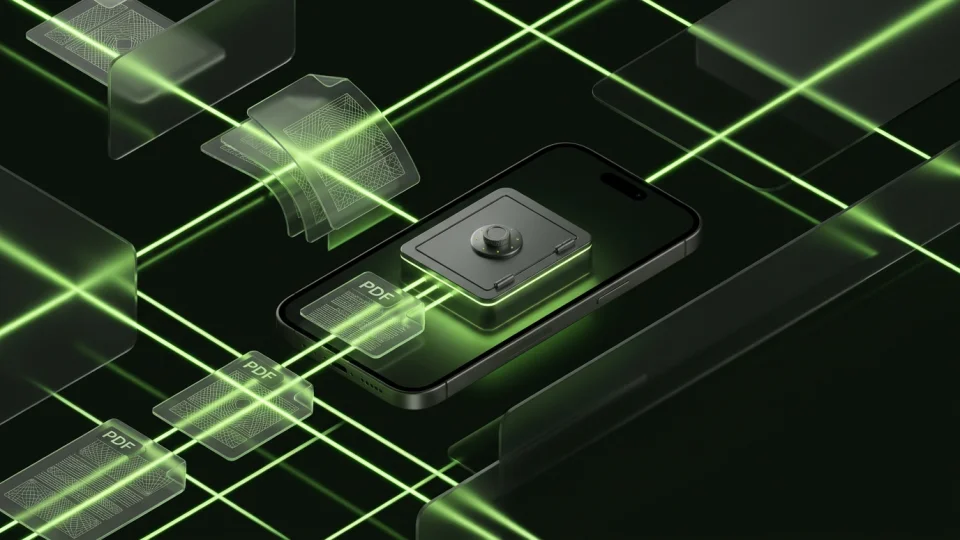
For downloaded medical PDFs and images, verify the complete document, choose a private storage destination, and review other copies in email, Photos, and cloud folders. Keep an independent way to access essential records. A local file vault protects imported copies; it does not replace a provider portal or manage Apple Health data.
Identify the record you actually downloaded
A lab result might arrive as a PDF, an email attachment, or a screenshot of a portal. Those are different copies with different amounts of information. Preserve the full document when available, including dates, patient details, and all pages, rather than relying on a cropped image.
This is a storage workflow, not guidance on interpreting results. Keep the provider’s original access route when possible. A file on your phone should supplement a reliable record source instead of becoming your only route to important information.
Check completeness before changing any source
Open the saved file and inspect every page. Confirm that it belongs to the right person and date, and that text remains readable at full size. An image preview can conceal an incomplete download or a missing page.
Review the destination’s audience and sync settings. A folder with a discreet name inside a shared cloud account is still governed by that account’s access. Decide which copies need to remain and who should legitimately be able to retrieve them.
- Download or export the complete record from its legitimate source.
- Verify the patient, date, page count, and readability.
- Store a private reference copy in the chosen location.
- Keep an independent retrieval or backup option for essential records.
Privacy should not leave you unable to retrieve the record
Consider what happens if the phone is lost, damaged, or out of power. Keep the provider portal details or another appropriate independent copy accessible through your own recovery plan. A vault with no recovery service should not contain the only copy of an essential document.
Manage mailbox attachments, Photos screenshots, downloads, and shared copies separately. Removing a document from one folder does not remove it from every earlier destination, and changing an app lock does not change portal credentials.
Use Octoshield for selected private document copies
Octoshield’s file vault can retain imported PDFs and other files under its own secret. Verify the document inside the vault, then handle plaintext sources separately. It does not connect to your provider portal or manage records inside Apple Health.
The vault is local and excluded from backups. Temporary document previews and exports have their own exposure boundaries; keep an independent preservation plan for important records.
Frequently asked questions
01Does this protect records inside a healthcare portal?+
No. A file vault protects copies you import. The provider’s account and original records remain governed by that service.
02Should my only copy be in a device-only vault?+
Keep an independent way to retrieve essential records. Device loss or a forgotten vault secret can otherwise mean losing access.
Official sources & further reading
Keep sensitive PDFs, IDs & documents in an encrypted iPhone vault.
The iOS Files app leaves filenames and folders exposed whenever your phone is unlocked. Import tax returns, passport scans, and private PDFs into Octoshield for hardware-bound AES-256-GCM protection.
- Encrypts PDFs, scans, documents, photos, and videos on-device
- Hides document filenames inside an encrypted catalog index
- Automatic cleanup of temporary preview scratch files on lock
- PBKDF2-SHA256 + iPhone Keychain hardware key binding
 AES-256-GCM + Cleaner
LOCAL IPHONE SANDBOX · KEYCHAIN BOUND
iOS menus can vary slightly by iOS version. Octoshield instructions describe the current local app implementation engineered by TengrX. Check the App Store listing for the version available to download.