Instead of snapping regular Camera photos that sit in your main photo grid and get indexed by Live Text, scan your passport or driver's license using the Files app document scanner and immediately import the PDF or image into an AES-256-GCM encrypted local vault like Octoshield, then delete the unencrypted original.
Why snapping ID photos in the Camera Roll is a major security risk
Almost every traveler and professional keeps a digital copy of their passport bio page, driver's license, national ID card, health insurance card, or Global Entry/visa documents on their iPhone for airline check-ins, hotel registrations, and HR onboarding forms. However, taking a regular picture with the iPhone Camera places your most sensitive government identity numbers right in the middle of your everyday Camera Roll.
Once an ID photo sits in the Apple Photos app, three things happen automatically: Live Text OCR indexes the Machine Readable Zone (MRZ) and document numbers so anyone who types 'passport', 'license', or 'birth' into Photos search finds it in half a second; iCloud Photos replicates the image to every signed-in Mac, iPad, or cloud backup; and any third-party app you have granted Full Photo Library Access can programmatically read the image.
| Storage Method | Protected from iPhone Passcode? | Exposed to Apps with Photo Access? | Works Offline Abroad (No Wi-Fi)? |
|---|---|---|---|
| Apple Photos Camera Roll | No — wide open once phone is unlocked | Yes — readable by any app with Full Access | Only if full-res copy is cached locally |
| Apple Photos Hidden Album | Uses iPhone Face ID / Passcode | Hidden in standard pickers, still in Photos DB | Only if not offloaded by Optimize Storage |
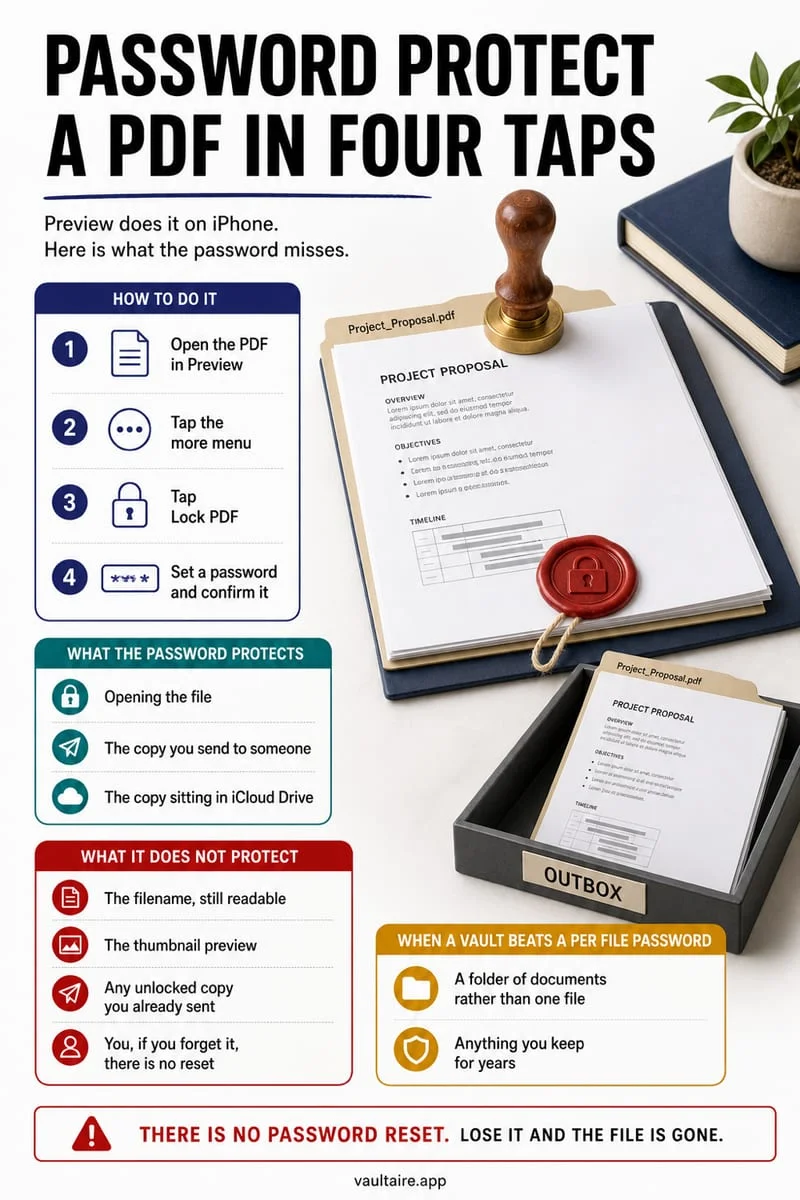
| Apple Files App (iCloud Drive) | No (unless PDF is manually password-locked) | Filename visible in Files & Spotlight | Requires manual 'Keep Downloaded' toggle |
| Octoshield Encrypted Vault | Yes — independent PIN, Passphrase, Pattern, or Dial | No — isolated in AES-256-GCM local vault | 100% offline — always stored on-device |
How to scan a crisp, perspective-corrected ID PDF without touching Photos
Instead of using the standard Camera app, use Apple's built-in document scanner inside the Files app. The Files scanner automatically detects the four corners of a passport book or plastic driver's license, corrects perspective keystone distortion, reduces overhead lamp glare, and outputs a clean multi-page PDF without ever writing a frame to your Camera Roll.
To prevent that scan from immediately uploading to remote servers before you encrypt it, initiate the scan inside the **On My iPhone** location of the Files app rather than inside iCloud Drive.
- Open the Apple Files app, tap the Browse tab at the bottom, and select On My iPhone.
- Tap the More (…) circle button in the top-right corner and select Scan Documents.
- Lay your passport photo page or driver's license on a dark, high-contrast flat surface in even lighting; let the camera capture the front and back pages, then tap Save.
- If an immigration portal specifically requires a `.jpg` or `.heic` image file in addition to a PDF, capture a sharp photo as well so you can store both formats inside your encrypted vault in the next step.
Store IDs offline in Octoshield's AES-256-GCM vault
Immediately after saving your passport or ID scan, import the PDF (and any high-resolution photo copy) into Octoshield (built by TengrX). Octoshield encrypts each file in 512 KB authenticated chunks using AES-256-GCM, and uses HKDF-SHA256 to derive separate cryptographic keys for the file, its thumbnail, and its catalog index entry from a random 256-bit master key.
Your vault's master key is unlocked by stretching your independent secret—a custom PIN, passphrase, 3×3 pattern, or safe-style combination dial—with PBKDF2-SHA256 and combining it with a random device-bound key stored in your iPhone's hardware-backed Keychain (with an optional separate biometric Keychain slot if you enable Face ID).
Because Octoshield stores your encrypted vault 100% locally on your iPhone, your passport and ID scans open instantaneously in Airplane Mode at foreign customs desks, cruise terminals, or rural hotels with zero cellular service—while remaining completely unreadable if your phone is lost or stolen on the trip.
- Open Octoshield, unlock your vault with your PIN, passphrase, 3×3 pattern, or combination dial, and import the scanned PDF from Files (or swipe up on ID photos in Octoshield's Cleaner).
- Open the imported passport and driver's license inside Octoshield and zoom in to verify that the passport number, expiration date, and MRZ lines at the bottom are razor-sharp.
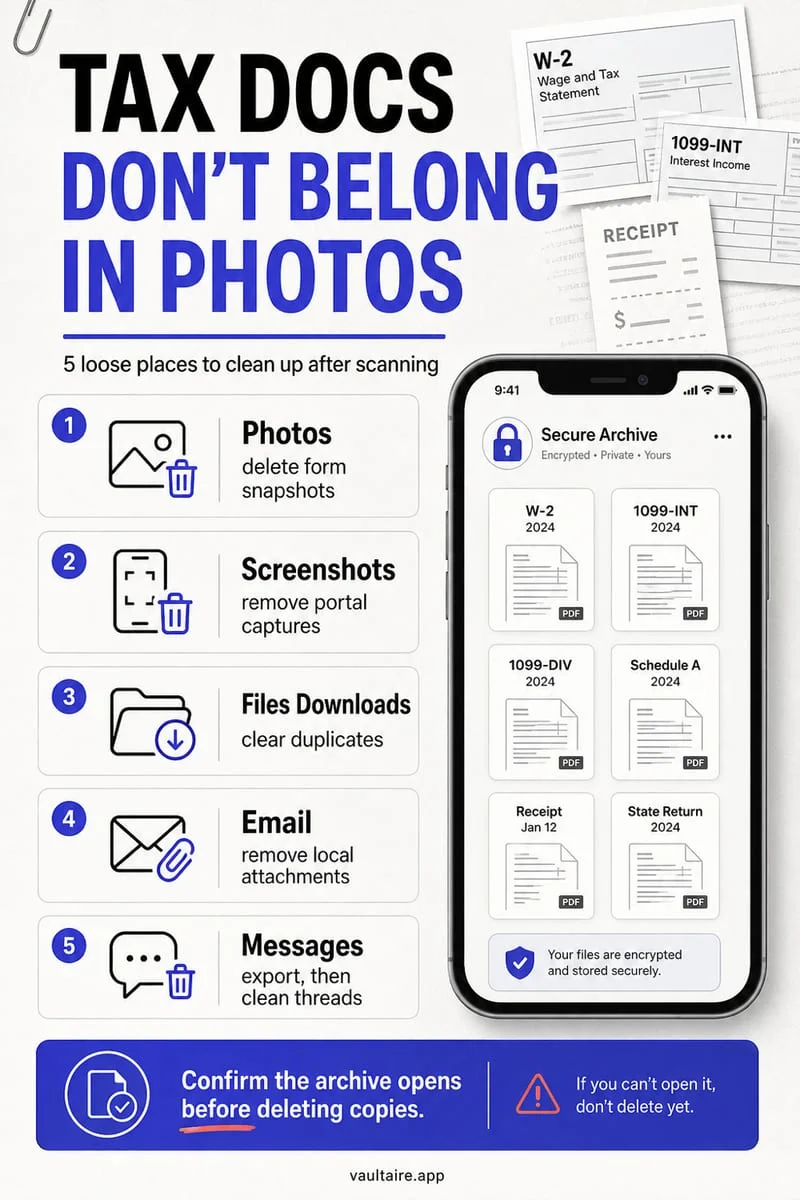
- Delete the unencrypted original scan from the Apple Files app (and any photo copy from Apple Photos).
- Empty Recently Deleted in both the Files app and the Photos app so no unencrypted trace remains on your device.
Travel document checklist: What else to keep in your encrypted vault
While you have your wallet and travel folder open, scanning a few supporting emergency documents into Octoshield takes five extra minutes and can save days of embassy bureaucratic delays if your physical wallet or bag is stolen overseas.
- Passport photo page + any pages containing active paper visas or entry stamps.
- Front and back of your driver's license and national identity card (including the barcode on the back).
- Front and back of your primary travel credit cards and international health insurance card (showing the 24/7 international emergency assistance phone number).
- Copy of your travel insurance policy PDF and emergency embassy contact numbers—and remember to keep a separate backup of these files at home since Octoshield never syncs to the cloud.
Frequently asked questions
01Does Apple Wallet Digital ID replace keeping a passport scan?+
No. While Apple Wallet supports Digital IDs and driver's licenses at participating domestic TSA checkpoints and select venues, international border control, foreign police checkpoints, hotels, car rental desks, and consulates if you lose your physical passport still require your physical document or a visual copy of the passport photo page.
02Can third-party apps with photo access read my passport number if it's in my Camera Roll?+
Yes. Any app granted Full Access in Settings → Privacy & Security → Photos can read every image in your Camera Roll, including photos of passports, driver's licenses, Social Security cards, and credit cards. Moving them into Octoshield isolates them completely.
03Can I view my passport scan in Octoshield on Airplane Mode with no Wi-Fi?+
Yes. Unlike iCloud Drive or iCloud Photos (which frequently offload files to the cloud and show a spinning download error when you have no roaming data at an airport), Octoshield is 100% local and stores your encrypted files directly on your iPhone for instant offline access.
04Should I keep my passport scan as a PDF or a photo inside Octoshield?+
The most practical approach is to store both inside Octoshield: a multi-page PDF scanned via the Files app (ideal for emailing or printing at a hotel or embassy) and a high-resolution photo copy (useful when an airline check-in app asks you to upload a JPEG/HEIC image).
05What if I lose my iPhone while traveling—can I log into Octoshield from another device?+
No. Octoshield has no user accounts, no cloud servers, and binds your vault encryption to your physical iPhone's hardware Keychain so your IDs can never be breached online. Always keep your physical IDs separate from your phone when traveling and store a backup copy on an encrypted drive at home.
Official sources & further reading
Keep sensitive PDFs, IDs & documents in an encrypted iPhone vault.
The iOS Files app leaves filenames and folders exposed whenever your phone is unlocked. Import tax returns, passport scans, and private PDFs into Octoshield for hardware-bound AES-256-GCM protection.
- Encrypts PDFs, scans, documents, photos, and videos on-device
- Hides document filenames inside an encrypted catalog index
- Automatic cleanup of temporary preview scratch files on lock
- PBKDF2-SHA256 + iPhone Keychain hardware key binding
 AES-256-GCM + Cleaner
LOCAL IPHONE SANDBOX · KEYCHAIN BOUND
iOS menus can vary slightly by iOS version. Octoshield instructions describe the current local app implementation engineered by TengrX. Check the App Store listing for the version available to download.