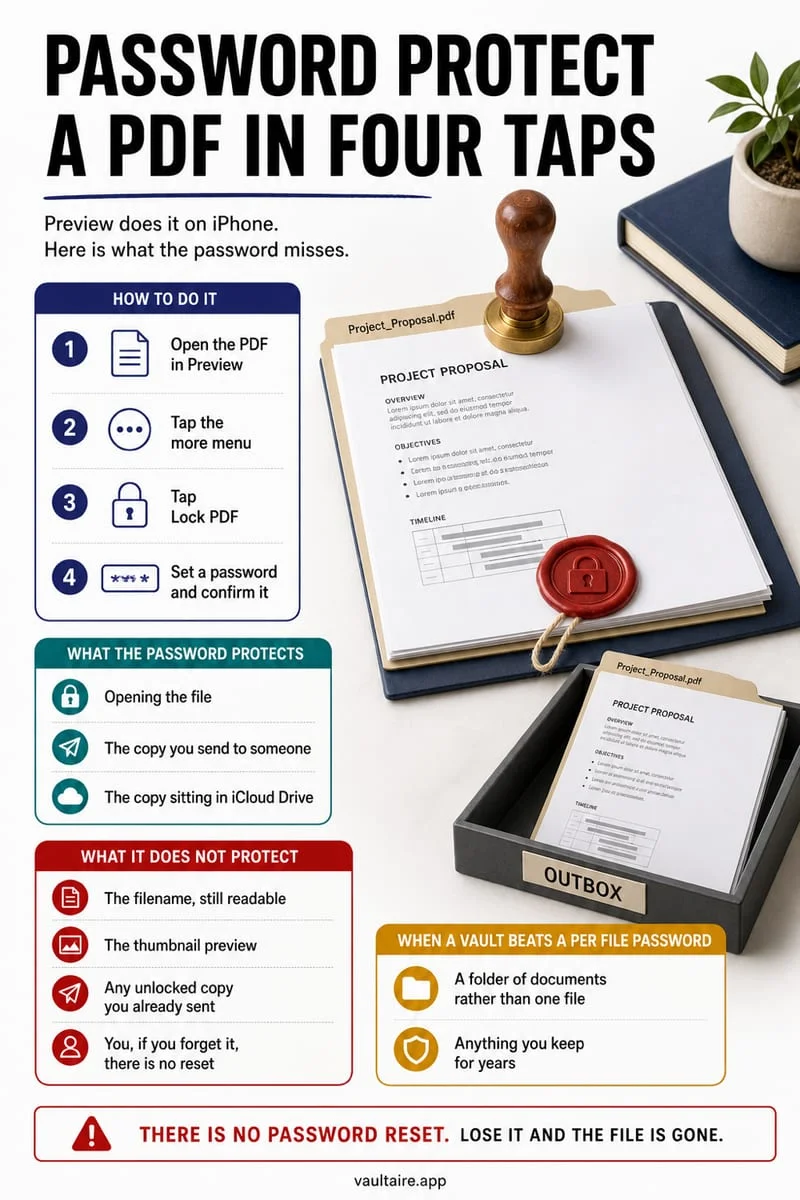
Open the PDF in the iPhone Files app, tap the filename dropdown at the top of the screen, and choose Lock PDF to set a password. You can also import the PDF into Apple Notes and lock the note, or store it in Octoshield's File Vault with AES-256-GCM encryption so even the filename and thumbnail stay hidden.
Use Lock PDF in the built-in iPhone Files app
Apple's built-in Files app includes a native Quick Look PDF encryption utility that locks the document payload with an open password you define. Under the PDF specification (ISO 32000), setting an open password encrypts the internal page streams so that any standards-compliant viewer—including Apple Preview on macOS, Adobe Acrobat on Windows, or Chrome—requires that exact string before rendering a single page.
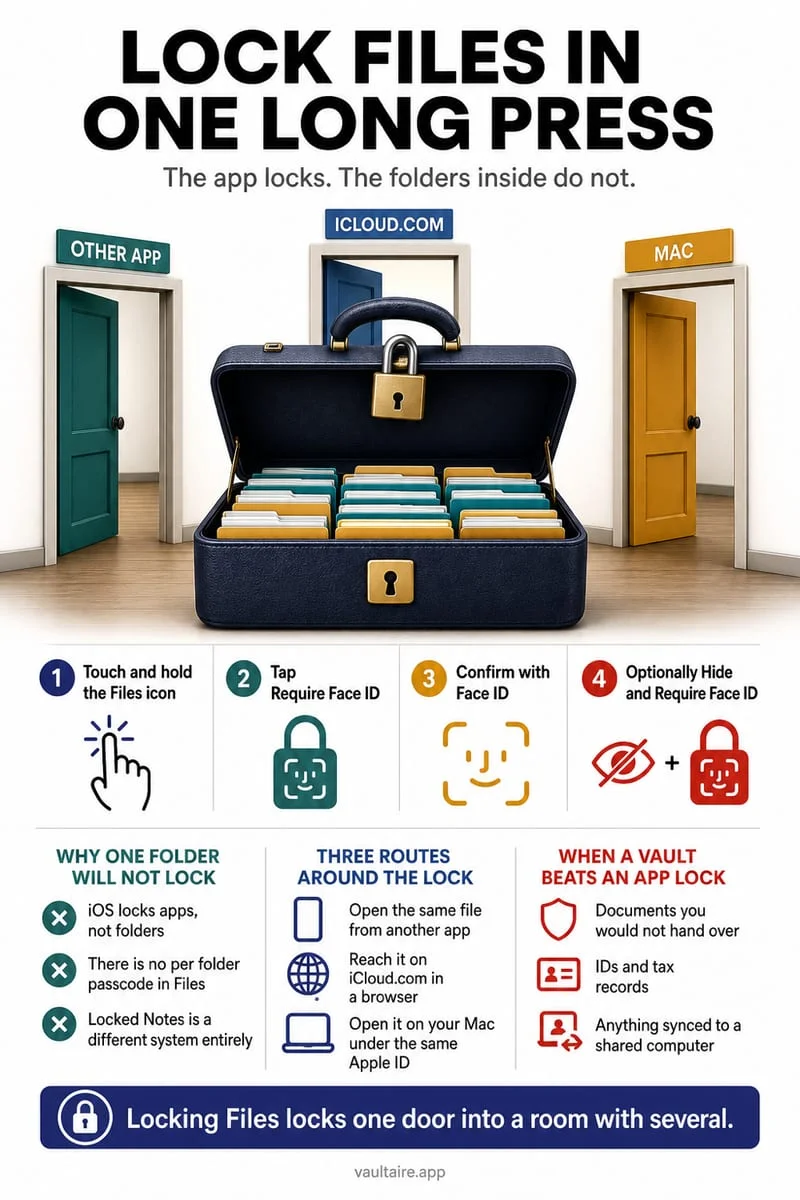
While native PDF locking is fast when you need to email a signed lease or tax form, it has important privacy boundaries on your own device. Locking a PDF in Files still leaves the file itself—along with its plaintext filename, folder path, byte size, and creation date—visible to anyone browsing your Files app, Spotlight search, or iCloud Drive. Additionally, Apple provides zero password recovery for a locked PDF if you forget the password you set.
- Open the Files app on your iPhone, navigate to Browse or Recents, and tap the PDF you want to protect.
- Tap the small downward chevron next to the document title at the top center of the screen.
- Select Lock PDF from the menu, enter and verify a strong passphrase, and tap Done.
- Close the document and tap it again to confirm the password prompt blocks the page preview.
Files Lock PDF vs. Apple Notes vs. Octoshield File Vault
Not all PDF protection methods on iPhone solve the same threat model. Standard PDF password locking in the Files app is designed for transit: when you send a contract or bank statement over email or AirDrop, the encryption travels inside the `.pdf` container itself.
When your goal is storing personal PDFs on your own iPhone without exposing suggestive filenames like `Severance-Agreement.pdf` or `Medical-Lab-Results.pdf` in Recent Files, Spotlight search, or iCloud Drive, an on-device encrypted vault hides the entire file record behind an independent cryptographic secret. Apple Notes sits in the middle: locking a note encrypts an attached PDF, but the note title remains readable and the lock defaults to your iPhone passcode unless configured otherwise.
| Feature | Files App (Lock PDF) | Apple Notes (Locked Note) | Octoshield File Vault |
|---|---|---|---|
| Encryption standard | Standard PDF open-password encryption | Apple Note container encryption | AES-256-GCM in 512 KB authenticated chunks |
| Hides filename & existence | No (visible in Files, Recents & Spotlight) | Note title and timestamp remain visible | Yes (encrypted index, filenames & thumbnails) |
| Unlock options | Typed password per individual file | iPhone passcode or custom Notes password | PIN, Passphrase, 3×3 Pattern, or Combination Dial (+ optional Face ID) |
| Cloud sync & exposure | Syncs if stored in iCloud Drive | Syncs across devices if iCloud Notes is on | Strictly local; excluded from iCloud & backups |
Hide the PDF completely inside an encrypted file vault
Octoshield (built by TengrX) imports PDFs into an isolated local vault using AES-256-GCM authenticated encryption in 512 KB chunks. Rather than relying on a single static key, Octoshield generates a random 256-bit master key and uses HKDF-SHA256 to derive separate cryptographic keys for each individual file, its preview thumbnail, and its encrypted catalog index entry.
To protect that master key against casual snooping and offline extraction, Octoshield stretches your chosen secret—a numeric PIN, passphrase, 3×3 pattern, or safe-style combination dial—using PBKDF2-SHA256 and combines it with a random device-bound key stored in your iPhone's hardware-backed Keychain (with a separate biometric-protected Keychain slot if you enable Face ID). After importing a PDF into Octoshield, delete the original unlocked PDF from Files and empty Recently Deleted, and keep an external backup of critical documents before switching phones.
- Open Octoshield and unlock your vault with your PIN, passphrase, 3×3 pattern, or safe-style combination dial.
- Tap the file importer and select your PDF documents from On My iPhone or iCloud Drive.
- Open the imported PDF inside Octoshield to confirm that all pages and forms render cleanly.
- Return to the Apple Files app, delete the unencrypted source PDF, and clear Files → Browse → Recently Deleted.
Common PDF password pitfalls on iOS (and how to avoid them)
First, if a PDF already has digital signature certificates or restrictive owner permissions applied by a bank or government agency (such as an official IRS transcript or locked pay stub), the Lock PDF option in the Files app may appear grayed out. Importing that file into Octoshield's File Vault encrypts the entire binary regardless of internal PDF permission flags.
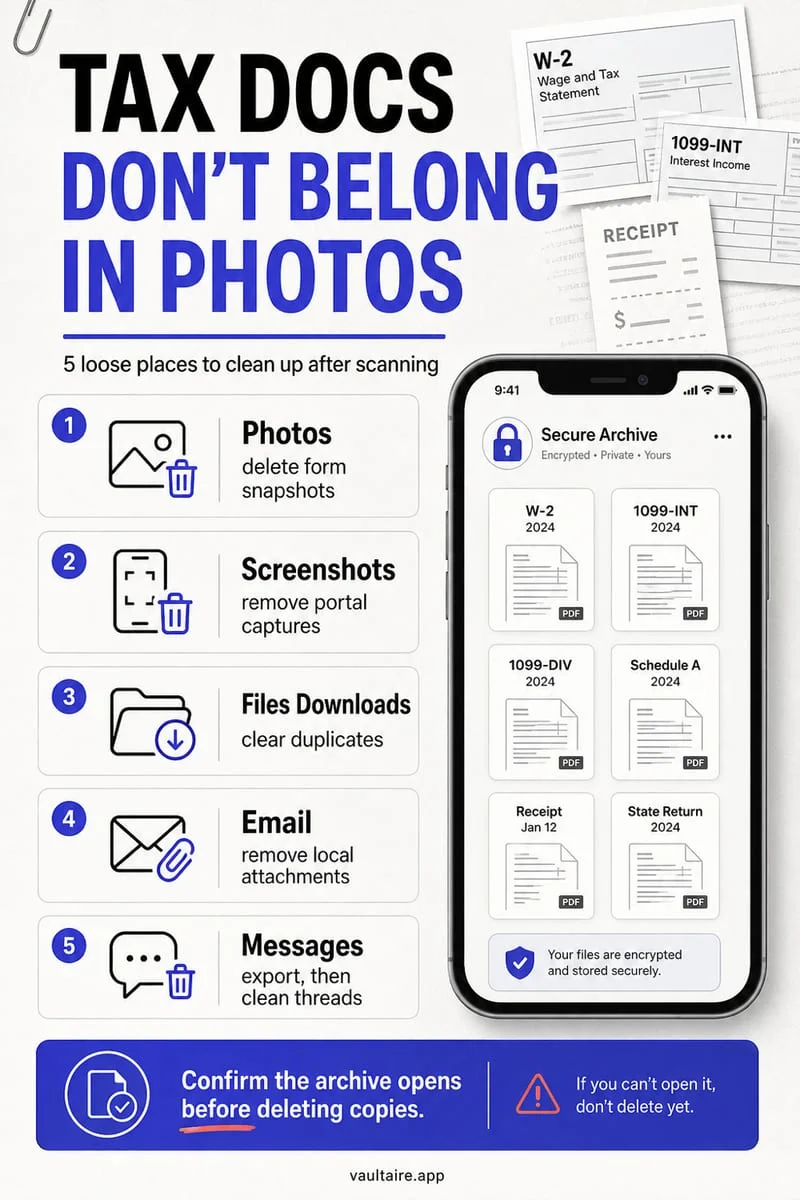
Second, watch out for leftover copies in Safari Downloads or Mail attachments after you lock a copy in Files. Finally, when emailing a password-locked PDF to a client or accountant, always send the decryption password over a separate channel such as a phone call or Signal message rather than in the same email thread.
- If 'Lock PDF' is grayed out on a bank or government PDF, import the file directly into Octoshield to encrypt it at the vault layer.
- Check Safari Downloads and Mail attachments to remove unencrypted cached copies after locking or vaulting a PDF.
- Transmit the decryption password over a separate communication channel when sharing a locked PDF externally.
Frequently asked questions
01Can I recover a PDF password if I forget it in the iPhone Files app?+
No. Neither Apple's Files app nor Octoshield provides a password recovery service or backdoor for encrypted PDFs. If you forget the PDF password and do not have an unencrypted copy saved elsewhere, the document cannot be opened.
02Does locking a PDF in Files hide its filename or thumbnail?+
Putting a password on a PDF in the Files app replaces the page thumbnail with a lock icon, but the exact filename, file size, folder location, and modification date remain visible in Browse, Recents, and Spotlight. To hide the filename and existence of the document as well, store it in an encrypted vault like Octoshield.
03Does a locked PDF stay password-protected when shared via email or AirDrop?+
Yes, if you used Lock PDF in the Apple Files app, the password is embedded inside the PDF specification itself and travels with the file across email, AirDrop, Windows, and Android. If you export a PDF out of Octoshield to share it, it exports as a standard readable PDF unless you also apply a PDF password.
04Why is the 'Lock PDF' option missing or grayed out on my iPhone?+
Lock PDF only appears when viewing a genuine `.pdf` file inside the Files app (via the top title dropdown) and will be unavailable if the file is read-only, still downloading from iCloud, or already restricted by an institutional owner password or digital signature. Moving the file into Octoshield encrypts it regardless of internal PDF restrictions.
05How do I remove a password from a locked PDF on iPhone?+
To strip the password from a PDF you previously locked in the Files app, open the file, enter the current password, tap the Share button, choose Print, pinch outward on the print preview to open a fresh unencrypted view, and save that copy to Files—or store the unlocked version inside Octoshield so you only unlock your vault once.
Official sources & further reading
Keep sensitive PDFs, IDs & documents in an encrypted iPhone vault.
The iOS Files app leaves filenames and folders exposed whenever your phone is unlocked. Import tax returns, passport scans, and private PDFs into Octoshield for hardware-bound AES-256-GCM protection.
- Encrypts PDFs, scans, documents, photos, and videos on-device
- Hides document filenames inside an encrypted catalog index
- Automatic cleanup of temporary preview scratch files on lock
- PBKDF2-SHA256 + iPhone Keychain hardware key binding
 AES-256-GCM + Cleaner
LOCAL IPHONE SANDBOX · KEYCHAIN BOUND
iOS menus can vary slightly by iOS version. Octoshield instructions describe the current local app implementation engineered by TengrX. Check the App Store listing for the version available to download.