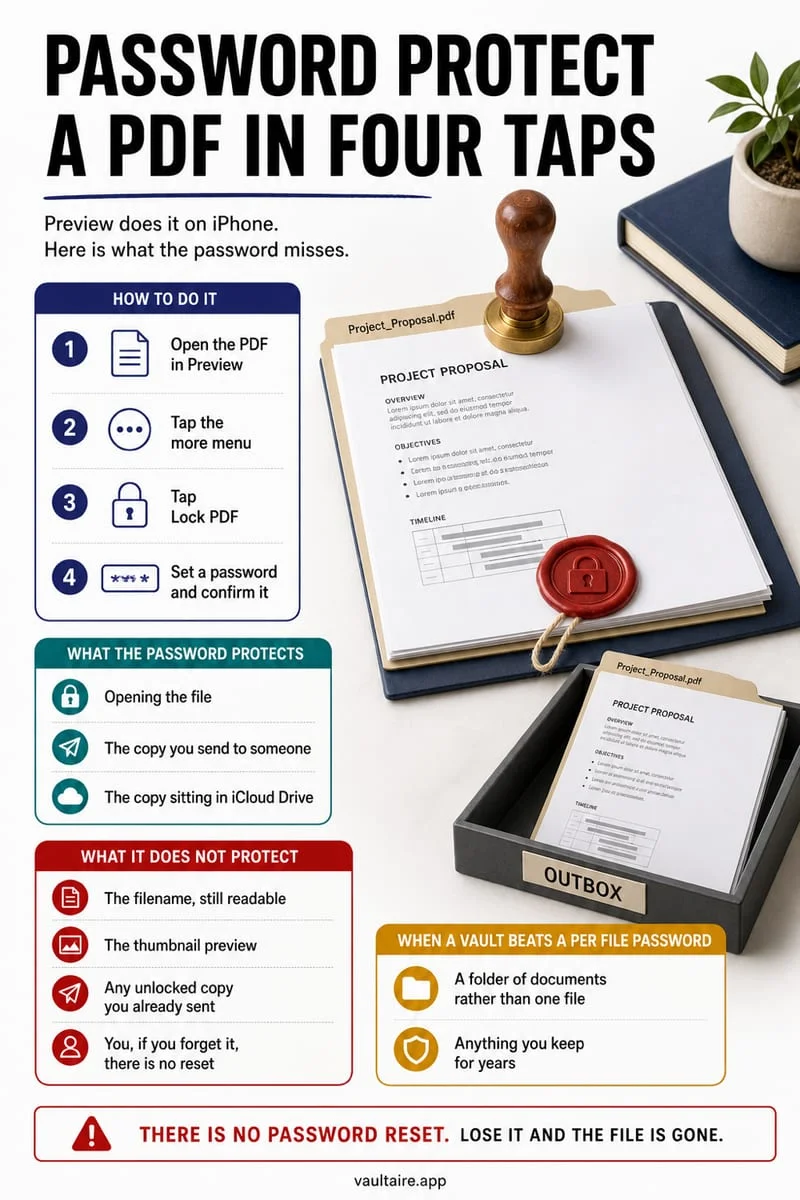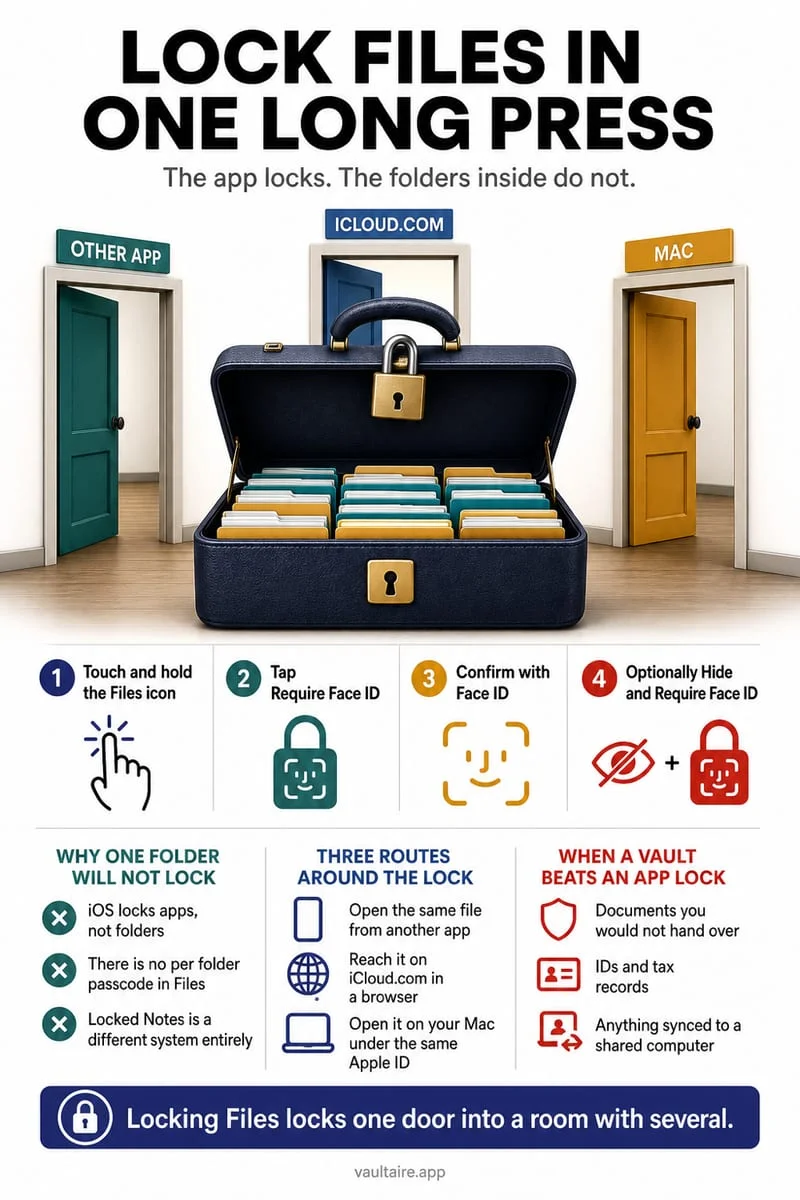
Touch and hold the Files app icon on your iPhone Home Screen, tap Require Face ID (or Require Touch ID / Passcode), and confirm. Note that this built-in app lock falls back to your standard iPhone unlock passcode—to protect files with a completely separate secret, store them in an independent encrypted vault like Octoshield.
Enable Require Face ID on the iPhone Files app
Across current 2026 iOS releases, Apple allows you to place a biometric app lock directly on the built-in Files app from your Home Screen. Once activated, tapping the Files icon immediately triggers a Face ID or Touch ID challenge before displaying your Recent Files list or folder hierarchy, stopping someone who is borrowing your unlocked phone from casually snooping through your downloads.
When you lock the Files app at the OS level, iOS also suppresses notification previews from Files and prevents Spotlight search from surfacing documents stored inside the app until you authenticate. Because Files is a core preinstalled system utility rather than an App Store download, iOS only offers 'Require Face ID'—you cannot hide the Files app icon inside the Hidden Apps folder.
- Locate the blue Files app icon on your iPhone Home Screen or inside the App Library.
- Touch and hold the Files app icon until the quick-actions context menu pops up.
- Tap Require Face ID (or Require Touch ID / Require Passcode).
- Confirm the prompt and authenticate with Face ID or your device passcode to engage the lock.
Where locking the Files app falls short in real-world scenarios
While Require Face ID stops a stranger holding your unlocked phone for thirty seconds, it relies entirely on your primary iPhone authentication credentials. Whenever Face ID fails twice, iOS immediately presents the 'Enter iPhone Passcode' button. Anyone who knows your lock-screen passcode—such as a partner, roommate, family member, or shoulder-surfer—can bypass the Files app lock effortlessly.
Furthermore, locking the Files app icon on your iPhone only locks the local user interface on that single handset. Any document stored inside the iCloud Drive section of the Files app remains wide open on every Mac, iPad, or Windows PC signed in to your Apple Account, as well as on iCloud.com.
| Protection Layer | iOS Require Face ID (Files App) | Octoshield Encrypted File Vault |
|---|---|---|
| Passcode independence | None — falls back to your main iPhone lock-screen passcode | Full — independent PIN, Passphrase, 3×3 Pattern, or Combination Dial |
| On-disk file encryption | Standard iOS file protection (unlocked when device is unlocked) | Per-file AES-256-GCM encryption in 512 KB chunks + encrypted index |
| Exposure on synced Macs/iPads | iCloud Drive folders stay visible on all signed-in devices | Strictly local to this iPhone; never synced to iCloud or backups |
| Granular locking | Locks the entire Files app (including everyday work downloads) | Vaults only sensitive files while leaving everyday downloads convenient |
Lock sensitive documents with a separate secret in Octoshield
Instead of authenticating every time you open a harmless restaurant menu PDF in the Files app, move your truly sensitive documents—tax returns, passport scans, medical records, and contracts—into Octoshield's File Vault. Built by TengrX, Octoshield lets you configure a dedicated PIN, alphanumeric passphrase, 3×3 pattern, or safe-style combination dial that is completely independent of your iPhone passcode.
Your secret is stretched via PBKDF2-SHA256 and combined with a random device-bound key stored in the iPhone's hardware-backed Keychain to unlock a random 256-bit master key, which uses HKDF-SHA256 to derive separate AES-256-GCM keys for every file (in 512 KB chunks), thumbnail, and catalog index record. After importing your sensitive documents and verifying they open properly, delete the unencrypted originals from the Apple Files app and empty Recently Deleted.
- Open Octoshield and set up a unique PIN, passphrase, 3×3 pattern, or safe-style combination dial that differs from your iPhone passcode.
- Use Octoshield's file importer to select your private PDFs, scans, or archives from the Files app.
- Verify each imported document inside Octoshield, then delete the unencrypted originals from the Apple Files app and clear Files → Browse → Recently Deleted.
- Maintain an independent offline backup of irreplaceable records at home, since Octoshield excludes its local vault from iCloud and computer backups.
Audit connected cloud drives and 'On My iPhone' folders
Even after moving your most confidential files into Octoshield, take two minutes to harden the Apple Files app itself. Third-party storage providers—such as Google Drive, Dropbox, and OneDrive—integrate directly into the Files app sidebar under 'Locations', allowing anyone in the Files app to browse those cloud accounts without logging in again.
Also inspect the `Downloads` folder inside both iCloud Drive and On My iPhone, where Safari saves downloaded bank statements, medical PDFs, and `.zip` archives by default.
- Open the Files app, go to the Browse tab, tap the More (…) button in the top-right corner, and tap Edit to toggle off third-party cloud drives you do not want exposed inside Files.
- Open Files → Browse → On My iPhone → Downloads and iCloud Drive → Downloads to vault or delete forgotten financial and personal files.
- Open Files → Browse → Recently Deleted and tap Select → Delete All to purge files sitting in the 30-day trash bin.
Frequently asked questions
01Can I set a different password just for the iPhone Files app?+
No. Apple's built-in Require Face ID feature always uses your main iPhone passcode as its fallback credential. To protect files with a separate PIN, passphrase, pattern, or combination dial, import your sensitive documents into a standalone encrypted vault like Octoshield.
02Can I hide the Files app on iPhone?+
No. While iOS lets you both lock and hide third-party apps downloaded from the App Store inside the Hidden Apps folder, preinstalled system apps like Files, Photos, and Notes can only be locked with Face ID, not hidden from the Home Screen or App Library.
03Are files in 'On My iPhone' backed up to iCloud?+
Yes. Although the 'On My iPhone' folder does not sync live across devices via iCloud Drive, its contents are included inside your full iCloud Device Backup (and Finder/iTunes backups) whenever device backups are enabled. Octoshield's encrypted vault explicitly excludes its storage from both iCloud and computer backups.
04Can I lock a single folder inside the iPhone Files app?+
No, the Apple Files app does not support password-protecting individual folders. You can either lock individual PDF files one by one using Lock PDF, lock the entire Files app with Face ID, or store private sets of files inside Octoshield's encrypted vault.
05How do I turn off Require Face ID on the Files app later?+
Touch and hold the Files app icon on your Home Screen, tap Don't Require Face ID from the quick-actions menu, and authenticate with Face ID or your device passcode to remove the app lock.
Official sources & further reading
Keep sensitive PDFs, IDs & documents in an encrypted iPhone vault.
The iOS Files app leaves filenames and folders exposed whenever your phone is unlocked. Import tax returns, passport scans, and private PDFs into Octoshield for hardware-bound AES-256-GCM protection.
- Encrypts PDFs, scans, documents, photos, and videos on-device
- Hides document filenames inside an encrypted catalog index
- Automatic cleanup of temporary preview scratch files on lock
- PBKDF2-SHA256 + iPhone Keychain hardware key binding
 AES-256-GCM + Cleaner
LOCAL IPHONE SANDBOX · KEYCHAIN BOUND
iOS menus can vary slightly by iOS version. Octoshield instructions describe the current local app implementation engineered by TengrX. Check the App Store listing for the version available to download.