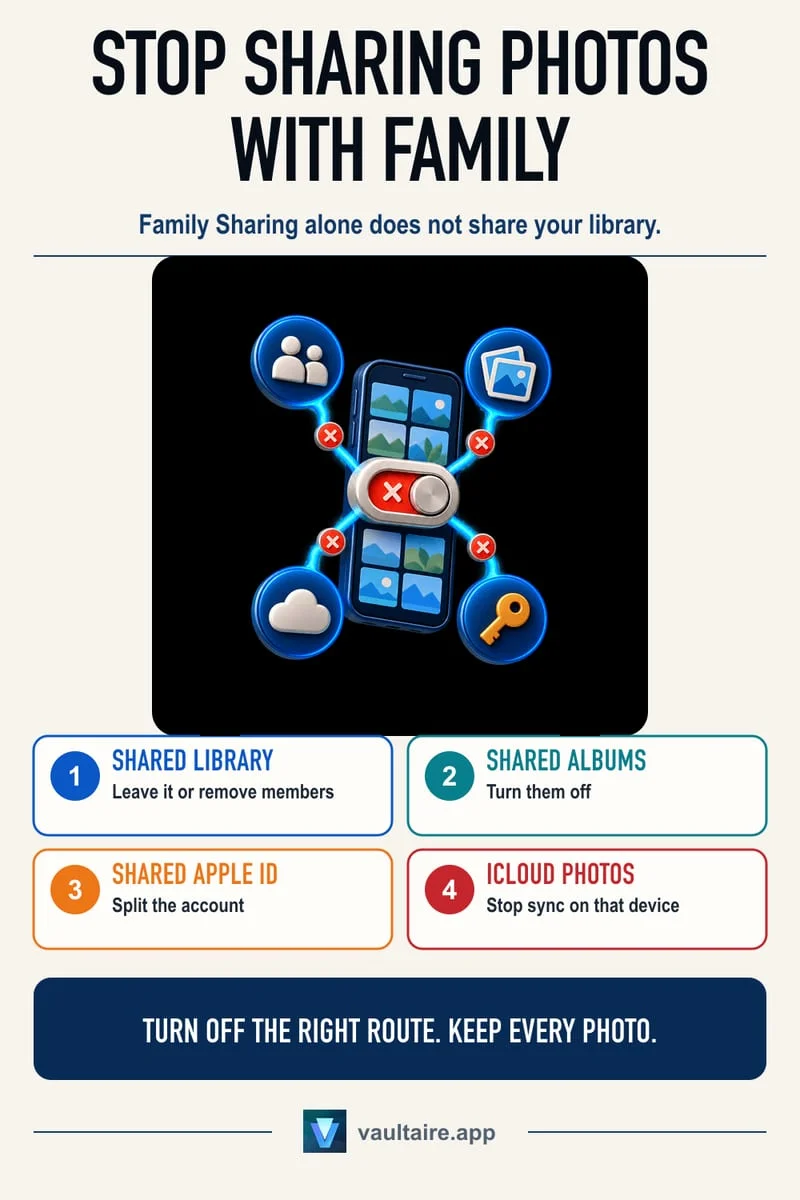
To stop your iPhone from automatically sharing photos with family members, go to Settings → Apps → Photos → Shared Library → Sharing from Camera and select Share Manually (or Turn Off). You can also move specific pictures back to your Personal Library, or leave the iCloud Shared Photo Library entirely.
1. Turn off 'Sharing from Camera' in iCloud Shared Photo Library
The number-one reason iPhone users accidentally share private photos with their spouse, parents, or kids in 2026 is the **Sharing from Camera** setting inside iCloud Shared Photo Library. During initial setup, iOS encourages users to enable 'Share Automatically', which uses Bluetooth Low Energy proximity beacons and your home Wi-Fi/GPS location to detect when family members are nearby—or whenever you are simply at your home address—and routes every photo you shoot straight into the family library.
You can tell this is happening when the small two-person pill icon in the top-left corner of your Camera viewfinder turns bright yellow with a line through it removed. While that icon is yellow, every photo, video, or document picture you snap with the Camera app is uploaded directly to your family's devices.
- Open Settings → Apps → Photos → Shared Library on your iPhone.
- Tap Sharing from Camera.
- Switch the setting from Share Automatically to Share Manually (so the Camera only shares when you explicitly tap the two-person icon), or toggle off Sharing from Camera completely.
- Also check the 'Share When At Home' option inside that menu and make sure it is disabled so your Camera does not flip back to shared mode every time you walk through your front door.
- Return one screen and toggle off Shared Library Suggestions so iOS stops prompting you to add more photos from your Personal Library.
2. Move shared photos back to your Personal Library (or leave the Shared Library)
Turning off automatic camera sharing prevents future leaks, but any photos already sitting inside your iCloud Shared Photo Library remain visible to every participant until you recall them. Inside the Photos app, you can identify shared pictures by the tiny two-person badge in the top-right corner of the thumbnail (tap the view options button in the library grid and enable 'Shared Library Badge' if you don't see the badges).
Moving a photo back to your Personal Library is much cleaner than deleting it: when you move a photo to your Personal Library, it immediately vanishes from your family members' devices without placing a copy in the Shared Library's Recently Deleted folder.
- Open the Apple Photos app, switch your library filter at the top or bottom to Shared Library, and tap Select.
- Tap all the photos you want to make private again, then tap the More (…) button in the bottom-right corner.
- Tap Move to Personal Library—this recalls those photos from everyone else's devices while keeping them safely in your own library.
- If you want to exit the shared setup permanently, go to Settings → Apps → Photos → Shared Library, tap Leave Shared Library (or Delete Shared Library), and choose Keep Everything or Keep Only What I Contributed.
3. Diagnose which sharing feature is exposing your photos
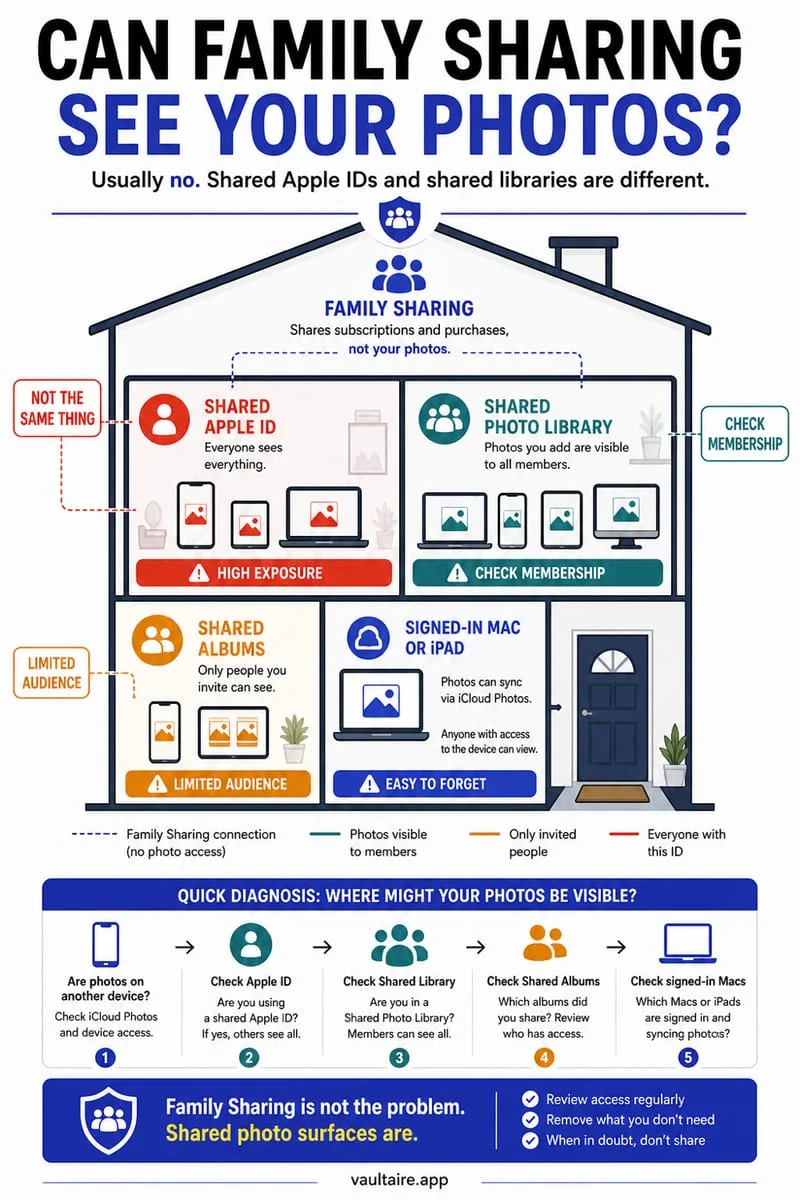
If you checked Settings and you aren't even in an iCloud Shared Photo Library, yet a family member can still see your photos, use this diagnostic table to pinpoint the exact cause and shut it down.
| Symptom You Notice | Root Cause | Exact Fix on iPhone |
|---|---|---|
| Photos taken at home or near family appear on their phones automatically | iCloud Shared Photo Library 'Share Automatically' or 'Share When At Home' is ON | Settings → Apps → Photos → Shared Library → Sharing from Camera → Off |
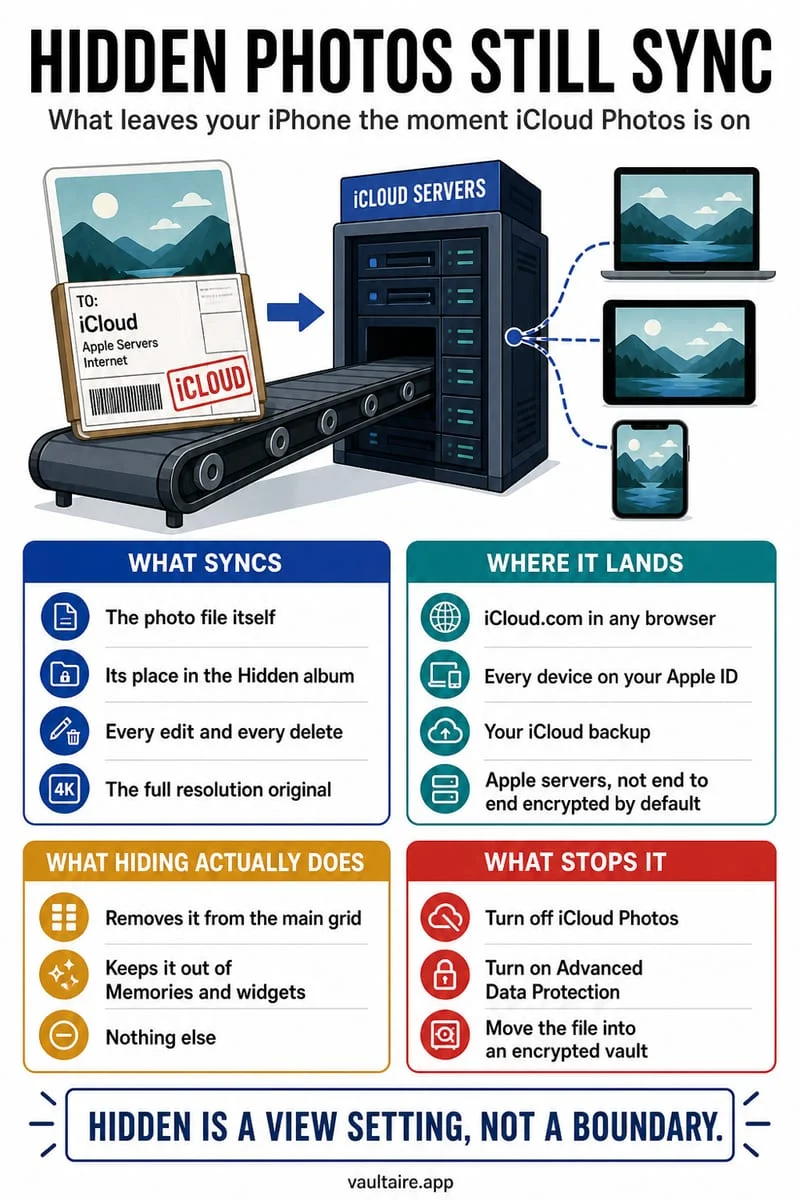
| Every single photo (including Screenshots & Hidden album) is on a family iPad/Mac | That iPad, Mac, or Apple TV is signed in to your personal Apple Account | Settings → [Your Name] → tap the shared family device → Remove from Account |
| Only specific event folders appear in their Photos app | Those photos were added to a Shared Album | Photos → Shared Albums → open album → delete photos or unsubscribe |
| Phones share photos when held close together | AirDrop 'Bringing Devices Together' proximity trigger is ON | Settings → General → AirDrop → toggle off Bringing Devices Together |
4. Store private photos inside Octoshield so they can never be shared by mistake
As long as private photos sit inside the Apple Photos app, a single accidental tap on a Shared Library toggle, a Shared Album suggestion, or an AirPlay slideshow button on the living-room Apple TV can put them in front of your whole household. Moving sensitive photos and documents across a hard boundary into Octoshield (built by TengrX) eliminates that risk permanently.
In Octoshield's Cleaner, you can swipe up on any photo to encrypt it into your local vault (using AES-256-GCM in 512 KB chunks with HKDF-SHA256 per-item keys derived from a random 256-bit master key) and queue the Apple Photos copy for deletion. Protected by your independent PIN, passphrase, 3×3 pattern, or safe-style combination dial, your vaulted items live completely outside Apple Photos and iCloud.
Frequently asked questions
01If I delete a photo from the iCloud Shared Photo Library, does it notify my family?+
It does not send a push notification banner, though a deleted shared photo sits in the Shared Library's Recently Deleted album where other participants can see it until it is permanently deleted. Choosing 'Move to Personal Library' instead removes the photo from their devices immediately without putting it in Recently Deleted.
02Why does my iPhone Camera keep turning the Shared Library button back on at home?+
Inside Settings → Apps → Photos → Shared Library → Sharing from Camera, there is a 'Share When At Home' sub-setting. Even if no family members are nearby on Bluetooth, that setting forces your Camera app into shared mode whenever you are at your home address.
03Can Octoshield photos accidentally sync to an iCloud Shared Photo Library?+
Never. Octoshield stores photos in its own encrypted local sandbox on your iPhone, completely disconnected from the Apple Photos app, iCloud Photos, and iCloud Shared Photo Library.
04What happens if I leave an iCloud Shared Photo Library?+
When you tap Leave Shared Library in Settings → Apps → Photos → Shared Library, iOS asks whether you want to copy all photos from the Shared Library into your Personal Library or copy only the photos that you personally contributed. Other family members keep the Shared Library on their devices.
05Can anyone in an iCloud Shared Photo Library permanently delete my photos?+
Every participant in an iCloud Shared Photo Library has equal permissions to edit, favorite, or move shared photos to Recently Deleted, though only the person who originally contributed a specific photo (or the library creator) can permanently delete that photo from Recently Deleted before the 30-day timer expires.
Official sources & further reading
Lock your private photos behind real AES-256-GCM encryption.
Stop relying on a Hidden album that shares your iPhone lock-screen passcode. Import private photos and videos into Octoshield’s device-bound local vault with your own PIN, passphrase, 3×3 pattern, or safe combination dial.
- AES-256-GCM authenticated encryption in 512 KB chunks
- Encrypted thumbnails & filename catalog index at rest
- 4 lock styles: PIN, Passphrase, 3×3 Pattern, or Safe Dial + Face ID
- 100% on-device storage — zero cloud servers, zero ad SDKs
 AES-256-GCM + Cleaner
LOCAL IPHONE SANDBOX · KEYCHAIN BOUND
iOS menus can vary slightly by iOS version. Octoshield instructions describe the current local app implementation engineered by TengrX. Check the App Store listing for the version available to download.