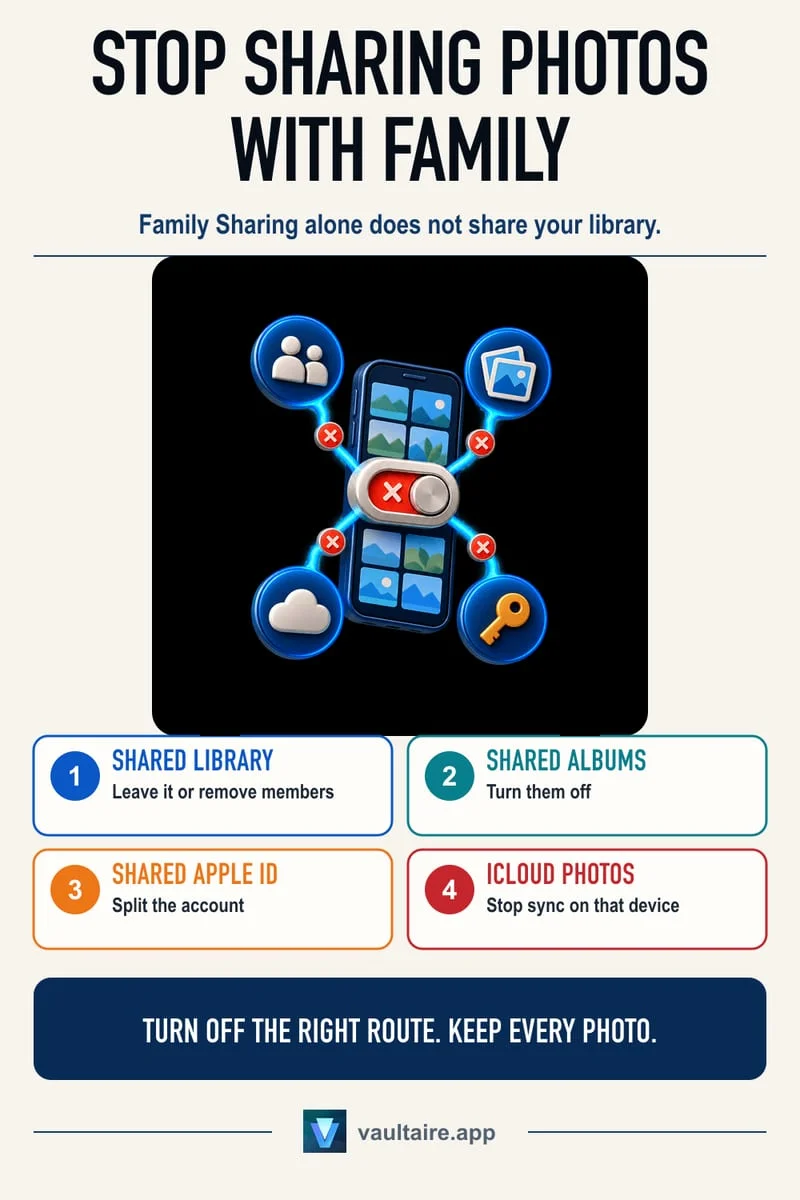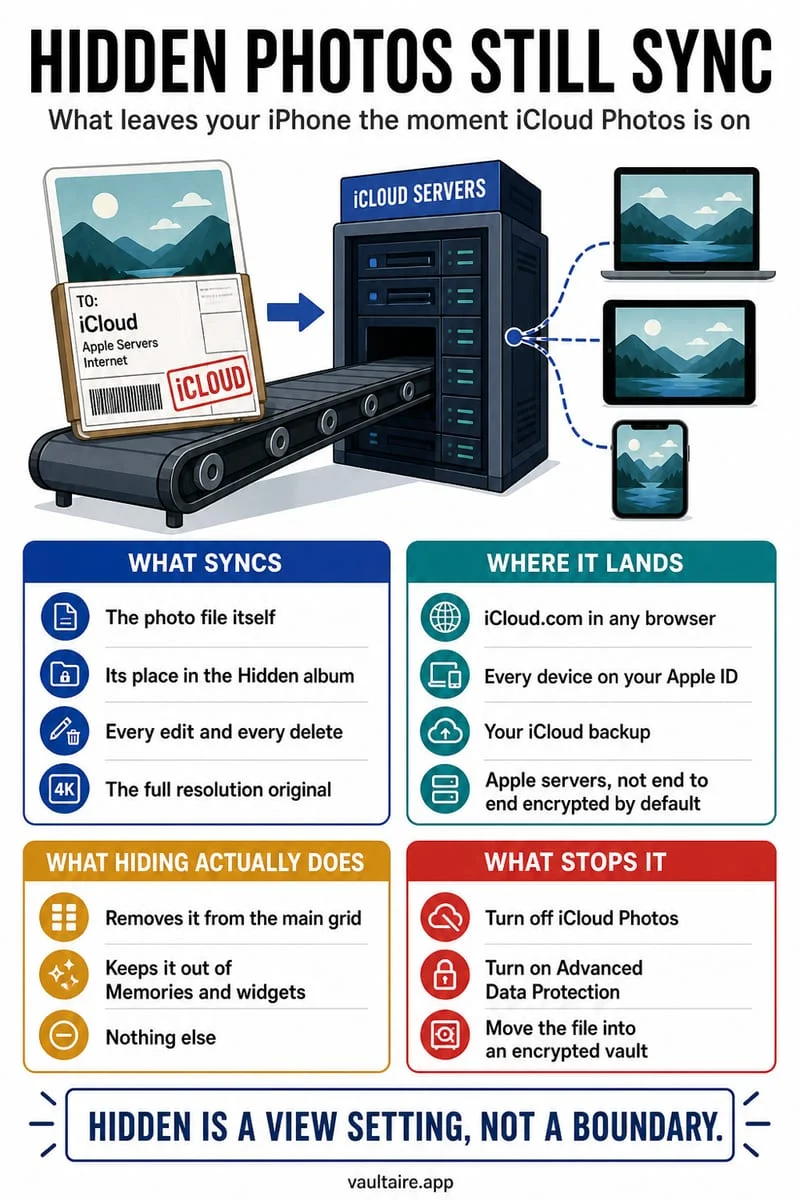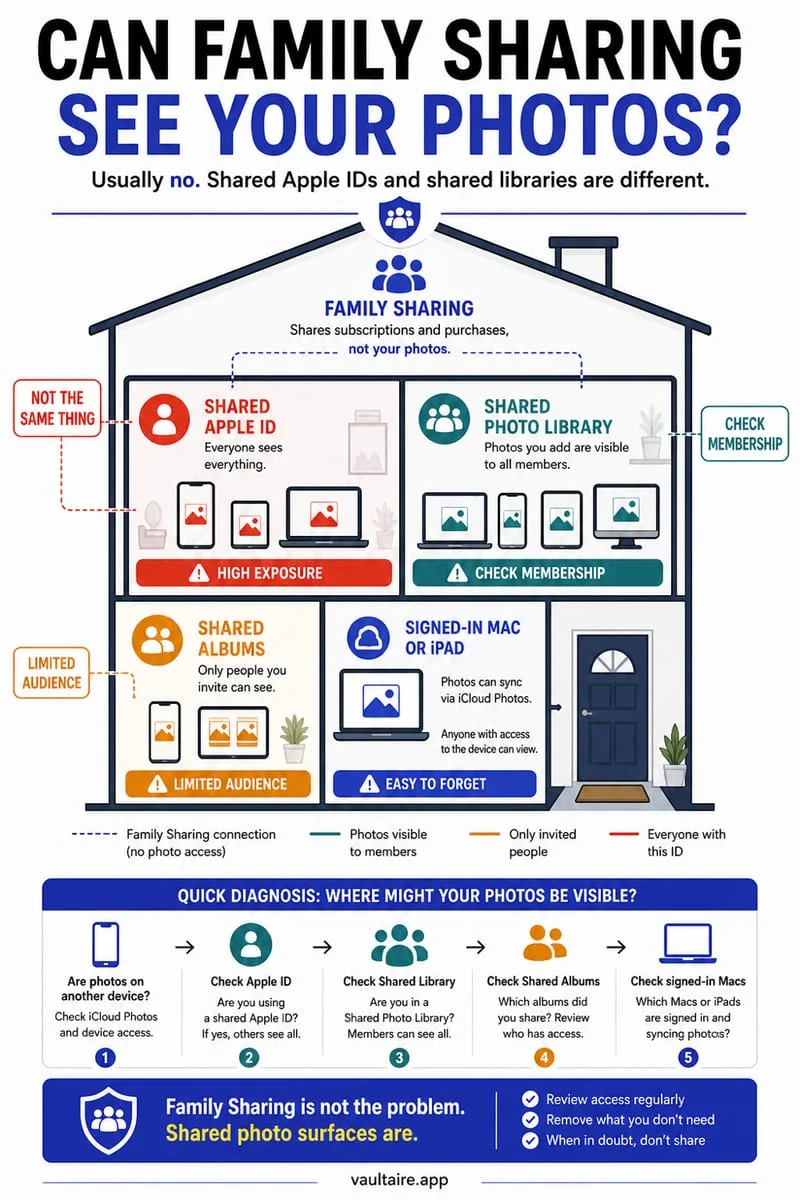
No, joining an Apple Family Sharing group or sharing a 2TB iCloud+ storage plan does NOT let family members see your personal photo library or your Hidden album. However, family members CAN see your photos if you turn on iCloud Shared Photo Library, add photos to a Shared Album, share the same Apple Account login, or share your iPhone passcode.
Sharing iCloud+ storage space does not share your photos
Millions of families share a 200 GB, 2 TB, 6 TB, or 12 TB iCloud+ plan through Apple Family Sharing, and one of the most frequent worries people search for is whether the Family Organizer (such as a parent, spouse, or partner) can browse everyone else's photos or Hidden album. The short answer is no: sharing an iCloud+ storage quota only pools the available gigabytes—it keeps each member's Apple Account cryptographically and logically separate.
When you join a Family Sharing group with your own Apple Account, the Family Organizer can open Settings → Family → Subscriptions → iCloud+ to see a bar chart showing that you are using, say, 84 GB of the family storage pool. However, they have zero ability from their iPhone, Mac, or iCloud.com account to view your Camera Roll, open your Hidden album, read your iCloud Drive files, or inspect your iCloud Backup.
| Feature or Setting | Can Family Sharing Members See Your Photos? | What They Actually See |
|---|---|---|
| Shared iCloud+ Storage Plan (200GB–12TB) | No — your Personal Library & Hidden album stay private | Only your total gigabytes used (e.g., '62.4 GB used') |
| iCloud Shared Photo Library (Active) | Yes — for any photo placed in or shot into the Shared Library | Full resolution photo, EXIF location, and edits for shared items |
| Shared Albums | Yes — only for specific photos you manually add to that album | Compressed copy of the photos added to that Shared Album |
| Same Apple Account signed in on two devices | Yes — 100% of your Camera Roll and Hidden album syncs | Every photo, hidden item, note, and message on the account |
| Octoshield Local Encrypted Vault | Never — completely outside Apple Photos & iCloud | Nothing — encrypted on-device behind your independent secret |
The 4 situations where family members CAN see your photos
When someone in a family household unexpectedly sees a private photo that was meant to stay confidential, it is never because of basic iCloud+ storage sharing. Instead, it is almost always triggered by one of four overlapping features on iOS.
The biggest culprit in 2026 is **iCloud Shared Photo Library**. When set up for a family, it adds a toggle directly inside your iPhone Camera app—and can use Bluetooth proximity and your home address to automatically send every new photo you shoot straight into the shared family library without asking confirmation per shot.
- Audit iCloud Shared Photo Library: Open Settings → Apps → Photos → Shared Library. If a Shared Library is active, tap Sharing from Camera and switch it from Share Automatically to Share Manually (or Off).
- Audit Shared Albums: Open the Photos app, scroll to Shared Albums, and verify which albums you have subscribed to or created.
- Audit Signed-In Devices: Open Settings → [Your Name] and scroll to the bottom device list. If a family iPad, Mac, or Apple TV is signed in to your personal Apple Account, anyone using that screen can see your photos and Hidden album.
- Audit Passcode Sharing: Remember that if your partner, spouse, or child knows your iPhone lock-screen passcode, they can unlock your phone directly (and bypass standard Face ID app locks when passcode fallback is offered).
Keep private photos safe from shared passcodes and shared libraries with Octoshield
In real family life, people hand unlocked phones to each other in the car, share 6-digit passcodes for convenience, and use family iPads on the couch. Relying on the built-in Apple Photos app to keep deeply private photos, surprise gift receipts, medical images, or confidential documents separate from family members leaves zero margin for error.
Moving sensitive items into Octoshield (built by TengrX) creates a clean, unmistakable boundary. Octoshield encrypts your photos, videos, and files locally on your iPhone using AES-256-GCM in 512 KB chunks, deriving per-item keys via HKDF-SHA256 from a random 256-bit master key protected by PBKDF2-SHA256 and your iPhone's hardware-backed Keychain. You unlock Octoshield with a custom PIN, passphrase, 3×3 pattern, or safe-style combination dial that no one else in your household knows—and once deleted from Apple Photos, those items can never accidentally enter an iCloud Shared Photo Library.
Frequently asked questions
01If I hide a photo that is already in an iCloud Shared Photo Library, can my family still see it?+
When you hide a photo that is currently in an iCloud Shared Photo Library, iOS automatically moves that photo out of the Shared Library back into your Personal Library and places it in your personal Hidden album, removing it from other participants' devices once they sync.
02Can the Family Sharing organizer see my iCloud Backup or hidden files?+
No. As long as you are signed in with your own individual Apple Account, the Family Sharing organizer only sees the total gigabyte size of your backup and photo library in the storage bar chart—never your actual photos, files, or messages.
03What if my family shares a single Apple ID across multiple devices?+
If two people sign in to the exact same Apple Account (Apple ID) on different iPhones or iPads, they are not using Family Sharing—they are operating as the same user, and every photo (including the Hidden album) will sync across all of those devices. Each person should have their own Apple Account linked via Family Sharing.
04Can parents using Screen Time see a child's Hidden photo album remotely?+
No. Screen Time lets parents view app usage statistics, set time limits, and enable Communication Safety warnings on a child's device, but it does not provide a remote viewer for the child's Photos library or Hidden album from the parent's iPhone.
05Can I use Octoshield if my spouse or family knows my iPhone passcode?+
Yes. That is one of the primary reasons to use Octoshield: you can configure a dedicated PIN, passphrase, 3×3 pattern, or safe-style combination dial that is completely different from your iPhone passcode, and leave Face ID disabled inside Octoshield if others have biometric or passcode access to your phone.
Official sources & further reading
Lock your private photos behind real AES-256-GCM encryption.
Stop relying on a Hidden album that shares your iPhone lock-screen passcode. Import private photos and videos into Octoshield’s device-bound local vault with your own PIN, passphrase, 3×3 pattern, or safe combination dial.
- AES-256-GCM authenticated encryption in 512 KB chunks
- Encrypted thumbnails & filename catalog index at rest
- 4 lock styles: PIN, Passphrase, 3×3 Pattern, or Safe Dial + Face ID
- 100% on-device storage — zero cloud servers, zero ad SDKs
 AES-256-GCM + Cleaner
LOCAL IPHONE SANDBOX · KEYCHAIN BOUND
iOS menus can vary slightly by iOS version. Octoshield instructions describe the current local app implementation engineered by TengrX. Check the App Store listing for the version available to download.