Open Settings → Apps → Notes and turn off Save to Photos. This controls whether photos and videos captured inside Notes are also saved in Photos. It does not delete existing Photos copies or make the note private; review the note’s account, sharing, and lock options separately.
A private note can still have a second picture elsewhere
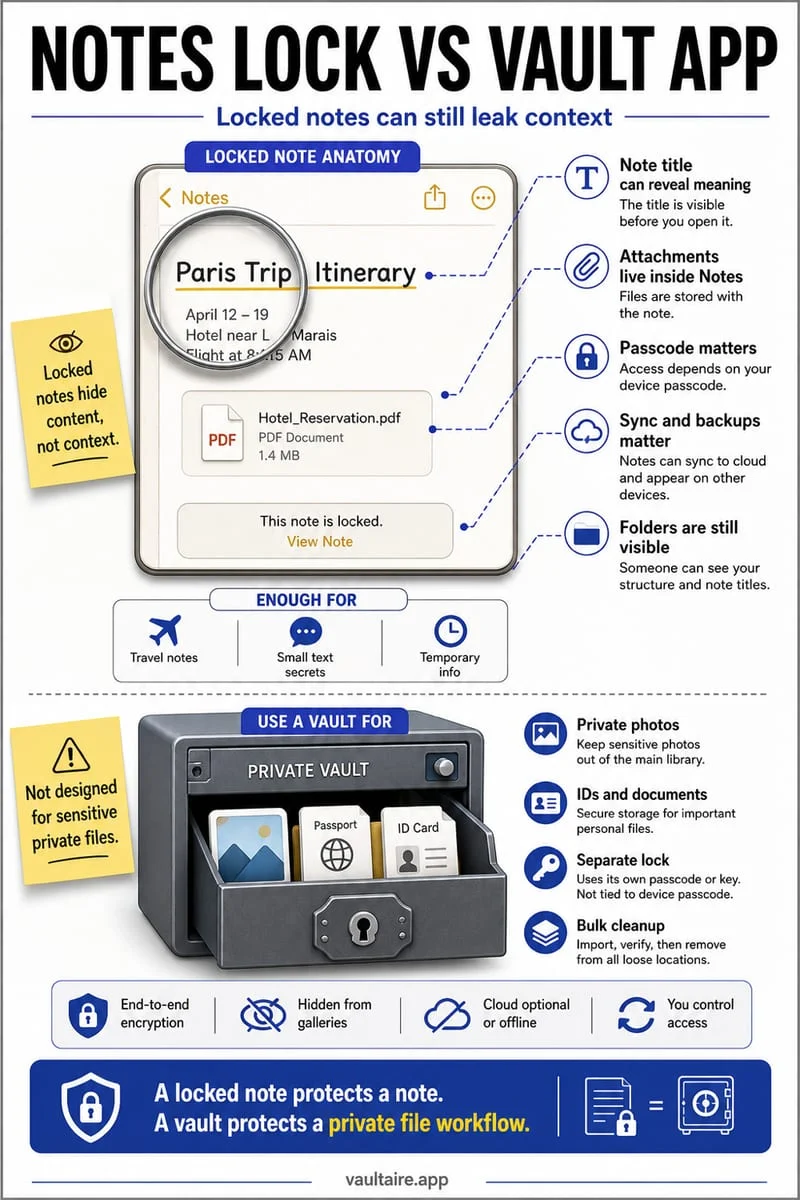
You photograph a private reference inside Notes because you do not want it among your everyday pictures. If Save to Photos is enabled, a library copy can exist too. Locking the note afterward does not reach back into Photos and lock that separate image.
Start by checking the Notes setting before the next capture. If the picture already exists, inspect both locations. A shared note, an iCloud note, and an On My iPhone note can have different audiences and synchronization behavior.
Change the setting and verify with a harmless capture
Open Notes settings and turn off Save to Photos. Capture an ordinary object from inside a new note, then inspect Photos to understand how the setting behaves on your iPhone. A setting for new captures is not a cleanup tool for previous ones.
The note still contains its attachment. Check whether the note is shared and whether its content can be locked. Notes does not permit locking every attachment type; videos, PDFs, and other file attachments can introduce limitations.
- Open Settings → Apps → Notes.
- Turn off Save to Photos.
- Take a harmless photo inside a note and verify its destinations.
- Review older copies already saved in Photos.
Treat old Photos copies as ordinary library items
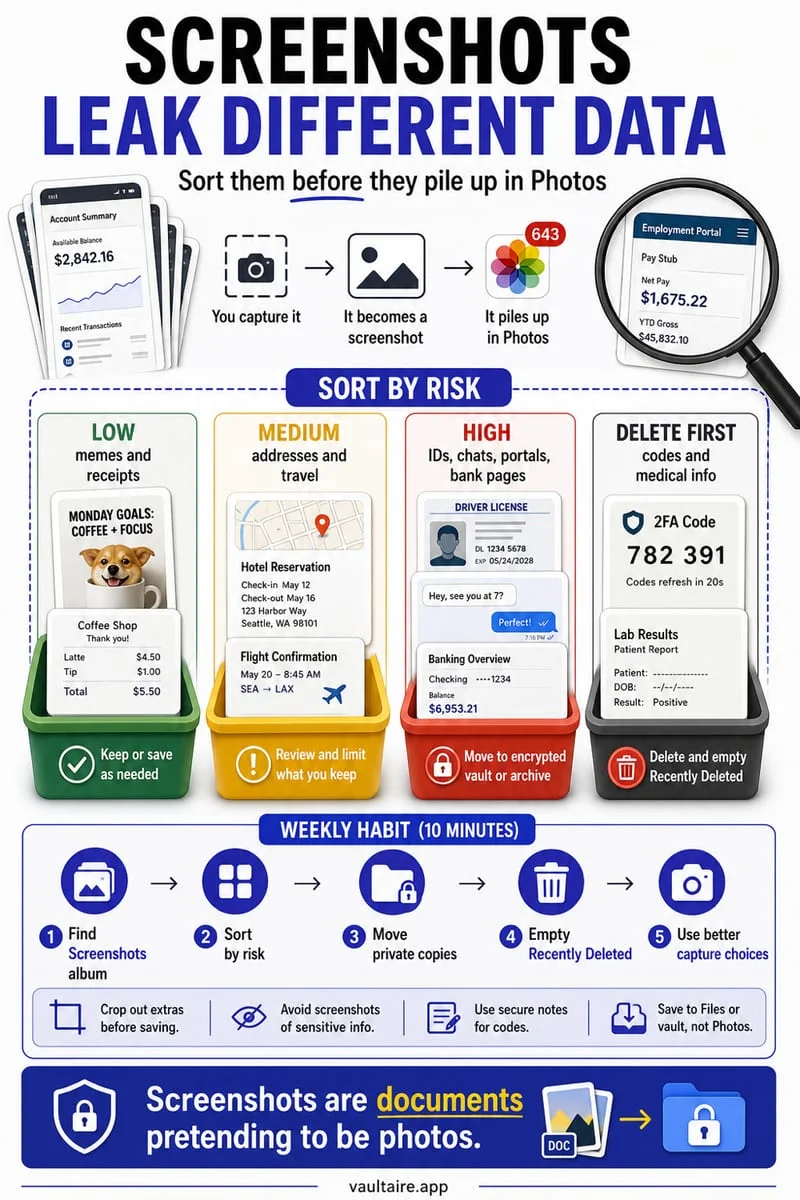
If an old capture is in Photos, decide whether to keep, hide, privately store, or delete it. Deleting it from a synced Photos library also affects other synced devices. It does not necessarily remove the attachment from the original note.
Before deleting either copy, verify the version you intend to retain. A document photo with small text needs a full-size check. Keep an independent backup for an important record rather than depending on a single phone app.
Keep selected images behind an Octoshield secret
For an image you want outside both your normal photo grid and your note list, Octoshield stores an imported encrypted copy with a separate PIN, passphrase, pattern, or dial. Verify the result before managing the source copies.
The app does not change Notes settings or remove note attachments for you. Its vault is local and excluded from backups, so export essential material before a device change.
Frequently asked questions
01Does turning the setting off delete old camera-roll copies?+
No. Review pictures already saved in Photos separately.
02Does locking the note also lock a saved Photos copy?+
No. A separately saved library image follows Photos’ own visibility and authentication rules.
Official sources & further reading
Lock your private photos behind real AES-256-GCM encryption.
Stop relying on a Hidden album that shares your iPhone lock-screen passcode. Import private photos and videos into Octoshield’s device-bound local vault with your own PIN, passphrase, 3×3 pattern, or safe combination dial.
- AES-256-GCM authenticated encryption in 512 KB chunks
- Encrypted thumbnails & filename catalog index at rest
- 4 lock styles: PIN, Passphrase, 3×3 Pattern, or Safe Dial + Face ID
- 100% on-device storage — zero cloud servers, zero ad SDKs
 AES-256-GCM + Cleaner
LOCAL IPHONE SANDBOX · KEYCHAIN BOUND
iOS menus can vary slightly by iOS version. Octoshield instructions describe the current local app implementation engineered by TengrX. Check the App Store listing for the version available to download.