Locking a photo inside Apple Notes is a clever workaround for one or two document scans because Notes supports end-to-end encryption and a custom password, but it is clumsy for large photo libraries and cannot lock videos or big attachments reliably. For organizing dozens of photos, videos, and files entirely offline without iCloud syncing, a dedicated AES-256-GCM vault like Octoshield is far more practical.
How locking photos inside Apple Notes works (and where it breaks down)
For years, a popular iPhone privacy workaround has been to open Apple Notes, create a new note, tap the paperclip/attachment icon to insert a photo from your library, delete the original from Apple Photos, and lock the note. Unlike the Apple Photos Hidden album, Apple Notes actually allows you to configure a separate custom Notes password inside Settings → Apps → Notes → Password instead of relying on your iPhone unlock passcode.
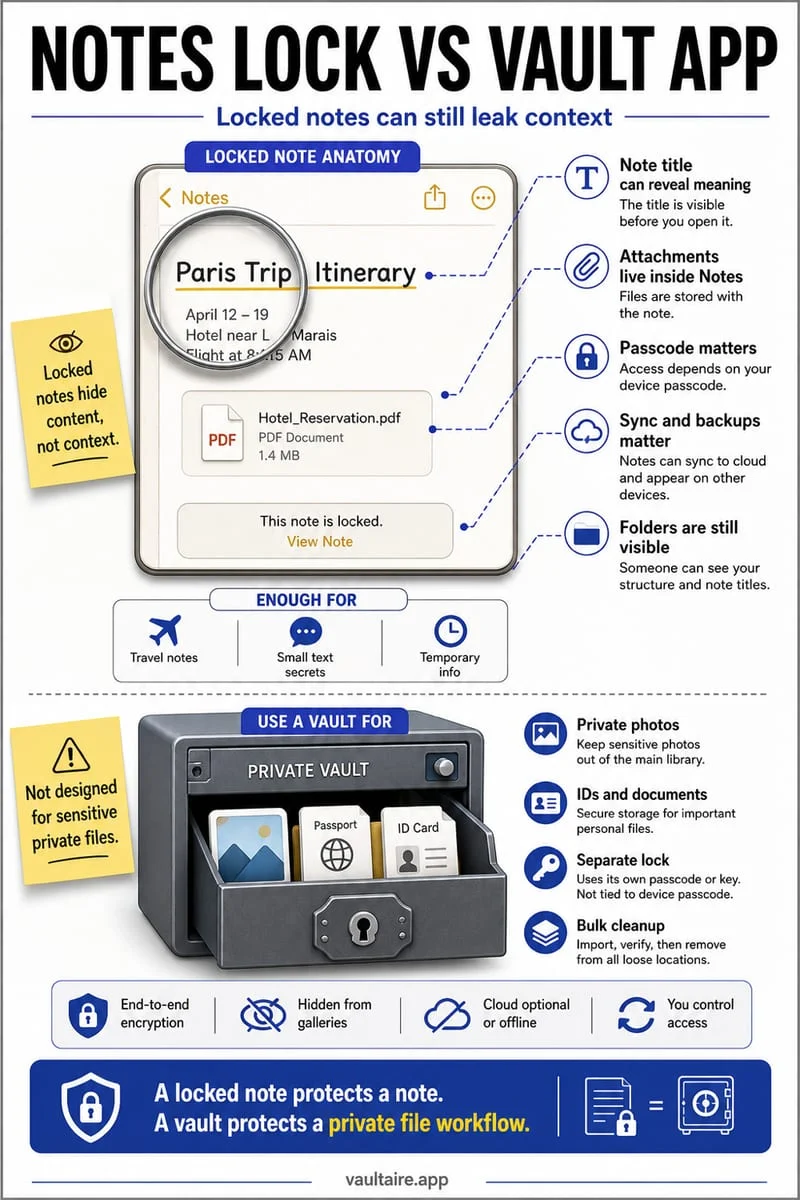
However, Apple engineered Locked Notes for text paragraphs and lightweight document scans—not media libraries. If you attempt to lock a note that contains a video clip, an audio recording, a PDF, or certain rich attachments, Apple Notes displays an error stating that notes with videos or unsupported attachments cannot be locked.
Furthermore, even for still images, Apple Notes lacks a true photo gallery grid or fullscreen swipe viewer: storing 40 or 50 high-resolution photos stacked vertically inside a single scrolling text document quickly becomes sluggish and awkward to browse.
iCloud Notes sync vs. strictly local AES-256-GCM storage
There are two critical privacy traps in Apple Locked Notes that catch users off guard. First, on modern iOS versions, Apple Notes defaults to using your iPhone Passcode rather than a custom password unless you manually open Settings → Apps → Notes → Password and switch authentication methods. Second, the first line or title of a locked note remains visible in plaintext inside your main Notes list to anyone holding your unlocked phone.
Unless you manually enable the local 'On My iPhone' account in Notes settings, all locked notes sync across iCloud to every iPad and Mac signed into your Apple Account. By contrast, Octoshield (built by TengrX) is purpose-built as a strictly local Photo Vault and File Vault: it encrypts every item in 512 KB chunks with AES-256-GCM, uses HKDF-SHA256 to derive separate keys for every file, thumbnail, and index entry from a random 256-bit master key, and combines your PBKDF2-SHA256 stretched secret with a device-bound iOS Keychain key.
| Feature | Apple Locked Notes | Octoshield Photo & File Vault |
|---|---|---|
| Supports Locking 4K Videos & Live Photos? | No (Notes blocks locking on video attachments) | Yes (streams 512 KB AES-256-GCM encrypted chunks) |
| Supports Arbitrary PDFs & Office Files? | Restricted in locked notes depending on attachment type | Yes (dedicated File Vault for PDFs, docs & archives) |
| Hides Titles & Thumbnails When Locked? | Note title stays visible in the Notes list | Yes (entire vault index & thumbnails are encrypted) |
| Unlock Secret Options | iPhone Passcode (default) or Custom Text Password | PIN, Passphrase, 3×3 Pattern, or Safe Combination Dial |
| Cloud Sync Exposure | Syncs to iCloud Notes by default | Zero cloud sync; excluded from iCloud/computer backups |
When to use Locked Notes vs. when to use Octoshield
Apple Locked Notes is a great fit when you want to type sensitive text entries—like medical questions, journal entries, or Wi-Fi credentials—that you intentionally want synchronized between your iPhone and Mac via iCloud, provided you switch Notes to a custom password and keep the note's first line generic.
Use Octoshield whenever you want a real photo and video gallery experience, support for long 4K videos and arbitrary PDF/document files, a built-in Cleaner to triage your camera roll (swipe left to queue deletion, right to keep, up to encrypt into the vault and queue original removal), and a mathematical guarantee that your files stay solely on your physical iPhone.
- Open Octoshield and configure your independent vault secret (PIN, Passphrase, 3×3 Pattern, or Safe-style Combination Dial).
- Import your photos and videos into the Photo Vault (or swipe up in the Cleaner tab), and import PDFs or documents into the File Vault.
- If migrating images out of Apple Locked Notes, open the note, save the images out, import them into Octoshield, and delete the note.
- Empty Collections → Utilities → Recently Deleted in Apple Photos and the Recently Deleted folder in Apple Notes.
Hidden trap: Why Apple Notes might automatically save photos back to your camera roll
If you ever capture a photo or document scan directly inside the Apple Notes camera tool, check one crucial iOS toggle immediately: open Settings → Apps → Notes and scroll down to the Media section. By default on many iPhones, the 'Save to Photos' toggle is turned on.
When 'Save to Photos' is enabled in Notes settings, every photo or video you take from inside a Note automatically writes an unencrypted duplicate straight into your main Apple Photos camera roll and iCloud Photos library—even if the note itself is locked! Turning off 'Save to Photos' or storing your private media inside Octoshield's local AES-256-GCM encrypted vault (where files and thumbnails are excluded from iCloud and computer backups) prevents those accidental camera roll duplicates from leaking.
Frequently asked questions
01Why won't Apple Notes let me lock a note that has a video or PDF inside it?+
Apple restricts locking on notes that contain videos, audio recordings, PDFs, or certain file attachments. A dedicated vault like Octoshield encrypts videos, PDFs, and arbitrary files in 512 KB AES-256-GCM chunks without format restrictions.
02Does adding a photo to a locked Note remove it from my Apple Photos library?+
No. Inserting a photo into an Apple Note creates a duplicate copy inside the Notes database. You still have to manually delete the original photo from Apple Photos and empty Collections → Utilities → Recently Deleted.
03Can I use a Pattern lock or Safe Combination Dial on Apple Notes?+
No. Apple Notes only supports your iPhone passcode or an alphanumeric password. Octoshield supports four unlock styles: a PIN, Passphrase, 3×3 Pattern, or Safe-style Combination Dial, plus optional Face ID / Touch ID.
04Can someone see the title of my locked Note on iPhone?+
Yes. Apple Notes intentionally leaves the title (first line) of a locked note unencrypted so it can be displayed in your notes list and searched—so never put sensitive details in the first line of a locked note.
05What happens if I reset my Apple Notes password in Settings?+
Resetting your Apple Notes password in Settings → Apps → Notes → Password only sets a new password for notes you lock in the future; it cannot unlock older notes that were encrypted under a previous password you forgot.
Official sources & further reading
Lock your private photos behind real AES-256-GCM encryption.
Stop relying on a Hidden album that shares your iPhone lock-screen passcode. Import private photos and videos into Octoshield’s device-bound local vault with your own PIN, passphrase, 3×3 pattern, or safe combination dial.
- AES-256-GCM authenticated encryption in 512 KB chunks
- Encrypted thumbnails & filename catalog index at rest
- 4 lock styles: PIN, Passphrase, 3×3 Pattern, or Safe Dial + Face ID
- 100% on-device storage — zero cloud servers, zero ad SDKs
 AES-256-GCM + Cleaner
LOCAL IPHONE SANDBOX · KEYCHAIN BOUND
iOS menus can vary slightly by iOS version. Octoshield instructions describe the current local app implementation engineered by TengrX. Check the App Store listing for the version available to download.