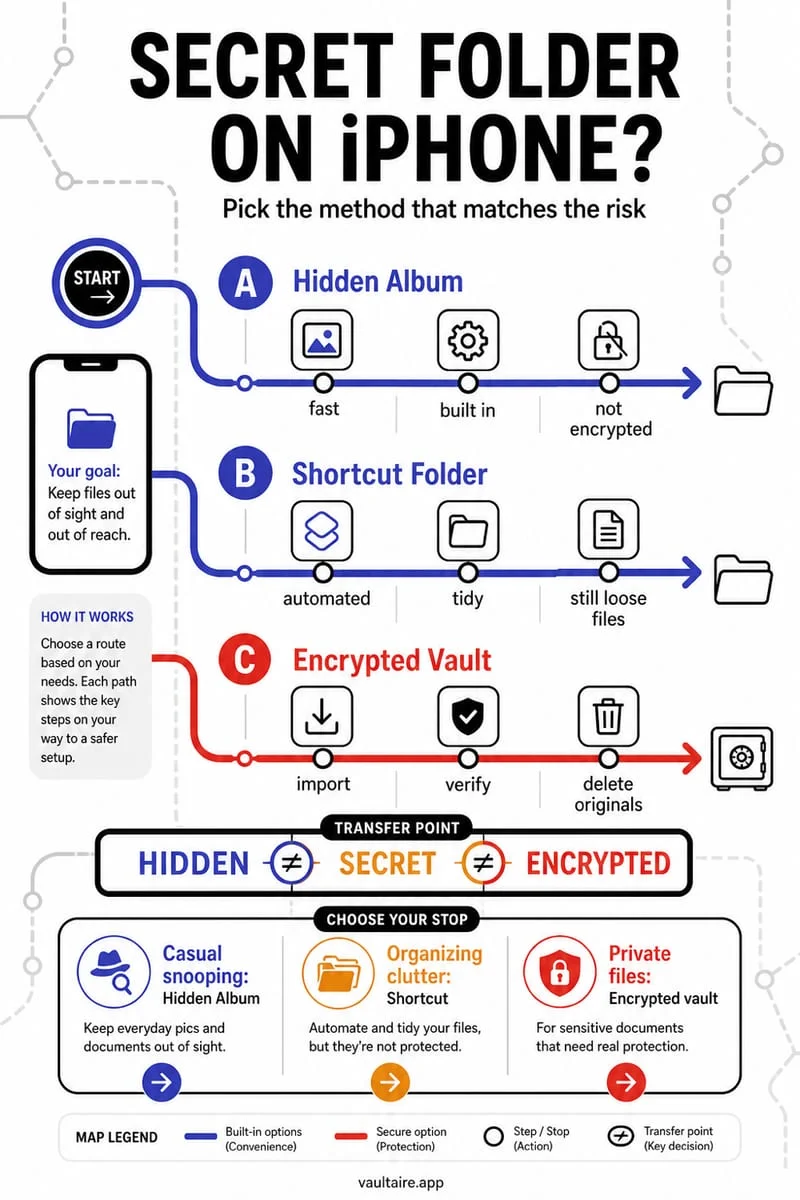
The built-in Apple Files app cannot password-protect a standard folder on iPhone without workarounds like creating an encrypted disk image on a Mac. To password-protect folders and sensitive files directly on your iPhone in 2026, import your documents, PDFs, and media into Octoshield's AES-256-GCM encrypted File Vault and lock them with a separate PIN, passphrase, pattern, or combination dial.
Why you can't natively password-protect a folder in Apple Files
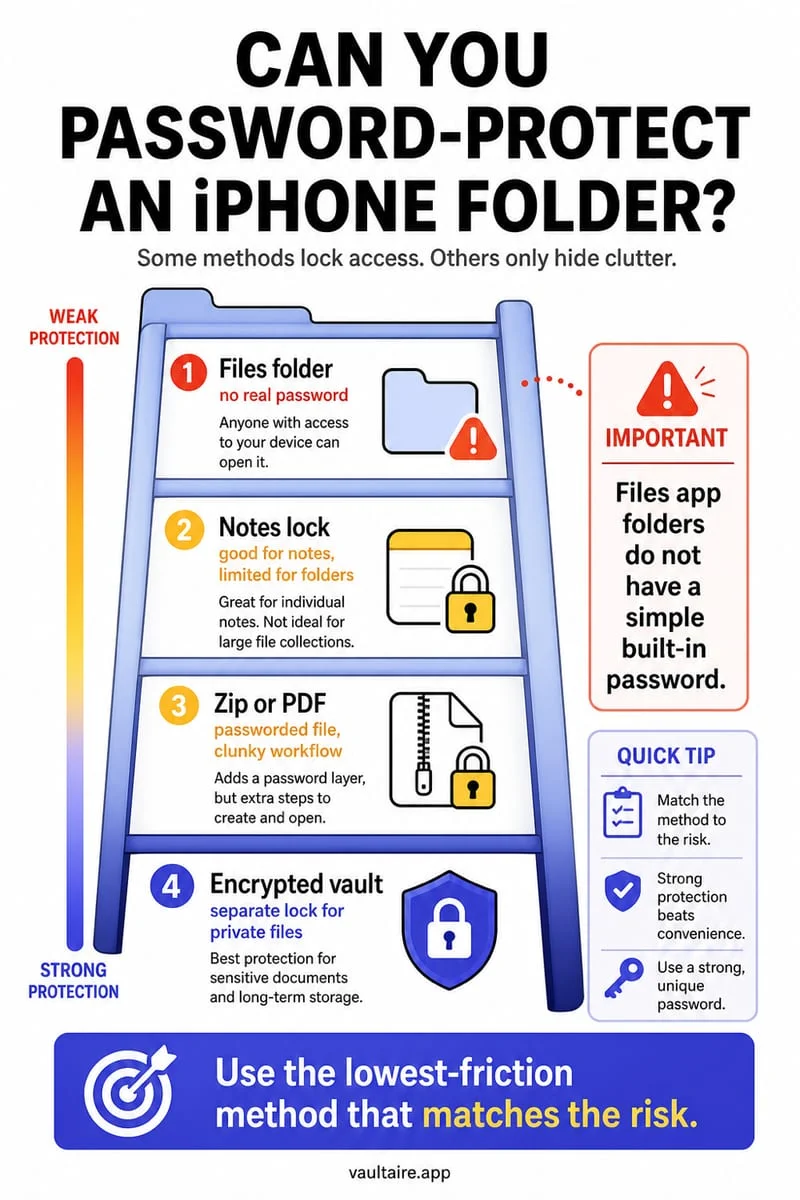
Unlike macOS—where Disk Utility can create an AES-encrypted `.dmg` disk image container—the iPhone Files app has no setting or long-press action to assign a password to a folder. While you can long-press the Files app icon on your Home Screen and choose Require Face ID to lock the entire app, that gate simply reuses your iPhone's main unlock passcode and leaves every folder inside iCloud Drive completely readable on any synced Mac, iPad, or iCloud.com browser session.
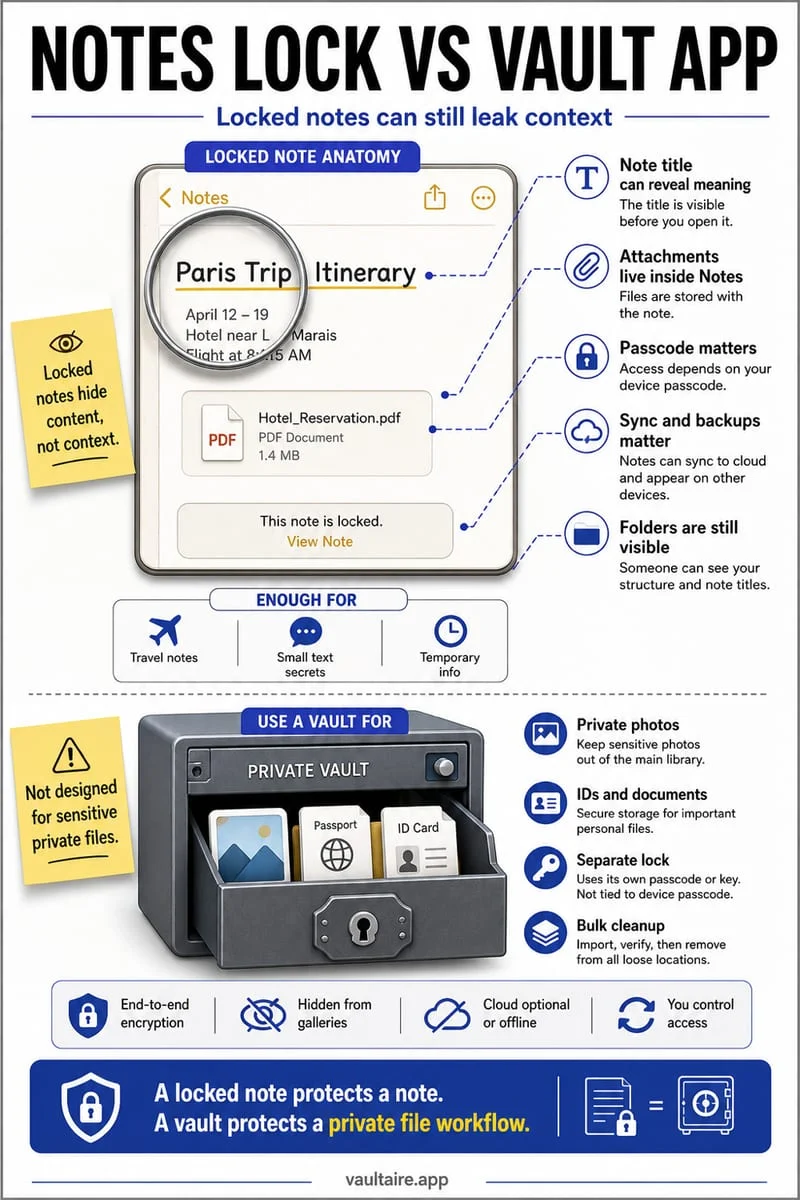
To work around this limitation, some users try compressing sensitive folders into password-protected `.zip` archives using third-party utilities, or locking individual PDFs one by one inside Apple Preview or Apple Notes. However, standard ZipCrypto is cryptographically weak, and even AES-encrypted ZIP archives leave every filename, file size, and directory tree structure visible in plaintext to anyone who inspects the archive header.
Even worse, password-protected archives are painful to use on a phone: every time you want to view a tax return or add a new receipt scan, you have to extract an unencrypted copy back into the Files app, creating temporary plaintext remnants that iCloud Drive immediately starts uploading in the background.
How to lock files and folders with AES-256-GCM encryption on iPhone
Built by TengrX, Octoshield includes a dedicated File Vault alongside its Photo Vault so you can import PDFs, legal contracts, passport scans, financial spreadsheets, audio files, videos, and images directly from the iPhone Files app or the iOS Share Sheet. Upon import, every file is split into 512 KB chunks and encrypted using authenticated AES-256-GCM encryption.
Unlike ZIP archives that leak filenames, Octoshield generates a random 256-bit master key and uses HKDF-SHA256 to derive separate cryptographic keys for every file, every document thumbnail preview, and the encrypted vault index itself. Your chosen secret—a numeric PIN, alphanumeric passphrase, 3×3 pattern, or safe-style combination dial—is stretched via PBKDF2-SHA256 and combined with a random device-bound key stored in the iPhone's hardware-backed Keychain.
If you enable optional Face ID or Touch ID for rapid daily access, Octoshield uses a separate biometric-protected Keychain slot. Because your vault secret is completely independent of your iPhone unlock passcode, someone who knows your 6-digit screen code still cannot open your File Vault or read your documents.
- Open Octoshield and configure your independent vault secret (Passphrase, PIN, 3×3 Pattern, or Safe-style Combination Dial).
- Switch to the File Vault tab and tap Import from Files (or select multiple documents inside the Apple Files app, tap Share, and send them to Octoshield).
- Open the imported PDFs, spreadsheets, or images inside Octoshield to verify they render cleanly without extracting them back to the filesystem.
- Return to the Apple Files app and delete the unencrypted original folder.
- In Apple Files, go to Browse → Locations → Recently Deleted, tap Select, and tap Delete All to permanently purge the unencrypted originals.
Comparing iPhone folder password workarounds vs. hardware-bound encryption
Before choosing how to lock confidential work or personal folders on your iPhone, compare how each method handles metadata leakage, temporary plaintext extraction, and cloud exposure.
As the table shows, only a dedicated sandboxed File Vault allows you to view documents directly in memory while keeping filenames, thumbnails, and file contents encrypted at rest and isolated from iCloud Drive.
| Protection Method | Encrypts Filenames & Index? | Requires Extracting Plaintext to View? | Separate Password from iPhone? | Cloud Exposure |
|---|---|---|---|---|
| Octoshield File Vault (AES-256-GCM) | Yes (HKDF-SHA256 encrypted index & thumbnails) | No (renders directly inside encrypted vault) | Yes (PIN, Passphrase, Pattern, Safe Dial) | Zero (strictly local, excluded from backups) |
| Require Face ID on Apple Files App | No (standard filesystem storage) | No | No (falls back to iPhone passcode) | Full iCloud Drive sync across devices |
| Password-Protected ZIP Archive | No (ZIP headers expose filenames in plaintext) | Often unpacks temporary unencrypted files | Yes (archive password) | Syncs to iCloud Drive if stored there |
| Individual Password-Protected PDFs | No (filenames & folder structure remain visible) | No (only works for `.pdf` files) | Yes (per-file password) | Syncs to iCloud Drive if stored there |
Important: Local device-bound security vs. cloud sync
When you store a folder in iCloud Drive, Apple automatically replicates those files across its servers and your signed-in devices. Octoshield takes the exact opposite architectural stance for high-privacy documents: there is no user account, no cloud server, no recovery service, and all vault data is explicitly excluded from iCloud and computer backups.
Because the encryption keys combine your PBKDF2-SHA256 stretched secret with a random device-bound key in your specific iPhone's hardware-backed Keychain, nobody—including TengrX—can reset a forgotten secret or remotely extract your vault. You can also use Octoshield's built-in Cleaner tab to swipe up on photographed receipts or ID scans in your camera roll to encrypt them directly into your vault and queue original removal. Always keep a separate encrypted offline backup of irreplaceable tax, legal, or identity documents before replacing your iPhone or uninstalling the app.
Frequently asked questions
01Can I lock a single folder inside the iPhone Files app with Face ID?+
No. You cannot lock an individual folder inside the Apple Files app, though you can long-press the Files app icon on your Home Screen and choose Require Face ID to lock the whole app. Keep in mind that anyone who knows your iPhone passcode can still unlock it.
02Does importing a file from Apple Files into Octoshield delete the original automatically?+
No. Because of iOS sandbox security rules, importing a file through the document picker creates a newly encrypted AES-256-GCM copy inside Octoshield. You must manually delete the original file or folder from Apple Files and empty its Recently Deleted folder.
03What file types can I password-protect inside Octoshield?+
Octoshield encrypts photos, videos, PDFs, Word and Excel documents, text files, archives, and any standard document accessible through the iOS Files app picker.
04Do password-protected ZIP files hide my filenames on iPhone?+
No. Standard `.zip` archives store the central directory in plaintext so file managers can list the archive contents before prompting for a password. Anyone who opens the ZIP file can read every document's filename and date without knowing the password.
05If I delete a folder from iCloud Drive in the Files app after importing it to Octoshield, does it delete from my Mac too?+
Yes. Deleting a folder Located in iCloud Drive removes it across all devices signed into that Apple Account (and moves it to Recently Deleted for 30 days), leaving your Octoshield File Vault on your iPhone as the sole encrypted copy.
Official sources & further reading
Keep sensitive PDFs, IDs & documents in an encrypted iPhone vault.
The iOS Files app leaves filenames and folders exposed whenever your phone is unlocked. Import tax returns, passport scans, and private PDFs into Octoshield for hardware-bound AES-256-GCM protection.
- Encrypts PDFs, scans, documents, photos, and videos on-device
- Hides document filenames inside an encrypted catalog index
- Automatic cleanup of temporary preview scratch files on lock
- PBKDF2-SHA256 + iPhone Keychain hardware key binding
 AES-256-GCM + Cleaner
LOCAL IPHONE SANDBOX · KEYCHAIN BOUND
iOS menus can vary slightly by iOS version. Octoshield instructions describe the current local app implementation engineered by TengrX. Check the App Store listing for the version available to download.