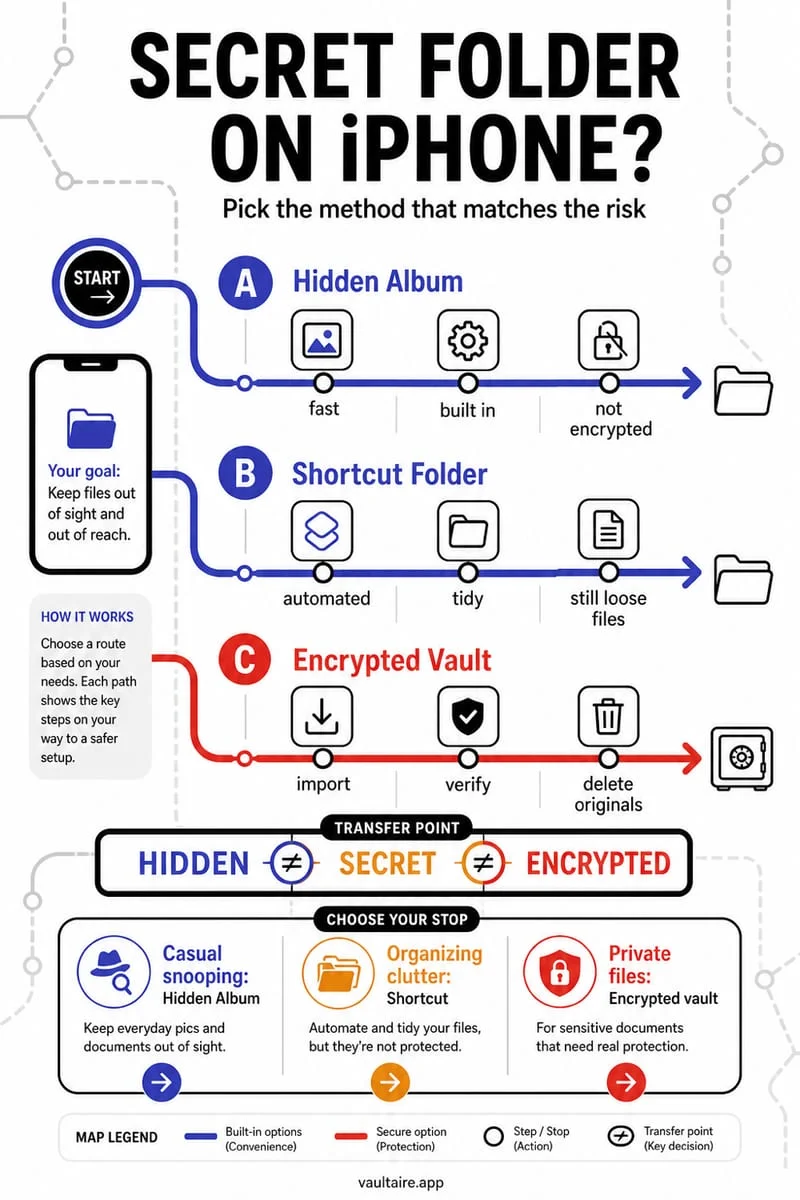
iOS does not offer a native password-protected 'secret folder' in the Files app, but you can create one in three ways: use the Hidden album in Apple Photos for casual hiding, place an app inside the iOS Hidden Apps folder, or create an AES-256-GCM encrypted folder inside Octoshield with its own PIN, passphrase, pattern, or combination dial.
Can you create a native secret folder in Apple Photos or Files?
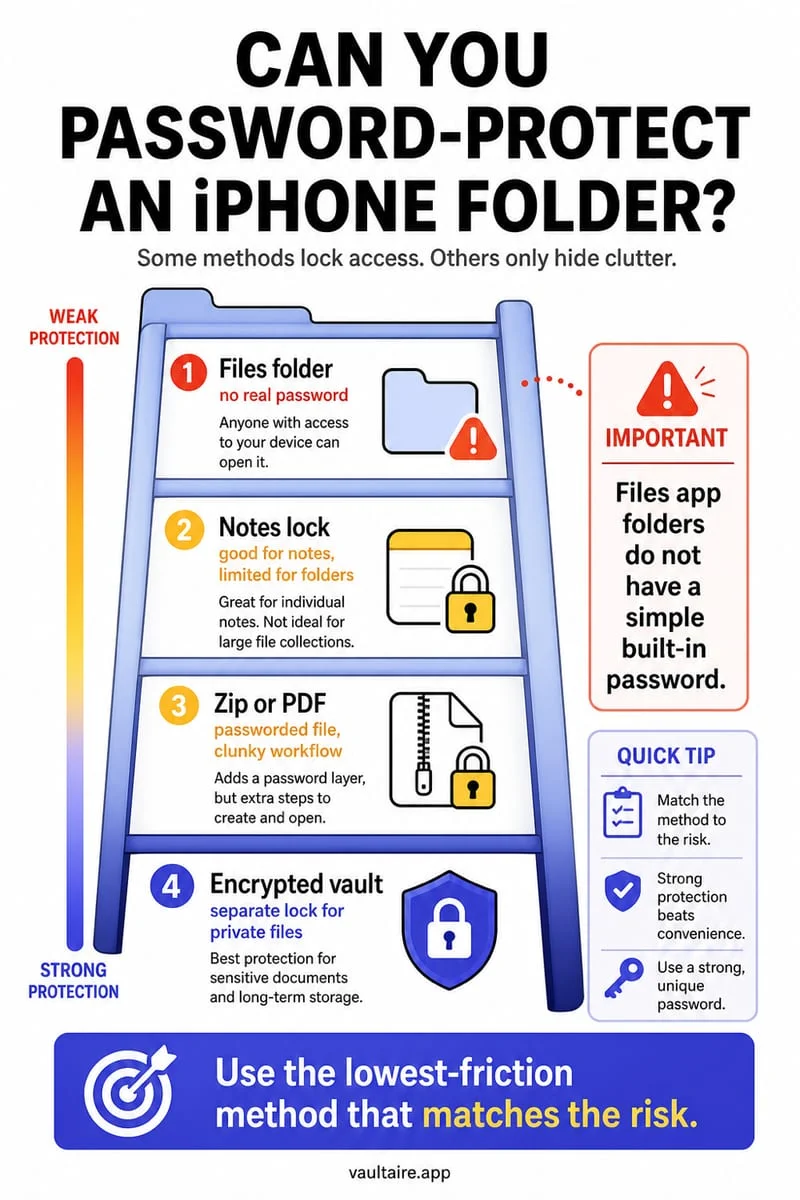
Every week, thousands of iPhone owners create a custom album in Apple Photos or a new directory inside the Apple Files app hoping to find a 'Set Password' or 'Lock Folder' button. Even in 2026 on modern iOS releases, Apple does not allow you to password-protect arbitrary user-created albums in Photos or individual folders inside the Files app.
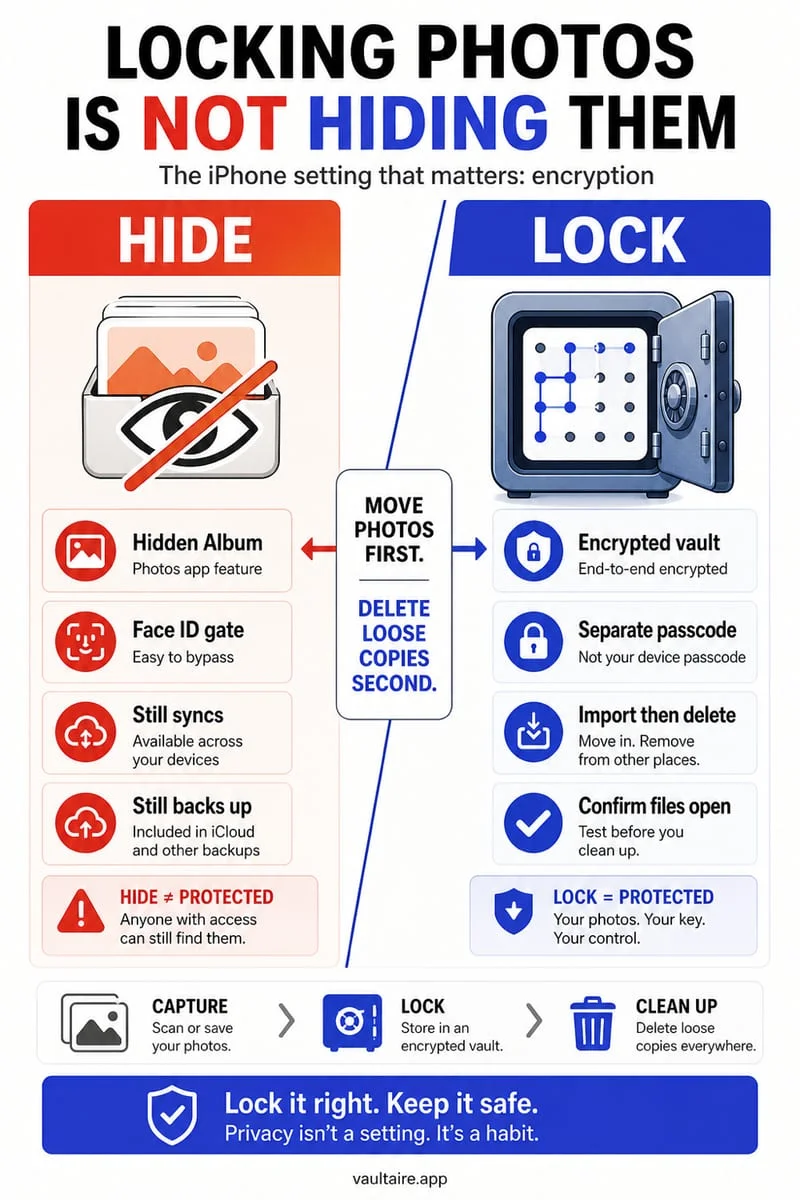
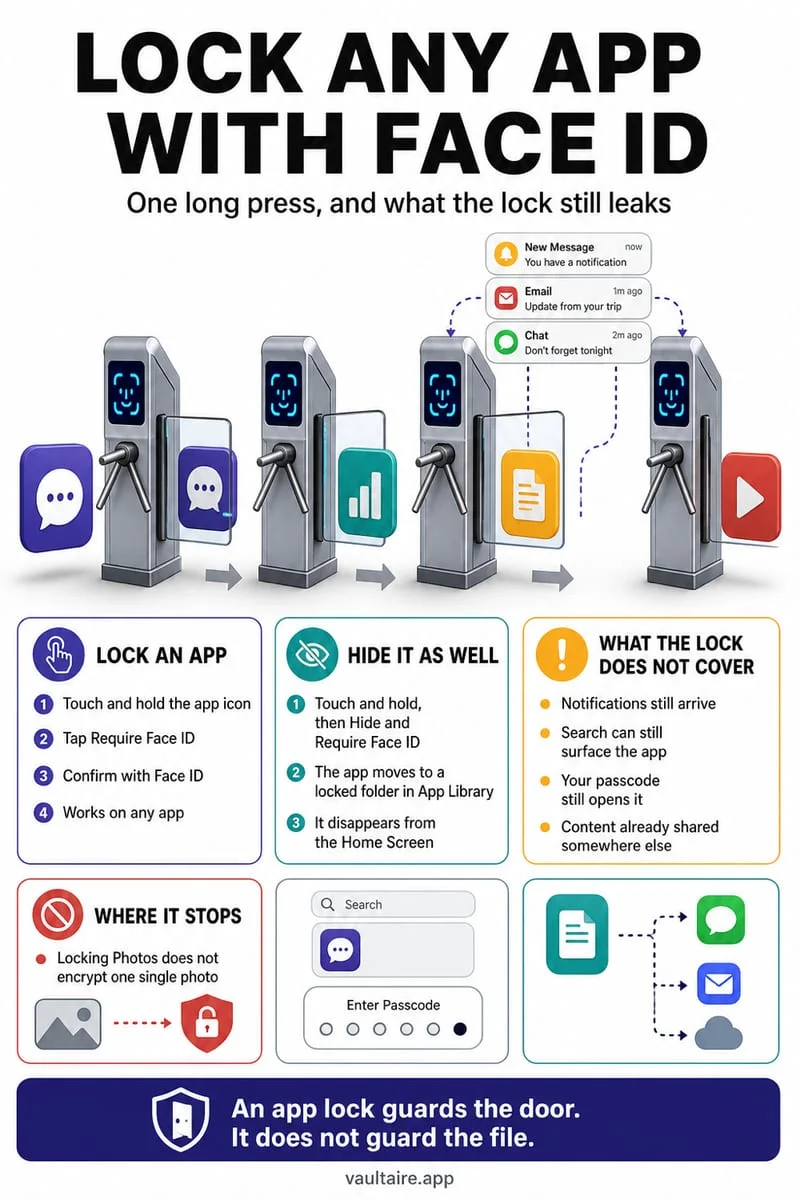
Instead, Apple gives you two fixed, system-wide locations: the single Hidden album inside Apple Photos (Collections → Utilities → Hidden) and the Hidden Apps folder at the bottom of the App Library. Unlike Samsung's Secure Folder on Android—which creates an isolated, separately keyed workspace—Apple's built-in hidden areas are purely visual filters tied to your primary iPhone unlock credential.
Because both built-in locations automatically fall back to your 4- or 6-digit iPhone screen passcode whenever Face ID fails, they do not act as a secret folder against a partner, family member, or roommate who knows your device unlock code. Moreover, anything placed in Apple Photos' Hidden album or an iCloud Drive folder continues syncing across your other Apple devices.
How to create a truly private secret folder with Octoshield
If you want a genuine secret folder on your iPhone with its own independent secret and real cryptographic isolation, built by TengrX, Octoshield provides both an encrypted Photo Vault and an encrypted File Vault. Every photo, 4K video, PDF, or document you place inside is encrypted in 512 KB chunks using authenticated AES-256-GCM encryption.
Crucially, Octoshield does not leave folder metadata or image previews exposed. It generates a random 256-bit master key and uses HKDF-SHA256 to derive distinct encryption keys for each individual file, each thumbnail preview, and the encrypted vault index. Your chosen unlock secret—a numeric PIN, alphanumeric passphrase, 3×3 pattern, or safe-style combination dial—is stretched with PBKDF2-SHA256 and combined with a random device-bound key stored in the iPhone's hardware-backed Keychain.
Unlike built-in iOS folders that sync to iCloud Drive or iCloud Photos, Octoshield's vault is strictly local to your physical iPhone, requires no user account, connects to no cloud servers, and explicitly excludes vault contents from iCloud and computer backups.
- Download Octoshield on your iPhone and configure an independent unlock secret (PIN, Passphrase, 3×3 Pattern, or Safe-style Combination Dial).
- Import photos and videos into the Photo Vault (or swipe up on items inside the Cleaner tab to encrypt them into the vault and queue original removal), and import sensitive PDFs or documents into the File Vault.
- Open the encrypted items inside Octoshield to verify that every image, video, and document renders properly.
- Confirm the prompt to delete the original photos from Apple Photos, or manually delete original documents from the Apple Files app.
- Empty Collections → Utilities → Recently Deleted in Apple Photos and Locations → Recently Deleted in Apple Files so no unencrypted copies remain.
Comparison: Every way to build a secret folder on iPhone in 2026
Not sure which approach matches the files you need to hide? Use the table below to compare all four ways iPhone users create secret folders for photos, videos, and documents in 2026.
Notice that only a dedicated local encrypted vault protects arbitrary file types (including long videos and PDFs), enforces a secret that cannot be bypassed with your iPhone screen passcode, and keeps your secret folder completely off iCloud.
| Secret Folder Method | Supported File Types | Independent Password? | Encrypted Metadata & Thumbnails? | Excluded from iCloud Sync? |
|---|---|---|---|---|
| Octoshield Photo & File Vault | Photos, 4K Videos, PDFs, Office Docs & arbitrary files | Yes (PIN, Passphrase, 3×3 Pattern, Safe Dial) | Yes (HKDF-SHA256 per-item AES-256-GCM keys) | Yes (100% local, excluded from backups) |
| Apple Photos Hidden Album | Photos and videos only | No (falls back to iPhone passcode) | No (standard Photos database) | No (syncs if iCloud Photos is enabled) |
| iOS Hidden Apps Folder | Third-party App Store apps | No (falls back to iPhone passcode) | N/A (locks app launch only) | App list still visible in Screen Time / App Store |
| Apple Locked Notes | Text and basic image scans (no videos) | Optional custom Notes password | Note titles remain visible in Notes list | No (syncs to iCloud Notes by default) |
Frequently asked questions
01Can I put a password on a specific album in iPhone Photos?+
No. Apple Photos only locks the single built-in Hidden album and Recently Deleted album. Custom user-created albums inside the Photos app cannot be locked with a password or Face ID.
02Where is the secret Hidden folder located on iPhone in 2026?+
For photos, open the Photos app, scroll down to Collections → Utilities, and tap Hidden. For hidden apps, swipe all the way left to the App Library and scroll to the Hidden folder at the very bottom.
03Do items inside an Octoshield secret folder back up to iCloud?+
No. Octoshield is strictly offline and device-bound. Vault contents are excluded from iCloud and computer backups so your secret folder never leaks to cloud storage.
04Can Siri or Spotlight Search find files inside my Octoshield secret folder?+
Never. Because Octoshield encrypts every file, thumbnail, and index entry with AES-256-GCM inside its private app sandbox, iOS Spotlight, Siri, and Live Text cannot read or index anything inside your vault.
05Can I store both private PDFs and videos inside Octoshield?+
Yes. Octoshield features both a Photo Vault (for images, Live Photos, and videos) and a File Vault (for PDFs, contracts, ID scans, spreadsheets, and other documents from the iOS Files app).
Official sources & further reading
Lock your private photos behind real AES-256-GCM encryption.
Stop relying on a Hidden album that shares your iPhone lock-screen passcode. Import private photos and videos into Octoshield’s device-bound local vault with your own PIN, passphrase, 3×3 pattern, or safe combination dial.
- AES-256-GCM authenticated encryption in 512 KB chunks
- Encrypted thumbnails & filename catalog index at rest
- 4 lock styles: PIN, Passphrase, 3×3 Pattern, or Safe Dial + Face ID
- 100% on-device storage — zero cloud servers, zero ad SDKs
 AES-256-GCM + Cleaner
LOCAL IPHONE SANDBOX · KEYCHAIN BOUND
iOS menus can vary slightly by iOS version. Octoshield instructions describe the current local app implementation engineered by TengrX. Check the App Store listing for the version available to download.