To lock or hide an app on iPhone in 2026, touch and hold the app icon on your Home Screen, tap Require Face ID, and choose either Require Face ID or Hide and Require Face ID. However, iOS app locks always fall back to your iPhone unlock passcode when Face ID fails, so anyone who knows your device passcode can still open your locked and hidden apps.
How to lock or hide an app on iPhone (Step-by-Step)
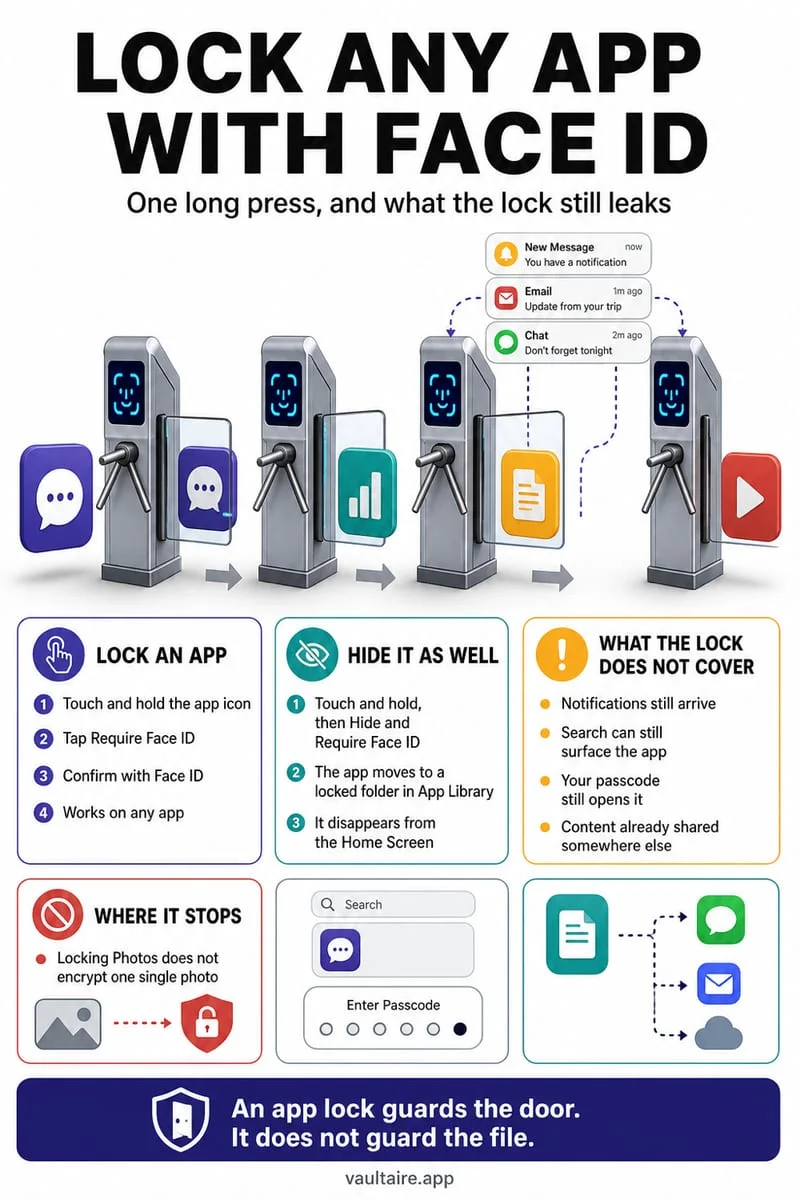
Built into iOS 18, iOS 26, and current 2026 releases, Apple lets you place a biometric authentication prompt in front of individual apps or move third-party App Store apps into a locked Hidden folder at the very bottom of the App Library. When you choose 'Require Face ID', the app icon remains on your Home Screen, but launching it requires Face ID, Touch ID, or your iPhone passcode, and notification previews and Spotlight content from that app are suppressed.
When you choose 'Hide and Require Face ID' (supported for most third-party apps downloaded from the App Store, though not pre-installed system apps like Apple Photos, Messages, or Files), iOS removes the icon from your Home Screen pages and Spotlight search results, placing it inside the locked Hidden folder at the bottom of the App Library.
- Touch and hold the app icon you want to protect on your iPhone Home Screen until the quick-action menu opens.
- Tap Require Face ID (or Require Touch ID / Passcode).
- Select Require Face ID to keep the icon visible on your Home Screen, or tap Hide and Require Face ID to move the app into the Hidden Apps folder.
- Authenticate with Face ID or Touch ID and confirm Hide App.
- To open a hidden app later, swipe left past your last Home Screen page to open the App Library, scroll to the bottom, tap Hidden, and authenticate.
What iOS 'Require Face ID' and Hidden Apps do NOT protect against
The single biggest security gap in iOS app locking is that it shares the exact same fallback credential as your iPhone lock screen. Whenever Face ID fails twice, iOS displays the 'Enter iPhone Passcode' keypad. If a spouse, partner, family member, or roommate knows your 4- or 6-digit iPhone unlock code, they can intentionally angle the phone away from their face, tap 'Enter Passcode', and unlock both the Hidden Apps folder and every locked app on your phone.
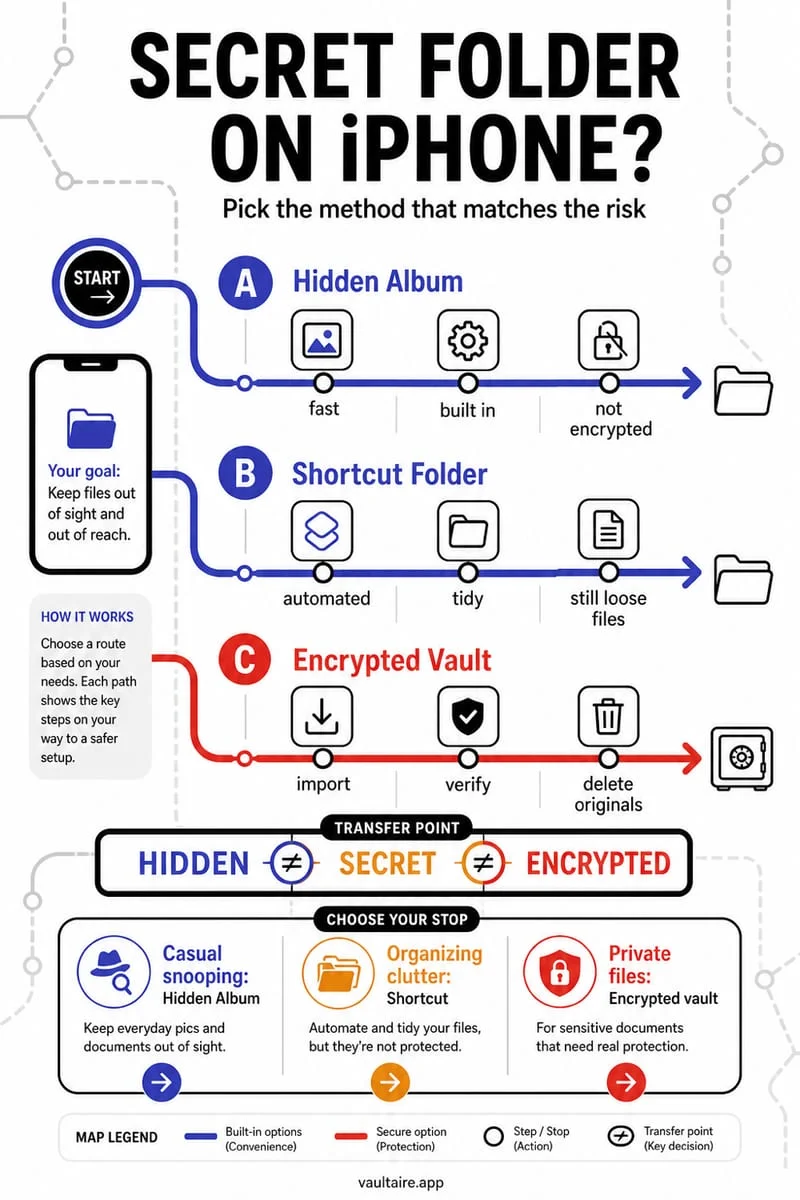
Second, hiding an app on iOS does not erase all traces that the app is installed on your device. Even when an app is placed inside the Hidden Apps folder, clues can still surface in system management screens such as Settings → Screen Time, Settings → Battery usage breakdowns, Settings → General → iPhone Storage, and your App Store purchase history.
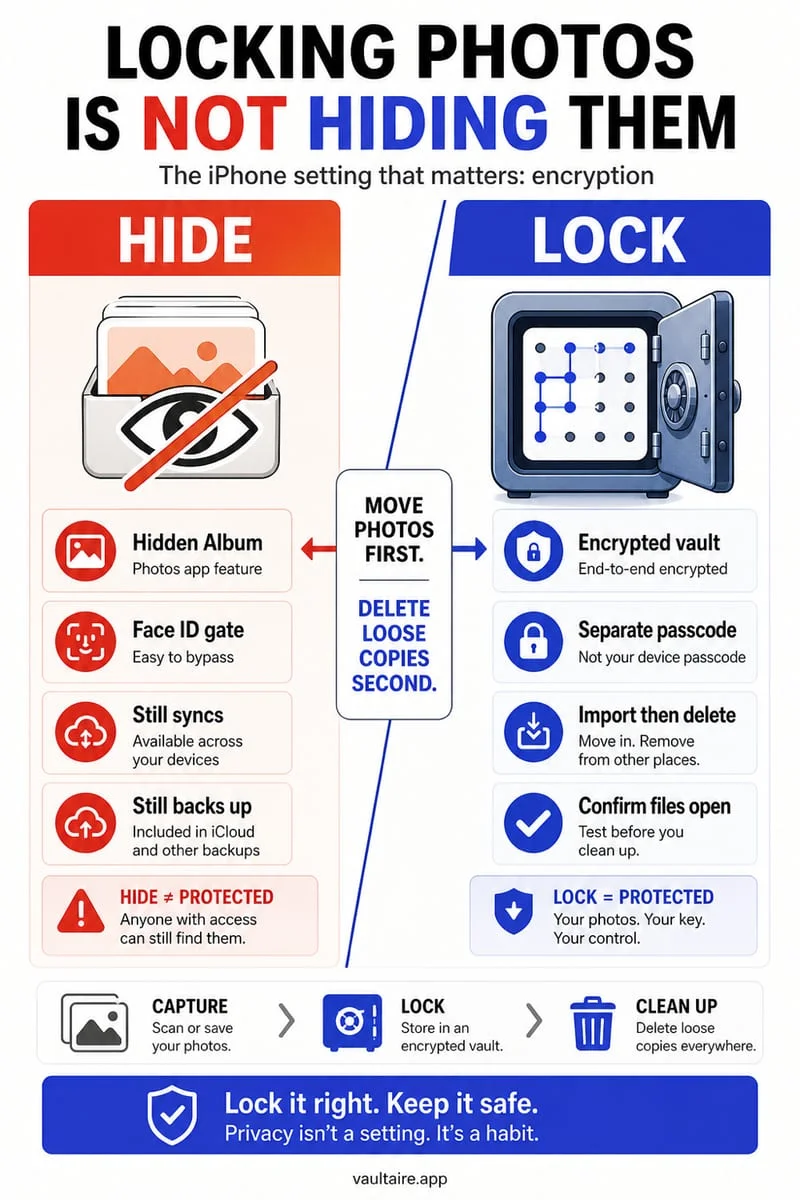
Third, locking the Apple Photos app on your iPhone does not change how your photos are stored on disk or synced in the cloud. If iCloud Photos is active, your entire photo library remains open on any synced iPad, Mac, or iCloud.com session, and the files themselves are not isolated under a separate encryption key.
| Protection Feature | iOS 'Require Face ID' | iOS 'Hide and Require Face ID' | Octoshield Photo & File Vault |
|---|---|---|---|
| Works on Built-in Apple Photos & Files? | Yes (locks app launch) | No (system apps cannot be hidden) | Encrypts imported photos, videos & files |
| Can Someone With Your iPhone Passcode Open It? | Yes (immediate passcode fallback) | Yes (immediate passcode fallback) | No (requires independent vault secret) |
| Encrypts Files Separately on Disk? | No (UI launch gate only) | No (UI launch gate + hides icon) | Yes (AES-256-GCM in 512 KB chunks + HKDF-SHA256) |
| Stops iCloud Sync to Other Devices? | No | No | Yes (100% local, excluded from backups) |
Why you should pair iOS app hiding with an encrypted vault
For true defense-in-depth, use iOS's 'Hide and Require Face ID' for outer visual privacy on your Home Screen while relying on Octoshield (built by TengrX) for real inner cryptographic security. Inside Octoshield, every photo, video, and document is encrypted in 512 KB chunks using authenticated AES-256-GCM, and HKDF-SHA256 derives separate encryption keys from a random 256-bit master key for each file, thumbnail preview, and encrypted index entry.
Octoshield stretches your chosen secret—a numeric PIN, alphanumeric passphrase, 3×3 pattern, or safe-style combination dial—using PBKDF2-SHA256 and combines it with a random device-bound key stored in the iPhone's hardware-backed Keychain. Even if someone knows your iPhone screen passcode, unlocks the App Library's Hidden folder, and opens Octoshield, they cannot bypass your independent vault secret or decrypt your files.
- Open Octoshield and configure a unique PIN, Passphrase, 3×3 Pattern, or Safe-style Combination Dial that does not match your iPhone passcode.
- Import your sensitive photos, videos, and files into Octoshield (or swipe up inside the Cleaner tab to encrypt items into the vault and queue original removal).
- Delete the unencrypted originals from Apple Photos and Apple Files, then empty Recently Deleted in both apps.
- Long-press the Octoshield icon on your Home Screen, tap Require Face ID, and choose Hide and Require Face ID for an extra outer layer of camouflage.
How to unhide an app or remove 'Require Face ID' on iPhone
If you ever want to bring a hidden app back to your Home Screen or remove the Face ID launch prompt, note that unhiding an app from the Hidden Apps folder places it back into your App Library first rather than automatically dropping it onto your first Home Screen page.
To restore it completely, swipe to the bottom of the App Library, unlock the Hidden folder with Face ID, long-press the app icon, and tap 'Don't Require Face ID'. Once unlocked, long-press the icon again in the App Library and tap 'Add to Home Screen'.
Frequently asked questions
01Why doesn't the Apple Photos app have the 'Hide and Require Face ID' option?+
Apple only allows you to lock built-in system apps like Photos, Messages, Files, and Notes with 'Require Face ID'; only third-party apps downloaded from the App Store can be completely hidden inside the App Library's Hidden folder.
02Where do hidden apps go on iPhone?+
Swipe left past all of your Home Screen pages until you reach the App Library, scroll to the very bottom, and tap the Hidden folder (which unlocks with Face ID, Touch ID, or your iPhone passcode).
03Do hidden apps still show up in Screen Time, Battery, or iPhone Storage settings?+
While hidden apps are masked from the Home Screen, notifications, and Spotlight search, system management screens like Screen Time, App Store purchase history, and iPhone Storage settings can still reveal clues about installed apps.
04Does hiding an app on iPhone delete any of the data inside the app?+
No. Choosing 'Hide and Require Face ID' or 'Remove from Home Screen' keeps the app and 100% of its local sandbox data intact. Only tapping 'Delete App' erases app data.
05If I enable Face ID inside Octoshield, does it fall back to my iPhone passcode like Apple's app lock?+
No. Octoshield uses a separate biometric-protected Keychain slot for optional Face ID / Touch ID, and its manual fallback is your independent Octoshield vault secret (PIN, Passphrase, 3×3 Pattern, or Safe-style Combination Dial)—never your iPhone screen passcode.
Official sources & further reading
Lock your private photos behind real AES-256-GCM encryption.
Stop relying on a Hidden album that shares your iPhone lock-screen passcode. Import private photos and videos into Octoshield’s device-bound local vault with your own PIN, passphrase, 3×3 pattern, or safe combination dial.
- AES-256-GCM authenticated encryption in 512 KB chunks
- Encrypted thumbnails & filename catalog index at rest
- 4 lock styles: PIN, Passphrase, 3×3 Pattern, or Safe Dial + Face ID
- 100% on-device storage — zero cloud servers, zero ad SDKs
 AES-256-GCM + Cleaner
LOCAL IPHONE SANDBOX · KEYCHAIN BOUND
iOS menus can vary slightly by iOS version. Octoshield instructions describe the current local app implementation engineered by TengrX. Check the App Store listing for the version available to download.