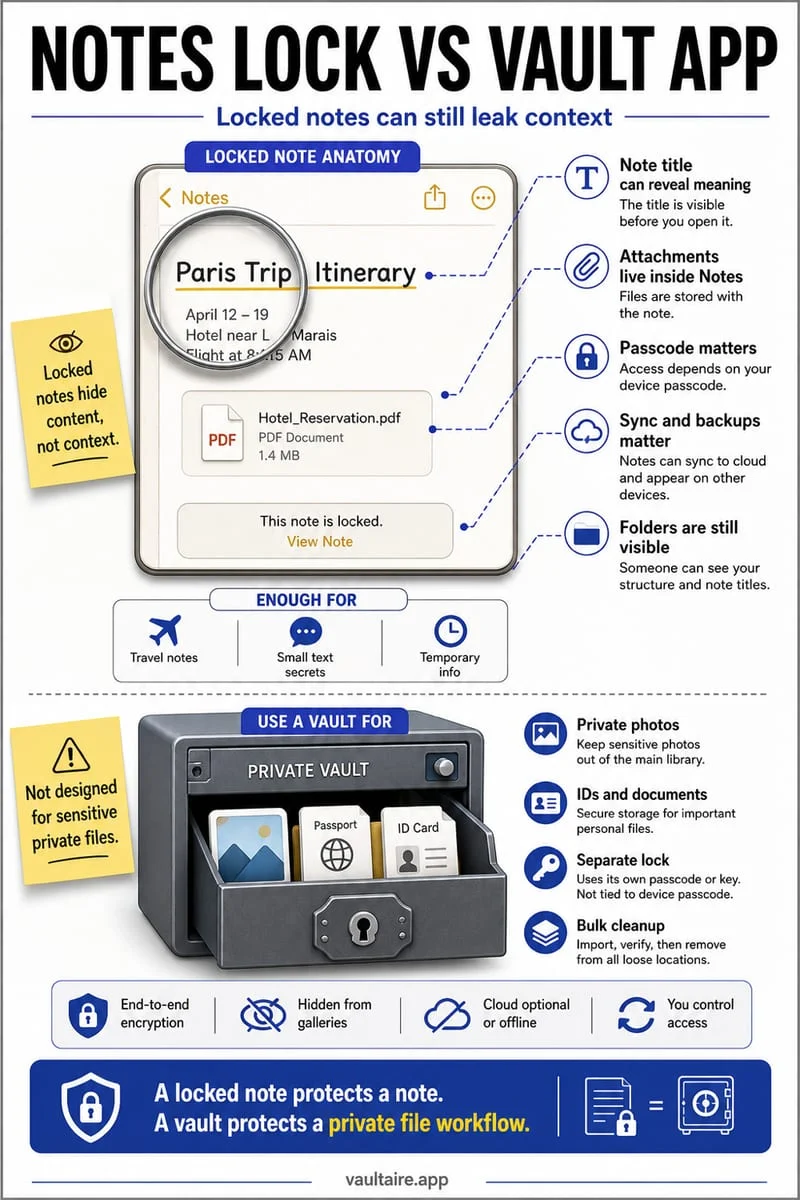
Apple Notes does not support locking notes with PDF, video, audio, or other file attachments, and some other note types are also ineligible. Removing a restricted attachment may make a note lockable, but it does not protect the removed file. Store that document separately with appropriate protection.
The missing Lock option can be an attachment limitation
You scan a document into Notes and then cannot lock the note that contains it. That is not necessarily a broken password setting. Notes limits which content can be locked, so a PDF attachment can change the available actions even when an ordinary text note locks normally.
Check the account and note type too. Shared notes, some account providers, Quick Notes, tags, and newer unsupported features can affect lock eligibility. Do not delete your document while experimenting with the menu.
Save a verified document copy before changing the note
Open the PDF and export or save a copy to a deliberate destination. Count its pages and inspect small text, signatures, and page orientation. A screenshot of the first page is not an equivalent replacement for a multipage document.
If you remove the attachment so the remaining text can be locked, remember that the exported PDF now has its own storage and sync rules. A locked note containing a reminder about the document does not lock the document in Files.
- Check whether the note contains a restricted attachment or is shared.
- Export the complete PDF and open the saved result.
- Choose protection for the file itself.
- Only then decide whether to remove the attachment and lock the remaining note.
Match the protection to what you need to retain
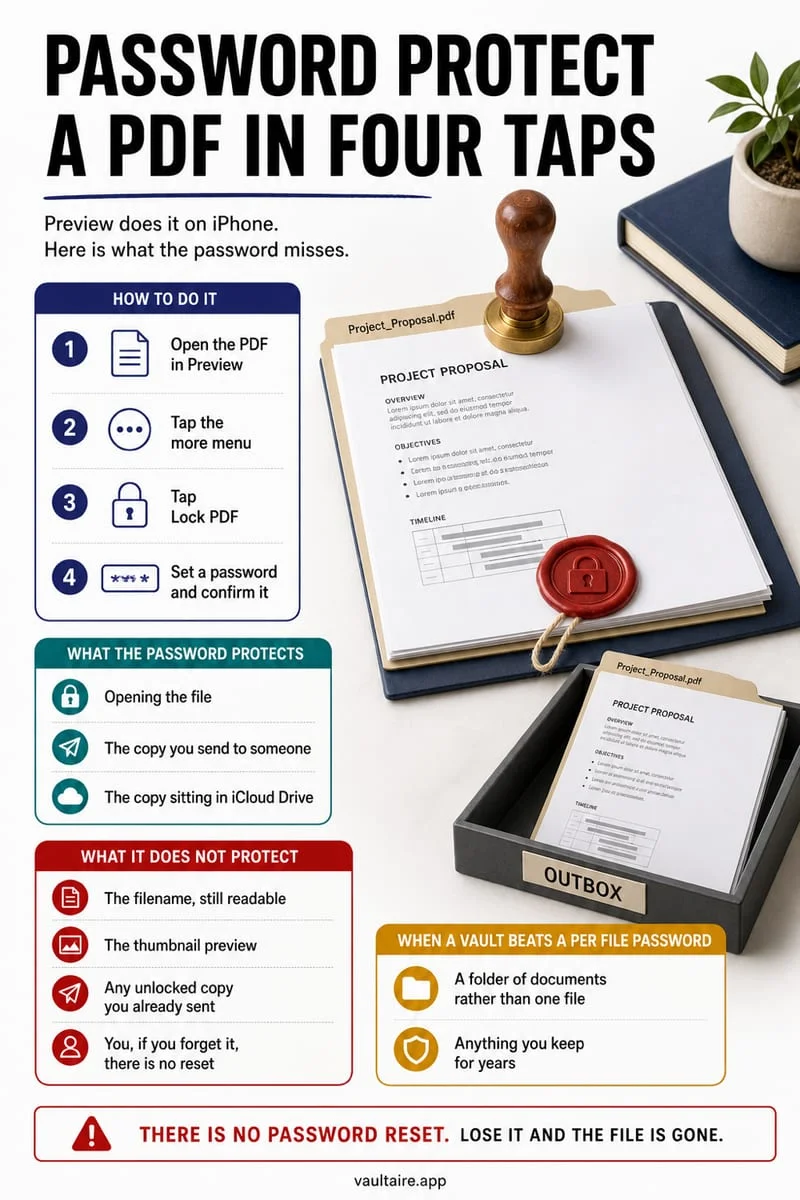
A password-protected PDF can be useful when the file must remain independently portable. A local encrypted vault can be useful when you want the imported document behind the app’s own secret. Neither choice automatically removes the original attachment or previously shared copies.
Keep an independent backup of essential records. Before removing a note attachment, confirm that the destination supports the document’s format and that you remember the credential needed to open it later.
Protect the PDF copy in Octoshield
Use Octoshield’s file importer to bring the saved PDF into the encrypted local vault. Open the imported document and verify every page before managing the note attachment or Files original.
The source is not encrypted in place or automatically deleted. Previews can create temporary decrypted files, and exports leave vault protection. The vault is excluded from backups and has no password recovery service.
Frequently asked questions
01Will resetting my Notes password make PDF notes lockable?+
No. A password change does not remove the attachment restrictions on which notes can be locked.
02Does a screenshot solve this for a multipage PDF?+
A screenshot is not a complete substitute for the original document. Preserve all pages and verify the retained file before deleting anything.
Official sources & further reading
Keep sensitive PDFs, IDs & documents in an encrypted iPhone vault.
The iOS Files app leaves filenames and folders exposed whenever your phone is unlocked. Import tax returns, passport scans, and private PDFs into Octoshield for hardware-bound AES-256-GCM protection.
- Encrypts PDFs, scans, documents, photos, and videos on-device
- Hides document filenames inside an encrypted catalog index
- Automatic cleanup of temporary preview scratch files on lock
- PBKDF2-SHA256 + iPhone Keychain hardware key binding
 AES-256-GCM + Cleaner
LOCAL IPHONE SANDBOX · KEYCHAIN BOUND
iOS menus can vary slightly by iOS version. Octoshield instructions describe the current local app implementation engineered by TengrX. Check the App Store listing for the version available to download.