You can stop someone from swiping through your camera roll when showing a single photo on iPhone by either turning on iOS Guided Access and disabling Touch before handing over your phone, or by moving all private photos out of Apple Photos into an AES-256-GCM encrypted vault like Octoshield so your main library is always safe to browse.
Method 1: Lock the screen to one photo with iOS Guided Access
Every iPhone owner knows the immediate spike of anxiety when handing an unlocked phone to a friend, coworker, or parent to show one vacation photo—only to watch their thumb reflexively swipe left or right into adjacent screenshots, receipts, or personal photos. Apple's built-in accessibility utility, Guided Access, lets you temporarily freeze touchscreen input before handing your phone across the table.
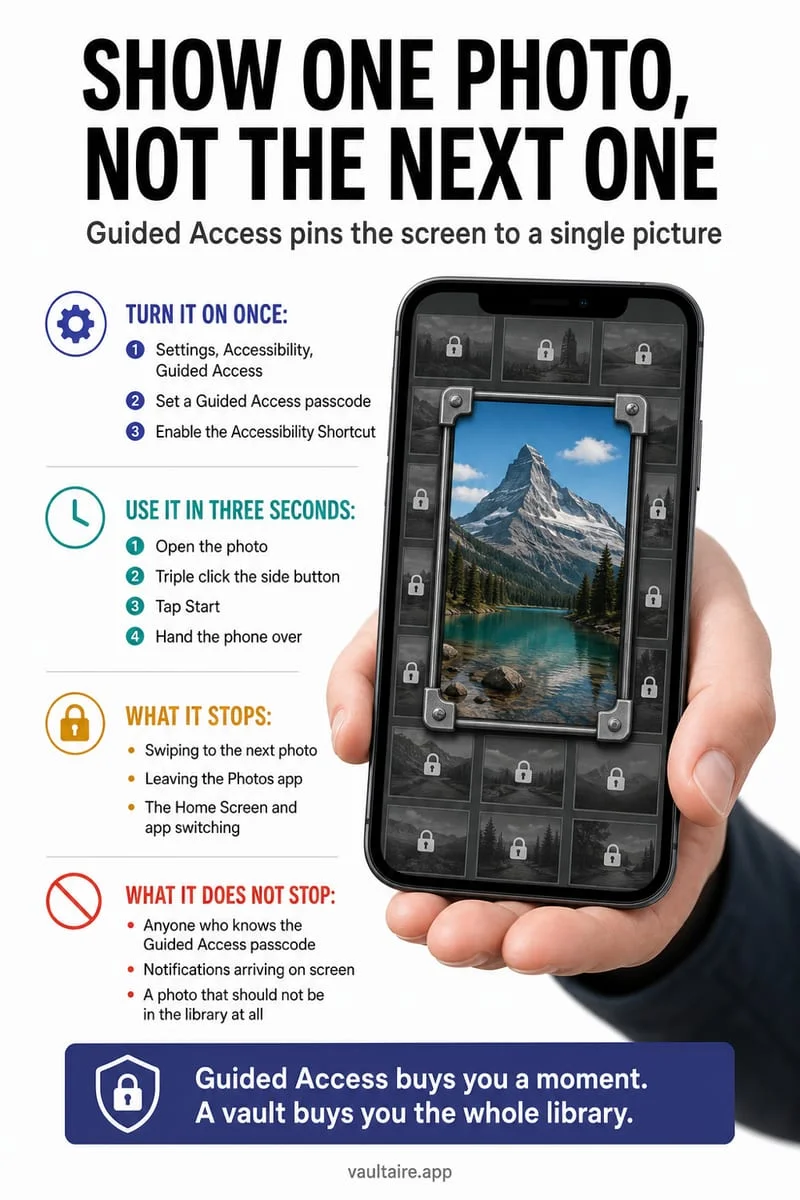
Once Guided Access is enabled inside Settings → Accessibility → Guided Access, you can open the exact image you want to show in full-screen view, triple-click the Side button, turn off Touch inside the session options, and tap Start. While Guided Access is active with Touch disabled, the viewer can look at the display, but swiping horizontally, pinching out to the library grid, tapping the Back arrow, or swiping up to the Home Screen is completely blocked until you authenticate.
- Open Settings → Accessibility → Guided Access and toggle Guided Access on.
- Tap Passcode Settings to enable Face ID (or Touch ID) and set a dedicated Guided Access passcode.
- Open Apple Photos, tap the single photo you want to show so it fills the screen, and tap once to hide the bottom thumbnail scrubber bar.
- Triple-click the iPhone Side button, tap Options in the bottom-left corner, toggle off Touch, and tap Start (or Resume) before handing over your iPhone.
- When you get your phone back, double-click the Side button to end the session with Face ID (or triple-click and enter your Guided Access code).
Why zooming in or creating a single-photo album isn't foolproof
A viral social media 'life hack' claims that if you zoom slightly into a photo or place a single image inside its own custom album in Apple Photos, swiping left or right won't advance to the next picture. In practice, both workarounds crumble the moment someone interacts with the screen normally.
While creating a single-photo custom album stops horizontal swiping inside that specific view, a single tap on the Back chevron in the top-left corner—or a slight downward pinch gesture—immediately drops the person holding your phone into your full Collections view and camera roll. Similarly, zooming 5% into a photo only absorbs the first pan gesture; a second swipe immediately jumps to the next image in your timeline, and the bottom thumbnail strip still exposes neighboring photos right underneath the main frame.
| Method | Stops Left/Right Swiping? | Stops Pinching Back to Camera Roll? | Setup Speed | Reliability |
|---|---|---|---|---|
| Guided Access (Touch Disabled) | Yes (screen ignores all touch) | Yes (locks Home bar & Back button) | 5 seconds (triple-click Side button) | High for showing 1 static image |
| Keep Private Media in Octoshield Vault | Allows normal swiping of public photos | Private photos aren't in Apple Photos at all | Zero prep needed when handing phone over | Highest (permanent cryptographic separation) |
| Single-Photo Custom Album | Only inside that album view | No (pinch or Back tap exposes full library) | 15–20 seconds per photo | Low (accidental tap exits album) |
| Slight Zoom-In Trick | No (second swipe changes photo) | No | 2 seconds | Very Low (fails on second swipe) |
Method 2: Keep private photos out of your camera roll permanently
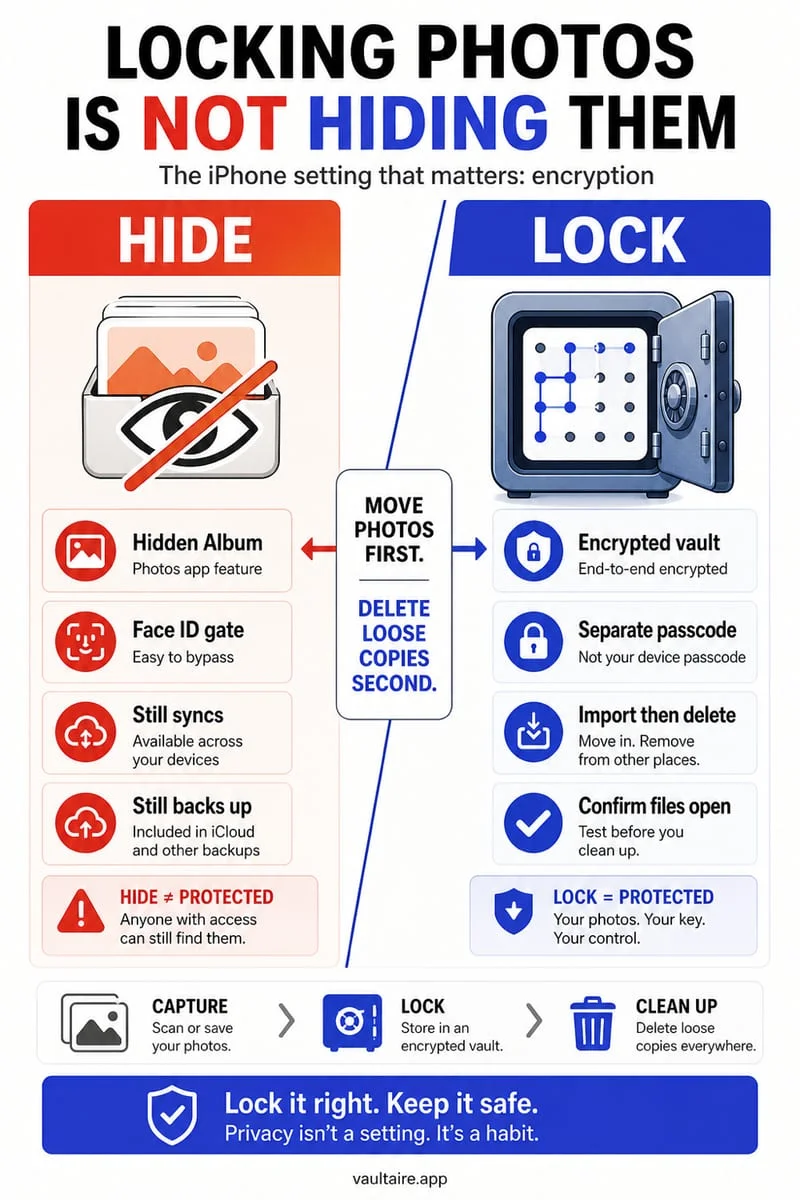
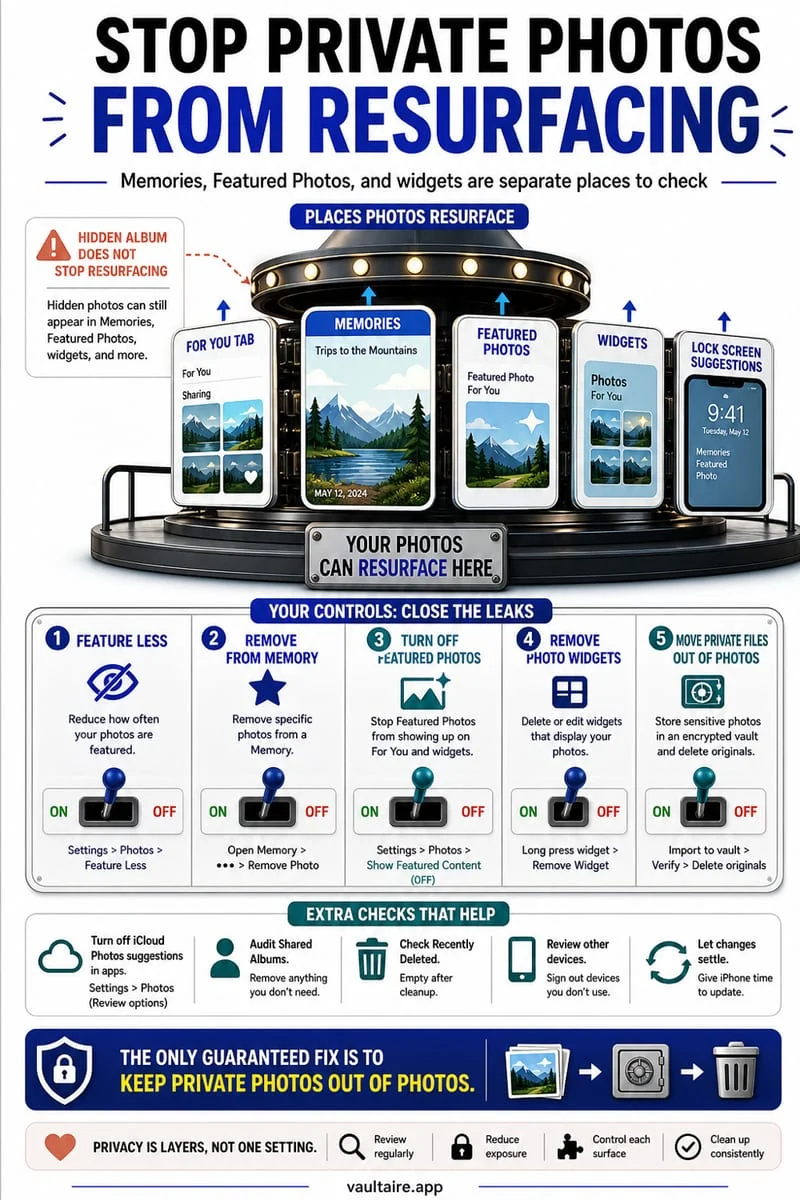
Even Guided Access has a practical downside: if you want to hand your phone to someone so they can flip through 15 holiday photos at their own pace, disabling Touch means they can't swipe at all. The most stress-free way to share your screen is to ensure confidential photos, medical snapshots, ID scans, and personal videos are never sitting in your main Apple Photos timeline in the first place.
Built by TengrX, Octoshield combines an AES-256-GCM encrypted vault with a fast swipe-based Cleaner. In the Cleaner tab, you can flip through your camera roll rapidly: swipe left to queue unwanted clutter for deletion, swipe right to keep public photos, or swipe up on a sensitive photo to encrypt it directly into your vault in 512 KB AES-256-GCM chunks and queue the original copy for removal from Apple Photos.
Inside Octoshield, every file, thumbnail, and index entry is encrypted with separate keys derived via HKDF-SHA256 from a random 256-bit master key, protected by your PBKDF2-SHA256 stretched secret (PIN, passphrase, 3×3 pattern, or safe-style combination dial) and a device-bound iOS Keychain key. Once your private items live in Octoshield and you empty Recently Deleted, your main camera roll is 100% safe for anyone to swipe through.
- Open Octoshield and switch to the Cleaner tab (or use the Photo Vault Import button).
- Swipe up on sensitive photos and videos to encrypt them into the vault and queue their originals for removal, and swipe left on awkward screenshots to queue deletion.
- Confirm the iOS prompt to remove the queued originals from Apple Photos.
- Open Apple Photos → Collections → Utilities → Recently Deleted and tap Delete Permanently so your main library is completely clean.
Frequently asked questions
01How do I exit Guided Access after my friend hands my iPhone back?+
Double-click the Side button to end Guided Access immediately with Face ID, or triple-click the Side button, enter your Guided Access passcode, and tap End in the top-left corner.
02Can someone exit a single-photo album in Apple Photos?+
Yes. Unless Guided Access has disabled touch input, anyone holding your unlocked iPhone can simply pinch inward on the photo or tap the Back button to view all of your other albums and your main photo grid.
03Does importing photos into Octoshield hide them from the main camera roll?+
Importing (or swiping up in Octoshield's Cleaner) creates an AES-256-GCM encrypted copy inside Octoshield and prompts to remove the original from Apple Photos. Once you confirm removal and empty Recently Deleted, it will never appear in your camera roll.
04Why does the bottom of Apple Photos still show neighboring thumbnails when I open one photo?+
By default, Apple Photos displays a horizontal filmstrip scrubber at the bottom of the screen showing adjacent photos. You must tap the photo once to enter full-screen black-background mode before starting Guided Access so neighboring thumbnails aren't visible.
05Can I show someone a photo from inside Octoshield without letting them see other vault items?+
If you want to show a single image from inside Octoshield, you can use iOS Guided Access with Touch disabled right inside Octoshield's viewer, or lock the vault immediately with one tap as soon as you take the phone back.
Official sources & further reading
Lock your private photos behind real AES-256-GCM encryption.
Stop relying on a Hidden album that shares your iPhone lock-screen passcode. Import private photos and videos into Octoshield’s device-bound local vault with your own PIN, passphrase, 3×3 pattern, or safe combination dial.
- AES-256-GCM authenticated encryption in 512 KB chunks
- Encrypted thumbnails & filename catalog index at rest
- 4 lock styles: PIN, Passphrase, 3×3 Pattern, or Safe Dial + Face ID
- 100% on-device storage — zero cloud servers, zero ad SDKs
 AES-256-GCM + Cleaner
LOCAL IPHONE SANDBOX · KEYCHAIN BOUND
iOS menus can vary slightly by iOS version. Octoshield instructions describe the current local app implementation engineered by TengrX. Check the App Store listing for the version available to download.