To stop specific photos from appearing in iPhone Memories and Featured Photos widgets, you can either tap 'Feature Less' on a person/date, turn off Show Featured Content in Settings → Apps → Photos, or hide the photos. For permanent guaranteed removal from all Apple Photos widgets and slideshows, move sensitive images into Octoshield's local AES-256-GCM encrypted vault and delete the originals from Apple Photos.
How to remove a single photo or person from Memories & Featured Photos
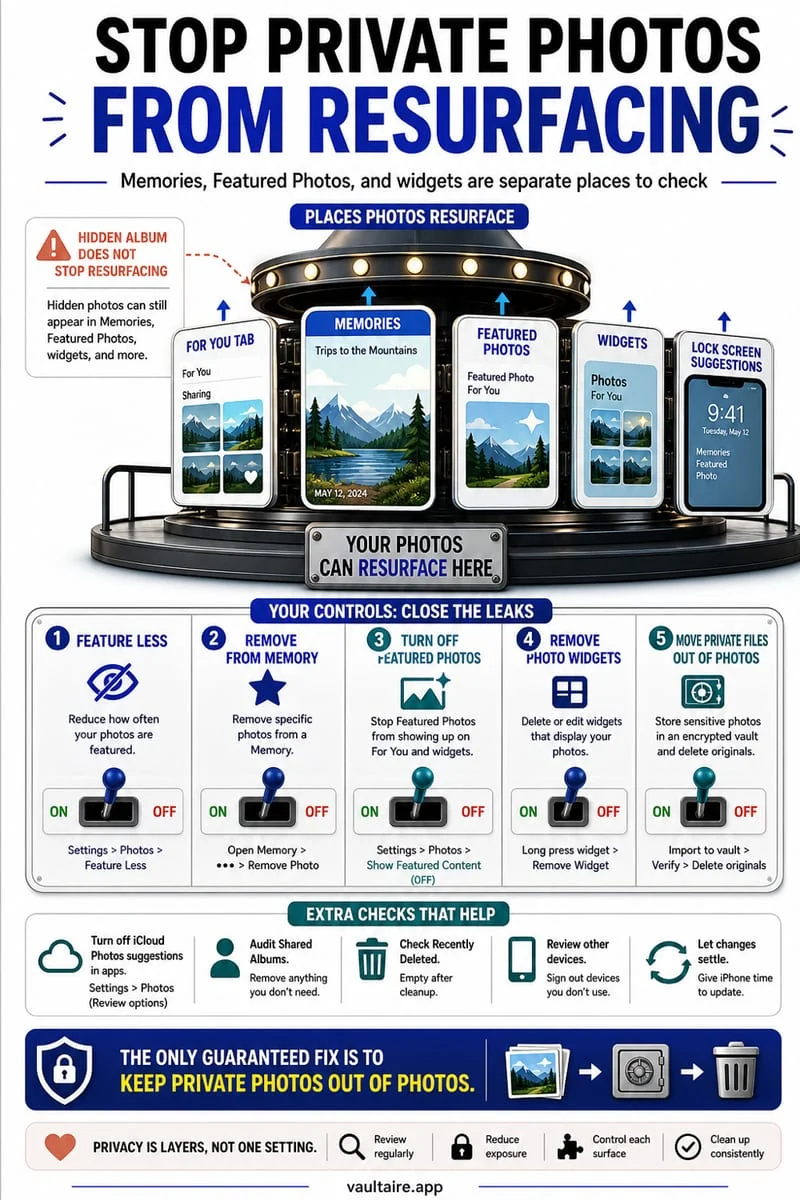
Apple Photos runs continuous on-device curation to assemble Memories movies, Trips, Featured Photos, and People & Pets highlights, surfacing them at the top of the Photos app and pushing them onto Home Screen and Lock Screen widgets. Few moments are more jarring than unlocking your iPhone in a meeting or on a train only to see a private medical photo, an ex-partner, or a confidential receipt scan rotating across a large Home Screen widget.
If you want to leave a photo inside your main Apple Photos library while instructing Apple's curation engine to stop highlighting it, you can long-press the offending image inside Featured Photos or a Memory and select 'Remove from Featured Photos' or 'Feature Less' to suppress a specific face, date, or place.
- Open the Apple Photos app and scroll to the Memories or Featured Photos section.
- Touch and hold the specific photo or Memory card you want to stop seeing in widgets and highlights.
- Tap Remove from Featured Photos to suppress that single image, or tap Feature Less to block a specific person, day, or location across future Memories.
- If a specific person keeps appearing, open Collections → People & Pets, long-press their face tile, and tap Don't Feature [Name].
How to disable Featured Content and Memories across iOS
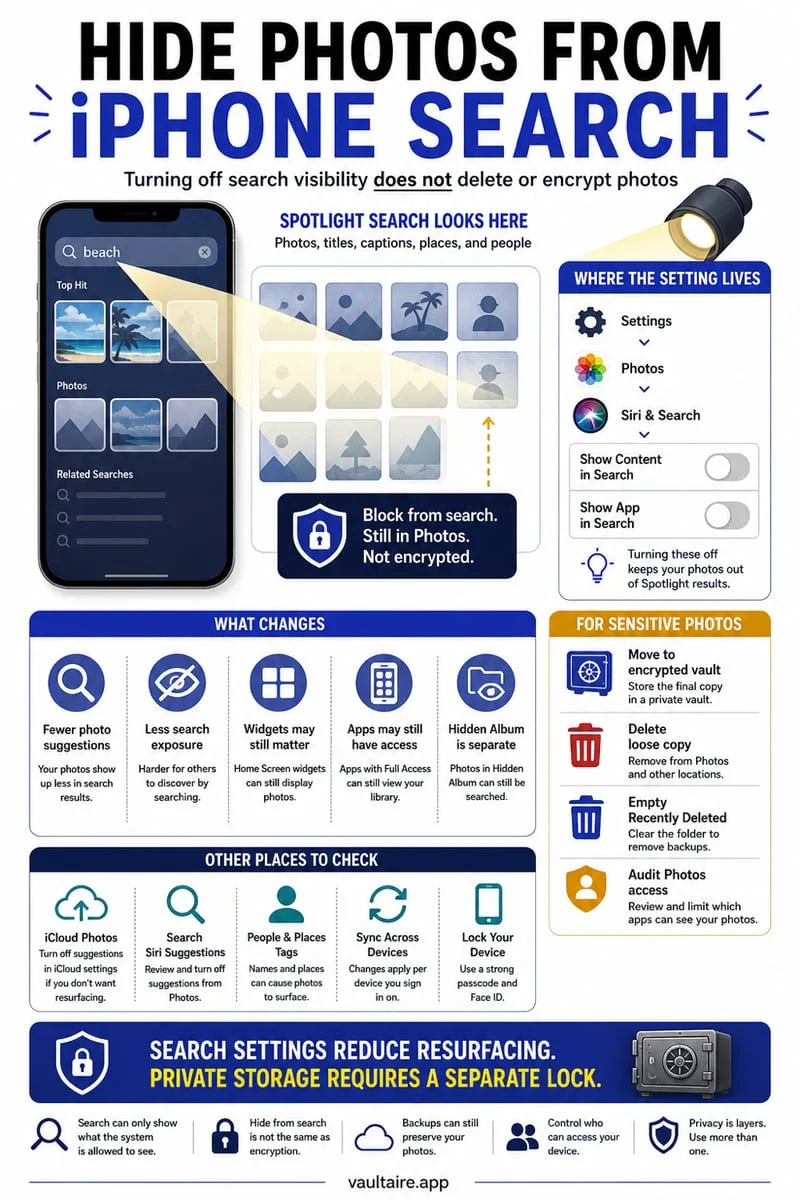
Blocking photos one by one is reactive—it only helps after Apple's algorithm has already picked a sensitive photo and displayed it on your screen. If you never want Apple Photos to surprise you with automatic highlights in Search, widgets, or the Collections view, you can disable Featured Content globally inside iOS Settings.
Additionally, moving a photo to the built-in Hidden album (Collections → Utilities → Hidden) excludes it from Memories, Featured Photos, and Home Screen widgets—though the image still remains inside your synced iCloud Photos library and can be opened by anyone who knows your iPhone passcode.
- Open Settings → Apps → Photos on your iPhone.
- Scroll down and toggle off Show Featured Content and toggle off Memories Notification.
- Tap Reset Suggested Memories if you want to clear out previously generated algorithmic slideshows.
- If you use the Apple Photos Home Screen widget, long-press the widget, tap Edit Widget, and switch it from 'Featured' to a specific safe custom album (or remove the widget entirely).
Comparison: Feature Less vs. Hidden Album vs. Octoshield Vault
Different iOS settings suppress photos from different parts of the operating system. For example, tapping 'Remove from Featured Photos' removes a picture from the Featured carousel, but does not remove it from your main Library grid, People & Pets, or Map view—nor does it stop someone who picks up your unlocked iPhone from scrolling through your camera roll.
Use the table below to compare exactly where your photos remain visible under each approach, and why moving sensitive images into a local encrypted vault with an independent PIN, passphrase, 3×3 pattern, or safe-style combination dial provides permanent protection.
| Method | Hidden from Widgets & Memories? | Hidden from Main Camera Roll Grid? | Hidden from People & Map Views? | Protected from iPhone Passcode Holders? |
|---|---|---|---|---|
| 'Feature Less' / Remove from Featured | Yes (after widget cache refreshes) | No (still in main timeline) | No (still in Map & People albums) | No |
| Toggle Off 'Show Featured Content' | Yes (disables Featured globally) | No (still in main timeline) | No | No |
| Apple Photos Hidden Album | Yes | Yes | Yes | No (unlocks with iPhone passcode) |
| Octoshield Encrypted Photo Vault | Yes (completely outside PhotoKit) | Yes (once original is deleted) | Yes (encrypted metadata & index) | Yes (separate PIN, Passphrase, Pattern, Dial) |
Keep private photos completely outside Apple Photos' curation engine
So long as a photo remains inside the Apple Photos database, iOS software updates, widget reconfigurations, or accidental 'Unhide' taps can bring it back into view. Moving truly private photos into Octoshield (built by TengrX) isolates them inside a local AES-256-GCM encrypted vault that iOS widgets, Siri, Spotlight, and Apple Photos Memories can never access.
Inside Octoshield, files are encrypted in 512 KB chunks with AES-256-GCM, and HKDF-SHA256 derives separate encryption keys from a random 256-bit master key for every file, every thumbnail preview, and the encrypted index. Your secret is stretched with PBKDF2-SHA256 and combined with a random device-bound key stored in the iPhone's hardware-backed Keychain. You can also use Octoshield's Cleaner to swipe through your camera roll—swipe left to queue junk for deletion, swipe right to keep, or swipe up to encrypt directly into your vault and queue original removal.
- Open Octoshield and use the Cleaner tab (swipe up) or Vault Import button to encrypt private photos and videos into your local vault.
- Confirm the iOS prompt to remove the original copies from Apple Photos.
- Open Apple Photos → Collections → Utilities → Recently Deleted and tap Delete Permanently so iOS purges all cached thumbnails and widget indexes.
Frequently asked questions
01Do photos in the iPhone Hidden album ever show up in Memories or widgets?+
No. Photos placed inside Collections → Utilities → Hidden are excluded from Memories, Featured Photos, and Photos Home Screen widgets unless someone unhides them.
02Why is the iPhone Photos widget still showing a photo I just removed?+
iOS Home Screen widgets cache their timeline snapshots for power efficiency. Turning off Show Featured Content in Settings → Apps → Photos, editing the widget, or deleting the photo and emptying Recently Deleted forces the widget cache to refresh.
03Can iOS widgets or Siri access photos stored inside Octoshield?+
Never. Octoshield encrypts all photos, thumbnails, and index data in 512 KB AES-256-GCM chunks inside local sandboxed storage that is completely invisible to iOS widgets, Memories, and Siri.
04Does turning off 'Show Featured Content' delete any of my photos?+
No. Turning off Show Featured Content in Settings → Apps → Photos only stops iOS from automatically surfacing algorithmic highlights in widgets and Search; all of your photos stay untouched in your library.
05How do I stop a photo from showing up on the iPhone Lock Screen Photo Shuffle?+
Long-press your iPhone Lock Screen, tap Customize, and either select specific manual photos for Photo Shuffle instead of automatic People/Nature curation, or move private photos into Octoshield and delete the originals from Apple Photos.
Official sources & further reading
Lock your private photos behind real AES-256-GCM encryption.
Stop relying on a Hidden album that shares your iPhone lock-screen passcode. Import private photos and videos into Octoshield’s device-bound local vault with your own PIN, passphrase, 3×3 pattern, or safe combination dial.
- AES-256-GCM authenticated encryption in 512 KB chunks
- Encrypted thumbnails & filename catalog index at rest
- 4 lock styles: PIN, Passphrase, 3×3 Pattern, or Safe Dial + Face ID
- 100% on-device storage — zero cloud servers, zero ad SDKs
 AES-256-GCM + Cleaner
LOCAL IPHONE SANDBOX · KEYCHAIN BOUND
iOS menus can vary slightly by iOS version. Octoshield instructions describe the current local app implementation engineered by TengrX. Check the App Store listing for the version available to download.