By default, iOS indexes objects, people, locations, and even Live Text inside your photos so they appear whenever someone types a keyword into iPhone Spotlight Search. You can stop this by turning off Search & Siri Suggestions for Apple Photos in Settings, hiding individual images, or moving private photos and screenshots into Octoshield's local AES-256-GCM encrypted vault where Spotlight and Siri can never index them.
How iOS Live Text and visual indexing expose screenshots in Spotlight
On modern iPhones, Apple's background machine-learning daemons (`mediaanalysisd` and `photoanalysisd`) continuously scan every image in your camera roll while your phone charges. They index recognized faces, pets, GPS locations, visual scene categories (such as 'ID card', 'receipt', 'document', 'bedroom', or 'beach'), and every printed or handwritten word inside images via Live Text OCR.
As a result, when someone swipes down on your iPhone Home Screen to search for an app, contact, or website in Spotlight Search, iOS automatically displays matching photos and screenshots from your library right inside the search results.
This creates a major privacy blind spot: a screenshot of a bank statement, a crypto recovery seed phrase, a medical lab report, a tax form, or a private text conversation can suddenly appear on your Home Screen simply because a friend or colleague typed three matching letters into Spotlight.
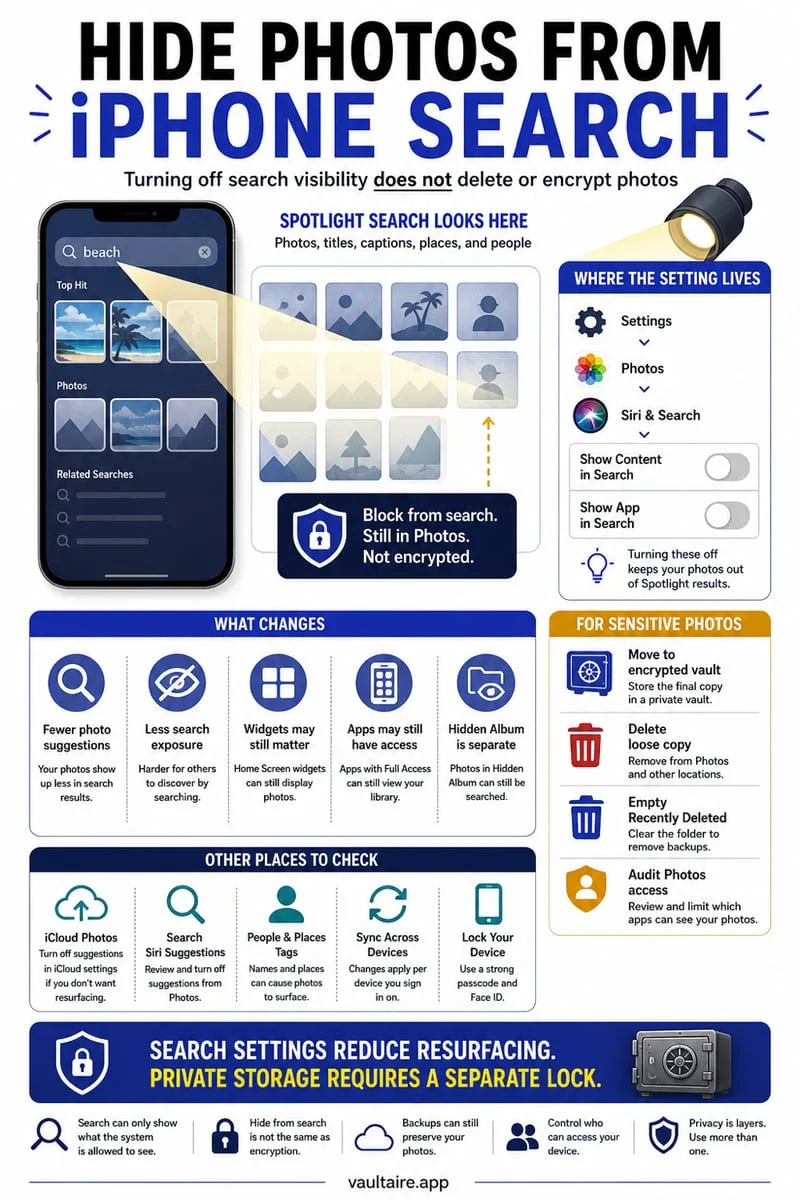
Method 1: Turn off Spotlight Search & Siri indexing for Apple Photos
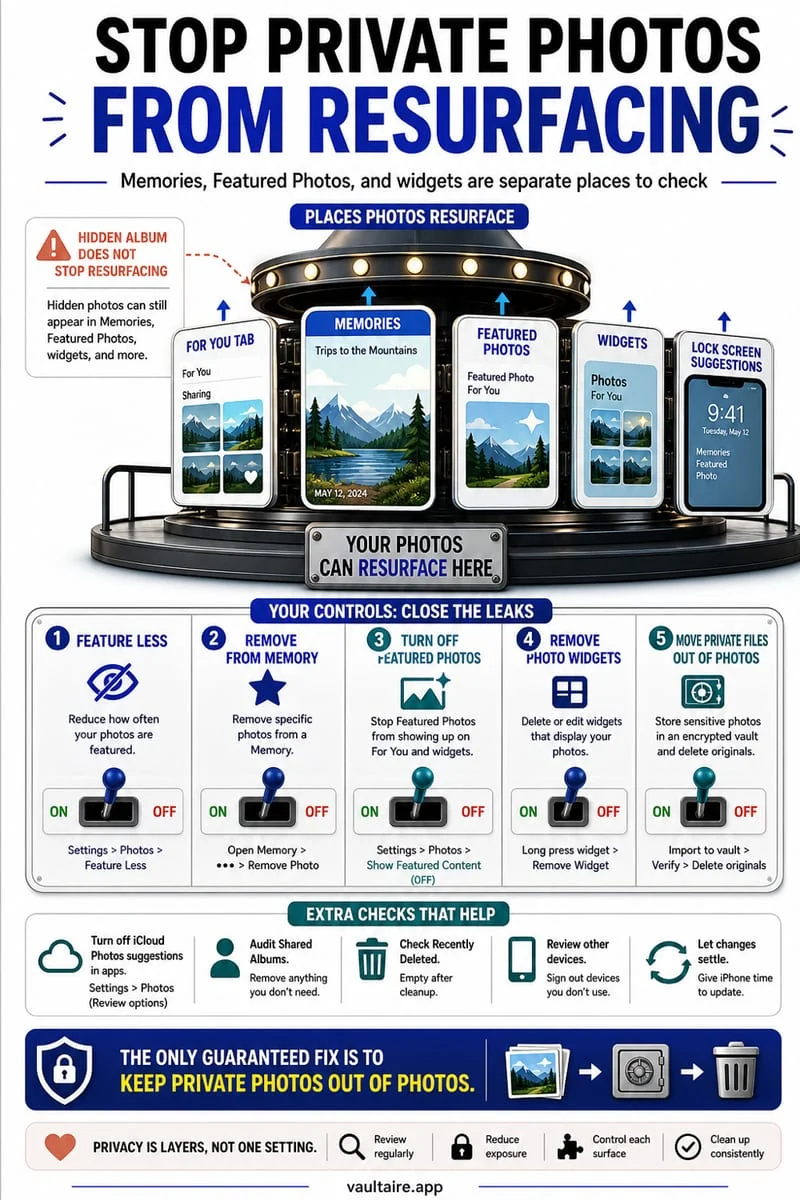
If you want to prevent your entire Apple Photos library from surfacing inside system-wide Home Screen Spotlight searches and Siri Suggestions, you can turn off Photos search indexing in iOS Settings. You can also move specific images into the built-in Hidden album (Collections → Utilities → Hidden), which excludes those hidden items from Spotlight Search and Home Screen widgets.
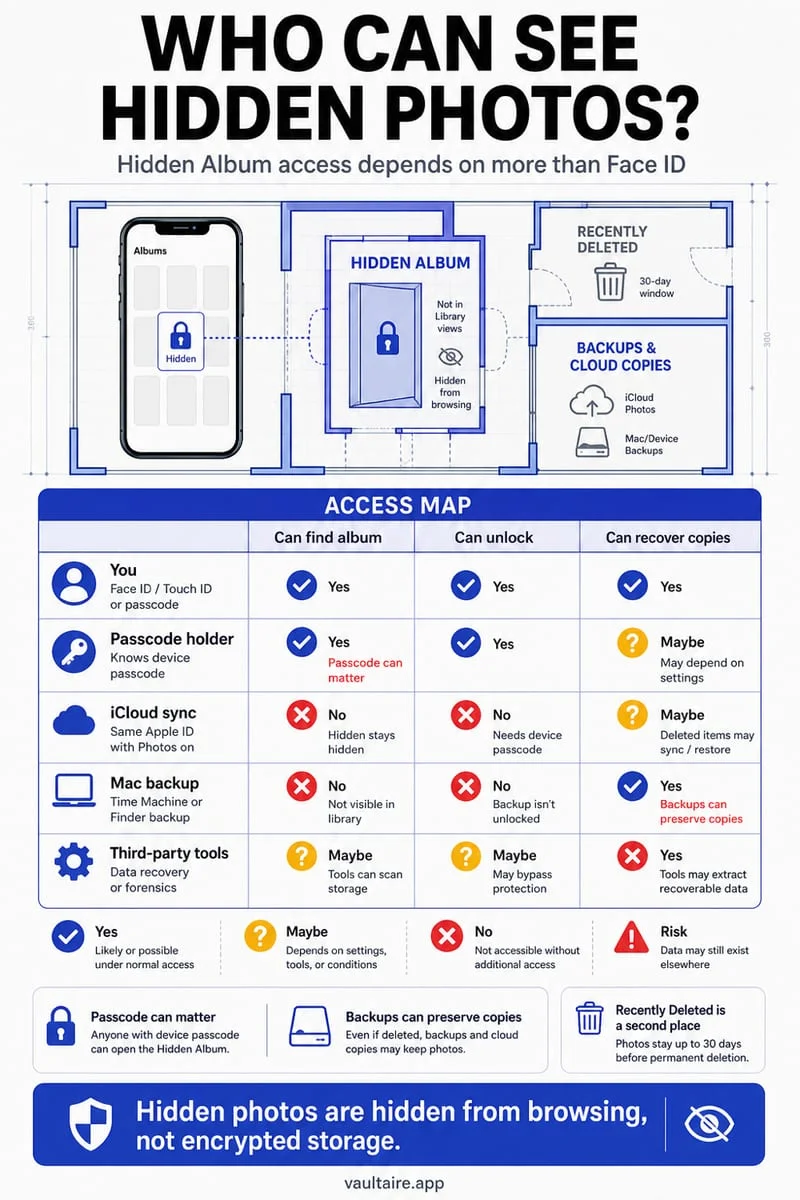
However, disabling Spotlight indexing in Settings only stops results from appearing on the Home Screen pull-down search. Anyone who opens the Apple Photos app itself can still type keywords, names, or OCR words into the internal Photos search bar to find every matching image in your library—and anyone who knows your iPhone passcode can unlock the Hidden album.
- Open Settings → Apps → Photos on your iPhone.
- Tap Search (or Siri & Search).
- Toggle off Show Content in Search and toggle off Suggest App / Learn from this App.
- Return to Settings → Apps → Photos and toggle off Show Featured Content to stop algorithmic Home Screen widget surprises.
Comparison: Where your photos and screenshot text remain searchable
To understand why disabling Spotlight in Settings is only a partial fix, compare how iOS handles Home Screen Spotlight Search, the internal Apple Photos search bar, and an encrypted local vault.
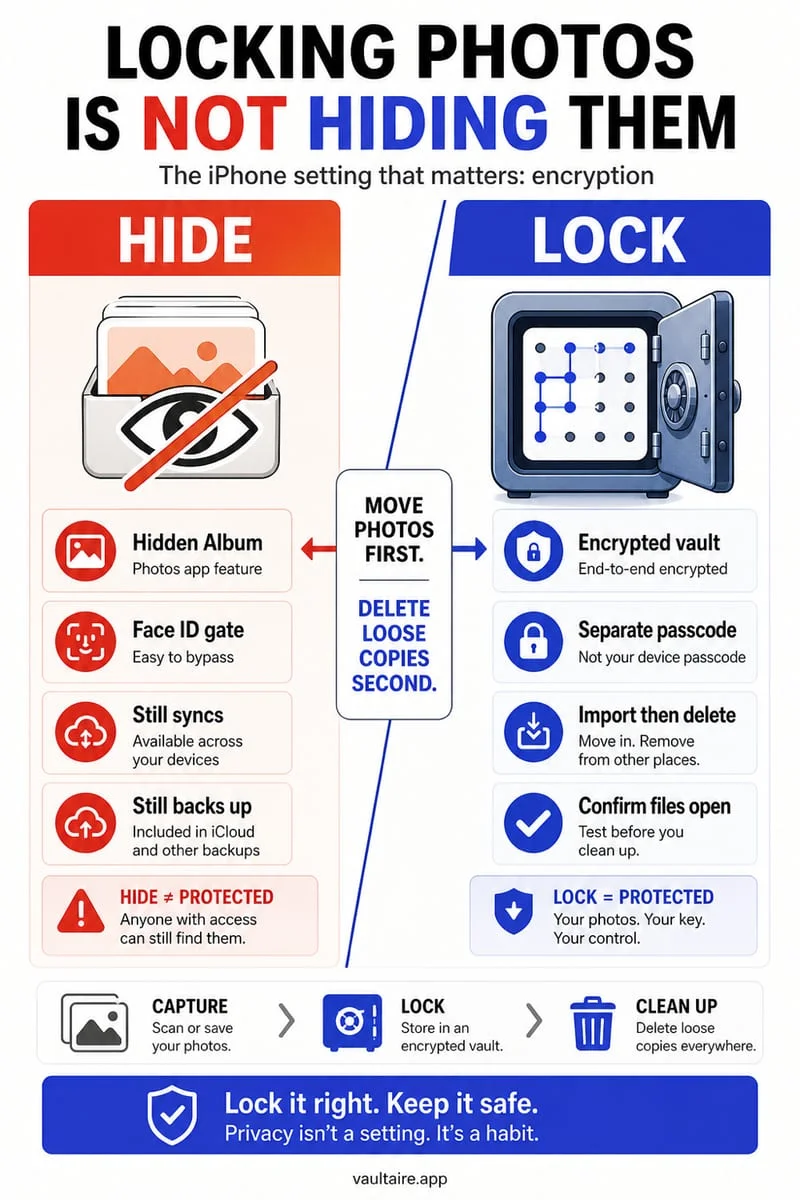
Notice that only moving sensitive screenshots and photos out of Apple Photos and into an encrypted vault removes them from both system-wide Spotlight and internal Photos OCR search while locking them behind an independent secret. As long as an image remains inside the Apple Photos database, any friend or family member who opens the Photos app can search by word, date, location, or person to surface it.
| Protection Method | Hidden from Home Screen Spotlight? | Hidden from Internal Photos App Search? | Protected from iPhone Passcode Holders? | Live Text OCR Indexed by iOS? |
|---|---|---|---|---|
| Turn Off 'Show Content in Search' | Yes | No (still searchable inside Photos app) | No | Yes (indexed inside Photos) |
| Apple Photos Hidden Album | Yes | Yes (while inside Hidden) | No (unlocks with iPhone passcode) | Stored in system Photos database |
| Octoshield Encrypted Vault | Yes (completely invisible to Spotlight) | Yes (removed from Apple Photos) | Yes (requires separate vault secret) | Never (AES-256-GCM ciphertext) |
Method 2: Encrypt sensitive photos and screenshots inside Octoshield
For screenshots of driver's licenses, passports, two-factor recovery codes, financial statements, or personal photos that should never be scanned by iOS Live Text or Spotlight under any setting, store them inside Octoshield (built by TengrX). Every file inside Octoshield is encrypted in 512 KB chunks with authenticated AES-256-GCM, and HKDF-SHA256 derives separate encryption keys from a random 256-bit master key for every file, thumbnail preview, and encrypted index entry.
Your vault secret—a PIN, passphrase, 3×3 pattern, or safe-style combination dial—is stretched with PBKDF2-SHA256 and combined with a random device-bound key stored in the iPhone's hardware-backed Keychain (with optional Face ID / Touch ID using a separate biometric-protected Keychain slot). You can also use Octoshield's Cleaner to flip through your screenshots: swipe left to queue junk for deletion, swipe right to keep, or swipe up on confidential screenshots to encrypt them directly into your local vault and queue original removal from Apple Photos.
- Open Octoshield and unlock your vault with your PIN, Passphrase, 3×3 Pattern, or Safe-style Combination Dial.
- Import sensitive photos, screenshots, and documents into the Photo Vault or File Vault—or use the Cleaner tab and swipe up on confidential screenshots to encrypt them into the vault.
- Confirm the prompt to delete the originals from Apple Photos, then open Collections → Utilities → Recently Deleted and tap Delete Permanently so iOS purges its Live Text search index for those files.
Frequently asked questions
01Can iPhone Spotlight Search read text inside my screenshots?+
Yes. iOS Live Text automatically performs optical character recognition (OCR) on printed and handwritten words inside photos and screenshots in your main Apple Photos library, making them searchable from both Spotlight and the Photos search bar.
02Do photos in the Apple Hidden album show up in Spotlight Search?+
No. Hiding a photo in Apple Photos removes it from Spotlight Search results, Memories, and widgets—though anyone who knows your iPhone passcode can still open the Hidden album directly.
03Can Spotlight, Siri, or Apple Intelligence search inside my Octoshield vault?+
Never. Octoshield encrypts all files (in 512 KB chunks), thumbnails, and its internal index with AES-256-GCM using HKDF-SHA256 per-item keys, making vault contents completely unreadable to iOS Spotlight, Siri, Apple Intelligence, and external apps.
04Why do deleted screenshots sometimes still show up in Spotlight Search for a few minutes?+
If a screenshot is still sitting in Apple Photos → Collections → Utilities → Recently Deleted, or if the Spotlight index cache hasn't refreshed yet, traces can linger briefly. Emptying Recently Deleted forces iOS to purge the asset and its search index entry.
05How can I quickly clean hundreds of old screenshots out of my iPhone camera roll?+
Open Octoshield's Cleaner tab to review your camera roll with fast swipe gestures: swipe left to queue old temporary screenshots for deletion, swipe right to keep useful ones, and swipe up on sensitive screenshots to encrypt them into your vault and queue original removal.
Official sources & further reading
Lock your private photos behind real AES-256-GCM encryption.
Stop relying on a Hidden album that shares your iPhone lock-screen passcode. Import private photos and videos into Octoshield’s device-bound local vault with your own PIN, passphrase, 3×3 pattern, or safe combination dial.
- AES-256-GCM authenticated encryption in 512 KB chunks
- Encrypted thumbnails & filename catalog index at rest
- 4 lock styles: PIN, Passphrase, 3×3 Pattern, or Safe Dial + Face ID
- 100% on-device storage — zero cloud servers, zero ad SDKs
 AES-256-GCM + Cleaner
LOCAL IPHONE SANDBOX · KEYCHAIN BOUND
iOS menus can vary slightly by iOS version. Octoshield instructions describe the current local app implementation engineered by TengrX. Check the App Store listing for the version available to download.