Hidden Photos on iPhone: Where They Go and Who Can See Them (2026)
Find out exactly where hidden photos go on iPhone in 2026, how to unhide them, and who can still see your Hidden album through passcodes or iCloud sync.
When you hide photos on an iPhone in 2026, they do not leave the Photos app; they move to Collections → Utilities → Hidden. Anyone who knows your iPhone passcode—or has access to a synced iPad, Mac, or iCloud.com session connected to your Apple Account—can still unlock and view your hidden photos unless you move them into a separate local encrypted vault like Octoshield.
Where do hidden photos go on iPhone in iOS?
After Apple redesigned the Photos app into a unified single-screen layout across iOS 18, iOS 26, and current 2026 updates, many iPhone owners lost track of where their hidden pictures live. When you tap Hide on a photo or video, the file never leaves your main Apple Photos database (`Photos.sqlite`)—iOS simply sets an internal visibility flag so the item stops rendering in your main Library grid, Memories carousels, and Featured Photos widgets.
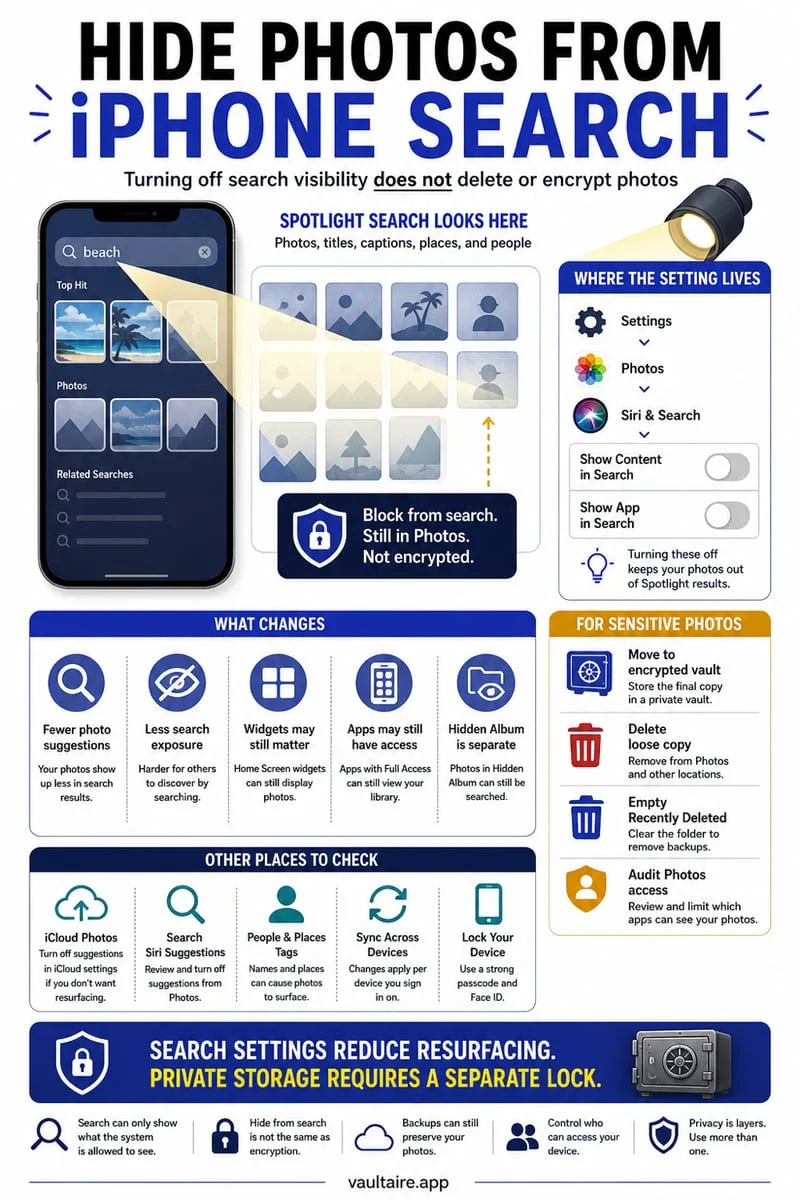
To locate your hidden photos, open the Apple Photos app, swipe up to scroll past your main photo grid into the Collections section, scroll down to Utilities, and tap Hidden. If the Hidden row is completely absent from Utilities, someone (or you) turned off the Show Hidden Album switch inside Settings → Apps → Photos.
Keep in mind that toggling off Show Hidden Album in Settings only hides the row label from the Photos user interface. Anyone holding your unlocked iPhone can open Settings → Apps → Photos and flip Show Hidden Album back on in three seconds without entering an extra password.
Open the Apple Photos app and scroll down past your main photo grid to the Utilities section.
Tap Hidden and authenticate with Face ID, Touch ID, or your iPhone passcode.
If the Hidden row is missing under Utilities, open Settings → Apps → Photos and toggle on Show Hidden Album.
To restore an image to your main grid, open Hidden, select the photo, tap the More button (three dots), and choose Unhide.
Who can actually see your iPhone Hidden album?
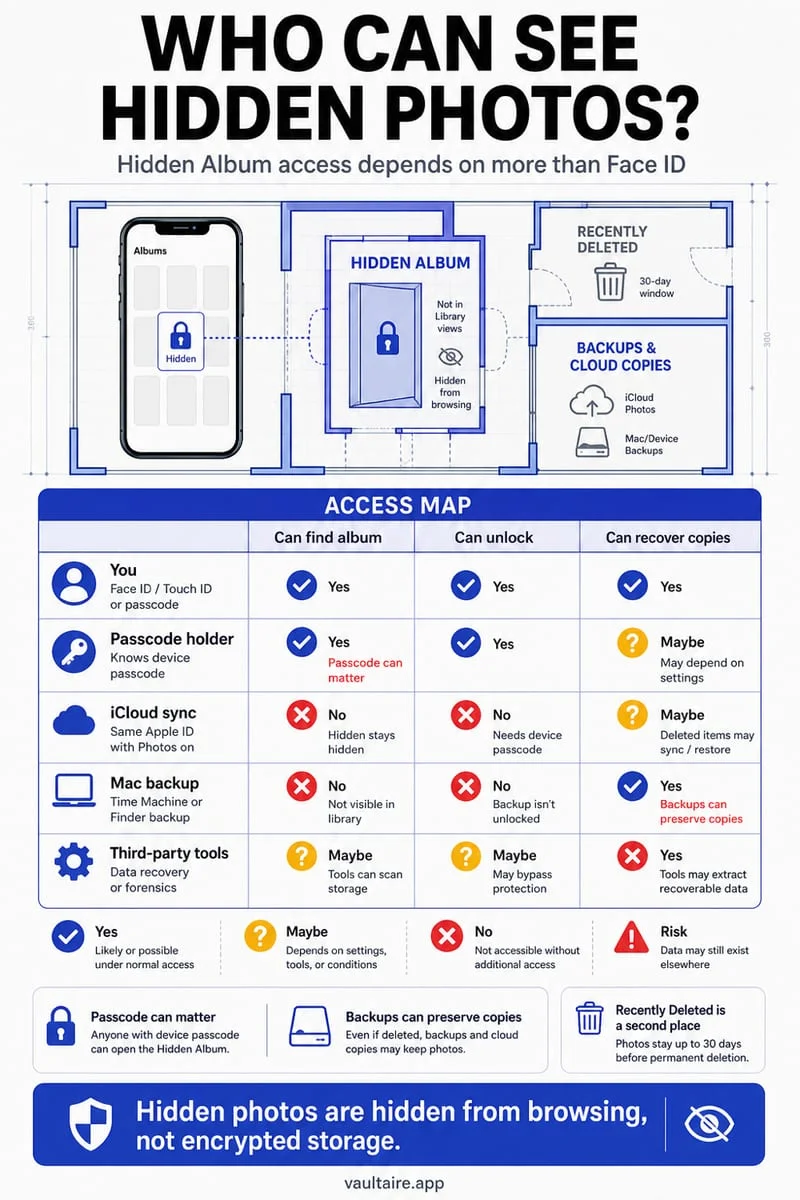
A widespread misconception is that Face ID locks the Hidden album exclusively to your biometric face scan. In reality, whenever Face ID fails twice, iOS immediately displays the 'Enter iPhone Passcode' keypad. Anyone who knows your 4- or 6-digit screen unlock code—such as a spouse, partner, child, or friend who has watched you unlock your phone—can bypass Face ID and open your Hidden album immediately.
Second, if iCloud Photos is enabled on your Apple Account, the Hidden album syncs across every single device signed into your Apple ID. That means a shared Mac in the home office, an iPad left on the living room table, or an active browser session on iCloud.com can expose your hidden photos using that secondary device's local login password.
Third, third-party apps that you previously granted 'Full Access' to your Photo Library in Settings → Privacy & Security → Photos can technically query assets across your library database unless restricted to the limited system photo picker.
Who Can See Your Photos: Apple Hidden Album vs. Octoshield Encrypted Vault
Access Scenario
Apple Photos Hidden Album
Octoshield Photo Vault
Someone who knows your iPhone passcode
Can unlock Hidden immediately via passcode fallback
Blocked (requires separate vault PIN, Passphrase, Pattern, or Safe Dial)
Someone using your synced iPad or Mac
Visible in Hidden album via iCloud Photos sync
Invisible (strictly local to your iPhone, zero cloud sync)
Encrypted in 512 KB AES-256-GCM chunks; excluded from backups
How to move hidden photos out of Apple Photos and iCloud completely
If you want your private photos invisible to people who know your iPhone passcode and absent from iCloud synchronization, you must move them across a real cryptographic boundary. Built by TengrX, Octoshield stores photos inside its own local sandbox using authenticated AES-256-GCM encryption in 512 KB chunks, deriving separate keys via HKDF-SHA256 from a random 256-bit master key for every file, every thumbnail preview, and the encrypted index.
In Octoshield, your chosen secret—a numeric PIN, alphanumeric passphrase, 3×3 pattern, or safe-style combination dial—is stretched using PBKDF2-SHA256 and combined with a random device-bound key stored in the iPhone's hardware-backed Keychain (with optional Face ID / Touch ID using a separate biometric-protected Keychain slot). Once you import your photos into Octoshield, delete the originals from Apple Photos and empty Recently Deleted so they vanish from iCloud and your camera roll.
Open Apple Photos → Collections → Utilities → Hidden and review the photos or videos you want to protect.
Open Octoshield, unlock your vault with your dedicated secret, and import those photos—or use Octoshield's Cleaner to swipe up on camera roll items to encrypt them into the vault and queue original removal.
Confirm that all imported images and videos open cleanly inside Octoshield.
Delete the original copies from Apple Photos, then open Collections → Utilities → Recently Deleted and tap Delete Permanently.
Troubleshooting: Why your Hidden album looks empty or won't unlock
If you open Collections → Utilities → Hidden and find that photos are missing—or if the Use Face ID toggle inside Settings → Apps → Photos is grayed out—one of three iOS configuration states is usually responsible.
First, check whether an active iCloud Shared Photo Library filter is hiding personal library items: tap the filter icon in the top-right corner of Apple Photos and select 'Both Libraries' or 'Personal Library'. Second, if someone turned off Passcode & Face ID at the system level, iOS cannot enforce the Use Face ID lock on Utilities. Third, if iCloud Photos is mid-sync after an iOS update with 'Optimize iPhone Storage' enabled, full-resolution hidden items may temporarily show a cloud loading spinner until your iPhone reconnects to Wi-Fi.
Frequently asked questions
01Why did my hidden photos disappear on my iPhone after an iOS update?+
Your photos are almost certainly still in your library. Open Settings → Apps → Photos and check whether Show Hidden Album was toggled off, or scroll down to Collections → Utilities → Hidden in the redesigned Photos app.
02Can third-party apps see photos in my Apple Hidden album?+
When an app uses the modern iOS system photo picker, you choose which specific photos to share. However, if you granted an app 'Full Access' in Settings → Privacy & Security → Photos, it has broad read access to your Photos library database.
03Are hidden photos included in iCloud backups?+
Yes—either through iCloud Photos synchronization or standard iCloud device backups. By contrast, Octoshield's encrypted vault is strictly local and excluded from iCloud and computer backups.
04Does unhiding a photo put it back in the exact date order it was taken?+
Yes. When you tap Unhide on a photo inside Apple's Hidden album, iOS restores it to your main Library grid at its original capture timestamp in EXIF metadata rather than placing it at the very bottom as a new photo.
05If I delete a photo from the Hidden album on my iPhone, is it deleted from my iPad too?+
Yes, if iCloud Photos is turned on, deleting a photo from Hidden moves it to Recently Deleted across all synced Apple devices and permanently erases it everywhere once you empty Recently Deleted.
Lock your private photos behind real AES-256-GCM encryption.
Stop relying on a Hidden album that shares your iPhone lock-screen passcode. Import private photos and videos into Octoshield’s device-bound local vault with your own PIN, passphrase, 3×3 pattern, or safe combination dial.
AES-256-GCM authenticated encryption in 512 KB chunks
Encrypted thumbnails & filename catalog index at rest
4 lock styles: PIN, Passphrase, 3×3 Pattern, or Safe Dial + Face ID
100% on-device storage — zero cloud servers, zero ad SDKs
iOS menus can vary slightly by iOS version. Octoshield instructions describe the current local app implementation engineered by TengrX. Check the App Store listing for the version available to download.

 AES-256-GCM + Cleaner