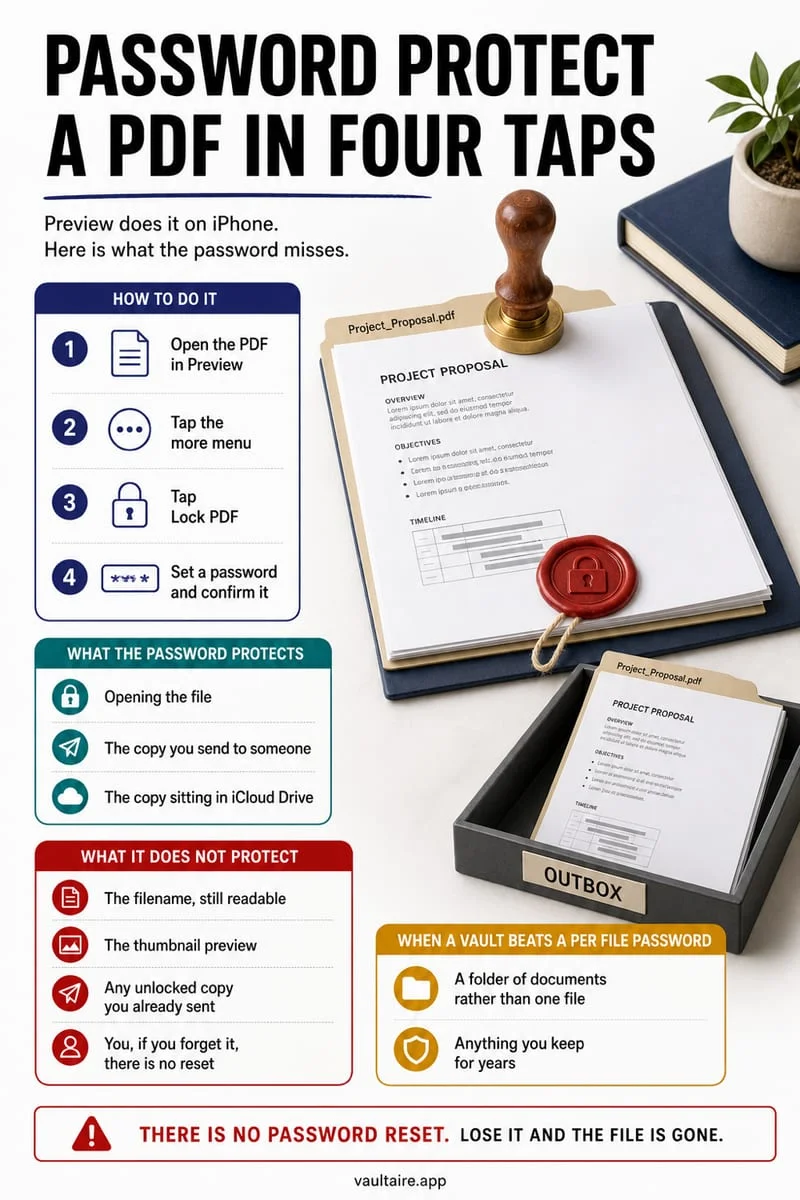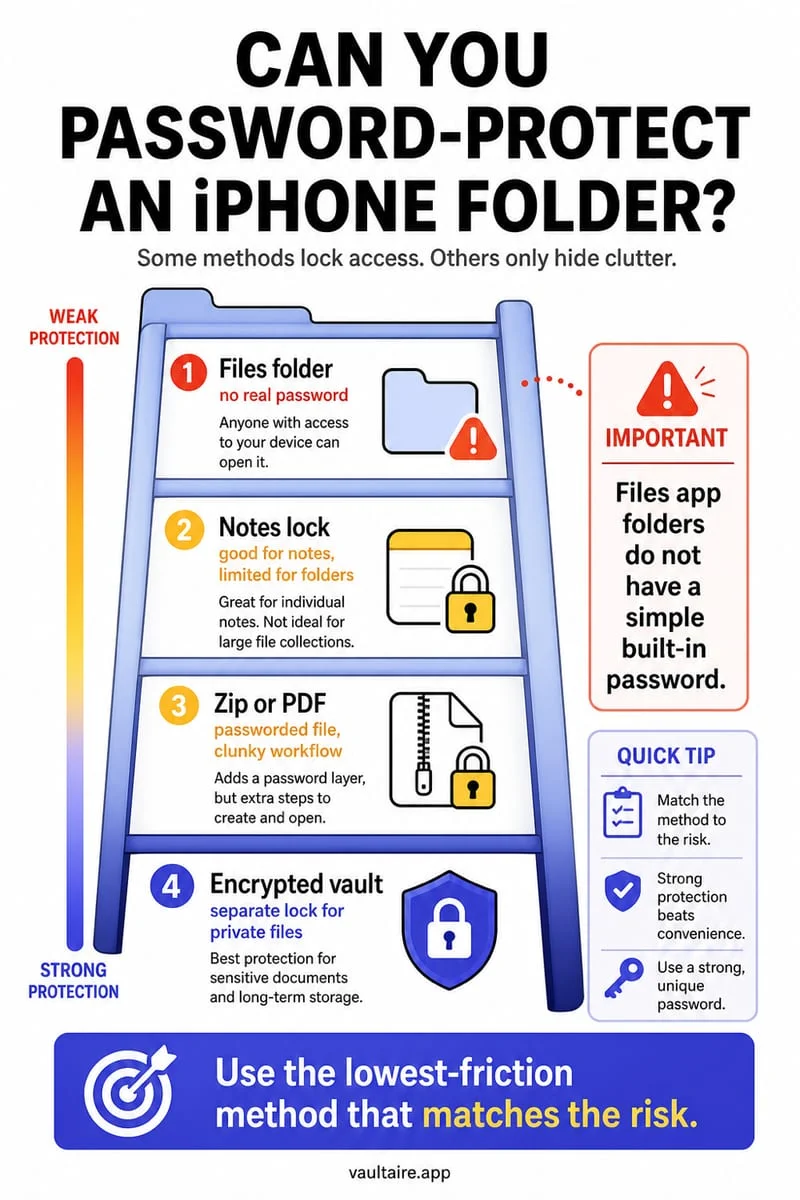
Use a suitable password-protected document format or a file vault with its own secret, rather than assuming the iPhone passcode gives each file an independent password. Test the chosen method with a harmless file, verify your private document, and manage unprotected originals separately.
Choose a secret that is actually separate
Someone knows the code that unlocks your phone, but you want a private document to require another credential. An ordinary folder name and the Files app’s local storage location do not provide that additional secret. You need protection that applies to the document or its storage container.
Decide whether the file must remain portable. A protected PDF and an encrypted local vault offer different workflows. One can travel as a protected document if properly created; the other primarily protects the copy retained inside the app.
Test locking and export before importing important records
Use a harmless sample to confirm how the independent password works. Lock and reopen it, then test what happens when you export or share. A vault can decrypt a copy for another app; do not assume the new file automatically retains the vault password.
Choose a secret you can remember and retain it according to your own password-management practice. Review recovery rules before making this the only location for essential material. A stronger boundary is useful only if you can still retrieve your own records.
- Choose between document-level password protection and a separate file vault.
- Test locking, reopening, and export with a harmless document.
- Protect the complete real file and verify every page.
- Review unprotected sources and keep independent access to essential records.
A protected copy does not protect the originals
Check Files downloads, email attachments, note attachments, cloud folders, and editor drafts. Importing or saving a protected version does not silently remove those sources. Decide which ones need to remain and what access rules they follow.
For a multipage record, keep the complete original rather than substituting a first-page screenshot. If the record belongs to an organization, use a storage method it permits and preserve any required authoritative copy.
Set a separate file-vault secret in Octoshield
Octoshield offers a PIN, alphanumeric passphrase, pattern, or safe dial for its local encrypted vault. Import documents through the file picker and open the results before handling the source copies.
It does not add a password to every exported file or lock a Files folder in place. Some previews use temporary decrypted files. The vault is excluded from backups and has no recovery service, so export essential files before changing devices.
Frequently asked questions
01Is my iPhone passcode a separate password for each PDF?+
No. Device access and independent document or vault credentials are different protection boundaries.
02Will the Octoshield secret travel with a normal exported file?+
No. A normal readable export leaves vault protection and follows the receiving destination’s rules.
Official sources & further reading
Keep sensitive PDFs, IDs & documents in an encrypted iPhone vault.
The iOS Files app leaves filenames and folders exposed whenever your phone is unlocked. Import tax returns, passport scans, and private PDFs into Octoshield for hardware-bound AES-256-GCM protection.
- Encrypts PDFs, scans, documents, photos, and videos on-device
- Hides document filenames inside an encrypted catalog index
- Automatic cleanup of temporary preview scratch files on lock
- PBKDF2-SHA256 + iPhone Keychain hardware key binding
 AES-256-GCM + Cleaner
LOCAL IPHONE SANDBOX · KEYCHAIN BOUND
iOS menus can vary slightly by iOS version. Octoshield instructions describe the current local app implementation engineered by TengrX. Check the App Store listing for the version available to download.