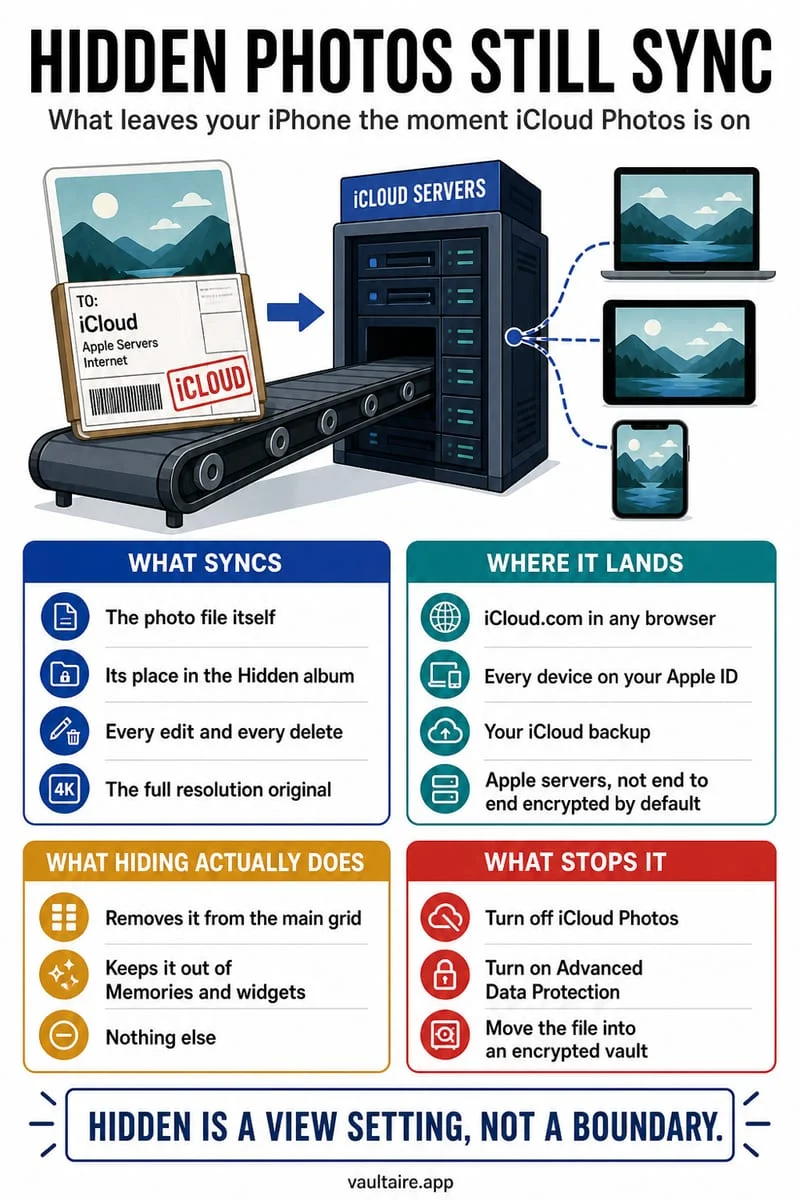
iCloud Photos does not provide a per-photo “do not sync” switch. Hidden photos still belong to the synced library. For selected local-only photos, make verified copies outside Photos in a storage location with the cloud and backup behavior you want, then manage the synced originals separately.
Create and test the separate copy first
Choose a destination outside the synced Photos library. Verify both its location and its backup rules; a folder named Private under iCloud Drive is still a cloud location. A local app may also participate in device backups unless it specifically excludes the files.
Import one test image and open it. For video, play it through; for a Live Photo, confirm whether the destination preserves the format you need. Only after those checks should you remove the source version you no longer want in Photos.
- Choose a destination with explicit local storage and backup rules.
- Import the selected files and open them in the destination.
- Delete unwanted Photos originals, understanding that iCloud Photos syncs that deletion.
- Review Recently Deleted and other independent copies separately.
Deleting the cloud copy also changes your synced devices
Do not delete a photo from iCloud expecting the same library item to remain untouched on another synced device. Keep an independent copy before changing the synced library. Recently Deleted is a temporary recovery location, not a private permanent archive.
If your broader aim is to separate a shared Apple Account, plan that account migration separately. A local folder cannot repair account access, and stopping future sync is different from removing previously shared content.
Give selected photos a local home in Octoshield
Octoshield stores imported photos and videos in an encrypted local vault, excluded from backups, with its own PIN, passphrase, pattern, or safe dial. Verify those copies before approving removal of the Photos originals.
This also means there is no cloud recovery copy or password-recovery service. Export essential items before changing phones. Octoshield does not delete copies from another cloud provider or somebody else’s device.
Frequently asked questions
01Can I disable iCloud for just the Hidden album?+
Not with a separate Hidden-album sync switch. Hidden items remain part of iCloud Photos when that library is synchronized.
02Does turning off Show Hidden Album remove cloud copies?+
No. It hides the collection’s row in Photos. It does not remove the underlying files from the synced library.
Official sources & further reading
Lock your private photos behind real AES-256-GCM encryption.
Stop relying on a Hidden album that shares your iPhone lock-screen passcode. Import private photos and videos into Octoshield’s device-bound local vault with your own PIN, passphrase, 3×3 pattern, or safe combination dial.
- AES-256-GCM authenticated encryption in 512 KB chunks
- Encrypted thumbnails & filename catalog index at rest
- 4 lock styles: PIN, Passphrase, 3×3 Pattern, or Safe Dial + Face ID
- 100% on-device storage — zero cloud servers, zero ad SDKs
 AES-256-GCM + Cleaner
LOCAL IPHONE SANDBOX · KEYCHAIN BOUND
iOS menus can vary slightly by iOS version. Octoshield instructions describe the current local app implementation engineered by TengrX. Check the App Store listing for the version available to download.