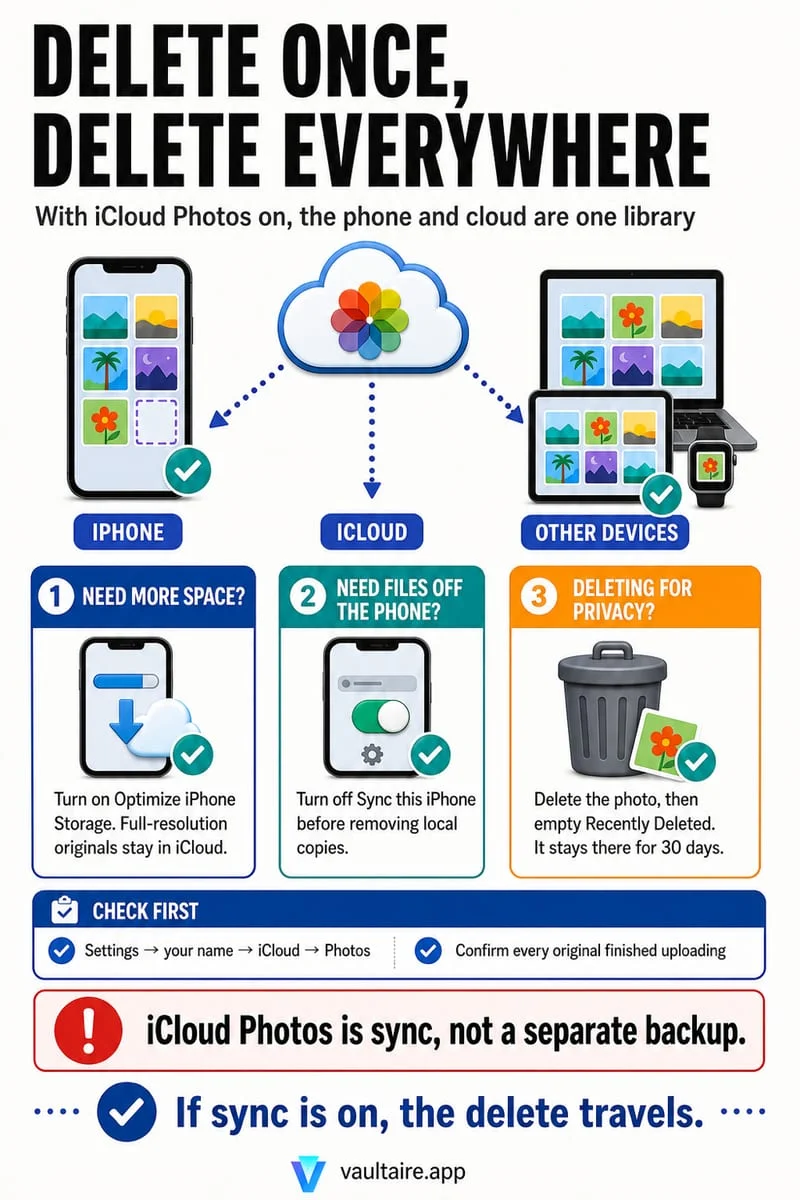
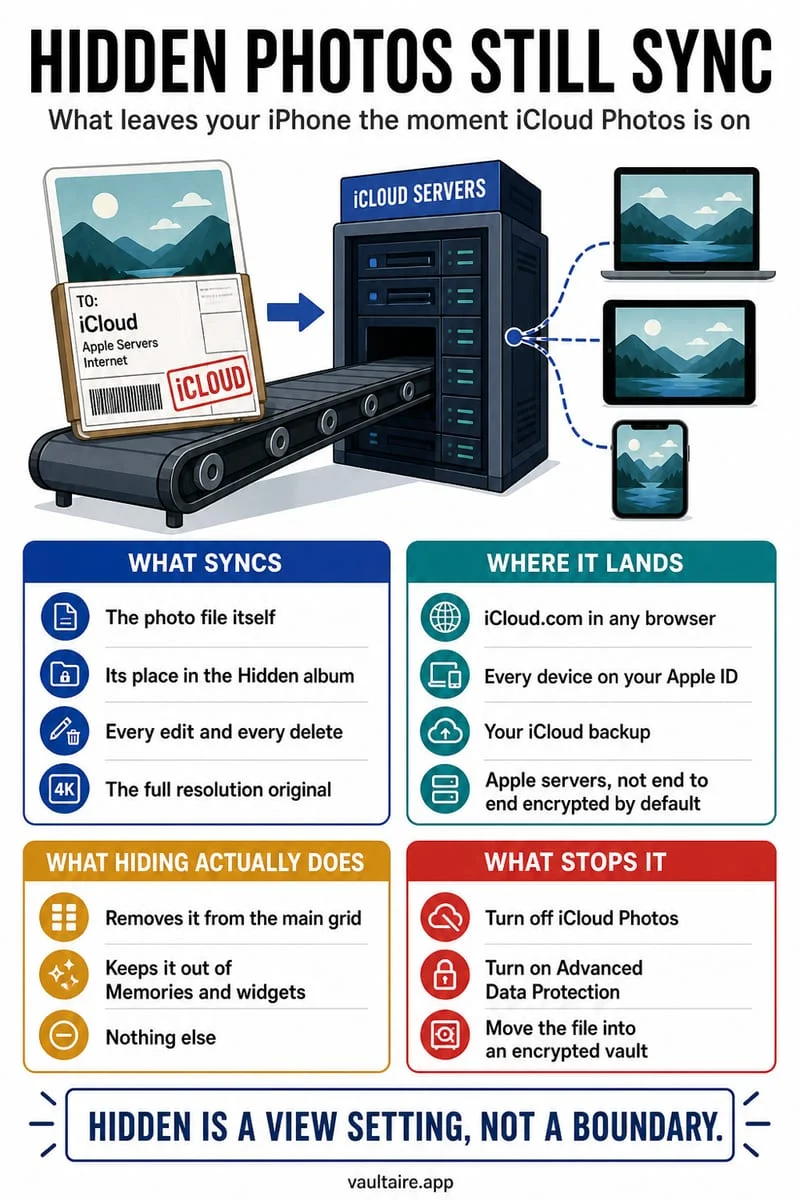
Hidden status syncs across devices using the same iCloud Photos library. To maintain a differently organized Mac copy, export verified files to an independent destination first. Do not assume that hiding or deleting on the iPhone affects only that screen.
Two screens can still represent one library
If both devices use iCloud Photos with the same Apple Account, they reflect changes to the same synchronized library. Apple says hiding a photo on one device hides it on the others too. That is expected behavior, not a faulty Mac setting.
A personal album on the Mac inside that same library is not a separate archive. The photo can still be affected by the underlying library’s hidden status or deletion.
- Check whether both devices use the same iCloud Photos library.
- If you need an independent copy, export the selected files to a deliberate destination outside that synced library.
- Open the exported files on the Mac and verify quality and completeness before changing originals.
Decide how the Mac copy should be protected
A folder outside Photos can offer independent organization, but it introduces another place to manage privacy and backup. Check who uses that Mac and whether the destination itself is synchronized to another service.
For Live Photos or edited assets, verify that your export preserves the parts you need. A single visible preview does not prove that every original component was exported.
Use Octoshield for a private iPhone copy
Octoshield can store imported files locally outside Apple Photos while the Mac holds an independently managed copy. That can fit a deliberate two-destination workflow.
Octoshield does not sync its vault to the Mac, and its device-bound vault is excluded from backups. Exporting an essential archive before migration or deletion remains your responsibility; the app cannot create a private desktop archive automatically.
Frequently asked questions
01Can I just delete the iPhone version after it syncs to my Mac?+
With iCloud Photos, deletion affects the synced library. Verify an independent export first if you want to retain the file outside that library.
Official sources & further reading
Lock your private photos behind real AES-256-GCM encryption.
Stop relying on a Hidden album that shares your iPhone lock-screen passcode. Import private photos and videos into Octoshield’s device-bound local vault with your own PIN, passphrase, 3×3 pattern, or safe combination dial.
- AES-256-GCM authenticated encryption in 512 KB chunks
- Encrypted thumbnails & filename catalog index at rest
- 4 lock styles: PIN, Passphrase, 3×3 Pattern, or Safe Dial + Face ID
- 100% on-device storage — zero cloud servers, zero ad SDKs
 AES-256-GCM + Cleaner
LOCAL IPHONE SANDBOX · KEYCHAIN BOUND
iOS menus can vary slightly by iOS version. Octoshield instructions describe the current local app implementation engineered by TengrX. Check the App Store listing for the version available to download.