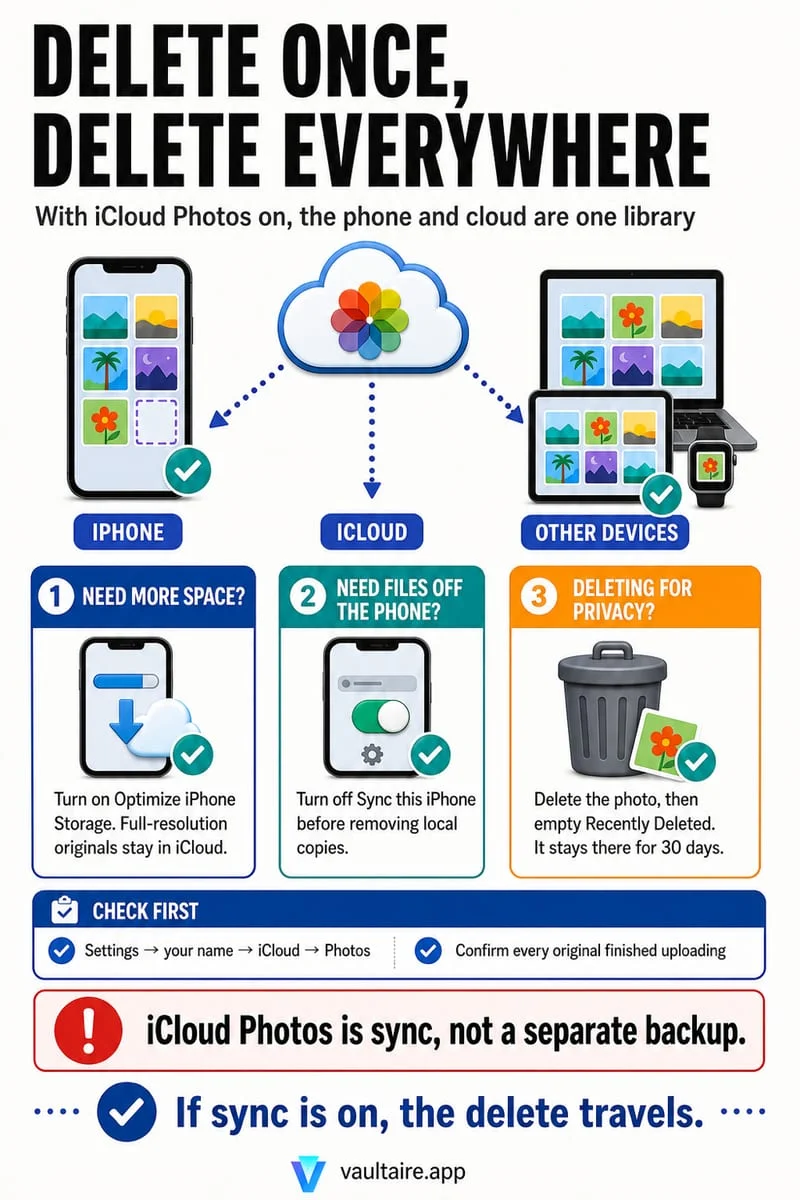
No—while iCloud Photos is turned on, iCloud acts as a two-way synchronization mirror, not a one-way archive. Deleting a photo in the iPhone Photos app deletes it from iCloud.com and all your other Apple devices too. To shrink local photo storage on your iPhone while keeping your full library in iCloud, enable Optimize iPhone Storage instead of hitting Delete.
Why iCloud Photos is a mirror, not an external hard drive
One of the most painful mistakes iPhone owners make when running out of space is thinking: 'My photos are already uploaded to iCloud, so I can safely delete them from my iPhone to free up 50 GB.' The moment you select those photos in the iOS Photos app and tap Delete, iOS queues a deletion command across your entire iCloud Photos library.
That happens because iCloud Photos is a real-time synchronization service, not a cold-storage backup drive. Its job is to make your iPhone, iPad, Mac, and iCloud.com show the exact same collection of photos, edits, favorites, and albums. If you crop a photo on your iPhone, it crops in iCloud; if you delete a photo on your iPhone, it moves to Recently Deleted in iCloud and on every signed-in device.
If you realize you made this mistake within the last 30 days, stop immediately and open Photos → Collections → Utilities → Recently Deleted (or sign in to iCloud.com → Photos → Recently Deleted) and recover your photos before the 30-day timer permanently purges them everywhere.
| Action Taken on iPhone | Effect on iPhone Local Storage | Effect on iCloud.com Copy |
|---|---|---|
| Delete photo while iCloud Photos is ON | Freed after Recently Deleted is emptied | DELETED from iCloud and all synced devices |
| Turn on Optimize iPhone Storage | Replaces local full-res files with small proxies as space is needed | Full-resolution original stays SAFE in iCloud |
| Save photo to iCloud Drive (Files app) & delete from Photos | Freed once removed from Photos and offloaded in Files | Removed from iCloud Photos, but file copy stays in iCloud Drive |
| Turn OFF iCloud Photos on iPhone, then delete locally | Removes photos from this iPhone only | Stays in iCloud.com (but this iPhone stops syncing new photos) |
| Import into Octoshield Vault & delete from Photos | Encrypted copy stays on iPhone; Photos original is removed | Removed from iCloud Photos; kept only in local iPhone vault |
Method 1: Use Optimize iPhone Storage (keeps syncing active)
For 95% of iPhone users who ask how to delete photos from their iPhone while keeping them in iCloud, the real goal is simply freeing up local gigabytes without losing the ability to browse their memories. Apple built 'Optimize iPhone Storage' specifically for this purpose.
When you enable Optimize iPhone Storage under Settings → [Your Name] → iCloud → Photos, iOS automatically manages local space. Your full-resolution 12 MP, 24 MP, or 48 MP photos and 4K videos remain safely stored in your iCloud account, while your iPhone keeps lightweight thumbnail versions that occupy only a fraction of the original storage.
You never have to manually pick which old vacation videos to offload—iOS keeps recent photos cached locally and dynamically shrinks older local copies whenever you install a large app or record new video.
Method 2: What happens if you turn off iCloud Photos on your iPhone
What if you genuinely want certain photos completely off your iPhone’s Photos app—even as thumbnails—while leaving them in iCloud? The only way to break the two-way mirror in the Photos app is to turn off 'Sync this iPhone' under Settings → [Your Name] → iCloud → Photos and choose 'Remove from iPhone'.
However, disconnecting iCloud Photos comes with a major catch: once iCloud Photos is turned off on your iPhone, none of the new photos you take will sync to iCloud Photos anymore, and if you ever turn iCloud Photos back on later, iOS will merge the libraries back together.
If you want to archive a specific folder of old photos in the cloud without turning off iCloud Photos sync, a much cleaner workaround is to export those photos into a folder inside iCloud Drive in the iOS Files app (or to an external SSD / alternative cloud drive), verify the files open in Files, let them upload, and then use 'Remove Download' in the Files app before deleting the originals from the Photos app.
- To keep syncing active while saving space: open Settings → [Your Name] → iCloud → Photos and select Optimize iPhone Storage.
- To archive specific old albums outside the Photos app: select the photos in Photos → tap Share → Save to Files → choose a folder in iCloud Drive.
- Open the Files app, wait for the iCloud upload icon to finish, long-press the folder, and tap Remove Download so it only uses cloud space.
- Only after verifying the archived files in iCloud Drive, delete those specific originals from the Photos app and clear Recently Deleted.
Where Octoshield’s Cleaner and local encrypted Vault fit in
Sometimes the opposite goal applies: you have private photos that you want to keep on your iPhone—protected behind a separate lock—while removing them from iCloud so they stop syncing to a shared iPad, Mac, or web browser.
That is the exact workflow Octoshield was designed for. When you import a photo into Octoshield (or swipe up on a card in Octoshield’s Cleaner), the app creates an independent AES-256-GCM encrypted copy inside Octoshield’s local device storage and queues the Apple Photos original for deletion. Once you confirm the iOS deletion prompt and empty Recently Deleted, the photo is removed from iCloud Photos and all other synced devices, while your encrypted copy remains locked on your iPhone.
And for all the everyday screenshots, duplicate frames, and clutter that you neither want on your iPhone nor in iCloud, swiping left in Octoshield’s Cleaner lets you review and batch-delete them from both places at once.
Frequently asked questions
01If I delete a photo on my iPhone, how long does it stay in iCloud?+
When iCloud Photos is on, deleting a photo on your iPhone immediately moves it to the Recently Deleted album in iCloud and on all synced devices, where it stays for 30 days before permanent deletion.
02Does turning off iCloud Photos on my iPhone delete my photos from iCloud.com?+
No. Turning off 'Sync this iPhone' under Settings → [Your Name] → iCloud → Photos only stops synchronization with that specific iPhone; your existing cloud library remains on iCloud.com and your other synced devices.
03Does a photo cleaner app delete photos from iCloud too?+
Yes, when iCloud Photos is enabled on your iPhone. Because cleaner apps request deletion through Apple’s official PhotoKit API, any confirmed deletion removes the photo from your synced iCloud Photos library as well.
04Can I keep private photos on my iPhone ONLY and delete them from iCloud?+
Yes. Import the photos into a local, non-cloud vault like Octoshield, verify the encrypted vault copies open properly, and then delete the originals from the Apple Photos app and Recently Deleted.
05Are photos inside Octoshield backed up to iCloud?+
No. Octoshield explicitly excludes its encrypted vault storage from both iCloud backups and computer backups so your private vault files never leave your iPhone.
Official sources & further reading
Clean your iPhone camera roll one swipe card at a time.
Review cluttered photo batches without grid fatigue: swipe left to queue unwanted shots for deletion, swipe right to keep memories in Apple Photos, or swipe up to encrypt private photos straight into your vault.
- Tactile 3-way card review: Left delete, Right keep, Up vault
- Safe review queue + instant Undo before iOS removes anything
- Built-in AES-256-GCM encrypted photo, video & file vault
- 100% local processing on your iPhone — free to download
 AES-256-GCM + Cleaner
LOCAL IPHONE SANDBOX · KEYCHAIN BOUND
iOS menus can vary slightly by iOS version. Octoshield instructions describe the current local app implementation engineered by TengrX. Check the App Store listing for the version available to download.