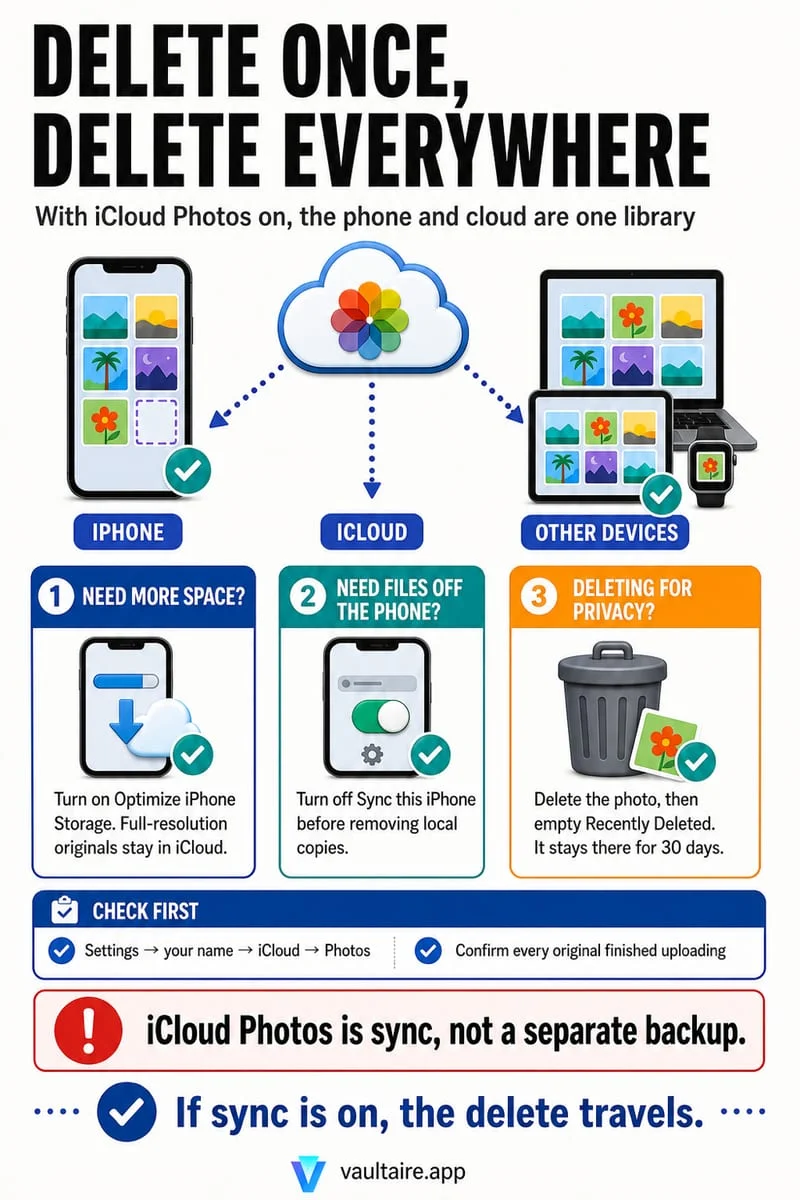
Buying iCloud+ storage adds space on Apple’s cloud servers, not physical flash storage inside your iPhone. Open Settings → General → iPhone Storage to see what is consuming local device capacity. If Photos is the largest category and iCloud Photos is enabled, switch from Download and Keep Originals to Optimize iPhone Storage before deleting irreplaceable memories.
Why a 2 TB iCloud plan still leaves a 128 GB iPhone full
The most common storage misunderstanding on iOS comes from Apple using two similar-looking progress bars for two completely different resources. Your iPhone has fixed hardware flash storage soldered onto its logic board—such as 128 GB, 256 GB, or 512 GB. Every installed app, iOS system cache, offline podcast, WhatsApp attachment, and locally stored photo competes for that physical chip.
Your iCloud storage plan—whether the free 5 GB tier or a 50 GB, 200 GB, or 2 TB iCloud+ subscription—is remote server capacity. Upgrading your iCloud plan gives your phone a larger cloud warehouse to sync with, but it does not solder extra gigabytes onto your handset. If your iPhone is set to store full-resolution photos locally, or if apps like Messages and social media caches have ballooned, your phone will still display the 'iPhone Storage Full' alert even when your iCloud bar is 90% empty.
To diagnose which quota is actually full, check both screens side by side: open Settings → General → iPhone Storage for physical device capacity, and open Settings → [Your Name] → iCloud for cloud server capacity. Always let the local iPhone Storage breakdown dictate what you clean first.
| Dimension | iPhone Storage (Device) | iCloud Storage (Cloud) |
|---|---|---|
| What it measures | Physical NAND flash chip inside your iPhone | Remote server quota tied to your Apple Account |
| Where to check it | Settings → General → iPhone Storage | Settings → [Your Name] → iCloud |
| Can it be upgraded? | No — fixed when you buy the iPhone | Yes — upgradable via iCloud+ plans |
| What fills it fastest | 4K videos, full-res Photos, Messages attachments, app caches, local vaults | iCloud Photos originals, device backups, iCloud Drive files |
| How to free space | Enable Optimize iPhone Storage, review & delete unwanted media, clear app caches | Delete unwanted synced photos/files, prune old device backups, or upgrade iCloud+ |
How Optimize iPhone Storage shrinks your local photo footprint
When iCloud Photos is turned on, your iPhone offers two storage modes: 'Download and Keep Originals' and 'Optimize iPhone Storage'. If your phone is set to Keep Originals, every 48 MP ProRAW photo and 4K 60fps video stays on your iPhone at full byte size. A 150 GB photo library simply will not fit on a 128 GB iPhone in that mode.
Switching to Optimize iPhone Storage instructs iOS to keep full-resolution master files safely in iCloud while replacing older or less-frequently opened local copies with lightweight, device-sized thumbnails. You can still scroll through your entire timeline in the Photos app, and whenever you tap a photo to edit or share it, iOS transparently downloads the full-resolution original over Wi-Fi or cellular.
Keep one important technical requirement in mind: iOS needs a small amount of working headroom—and an active internet connection—to finish uploading pending originals before it can replace them with optimized proxies. If your iPhone is down to 0 bytes free, delete a few large unneeded screen recordings or offload a heavy game first so the optimization process can breathe.
- Open Settings → [Your Name] → iCloud → Photos.
- Confirm that Sync this iPhone is turned on and that your iCloud account has enough free space for your library.
- Tap Optimize iPhone Storage (on iOS 27 and later, open the iPhone Storage row inside iCloud Photos settings; on iOS 26 and earlier, select Optimize iPhone Storage directly).
- Connect your iPhone to Wi-Fi and power for several hours while iOS uploads remaining full-resolution originals and replaces local copies with compact versions.
Targeted camera-roll cleanup vs. System Data bloat
Sometimes Optimize iPhone Storage is already enabled—or you prefer not to use iCloud Photos at all—and your local storage is still crowded with years of duplicate bursts, accidental pocket shots, receipt photos, and forwarded videos. Because iCloud Photos is a synchronized library, deleting unwanted items from the Photos app removes them from both your iPhone and iCloud, permanently reducing the size of your library once Recently Deleted is emptied.
Instead of scrolling endlessly through a tiny thumbnail grid, you can use Octoshield’s Cleaner to review your camera roll one full-screen card at a time. Swipe left to add an unwanted screenshot or blurry frame to the deletion queue, swipe right to keep a memory in Photos, or swipe up to import a sensitive photo into Octoshield’s encrypted vault while queuing the camera-roll original for removal.
Nothing is erased from Apple Photos during the swipe session itself. When you finish a batch, you open the review queue, double-check every queued thumbnail, undo any mistake with a single tap, and approve the official iOS system deletion prompt.
Why a local encrypted vault is for privacy—not cloud offloading
A frequent misconception is that moving photos into a vault app 'moves them off the iPhone' to free up space. That only happens in cloud-based vaults that upload your private pictures to remote company servers—trading away your device-local privacy in the process.
Octoshield is built by TengrX as a strictly local, zero-server vault. When you import a photo, video, or PDF into Octoshield, the app encrypts that copy on your iPhone using AES-256-GCM in 512 KB chunks. That encrypted file lives inside Octoshield’s local sandbox on your phone’s physical storage. If you keep both the original in Apple Photos and the encrypted copy in Octoshield, your iPhone stores two copies and uses twice the space until you delete the original from Photos and empty Recently Deleted.
Use Optimize iPhone Storage when your goal is offloading full-resolution masters to Apple’s cloud, use Octoshield’s Cleaner when your goal is culling unwanted camera-roll clutter, and use Octoshield’s Vault when your goal is isolating private files behind an independent lock on your device.
Frequently asked questions
01Will buying more iCloud storage free space on my iPhone immediately?+
No. Upgrading iCloud+ increases your remote cloud quota, not your iPhone’s physical flash memory. It only helps free local space indirectly if it allows iCloud Photos to finish syncing so 'Optimize iPhone Storage' can replace local full-resolution files with smaller device proxies.
02Does moving photos to Octoshield free iPhone storage?+
Not by itself. Octoshield stores AES-256-GCM encrypted copies locally on your iPhone. Keeping both the camera-roll original and the vault copy uses additional local space. Storage only decreases when you delete unwanted originals from Apple Photos and clear Recently Deleted.
03Why did my iPhone storage not drop after deleting 1,000 photos?+
Deleted photos move to Photos → Collections → Utilities → Recently Deleted, where they remain for up to 30 days and continue using full storage until you open Recently Deleted, authenticate with Face ID, and tap Delete All.
04Does Optimize iPhone Storage reduce the quality of my original photos?+
No. Your uncompressed, full-resolution originals remain stored in iCloud. Only the local cache on your iPhone is scaled down to save space, and the full original downloads automatically whenever you zoom in, edit, or share.
05What if 'System Data' is taking up 30 GB on my iPhone Storage screen?+
System Data includes iOS caches, Siri voices, Safari website data, and streaming buffers. Restarting your iPhone, clearing Safari history and website data, and deleting old iMessage video threads are the fastest ways to shrink System Data.
Official sources & further reading
Clean your iPhone camera roll one swipe card at a time.
Review cluttered photo batches without grid fatigue: swipe left to queue unwanted shots for deletion, swipe right to keep memories in Apple Photos, or swipe up to encrypt private photos straight into your vault.
- Tactile 3-way card review: Left delete, Right keep, Up vault
- Safe review queue + instant Undo before iOS removes anything
- Built-in AES-256-GCM encrypted photo, video & file vault
- 100% local processing on your iPhone — free to download
 AES-256-GCM + Cleaner
LOCAL IPHONE SANDBOX · KEYCHAIN BOUND
iOS menus can vary slightly by iOS version. Octoshield instructions describe the current local app implementation engineered by TengrX. Check the App Store listing for the version available to download.