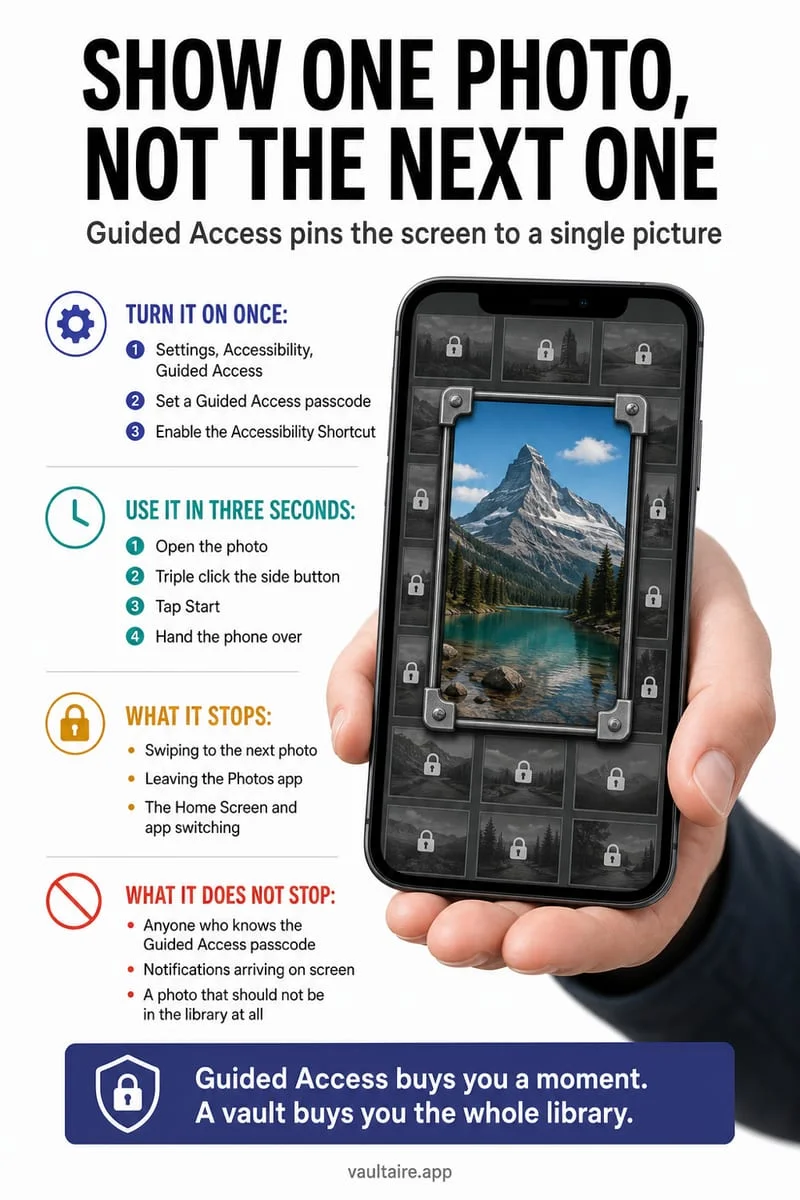
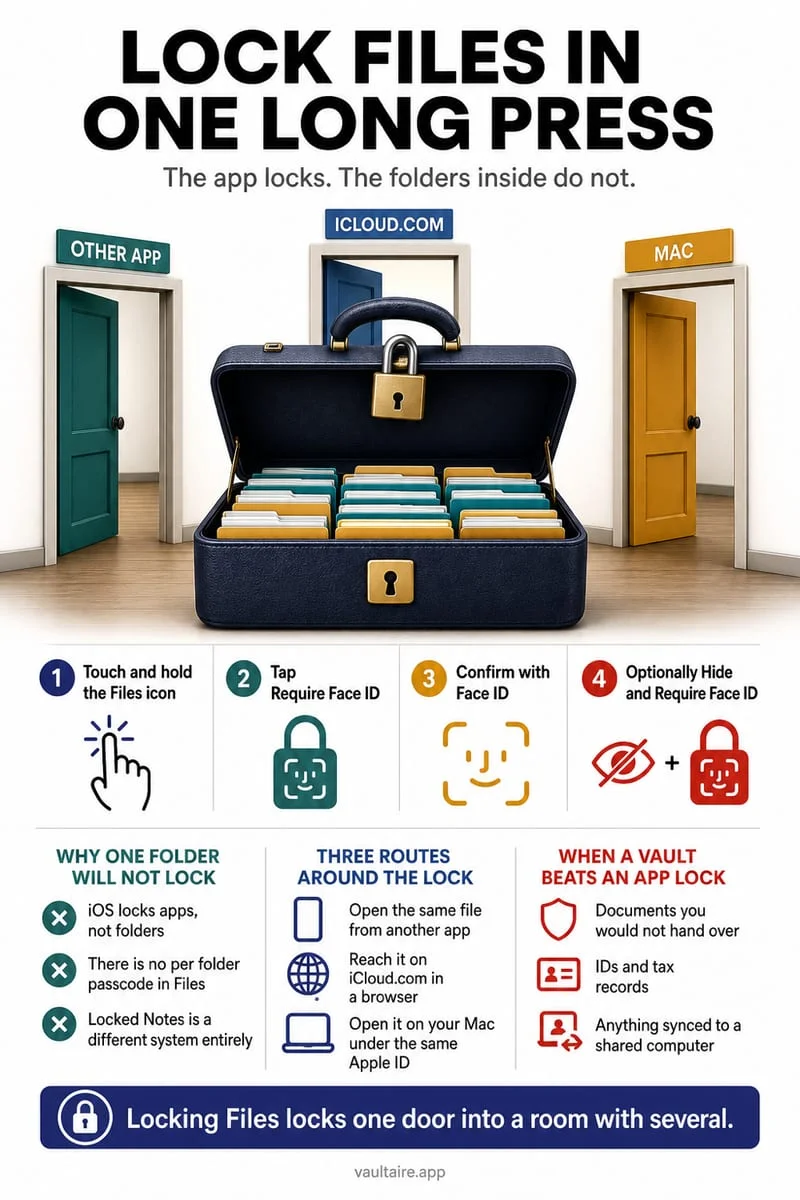
Before handing over your iPhone, close private views and use Guided Access when you want to keep the session inside one app. Store selected private files behind a separate secret and review ordinary Photos and Files copies. Guided Access limits the session; it does not encrypt every document or remove content inside the allowed app.
Prepare the session before passing over the phone
A child asks to watch a video or play a game. An unlocked phone is more than that one screen, so choose the app and content deliberately before handing it over. Close private documents and avoid leaving a sensitive picture as the most recent screen in an app they might open.
If they will use Photos itself, remember that navigation within the allowed app can still expose content. Showing one chosen picture and allowing unrestricted library browsing are different decisions. Review the actual interface they will receive.
Use Guided Access for a one-app handoff
Apple’s Guided Access can restrict a session to one app and offers controls for parts of the screen and device inputs. Enable it under Accessibility settings, configure your own session credential, and test starting and ending a session before relying on it.
Choose restrictions appropriate to the app. Guided Access does not automatically classify private content inside it, and a Photos session can still need touch restrictions if you want to prevent swiping. Check the result with an ordinary test screen first.
- Open the intended app and select the exact content.
- Configure Guided Access under Accessibility settings if needed.
- Start the session and test the allowed interactions.
- End the session yourself before returning to normal phone use.
Check private originals outside the vault too
A private screenshot in Photos and a PDF in Downloads can remain available even after you protect another copy. Inspect source locations, shared notes, and recent documents. A separate vault does not retroactively hide every version of the same material.
Avoid giving another person the vault secret when the aim is restricted access. Optional biometric convenience should be configured with the actual people who can authenticate to the phone in mind. Keep essential files independently preserved before removing sources.
Keep personal copies in Octoshield between sessions
Octoshield stores imported photos and documents behind its own PIN, passphrase, pattern, or dial. Verify imports, manage ordinary source copies separately, and lock the vault before handing over the phone.
It does not configure Guided Access or act as a parental-control system. Its local vault is excluded from backups, so retain independent copies of important records and export them before changing devices.
Frequently asked questions
01Does Guided Access hide private pictures inside Photos automatically?+
No. It restricts the app session. Configure the allowed interactions and inspect the screen content you are handing over.
02Does a vault replace parental controls?+
No. A private file vault and controls for a child’s device or app session serve different purposes.
Official sources & further reading
Lock your private photos behind real AES-256-GCM encryption.
Stop relying on a Hidden album that shares your iPhone lock-screen passcode. Import private photos and videos into Octoshield’s device-bound local vault with your own PIN, passphrase, 3×3 pattern, or safe combination dial.
- AES-256-GCM authenticated encryption in 512 KB chunks
- Encrypted thumbnails & filename catalog index at rest
- 4 lock styles: PIN, Passphrase, 3×3 Pattern, or Safe Dial + Face ID
- 100% on-device storage — zero cloud servers, zero ad SDKs
 AES-256-GCM + Cleaner
LOCAL IPHONE SANDBOX · KEYCHAIN BOUND
iOS menus can vary slightly by iOS version. Octoshield instructions describe the current local app implementation engineered by TengrX. Check the App Store listing for the version available to download.