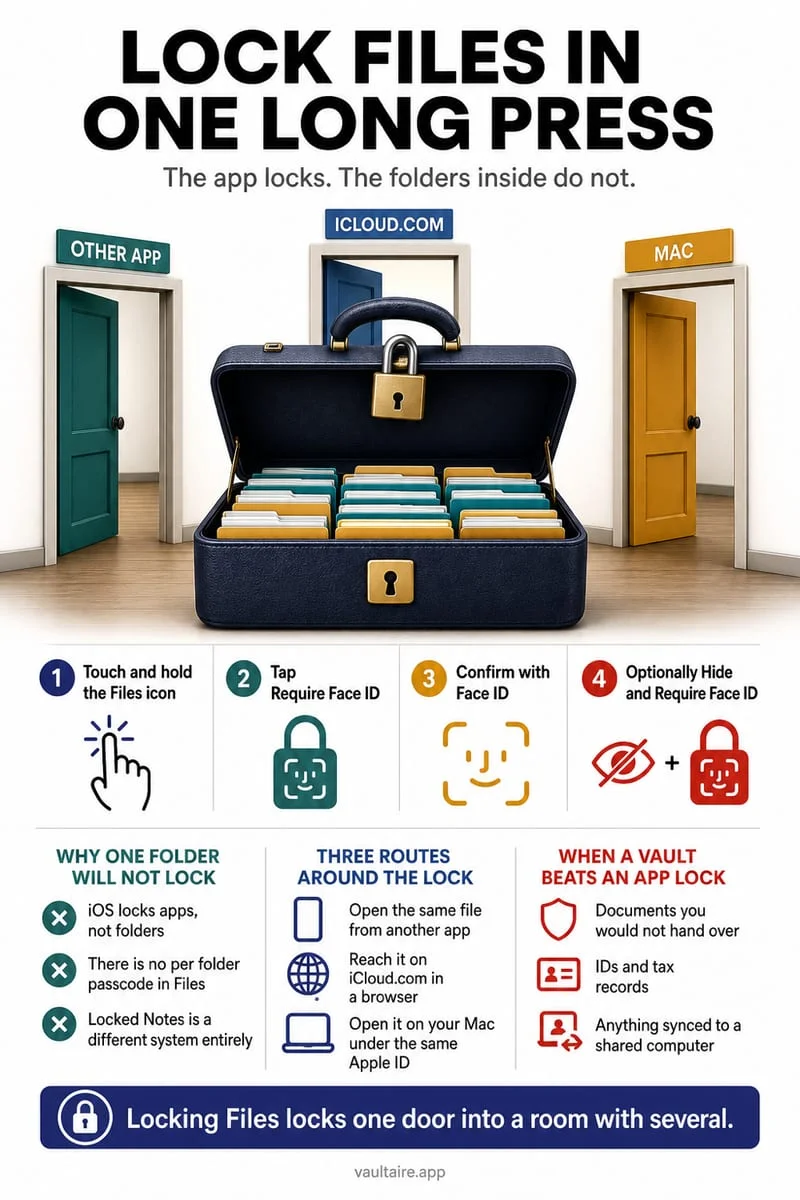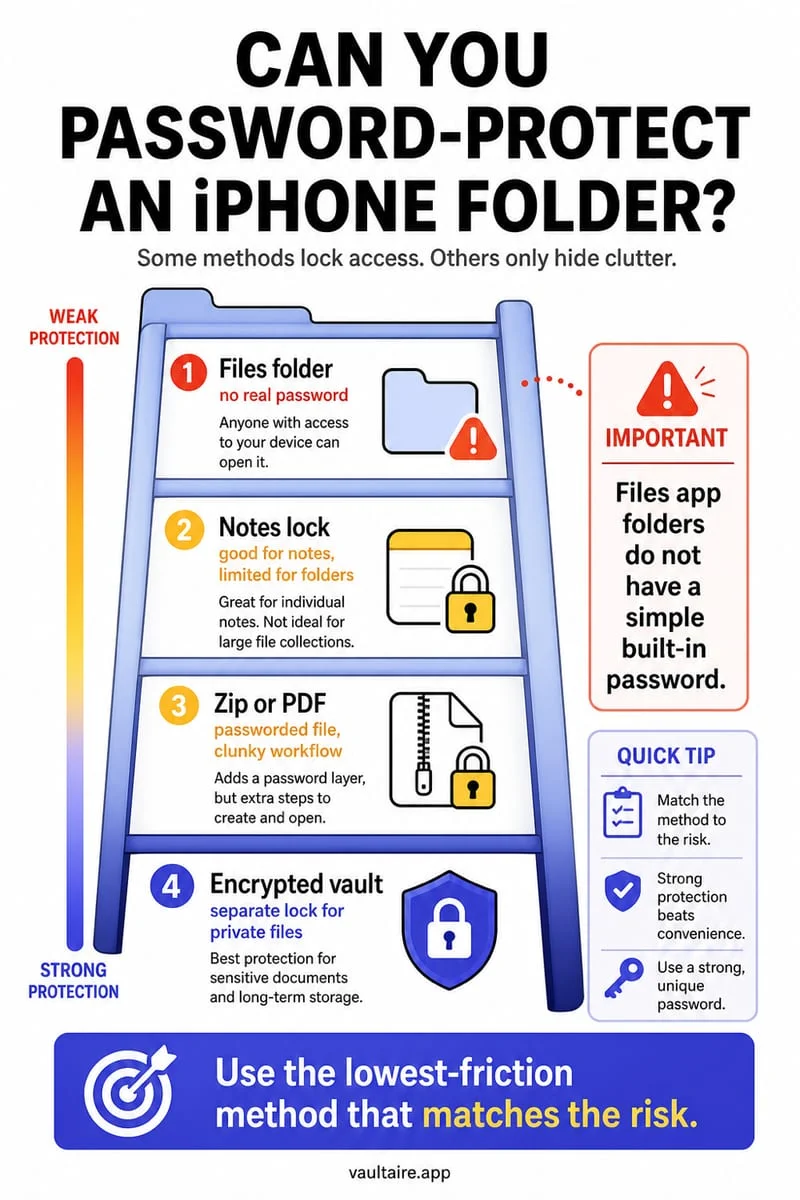
For private documents, use storage that actually restricts access, such as a separate encrypted file vault. Renaming a folder or moving it under On My iPhone does not automatically add a password. Import and verify the files first, then manage source copies in Files, email, and cloud storage separately.
Hiding a filename and protecting a document are different goals
A private PDF sits in Recents every time you open Files. Putting it inside several folders may make it less obvious, but search, recent items, or another copy can still lead back to it. A discreet location is not a substitute for an explicit lock.
iPhone’s Hidden photo collection does not serve as a universal hidden-document folder. PDFs, ZIP archives, and other documents need a method that applies to their actual file type. Start by identifying every location where the document already exists.
Import a complete copy before removing a visible source
Choose a destination with clear access, backup, and export rules. Save a harmless test file, import it, lock the destination, and reopen it. Verify the file after export too, so you know the exit path before moving important records.
For your real documents, check every page or relevant content. Then decide whether to retain or remove the original in Files. A cloud deletion can synchronize to other devices, while Remove Download may only remove the local copy and leave the cloud entry visible.
- Locate the document and inspect its full source location.
- Test the private destination with a harmless file.
- Import and verify the actual document.
- Manage source files and earlier attachments separately.
Do not depend on naming tricks or ZIP compression
A dot in a filename, a folder called System, or a compressed archive does not establish a private password boundary. Files’ Compress action packages documents; it does not itself add an archive password.
If you need a portable protected PDF, use a suitable PDF-protection workflow. If you want private on-device storage for mixed file types, a documented file vault can be a better fit. Keep an independent preservation plan for essential records either way.
Keep selected files in Octoshield
Octoshield imports files into its local AES-256-GCM encrypted vault, with an encrypted catalog and its own secret. It protects the imported copies rather than locking an entire Files folder in place.
Source files are managed separately. Some previews use temporary decrypted files, exports leave the vault, and vault contents are excluded from backups. Export essential files before a device change.
Frequently asked questions
01Can I use the Hidden album for PDFs?+
The Photos Hidden album is for Photos media, not a general-purpose private folder for arbitrary documents.
02Does moving a file to On My iPhone password-protect it?+
No. That label identifies local storage; it does not itself create a separate password for the document.
Official sources & further reading
Keep sensitive PDFs, IDs & documents in an encrypted iPhone vault.
The iOS Files app leaves filenames and folders exposed whenever your phone is unlocked. Import tax returns, passport scans, and private PDFs into Octoshield for hardware-bound AES-256-GCM protection.
- Encrypts PDFs, scans, documents, photos, and videos on-device
- Hides document filenames inside an encrypted catalog index
- Automatic cleanup of temporary preview scratch files on lock
- PBKDF2-SHA256 + iPhone Keychain hardware key binding
 AES-256-GCM + Cleaner
LOCAL IPHONE SANDBOX · KEYCHAIN BOUND
iOS menus can vary slightly by iOS version. Octoshield instructions describe the current local app implementation engineered by TengrX. Check the App Store listing for the version available to download.