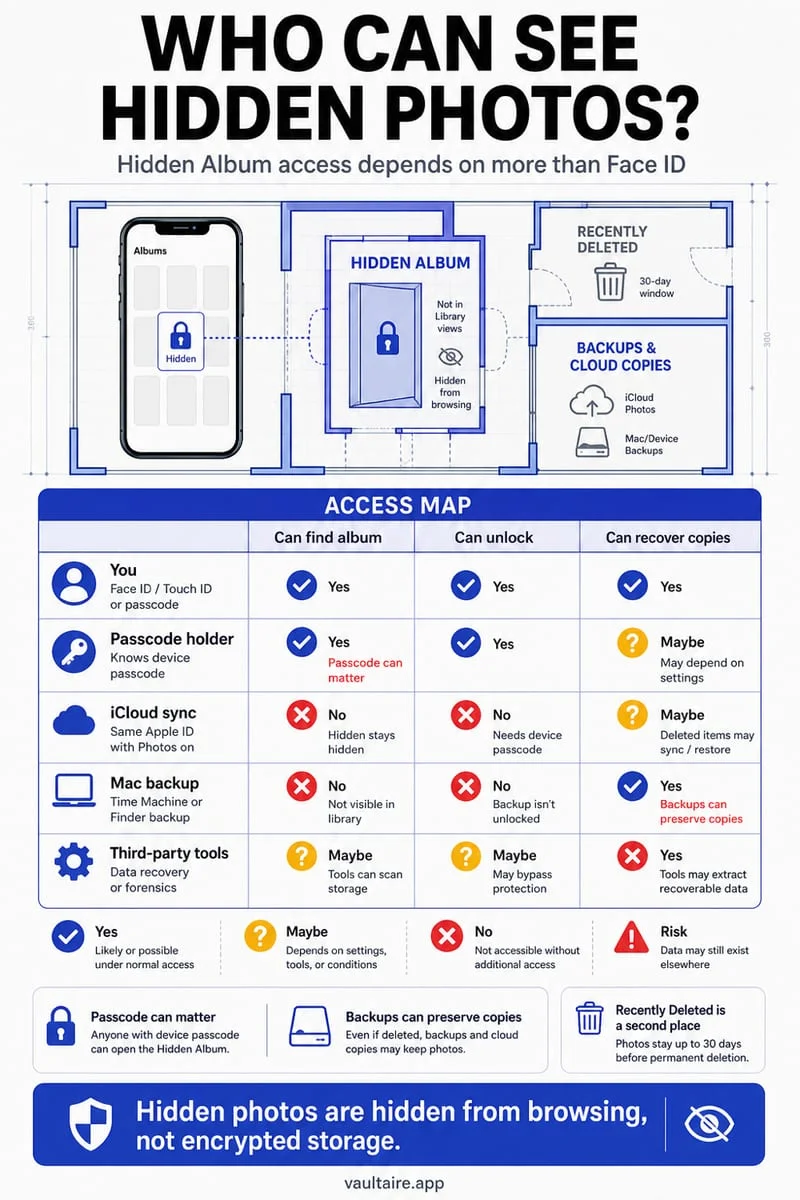
Start in Files → Browse and check On My iPhone, iCloud Drive, and enabled storage providers. Search by filename and inspect Downloads, Recently Deleted, and the app that created the file. There is no single location that reveals every app’s private files; unlock your own vault separately if that is where you stored it.
First decide whether you lost a file or a photo
A document downloaded from Safari, a scan in Notes, and a photo hidden in Photos do not share one universal Hidden folder. Identify the kind of item and the app where you last used it. That narrows the search much faster than repeatedly scrolling Recents.
For a picture hidden in Photos, use the Hidden collection and authenticate. For a document, open Files and inspect Browse. A private app can keep files inside its own storage that does not appear as an ordinary Files folder.
Search the actual locations, not just one recent view
Check On My iPhone, iCloud Drive, and any connected providers under Locations. Downloads may be inside different locations depending on your browser settings. Search a distinctive part of the name, then inspect the full path of any result.
If the file came from a scan or email attachment, reopen the source app. It may have been previewed without being saved to the destination you remember. A missing local download can also be a cloud-availability issue rather than deletion.
- Identify the source app and file type.
- Open Files → Browse and inspect each relevant location.
- Search the filename and check the appropriate Downloads folder.
- Review Recently Deleted and the originating app if still missing.
Check your own private storage without bypassing its lock
If you deliberately imported the file into a vault, open that app and use your own credential. File search does not provide a supported route around an app’s encryption. Consult the app’s recovery and transfer documentation if the device or secret changed.
Avoid recovery claims that promise to reveal every protected file with a scan. A missing document, a deleted document, and a file encrypted under an unavailable secret are different problems with different possible outcomes.
Once found, give the file a clear home in Octoshield
For future private documents, import a complete copy into Octoshield and verify it there. Keep a simple record of which originals you retained elsewhere so you can find the right copy later.
Octoshield cannot recover every deleted file or bypass another app’s lock. Its local vault is excluded from backups and has no recovery service; preserve essential documents independently.
Frequently asked questions
01Are all missing files in a hidden folder?+
No. They may be in another Files location, a source app, cloud storage, Recently Deleted, or a private vault you configured.
02Can Files search unlock a vault?+
No. Use your own vault credentials and the app’s supported access workflow.
Official sources & further reading
Keep sensitive PDFs, IDs & documents in an encrypted iPhone vault.
The iOS Files app leaves filenames and folders exposed whenever your phone is unlocked. Import tax returns, passport scans, and private PDFs into Octoshield for hardware-bound AES-256-GCM protection.
- Encrypts PDFs, scans, documents, photos, and videos on-device
- Hides document filenames inside an encrypted catalog index
- Automatic cleanup of temporary preview scratch files on lock
- PBKDF2-SHA256 + iPhone Keychain hardware key binding
 AES-256-GCM + Cleaner
LOCAL IPHONE SANDBOX · KEYCHAIN BOUND
iOS menus can vary slightly by iOS version. Octoshield instructions describe the current local app implementation engineered by TengrX. Check the App Store listing for the version available to download.