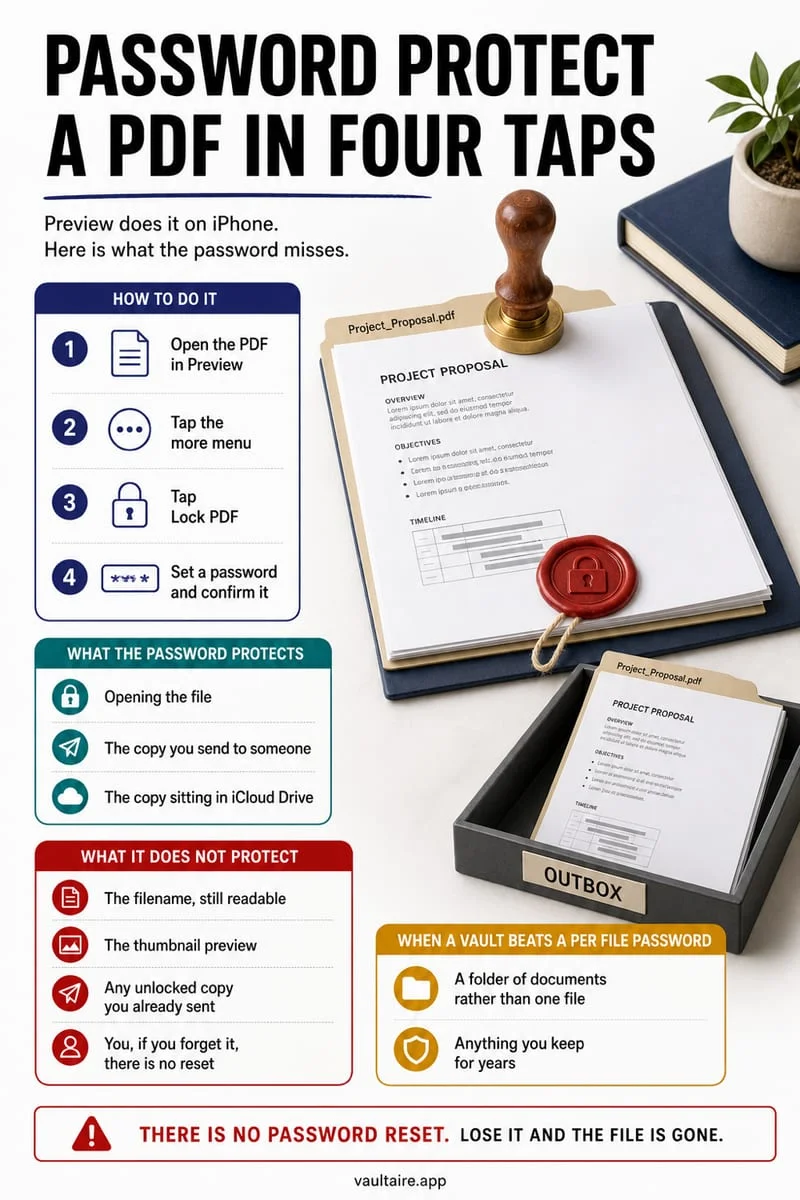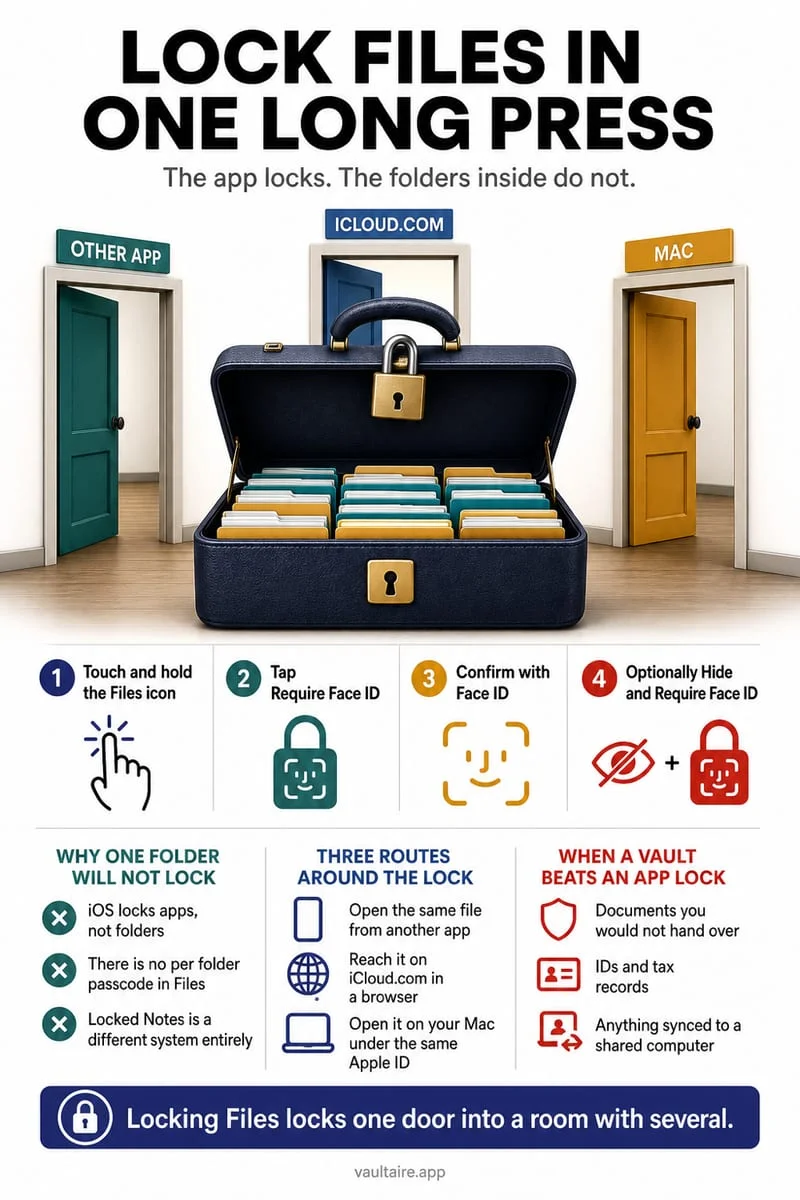
Check Files → Browse → Downloads and note whether it sits in iCloud Drive or On My iPhone. Also check the browser or message that supplied it. Import a verified copy into a vault if needed, then manage the source and Recently Deleted deliberately.
Identify the storage location before moving the PDF
Downloads is a folder name, not a guarantee of device-only storage. A PDF under iCloud Drive belongs to a different storage workflow from a PDF under On My iPhone. Read the path rather than relying on the filename.
A downloaded copy can coexist with an email attachment, a message, and a provider’s document portal. Removing the Files copy does not necessarily remove those other sources.
- Open Files and use Browse to locate the downloaded PDF.
- Inspect whether its folder is in iCloud Drive, On My iPhone, or another provider.
- Open the complete PDF and check that every page you need is present.
Check where you created extra copies
Think through the actions you took: Save to Files, Share, print-to-PDF, or export from another app. Each may have created a new file. Do not assume a single Delete command clears every destination.
Keep an independent secure copy of irreplaceable records before permanent removal. Files providers can have their own deleted-item controls and retention behavior; check the provider you actually used.
Move the private copy into Octoshield
Import the accessible PDF into Octoshield’s file vault and open it there. Check page count and readability before managing the Downloads original. The vault stores an imported copy; it does not encrypt the original folder in place.
After verifying the import, review any source copy and its deleted-item area. Essential records need a loss plan because Octoshield’s vault is excluded from cloud and computer backups and has no server-based password recovery.
Frequently asked questions
01Does a vault import remove the email attachment too?+
No. Email, message, portal, and Files copies are separate destinations. Review them using the controls of each service.
Official sources & further reading
Keep sensitive PDFs, IDs & documents in an encrypted iPhone vault.
The iOS Files app leaves filenames and folders exposed whenever your phone is unlocked. Import tax returns, passport scans, and private PDFs into Octoshield for hardware-bound AES-256-GCM protection.
- Encrypts PDFs, scans, documents, photos, and videos on-device
- Hides document filenames inside an encrypted catalog index
- Automatic cleanup of temporary preview scratch files on lock
- PBKDF2-SHA256 + iPhone Keychain hardware key binding
 AES-256-GCM + Cleaner
LOCAL IPHONE SANDBOX · KEYCHAIN BOUND
iOS menus can vary slightly by iOS version. Octoshield instructions describe the current local app implementation engineered by TengrX. Check the App Store listing for the version available to download.