To hide videos on an iPhone without an app, select the videos in Apple Photos, tap the More button (three dots), and tap Hide to move them into Collections → Utilities → Hidden. If you need to protect large videos with a separate password and keep them out of iCloud Photos, import them into Octoshield's AES-256-GCM chunk-encrypted vault and delete the originals from your library.
How to hide videos on iPhone without an app (Built-in Hidden Album)
Apple Photos handles videos the exact same way it handles still photographs. When you hide a video clip, iOS removes it from your main Library timeline, the Collections → Media Types → Videos album, Memories slideshows, and Spotlight search results, placing it inside the Hidden album under Utilities.
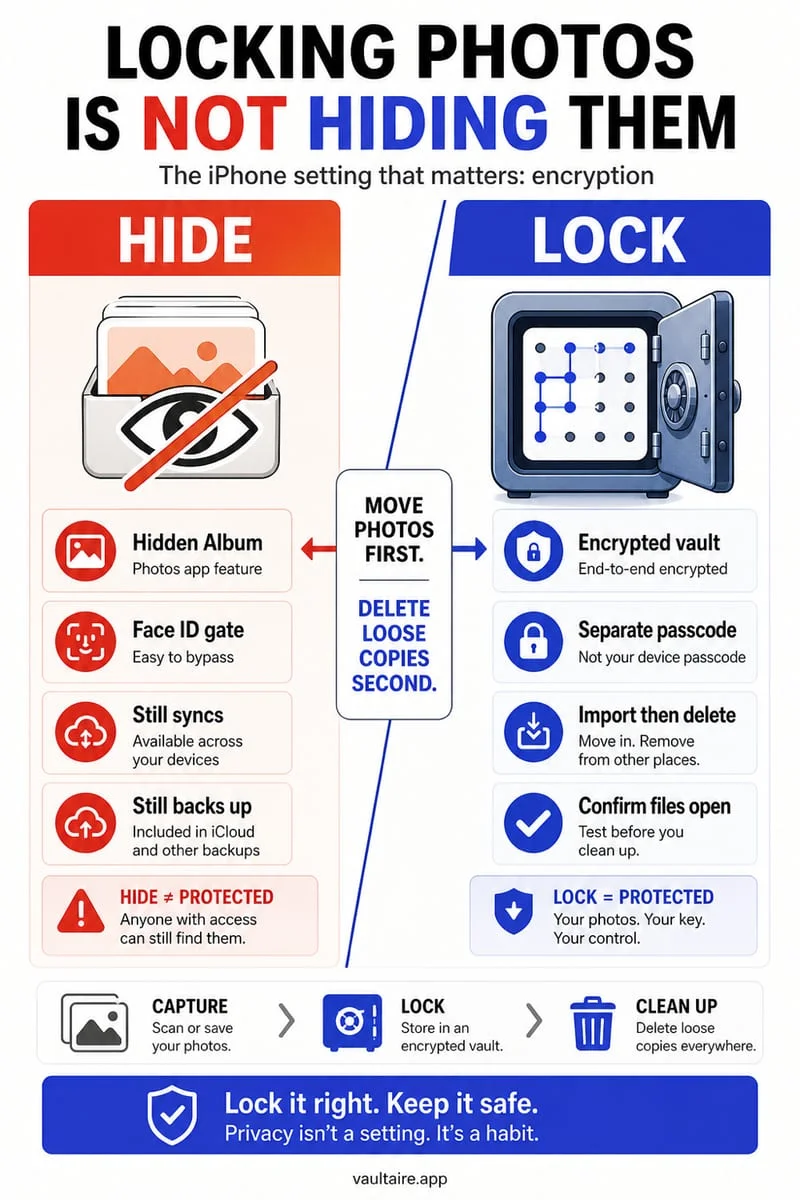
While this built-in method is fast and free, hidden videos remain part of your primary Photos database. If iCloud Photos is turned on, those videos continue uploading to Apple's servers, counting against your monthly iCloud storage quota, and syncing to every iPad or Mac signed into your Apple Account. Furthermore, because the Hidden album falls back to your iPhone screen passcode whenever Face ID fails, anyone who knows your unlock code can watch your hidden videos.
- Open the Apple Photos app and navigate to your main Library or scroll to Collections → Media Types → Videos.
- Tap Select in the top-right corner and tap each video clip you want to hide.
- Tap the More button (three dots) in the bottom-right corner, choose Hide, and confirm Hide Videos.
- Scroll down to Collections → Utilities → Hidden and verify the videos are locked behind Face ID.
- Optional: Open Settings → Apps → Photos and toggle off Show Hidden Album to hide the Utilities entry from view.
How Octoshield encrypts large 4K and ProRes videos in 512 KB chunks
Many basic photo vault apps freeze or crash when you import a multi-minute 4K 60fps or ProRes video because they attempt to load the entire gigabyte-sized `.mov` file into RAM at once—or worse, they silently skip encryption for video files and leave raw unencrypted video streams sitting in their app sandbox directory.
Built by TengrX, Octoshield solves this engineering bottleneck by encrypting every file in 512 KB chunks using authenticated AES-256-GCM encryption. As a video imports or plays back, Octoshield processes verifiable 512 KB cryptographic blocks in streaming fashion with minimal memory overhead. It uses a random 256-bit master key and HKDF-SHA256 to derive separate encryption keys for each video file, each video thumbnail preview, and the encrypted index.
Your master key is protected by stretching your chosen secret (PIN, passphrase, 3×3 pattern, or safe-style combination dial) with PBKDF2-SHA256 and combining it with a random device-bound key in the iPhone's hardware-backed Keychain. You can also triage videos rapidly using Octoshield's Cleaner: swipe left to queue bloat for deletion, swipe right to keep, or swipe up on a private video to encrypt it directly into the vault and queue original removal.
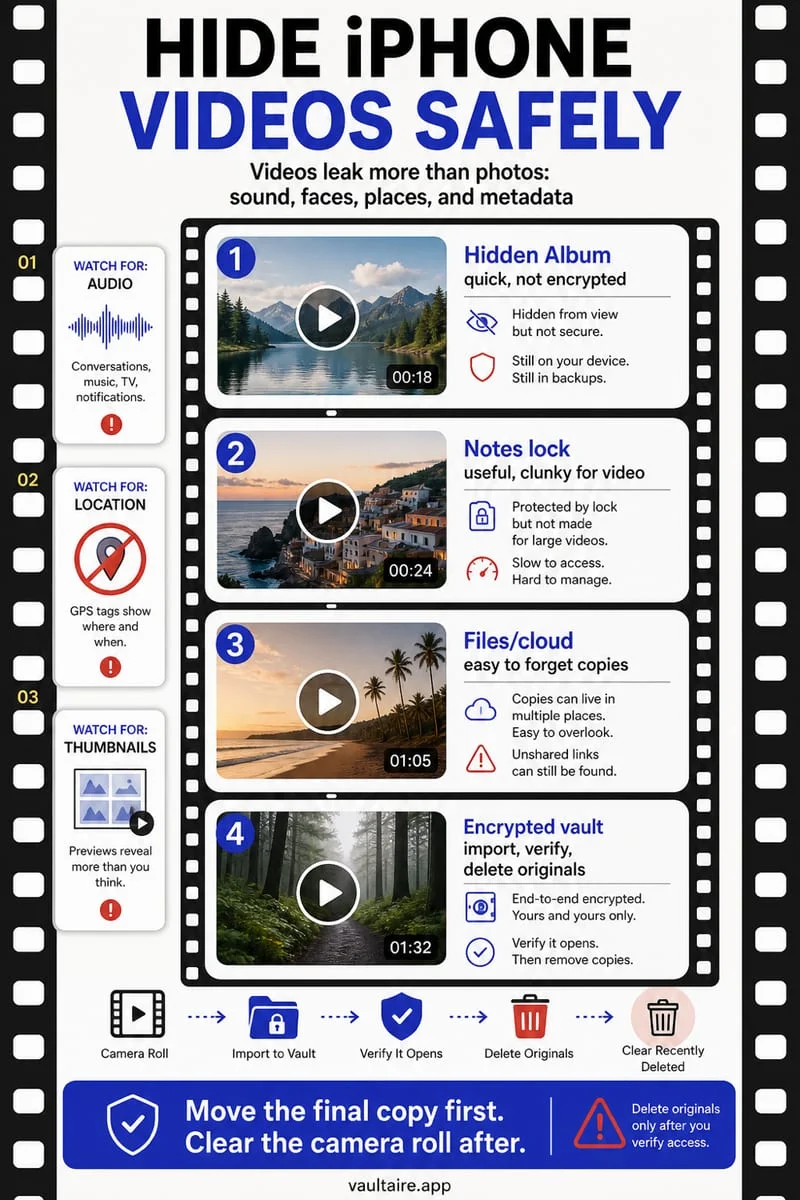
- Open Octoshield and unlock your vault with your PIN, Passphrase, 3×3 Pattern, or Safe-style Combination Dial (or optional Face ID / Touch ID).
- Tap Import inside the Photo Vault and select your videos—or open the Cleaner tab and swipe up on private videos to encrypt them into the vault.
- Wait for the 512 KB chunked AES-256-GCM encryption to complete and test video playback inside Octoshield.
- Confirm the iOS prompt to remove the original videos from Apple Photos.
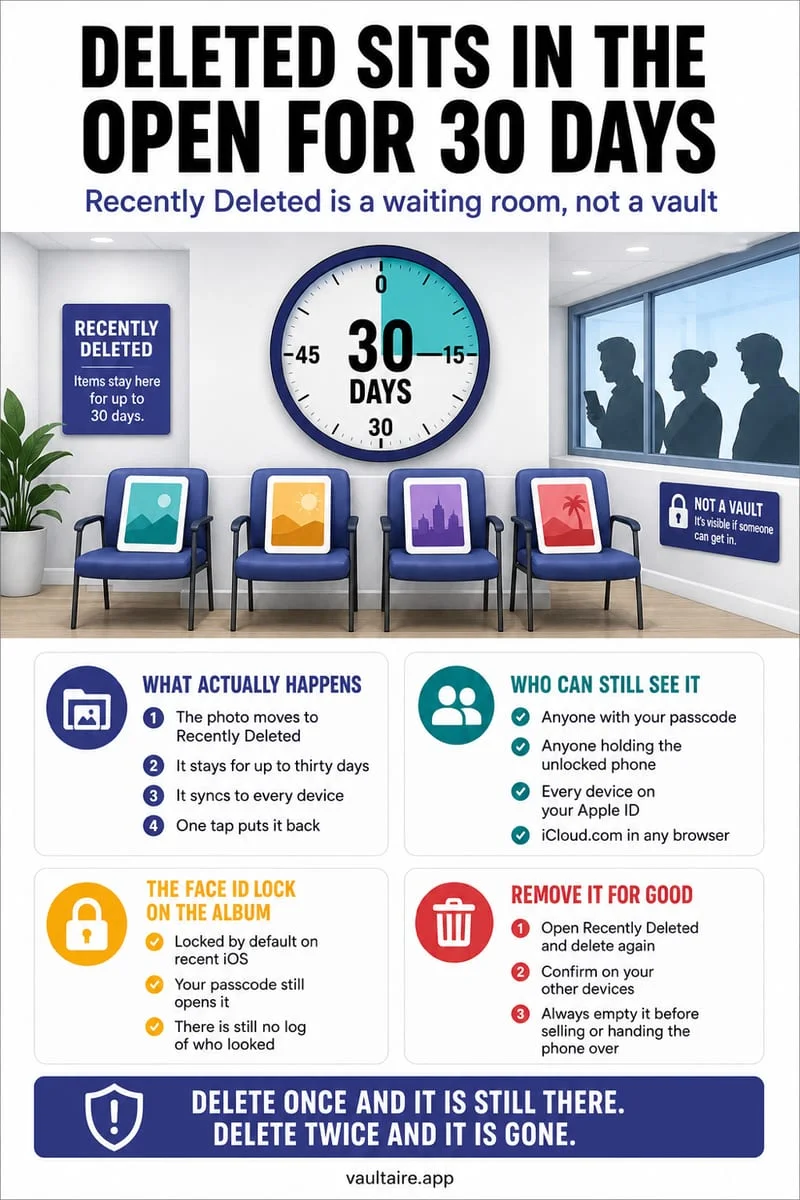
- Open Apple Photos → Collections → Utilities → Recently Deleted and tap Delete Permanently to free up storage and erase unencrypted copies.
Stop private videos from eating iCloud storage and syncing
High-resolution iPhone videos are almost always the largest files on your device—a single three-minute 4K 60fps clip can exceed 1.2 GB. When you leave private videos inside Apple's Hidden album with iCloud Photos active, they quietly consume gigabytes of your paid iCloud storage plan and upload over Wi-Fi or cellular data.
Because Octoshield stores encrypted videos strictly locally on your iPhone and excludes its vault container from iCloud and computer backups, moving large private videos into Octoshield and permanently deleting the originals from Apple Photos (including Recently Deleted) removes them from iCloud completely. Just remember that because Octoshield has no cloud servers or recovery service, you must manually export important videos before trading in or resetting your iPhone.
| Feature | Apple Photos Hidden Album | Basic App Store Video Lockers | Octoshield Photo Vault |
|---|---|---|---|
| Video Encryption Architecture | Standard iOS storage (no separate key) | Often unencrypted `.mov` files behind a PIN screen | AES-256-GCM in 512 KB chunks + HKDF-SHA256 keys |
| Thumbnail & Scrubber Previews | Stored in standard Photos cache | Often left as plaintext JPEGs in sandbox | Encrypted separately with per-thumbnail keys |
| Separate Lock from iPhone Passcode? | No (falls back to iPhone passcode) | Yes (usually basic PIN only) | Yes (PIN, Passphrase, 3×3 Pattern, Safe Dial) |
| Uses iCloud Storage Quota? | Yes (when iCloud Photos is on) | Often pushes paid cloud subscriptions | No (100% local, excluded from iCloud backups) |
Preventing accidental video leaks: Scrubbing previews, AirPlay, and Live Photos
Videos create unique privacy hazards on iOS that static photos do not. First, whenever a video resides in Apple Photos, iOS generates multiple poster frames and timeline scrubber sprite sheets so the video previews smoothly when you drag your finger across the timeline. Second, Apple's native video player places an AirPlay / Screen Mirroring icon right inside playback controls, where one accidental thumb tap can cast a private video to a living-room smart TV on the same Wi-Fi network.
Third, many users forget that Live Photos are actually hybrid containers holding both a high-resolution HEIC image and a 3-second `.mov` video clip with ambient audio. Even if a still frame looks harmless, pressing and holding a Live Photo in your camera roll can play back three seconds of private audio or motion. Encrypting both videos and sensitive Live Photos inside Octoshield keeps their audio tracks, poster frames, and video chunks sealed inside local ciphertext.
Frequently asked questions
01Why is my iPhone storage still full after importing videos into a vault?+
Importing a video into Octoshield creates a separate AES-256-GCM encrypted copy inside the vault sandbox. Until you delete the original video from Apple Photos AND permanently purge it from Collections → Utilities → Recently Deleted, your iPhone holds both the unencrypted original and the encrypted vault copy.
02Do hidden videos show up when I connect my iPhone to a Mac or Windows PC?+
Videos inside Octoshield's encrypted vault are stored as 512 KB AES-256-GCM ciphertext blocks inside sandboxed app storage and never appear as playable media files when your iPhone is plugged into a computer.
03Does Apple's Locked Notes app work well for hiding long videos?+
No. Apple Notes restricts or blocks locking on notes that contain video attachments, making it unusable for locking private video clips on iPhone.
04Does encrypting a 4K 60fps video in Octoshield reduce its video quality or frame rate?+
No. Octoshield encrypts the exact bitstream of your video in 512 KB AES-256-GCM chunks without transcoding or compressing the video, so resolution, HDR metadata, and frame rate remain 100% identical to the original.
05What happens if I leave a private video in Apple Photos' Recently Deleted album?+
Any video sitting in Recently Deleted remains viewable and restorable for up to 30 days by anyone who knows your iPhone unlock passcode—and continues syncing across your iCloud Photos devices until permanently deleted.
Official sources & further reading
Lock your private photos behind real AES-256-GCM encryption.
Stop relying on a Hidden album that shares your iPhone lock-screen passcode. Import private photos and videos into Octoshield’s device-bound local vault with your own PIN, passphrase, 3×3 pattern, or safe combination dial.
- AES-256-GCM authenticated encryption in 512 KB chunks
- Encrypted thumbnails & filename catalog index at rest
- 4 lock styles: PIN, Passphrase, 3×3 Pattern, or Safe Dial + Face ID
- 100% on-device storage — zero cloud servers, zero ad SDKs
 AES-256-GCM + Cleaner
LOCAL IPHONE SANDBOX · KEYCHAIN BOUND
iOS menus can vary slightly by iOS version. Octoshield instructions describe the current local app implementation engineered by TengrX. Check the App Store listing for the version available to download.