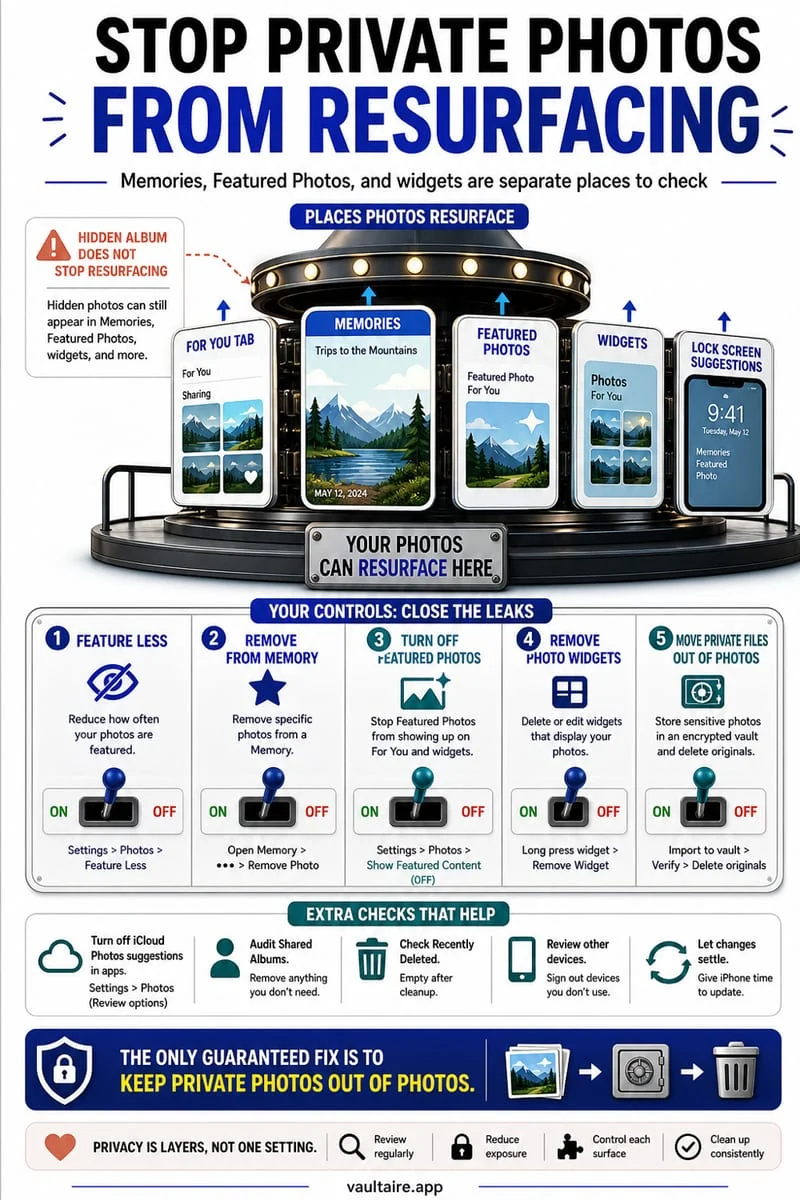
Use Photos’ People & Pets or search to find the person, review the results, select the pictures you want, and choose Hide. Check the selection because face recognition can miss images or include the wrong person. Reducing a person’s featured suggestions is different from hiding their photos from the library.
Keep the memories without seeing them in every scroll
After a breakup or another life change, you may want pictures out of everyday view without deciding to erase them. Start by choosing the scope: fewer automatic reminders, removal from the main grid, or a separately locked private copy.
Those goals use different controls. A featured-content preference can reduce reminders without hiding the underlying images. Moving selected images to Hidden affects library presentation but still keeps them inside Photos and its sync settings.
Review recognition results before applying a bulk action
Open the person’s collection under People & Pets or search for them. Review the visible matches and select the images you actually want to hide. Inspect group photos as well: some may be memories you prefer to keep visible even though the person is in them.
Recognition is not a guarantee that every relevant photo was found. Distant faces, screenshots, and pictures with no visible face can remain elsewhere. Check important date ranges and events manually instead of treating one person collection as a complete inventory.
- Choose whether you want fewer reminders, hidden items, or separate private storage.
- Open the person’s collection or search results.
- Review and select the intended photos, then choose Hide.
- Check other relevant events and dates for missed pictures.
Keep the decision reversible when preservation matters
Hidden is different from Delete. You can authenticate to the Hidden collection and unhide retained pictures later. If you use iCloud Photos, the hidden status follows the synced library rather than being a change for only this device.
Do not use Recently Deleted as a long-term place to keep memories you may want. Its recovery period expires. If preservation is the priority, use a retained copy or verified independent archive rather than an expiring deletion state.
Store selected personal memories in Octoshield
Octoshield can hold imported private photos outside the ordinary Photos library behind a separate secret. It does not identify faces or automatically collect every picture of a person; make that selection yourself before importing.
Verify imports before handling originals. Its device-local vault is excluded from backups and has no recovery service, so keep independent copies of memories you cannot replace.
Frequently asked questions
01Does featuring someone less hide all their pictures?+
No. Reducing featured suggestions and hiding selected library items are different operations.
02Can I trust a person collection to include every image?+
No. Review recognition results and inspect relevant events manually for missed or incorrectly matched photos.
Official sources & further reading
Lock your private photos behind real AES-256-GCM encryption.
Stop relying on a Hidden album that shares your iPhone lock-screen passcode. Import private photos and videos into Octoshield’s device-bound local vault with your own PIN, passphrase, 3×3 pattern, or safe combination dial.
- AES-256-GCM authenticated encryption in 512 KB chunks
- Encrypted thumbnails & filename catalog index at rest
- 4 lock styles: PIN, Passphrase, 3×3 Pattern, or Safe Dial + Face ID
- 100% on-device storage — zero cloud servers, zero ad SDKs
 AES-256-GCM + Cleaner
LOCAL IPHONE SANDBOX · KEYCHAIN BOUND
iOS menus can vary slightly by iOS version. Octoshield instructions describe the current local app implementation engineered by TengrX. Check the App Store listing for the version available to download.