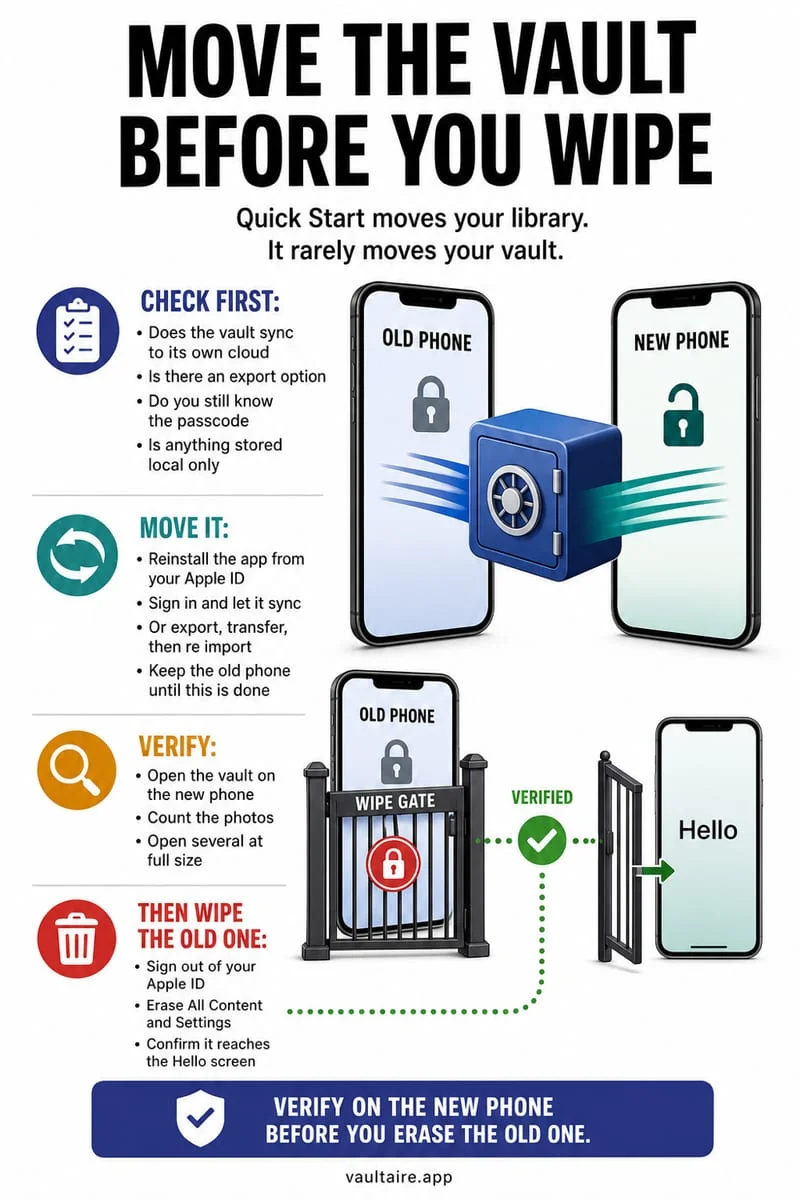
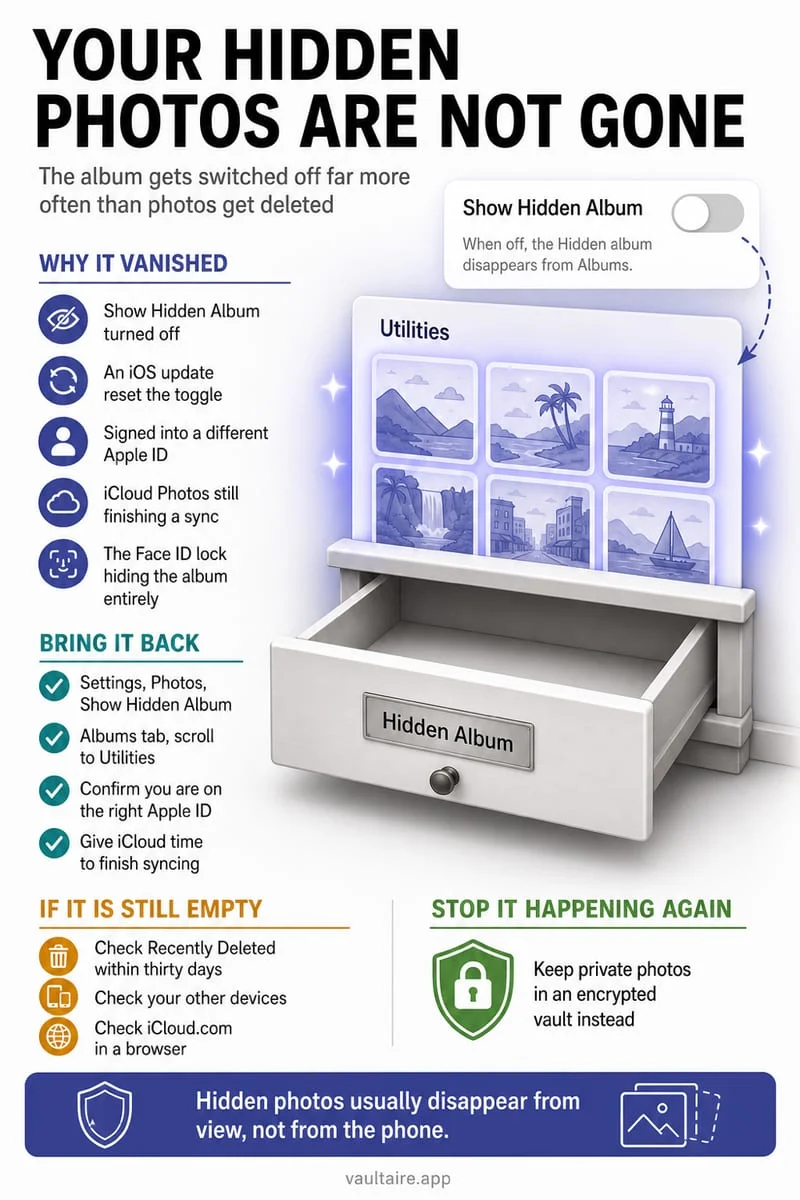
Hidden items in Apple Photos remain part of your library and can appear on a new iPhone through the same iCloud Photos account after sync. Verify the Hidden collection and its display setting on the new phone. Third-party vaults have separate transfer rules; Octoshield’s local vault is excluded from backups and requires deliberate export before a device change.
“Hidden photos” can describe two different storage systems
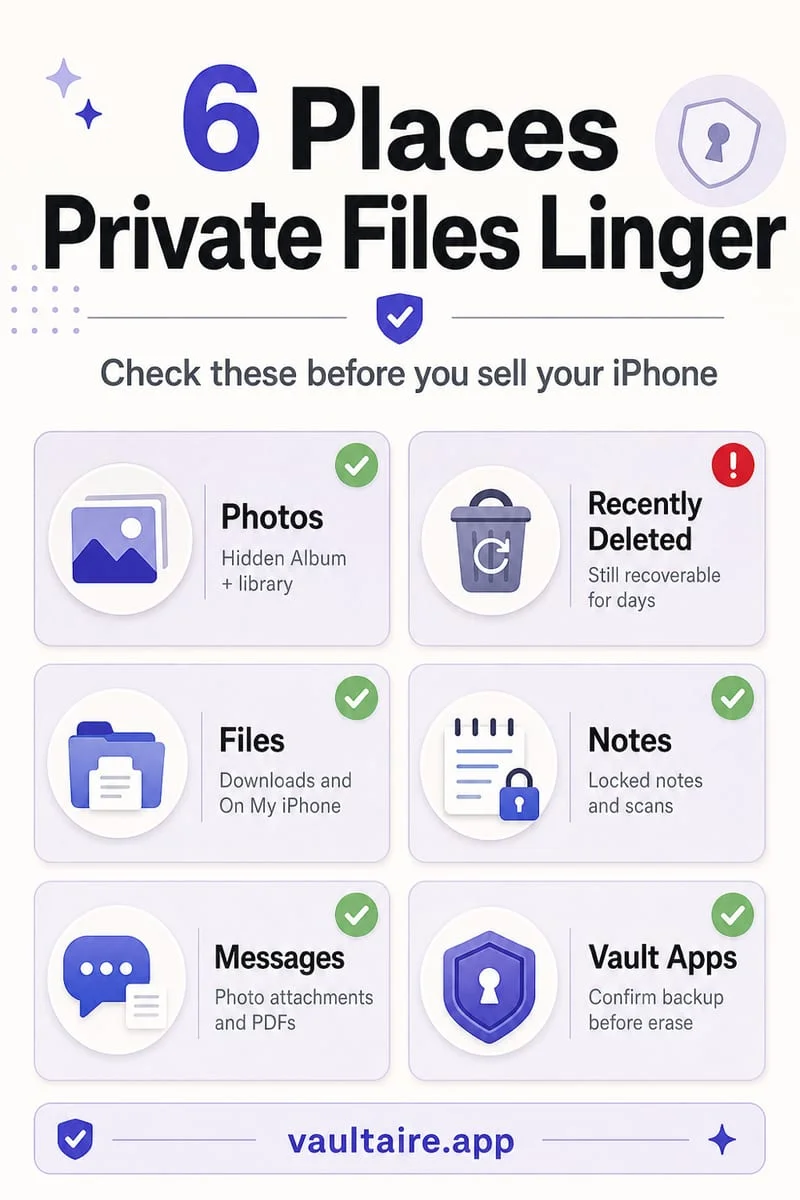
Before trading in your phone, determine whether the pictures are in Apple Photos’ Hidden collection or inside a separate vault app. The fact that both require authentication does not mean they share a migration route.
Apple Photos Hidden items still belong to the Photos library. A vault may store independent app-private files with its own backup exclusions and device-bound keys. Check that app’s transfer instructions rather than assuming Quick Start or a general backup will carry everything.
Verify the Photos library on both phones
For iCloud Photos, confirm the old phone has completed synchronization and the new phone uses the intended Apple Account. Let the new library load, enable Show Hidden Album if necessary, and authenticate to inspect the hidden pictures.
If you do not use iCloud Photos, review the particular transfer or backup method you plan to use. Do not erase the old phone based on a familiar item count alone. Open representative photos and clips on the new phone, including the private ones you care about.
- Identify Apple Hidden items versus third-party vault files.
- Confirm the intended account and completed library sync or transfer.
- Open Hidden on the new phone and verify representative items.
- Keep the old phone until private and ordinary files are both checked.
Test third-party vault recovery before you need it
Look for explicit device-transfer instructions, not only a backup badge. Some vaults use accounts, some offer export packages, and others depend on the original device. A forgotten secret may have no recovery route.
Exporting for migration can create readable temporary files in Photos or Files. Choose the temporary destination deliberately and clean it up only after the new protected copy and independent preservation copies are verified.
Export Octoshield files before changing devices
Octoshield’s vault is local, device-bound, and excluded from iCloud and computer backups. While you still have the old phone and secret, export essential files, verify them, and import them into the new phone’s vault if you continue using the app.
Do not erase or trade in the old device before checking the destination. There is no recovery server holding another copy of the vault.
Frequently asked questions
01Why is Hidden missing on the new phone?+
Check the Photos layout, Show Hidden Album setting, intended Apple Account, and sync status before concluding the photos are lost.
02Does an iCloud backup contain Octoshield’s vault?+
No. The current vault is excluded from backups. Export essential files while you still have the old device and can unlock it.
Official sources & further reading
Lock your private photos behind real AES-256-GCM encryption.
Stop relying on a Hidden album that shares your iPhone lock-screen passcode. Import private photos and videos into Octoshield’s device-bound local vault with your own PIN, passphrase, 3×3 pattern, or safe combination dial.
- AES-256-GCM authenticated encryption in 512 KB chunks
- Encrypted thumbnails & filename catalog index at rest
- 4 lock styles: PIN, Passphrase, 3×3 Pattern, or Safe Dial + Face ID
- 100% on-device storage — zero cloud servers, zero ad SDKs
 AES-256-GCM + Cleaner
LOCAL IPHONE SANDBOX · KEYCHAIN BOUND
iOS menus can vary slightly by iOS version. Octoshield instructions describe the current local app implementation engineered by TengrX. Check the App Store listing for the version available to download.