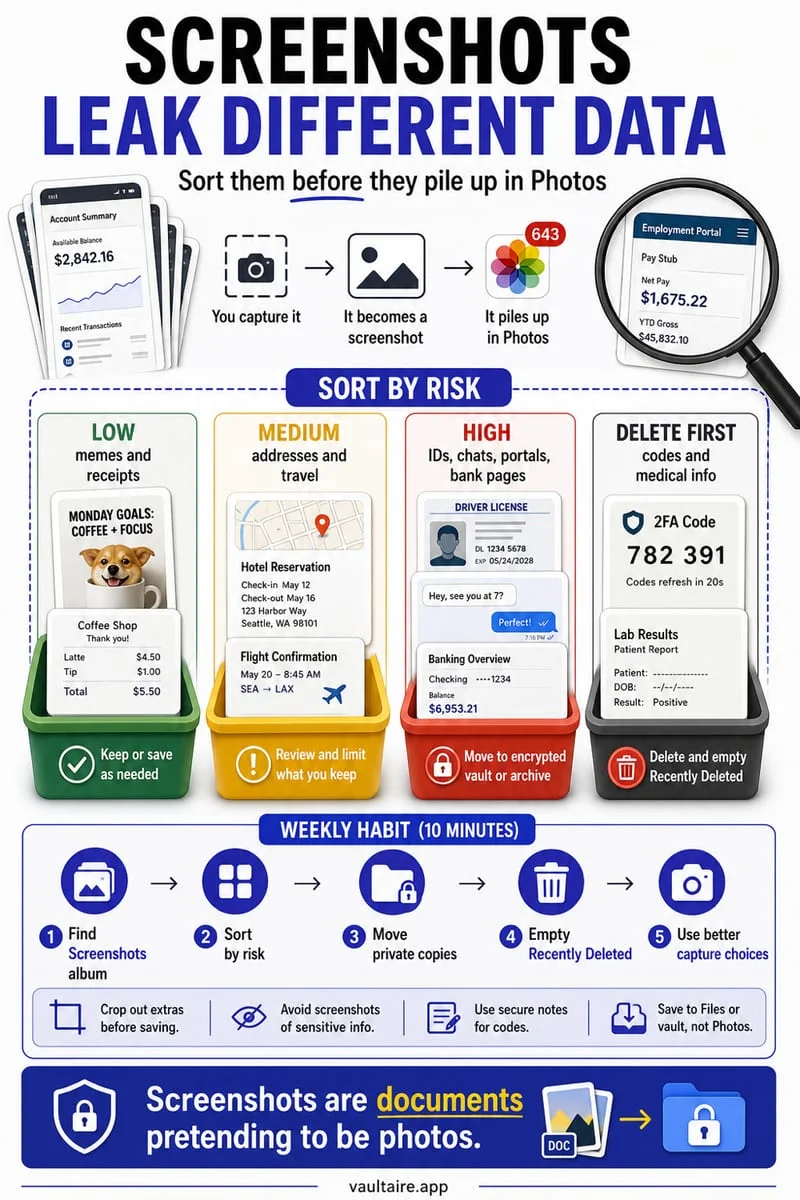
Open Photos, find Screenshots under Media Types, and select the screenshots you no longer need. Review receipts, tickets, and reference images before tapping Delete. With iCloud Photos on, deletion syncs to your other devices; deleted items then remain in Recently Deleted for a limited recovery period.
Start in Screenshots, not in your entire camera roll
The screenshot you took to remember a parking level has a short life. A screenshot of an important transaction may need to stay much longer. The Screenshots collection puts both together, so treat it as a review list rather than a basket of disposable files.
Open Photos and find Screenshots under Media Types; the exact placement depends on your layout. Temporarily hiding screenshots through View Options only filters the library view. It does not delete files, reclaim their space, or protect their contents.
Make three decisions: keep, protect, or remove
Keep images you still use, set aside sensitive references for private storage, and select only the remainder for deletion. Open small text at full size. A boarding pass might be expired, but a purchase confirmation can still contain details you need.
If you copy a screenshot elsewhere, verify that the new copy is readable. Screenshots frequently contain addresses, account balances, or private conversations, so saving them to an unprotected shared folder can create a new privacy problem.
- Open a screenshot and decide whether it has continuing value.
- Verify a separate copy for any record you intend to retain elsewhere.
- Select unwanted screenshots and confirm the Photos deletion prompt.
Check what changed after deletion
Do not promise yourself a particular number of gigabytes from a screenshot count. File sizes vary, and a handful of long videos may occupy more space than hundreds of screenshots. Check the storage breakdown after your cleanup.
Recently Deleted remains your recovery path for accidental choices. Permanently emptying it removes that fallback. If you do not need immediate space, keeping the recovery window can be more useful than rushing to erase everything.
Continue the photo review with Octoshield
For a mixed camera roll, Octoshield lets you review photos one card at a time. Left queues deletion, right keeps, and up creates an encrypted vault copy while queuing the original. Inspect the queue and confirm before anything is removed from Photos.
Cleaner uses random review batches; it does not promise a dedicated screenshot filter or automatic detection of private text. You remain responsible for the decision about each picture.
Frequently asked questions
01Does hiding screenshots delete them?+
No. A view filter changes what the grid displays. Actual deletion is a separate action.
02Will deleting screenshots remove them from iCloud?+
If they are in your synced iCloud Photos library, deleting them also affects that library and other synced devices.
Official sources & further reading
Clean your iPhone camera roll one swipe card at a time.
Review cluttered photo batches without grid fatigue: swipe left to queue unwanted shots for deletion, swipe right to keep memories in Apple Photos, or swipe up to encrypt private photos straight into your vault.
- Tactile 3-way card review: Left delete, Right keep, Up vault
- Safe review queue + instant Undo before iOS removes anything
- Built-in AES-256-GCM encrypted photo, video & file vault
- 100% local processing on your iPhone — free to download
 AES-256-GCM + Cleaner
LOCAL IPHONE SANDBOX · KEYCHAIN BOUND
iOS menus can vary slightly by iOS version. Octoshield instructions describe the current local app implementation engineered by TengrX. Check the App Store listing for the version available to download.