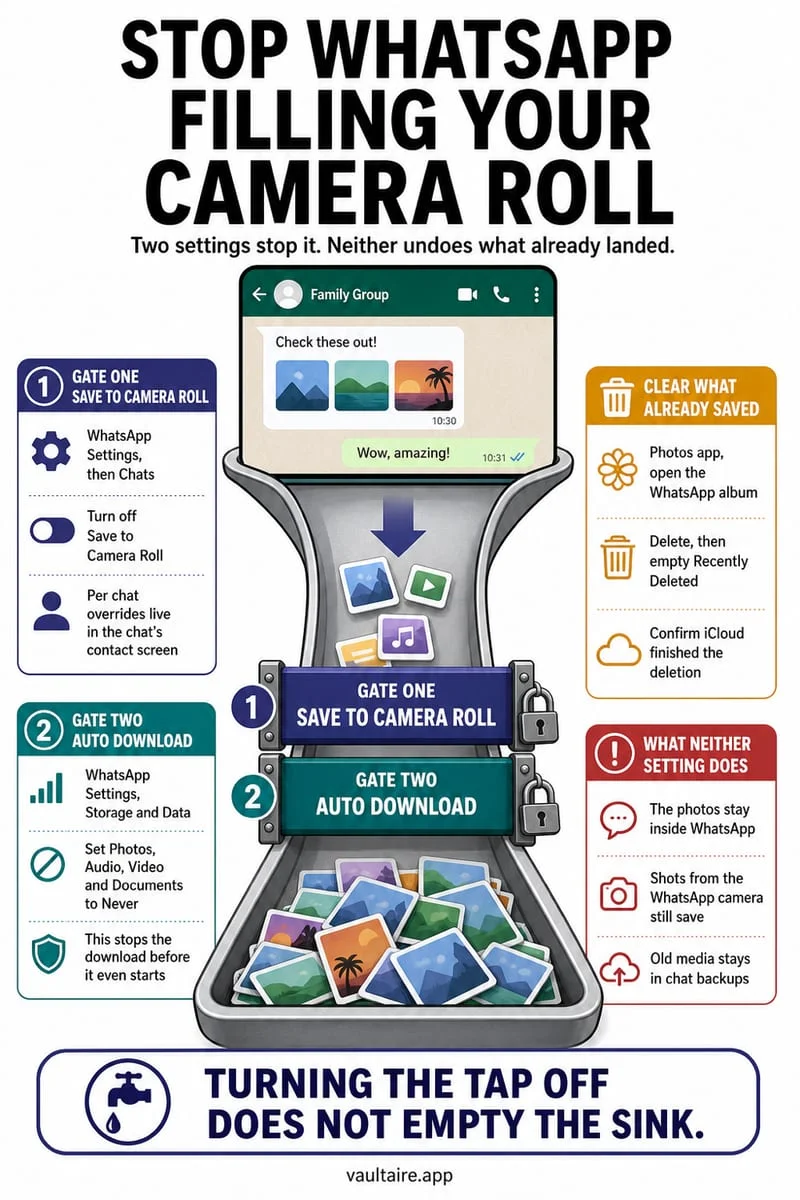
Open WhatsApp on your iPhone, go to Settings → Chats, and toggle off Save to Photos (formerly Save to Camera Roll). You can also override this setting for individual chats or noisy family groups by tapping the chat name → Save to Photos → Never.
Disable automatic Camera Roll saving in WhatsApp Settings
By default, WhatsApp for iOS automatically exports a duplicate copy of every incoming photo and video from your private and group chats straight into your iPhone's main Apple Photos library. If you belong to active family, school, neighborhood, or work group chats, this single toggle rapidly floods your Camera Roll with hundreds of forwarded memes, flyers, food pictures, and random video clips.
Worse still, if you have iCloud Photos enabled on your iPhone, every forwarded meme saved by WhatsApp is immediately uploaded to your paid iCloud+ storage and synced across your Mac and iPad. Turning off Save to Photos inside WhatsApp does not delete media from your chat history—you can still view every picture inside the conversation thread and manually save the rare photo you actually want to keep.
- Open WhatsApp on your iPhone and tap the Settings gear icon in the bottom-right corner.
- Tap Chats.
- Toggle off Save to Photos (labeled Save to Camera Roll on older versions).
- To keep Save to Photos on globally while muting a noisy group chat (or vice versa), open that specific chat, tap the group or contact name at the top, tap Save to Photos, and choose Never (or Always).
Stop WhatsApp from downloading media inside the app itself
Many iPhone users are surprised to find that even after turning off Save to Photos, WhatsApp still consumes 15 GB to 50 GB of local iPhone storage. That happens because WhatsApp maintains its own internal media cache inside its app sandbox, separate from the Apple Photos library.
You can stop WhatsApp from pre-fetching every video and image in the background—and purge the largest cached chat attachments—using WhatsApp's Storage and Data settings.
- In WhatsApp Settings, tap Storage and Data.
- Under Media Auto-Download, tap Photos, Audio, Video, and Documents one by one and set them to Never (or Wi-Fi only) so media only downloads when you tap it in a chat.
- Tap Manage Storage at the top of the Storage and Data screen to review files larger than 5 MB and bulk-delete cached videos from noisy group threads.
How WhatsApp's two storage layers affect your iPhone and iCloud
Because WhatsApp stores media in two different places when default settings are active—once inside the WhatsApp app container and once exported to the iOS Photos app—understanding what each setting controls prevents you from accidentally deleting a cherished chat photo or wasting gigabytes of duplicate storage.
| WhatsApp Setting / Action | Affects Apple Photos & iCloud Photos? | Affects WhatsApp In-Chat Media & WhatsApp Backup? |
|---|---|---|
| Chats → Save to Photos (Off) | Stops WhatsApp from exporting new copies into your Camera Roll | No change — images still appear inside the WhatsApp chat thread |
| Storage and Data → Media Auto-Download (Never) | Prevents auto-saving until you manually tap to download | Stops background downloading into WhatsApp's internal storage |
| Deleting a WhatsApp photo in Apple Photos (or Octoshield Cleaner) | Frees up Camera Roll & iCloud Photos space (once Recently Deleted is emptied) | Does NOT delete the image from the WhatsApp conversation |
| Storage and Data → Manage Storage (Delete in WhatsApp) | Does NOT remove copies already exported to Apple Photos | Deletes the media from the WhatsApp chat and WhatsApp iCloud backup |
Swipe through and clean existing WhatsApp clutter in Photos
Turning off Save to Photos stops future clutter, but it does not remove the thousands of WhatsApp images and videos already mixed into your iPhone Camera Roll over the past few years. Trying to squint at tiny thumbnails in the Photos grid to separate forwarded memes from real family memories—or private photos sent by a partner—takes hours.
With Octoshield's Cleaner (built by TengrX), you can review your photo library one full-screen card at a time: swipe left to queue unwanted WhatsApp junk for deletion, swipe right to keep real memories in Photos, or swipe up to move private chat images into Octoshield's AES-256-GCM encrypted vault and queue the Camera Roll original for removal. Nothing is deleted from your iPhone until you inspect your deletion queue and approve the official iOS system deletion prompt.
- Open Octoshield and select the Cleaner tab to start reviewing your Camera Roll full-screen.
- Swipe left on forwarded WhatsApp memes, receipts, and clutter to add them to the deletion queue, or swipe right to keep items in Photos.
- Swipe up on any sensitive or private image you want encrypted inside your local vault (using AES-256-GCM in 512 KB chunks) and queued for removal from the Camera Roll.
- Review your deletion queue, confirm the iOS system deletion dialog, and empty Photos → Collections → Utilities → Recently Deleted to reclaim gigabytes immediately.
Frequently asked questions
01If I delete a WhatsApp photo from the iPhone Photos app, is it deleted from the WhatsApp chat?+
No. The copy saved to your iPhone Photos app is completely separate from WhatsApp's internal chat database. Deleting the duplicate from the Apple Photos app (or via Octoshield's Cleaner) cleans up your Camera Roll and iCloud Photos without removing the picture from the WhatsApp conversation.
02Is there a separate WhatsApp album in the iPhone Photos app?+
Yes, when Save to Photos has been active, WhatsApp creates a 'WhatsApp' album inside the Apple Photos app. However, deleting the album itself only removes the album tag—not the underlying photos. To actually free up storage, you must delete the photos themselves or swipe through them in Octoshield's Cleaner.
03Does Octoshield Cleaner upload my photos to a server to sort them?+
No. Octoshield runs 100% locally on your iPhone with no user account, no cloud server, and no background uploading. Your photos never leave your device during cleanup or vault encryption.
04How do I manually save a single photo from WhatsApp after turning off Save to Photos?+
Tap the photo inside the WhatsApp chat to view it full-screen, tap the Share icon in the bottom-left corner, and tap Save. Only that specific picture will be added to your iPhone Camera Roll.
05Can I keep WhatsApp photos hidden from my Camera Roll with a separate password?+
Yes. If someone sends you sensitive documents or personal photos on WhatsApp, you can import them into Octoshield (or swipe up on them in Octoshield's Cleaner) to encrypt them with AES-256-GCM behind a separate PIN, passphrase, 3×3 pattern, or combination dial, and then delete the unencrypted copies from both Photos and the WhatsApp chat.
Official sources & further reading
Clean your iPhone camera roll one swipe card at a time.
Review cluttered photo batches without grid fatigue: swipe left to queue unwanted shots for deletion, swipe right to keep memories in Apple Photos, or swipe up to encrypt private photos straight into your vault.
- Tactile 3-way card review: Left delete, Right keep, Up vault
- Safe review queue + instant Undo before iOS removes anything
- Built-in AES-256-GCM encrypted photo, video & file vault
- 100% local processing on your iPhone — free to download
 AES-256-GCM + Cleaner
LOCAL IPHONE SANDBOX · KEYCHAIN BOUND
iOS menus can vary slightly by iOS version. Octoshield instructions describe the current local app implementation engineered by TengrX. Check the App Store listing for the version available to download.